
App Won't Open After an Update? Fix the Right Cause
A failed launch immediately after an update is a clue, not a diagnosis. The update may have affected the app, its runtime, a driver, permissions, or Windows itself. Start with the smallest reversible test.
Quick answer
Restart once, record the exact message and update date, and check whether only one app fails. Repair or reinstall that app from its publisher first. Use GiliSoft Total Repair for a matching Application Error, DLL, .NET, Visual C++, or system check only when the evidence points there.
Before You Change Anything
- Save open work and keep any app settings, license details, and project files before resetting or reinstalling.
- Note whether the change was a Windows update, a driver update, or the app's own update.
- Take a screenshot of the error code or missing component name; do not download a random DLL from the web.
Match the Symptom to the Next Check
| Symptom | First route | Check |
|---|---|---|
| Only one desktop app fails | Repair or reinstall that app from its publisher | Other apps still launch normally |
| Microsoft Store app fails | Use its supported Repair option first | App data remains available; Reset can remove it |
| Several apps fail with runtime errors | Check the named runtime and Windows components | Error message matches the component tested |
| System freezes or will not boot | Use Windows recovery or vendor support | Avoid treating it as a single-app fault |
Step-by-Step Troubleshooting
- Confirm the scope
Restart Windows, try another app, and note the exact time and error. Check whether the program appears briefly in Task Manager.
- Try the app-specific route
Check the publisher's known issue or update, then use Windows repair settings where offered or reinstall the app from its official installer.
- Check a named dependency
If the message names a Microsoft Visual C++, .NET, or DLL component, use the supported installer or GiliSoft Total Repair's matching repair category.
- Use Total Repair selectively
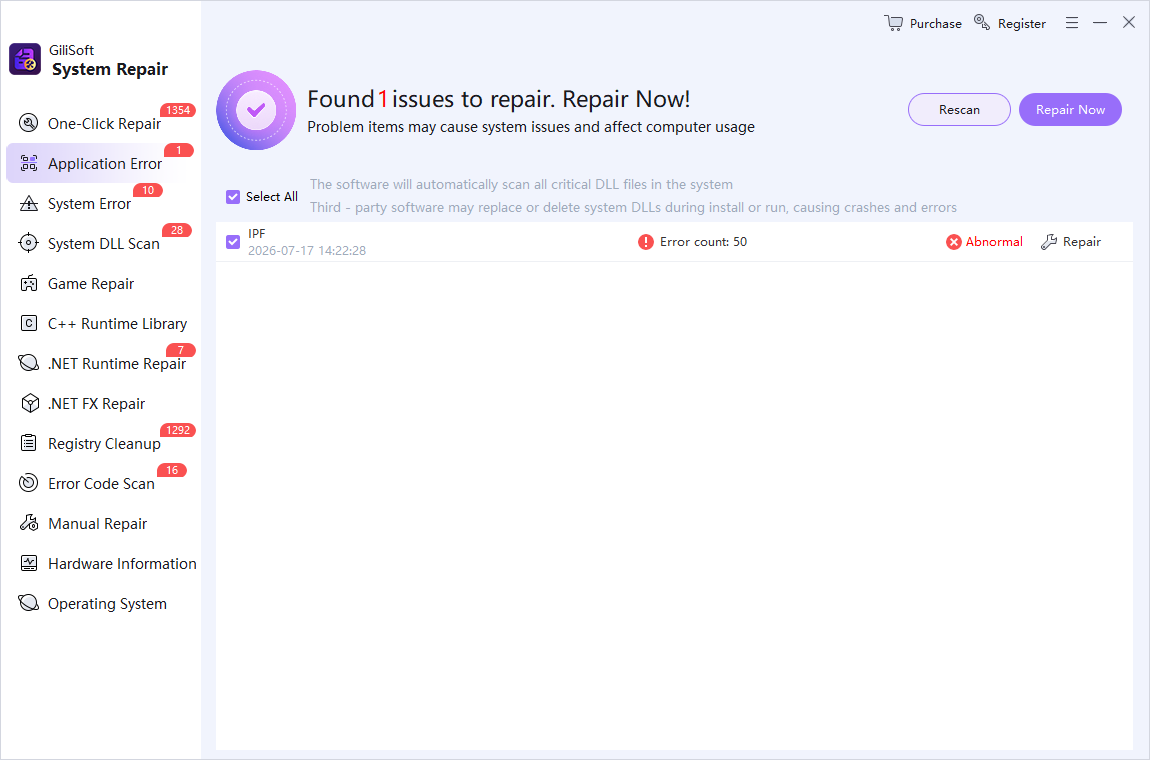
Open Application Error or the relevant runtime/DLL task, review detected findings, and apply only a repair tied to the observed symptom.
- Retest and record the result
Restart if prompted, reopen the app, and compare the original error. If a recent Windows update is implicated, consider Microsoft's supported recovery options.
Verify the Result
- Did the error message change, disappear, or recur?
- Are project files and app settings intact after any repair or reinstall?
- Do unrelated apps still work and is Windows stable after the change?
When to Stop General Repair
Total Repair cannot guarantee that every bad update is reversible. Do not remove shared DLLs, run broad registry changes, or install files from DLL download sites. If an update caused a system-wide boot problem, use Windows recovery guidance rather than repeated app repair.
Frequently Asked Questions
Should I uninstall the newest Windows update immediately?
Not as the first step for one failed app. Identify the update and use supported recovery only when evidence points to a Windows-wide regression.
Can Reset delete app data?
It can. Try Repair first where available and back up data before Reset or reinstall.
Why does the app still fail after reinstalling?
The failure may involve a shared runtime, driver, permissions, or damaged Windows component; capture the recurring message before further changes.
Should I download the missing DLL directly?
No. Obtain the app or official runtime from its publisher and investigate the actual dependency.