
How to Fix a Program That Won't Open on Windows
A program may do nothing, display an error, open and close immediately, or stop working after an update. Start by deciding whether the fault belongs to one application or affects Windows more broadly. That choice prevents unnecessary system-wide changes.
Quick answer
Restart Windows, end any stuck copy of the program in Task Manager, and launch it from its installed location. If only one app fails, use its publisher's update, Repair, Reset, or reinstall path. If several apps or Windows features fail, check updates and system components. GiliSoft Total Repair can then help inspect supported application-error, DLL, C++ runtime, .NET, and system repair categories.
Find Out Whether the Problem Is the App or Windows
| Symptom | Likely scope | Start here |
|---|---|---|
| One program fails; other apps work | App installation, settings, license, or compatibility | Update, Repair, Reset, or reinstall that app |
| Shortcut fails but executable opens | Broken shortcut or path | Create a new shortcut from the installed location |
| Program appears briefly in Task Manager | Crash, missing dependency, or security block | Record the error and check Reliability Monitor |
| Several programs and Windows features fail | System component or update problem | Check Windows Update, DISM, and SFC |
| Problem began after a driver or Windows update | Recent system change | Review the update and Windows recovery options |
Try the Safest Windows Fixes First
- Restart and close a stuck process.
Restart Windows. If the app still does not open, check Task Manager for an existing process, end it once, and try again.
- Check the publisher and the exact error.
Install a legitimate update from the software publisher and confirm that your Windows version and hardware are supported.
- Repair the app before resetting it.
For supported apps, open Settings > Apps > Installed apps > Advanced options. Try Repair first. Reset may remove app data and settings.
- Reinstall carefully.
Back up projects, presets, profiles, and activation details. Remove the damaged installation using its supported uninstaller, restart, and install a fresh trusted copy.
- Test compatibility or a clean boot.
Use the Program Compatibility troubleshooter for older software. A documented clean boot can isolate conflicts; record disabled items so normal startup can be restored.
Check Application Errors with GiliSoft Total Repair
When the problem points to damaged application dependencies or shared Windows components, open System Repair in GiliSoft Total Repair. Review the relevant category instead of selecting unrelated repairs.
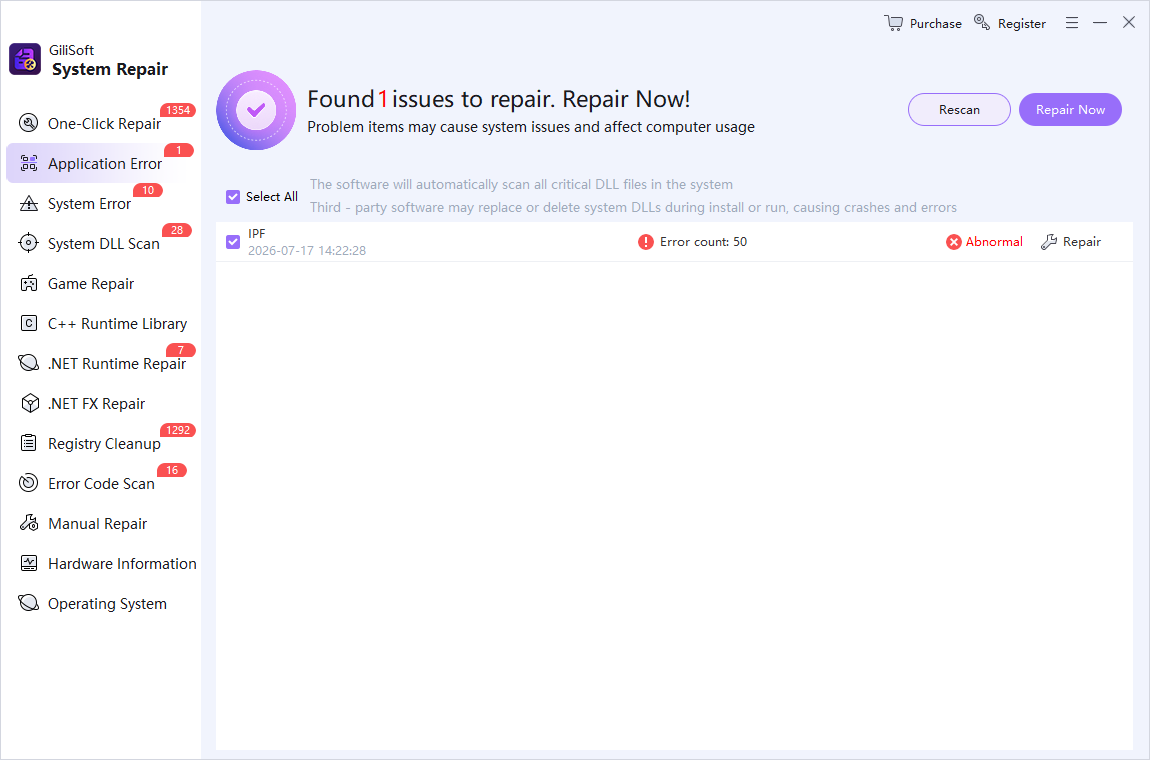
- Create a restore point and close active work.
Back up important files before making repair changes.
- Choose the narrowest relevant category.
Start with Application Error, then consider C++ Runtime, .NET, or System DLL only when the error points there.
- Scan and read the result.
Do not treat a large issue count as proof that every item caused the launch failure.
- Apply selected repairs.
Repair only the entries connected to the symptom and restart when requested.
- Test the original program.
If it still fails, return to the publisher's support path or collect the exact error for further diagnosis.
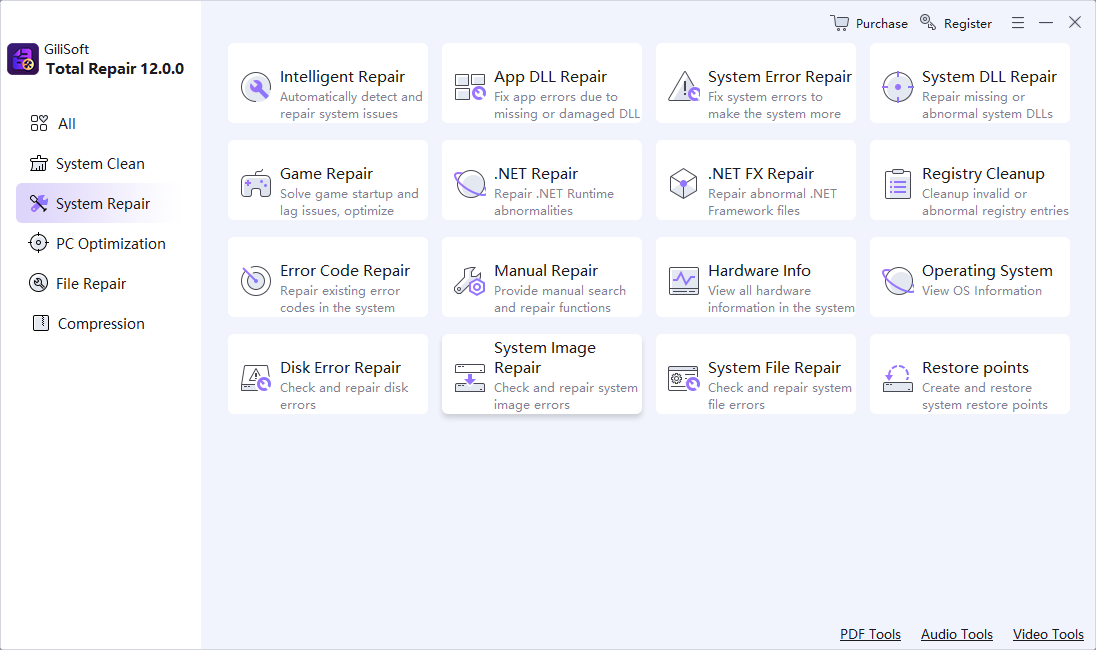
Repair Windows Components Only When the Scope Is Wider
If multiple apps or Windows features fail, install pending Windows updates and restart. Microsoft recommends running DISM before System File Checker when protected system files may be missing or corrupted:
DISM.exe /Online /Cleanup-image /Restorehealth
sfc /scannow
Let each command finish and read its final message. These tools repair Windows components; they do not repair an incompatible third-party program or restore its user data.
When to Stop General Repair Attempts
Stop repeating repairs if the application contains irreplaceable local data, the disk shows hardware warnings, security software reports a threat, or the program requires an unavailable license or server. Preserve the data and contact the software publisher or a qualified technician.
Program Won't Open FAQ
Why does nothing happen when I open a program?
The shortcut may be broken, the process may be stuck, security software may be blocking it, or the installation may be damaged. End an existing process in Task Manager, restart Windows, and launch the program from its installed location before using broader repairs.
Should I use Repair or Reset for an app?
Try Repair first when Windows offers it because Repair attempts to fix the app without deleting its data. Reset can remove app data and settings, so review what the app stores and back up anything important first.
Can compatibility mode fix an older program?
It can help some older desktop programs whose assumptions do not match the current Windows version. Use the Program Compatibility troubleshooter and test the result, but obtain a supported release from the publisher when one exists.
When should I run DISM and SFC?
Use system-file checks when several applications or Windows features fail, or when there is evidence of damaged Windows components. Microsoft recommends running DISM before SFC. They are not the first fix for one isolated third-party app.
Can GiliSoft Total Repair fix every program that will not open?
No. It can inspect supported application-error, DLL, runtime, and Windows repair categories, but it cannot fix unsupported software, missing licenses, malware, incompatible hardware, or publisher-side defects.
Will reinstalling the program delete my files?
It depends on the program. Back up project files, profiles, presets, activation details, and locally stored data before uninstalling or resetting an app. Confirm the publisher's instructions for that product.