

DLL Missing When Opening a Program? How to Fix It Safely
A missing DLL message names a file, but it does not identify the correct repair by itself. The DLL may belong to the application, a Microsoft runtime, a driver, or Windows, so determine ownership before changing anything.
Quick answer
Do not download the named DLL from an unknown file site. Restart Windows, record the complete error, then repair or reinstall the affected program from its official installer. Install supported Microsoft Visual C++ or .NET components only when the application requires them. If several apps or Windows features fail, run DISM before SFC.
Identify Who Owns the Missing DLL
| When the error appears | Likely owner | First response |
|---|---|---|
| Only one program fails | That app, plug-in, or bundled runtime | Repair or reinstall from the publisher |
| Several apps cite runtime DLLs | Microsoft Visual C++ or .NET dependency | Confirm the required supported runtime |
| Error began after antivirus quarantine | Removed or suspicious component | Review security history; do not blindly restore |
| Windows features also fail | Windows component corruption | Update Windows, then use DISM and SFC |
| Error follows a driver update | Hardware driver package | Use the device maker's supported driver path |
Repair the Affected Program First
- Capture the complete message.
Record the DLL name, program name, error code, and when the failure began.
- Restart and check for a stuck process.
A restart can complete an update or release a component still held by another process.
- Update from the software publisher.
Use the product's own updater or verified installer, not a third-party DLL collection.
- Try Repair before Reset.
Windows may offer Repair under Installed apps. Back up app data before Reset or reinstall.
- Reinstall matching architecture.
Use the correct supported 32-bit or 64-bit application package and retain license details.
Check Microsoft Runtimes Only When Required
Errors mentioning runtime families such as MSVCP, VCRUNTIME, or .NET may indicate a damaged or absent dependency. Confirm the application vendor's requirements, then install or repair the supported Microsoft package. Do not remove newer runtimes indiscriminately because different applications can require side-by-side versions.
Review DLL Categories with GiliSoft Total Repair
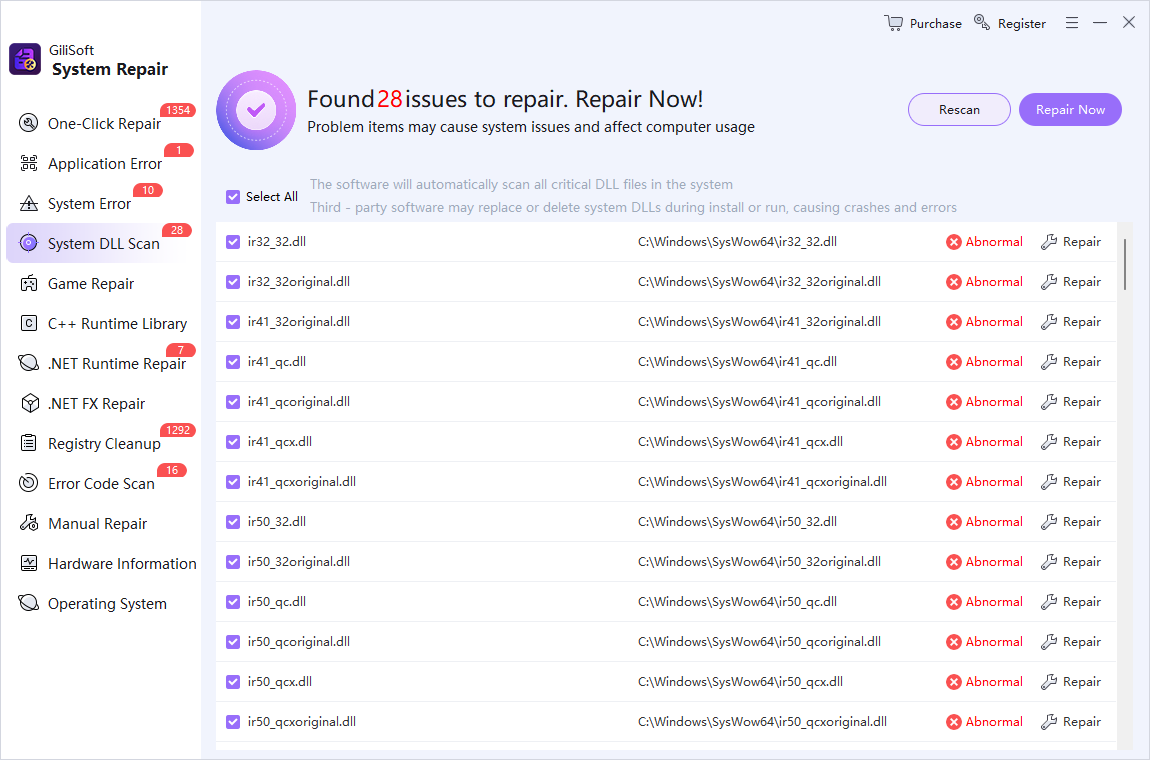
GiliSoft Total Repair groups supported System DLL, C++ Runtime, .NET, and Application Error checks under System Repair. Select the narrowest category that matches the recorded error.
- Create a restore point and close active work.
Preserve important data before system changes.
- Choose the relevant repair category.
Do not run unrelated repairs simply because they are available.
- Scan and inspect the result.
Compare detected items with the exact DLL and failing application.
- Apply selected fixes and restart.
Retest the original action after Windows starts again.
Use DISM and SFC for Wider Windows Damage
When multiple applications or Windows components fail, install pending updates and open an Administrator Command Prompt. Microsoft recommends this order:
DISM.exe /Online /Cleanup-image /Restorehealth
sfc /scannow
Read the final status. These tools repair supported Windows components; they do not supply proprietary DLLs belonging to a third-party app.
DLL Missing Error FAQ
Why is a DLL missing when I open one program?
The program installation may be incomplete, an update may have failed, security software may have quarantined a component, or a required runtime may be absent. Repair that program before making system-wide changes.
Can I download the missing DLL from a DLL website?
Do not use an unknown DLL download site. The file may be unsafe or incompatible. Restore it through the application publisher, Windows Update, a supported runtime installer, or Windows repair tools.
Should I copy a DLL from another computer?
Not as a routine fix. The other computer may have a different Windows build, architecture, language, patch level, or application version. Use a verified installer or documented repair source.
When should I run DISM and SFC?
Use them when multiple apps or Windows features fail or there is evidence of protected system-file damage. Microsoft recommends DISM before SFC.
Can Total Repair fix every missing DLL?
No. It can review supported DLL, runtime, application-error, and Windows repair categories. Proprietary app files, unsupported software, malware damage, or hardware faults can require another path.
What if the DLL error returns after reinstalling?
Record the exact message and check application logs, security history, required runtimes, architecture, drivers, and Windows updates. Contact the software publisher when the DLL belongs to that product.