

Can You Password Protect a Folder on an External Drive?
An external drive can hold backups, client documents, family photos, project files, or portable work data. These uses do not all need the same protection. A folder locker controls selected content; BitLocker To Go and encrypted macOS formats protect an entire removable volume; VeraCrypt can create a separate encrypted container; and an encrypted archive is useful for a small set of files.
Compare External Drive Folder-Lock Methods
| Method | Protects | Best for | Important trade-off |
|---|---|---|---|
| GiliSoft File Lock Pro | Selected files, folders, or drives | Fast local locking and hiding on Windows | Install File Lock Pro on the Windows PC used to manage access |
| BitLocker To Go | Whole removable volume | Windows external hard drives, USB drives, and SD cards | Recovery key management is essential |
| macOS Disk Utility | Whole external volume | Mac-only encrypted storage | Creating an encrypted format erases the device first |
| VeraCrypt container | A virtual encrypted volume stored as a file | Portable encrypted vaults and mixed storage | Files must be moved into the mounted container |
| Encrypted archive | Selected copied files | Small handoff packages and occasional sharing | Updates require reopening or rebuilding the archive |
Lock or Hide External-Drive Folders with File Lock Pro
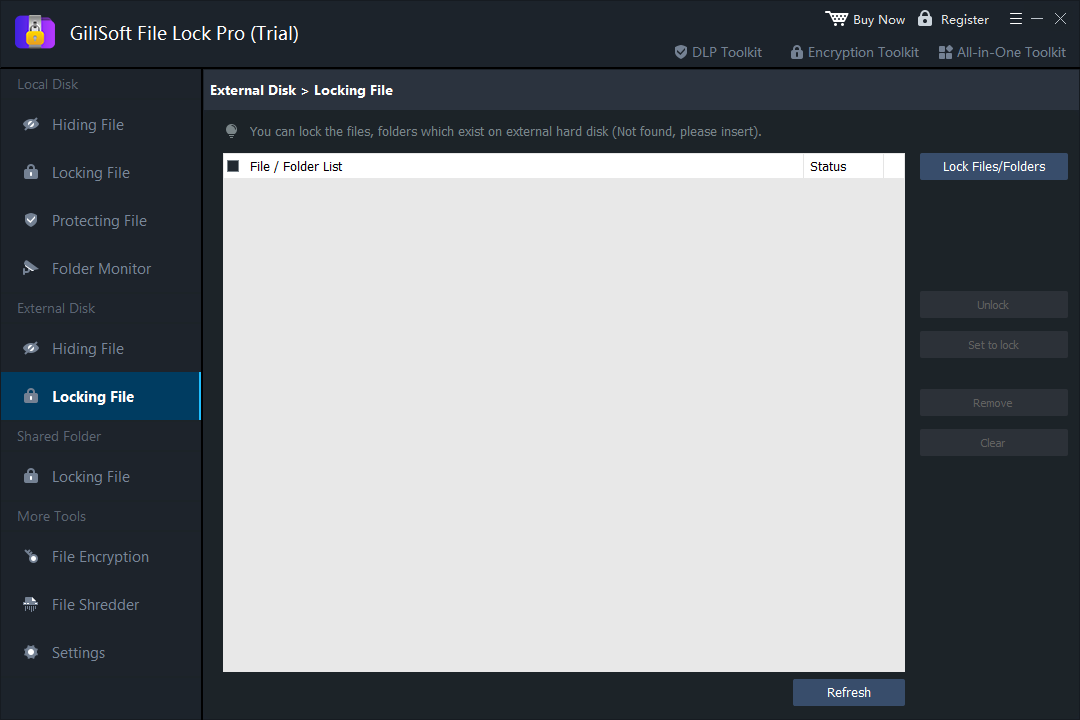
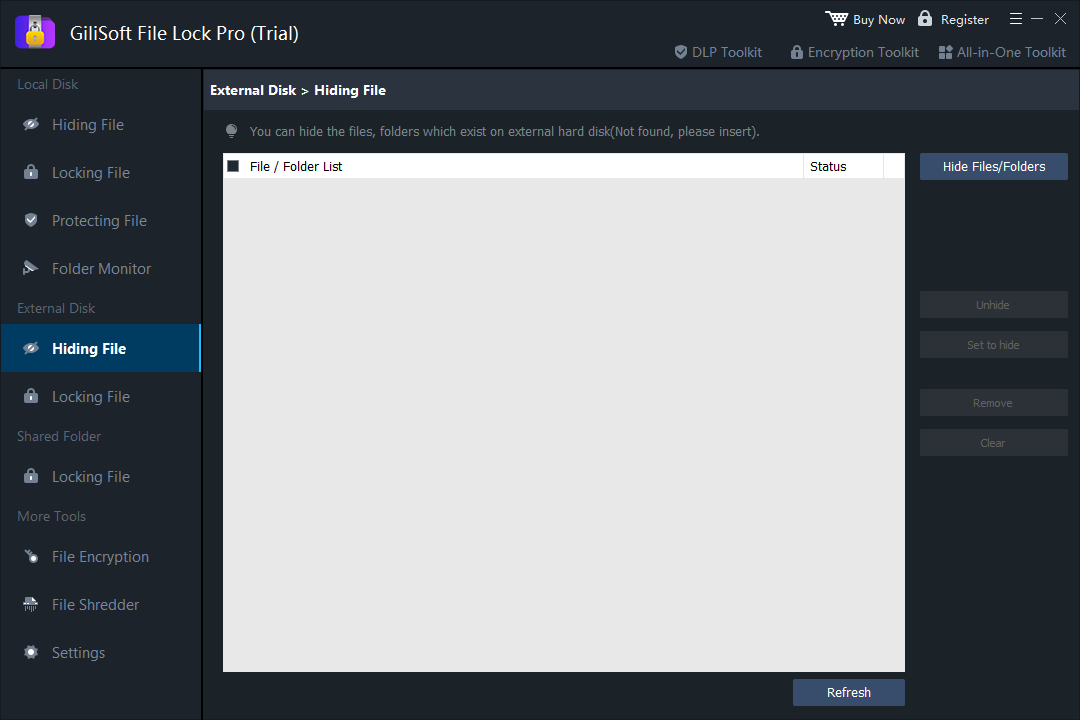
GiliSoft File Lock Pro is the direct choice when you do not want to encrypt the entire disk. Its External Disk area provides separate Locking File and Hiding File tasks. Locking keeps the item visible but blocks normal access; hiding removes selected items from ordinary Explorer views until they are restored through File Lock Pro.
- Connect the external hard drive or USB drive and confirm that Windows assigns it a drive letter.
- Open File Lock Pro and enter the master password.
- Choose External Disk > Locking File to keep a folder visible but inaccessible, or choose Hiding File to remove it from ordinary browsing.
- Select Lock Files/Folders or Hide Files/Folders, add the target folder, and apply the action.
- Test the result in File Explorer, then safely eject and reconnect the drive to verify the intended behavior.
Encrypt the External Drive with BitLocker To Go
Microsoft identifies BitLocker To Go as BitLocker protection for removable data drives, including USB flash drives, SD cards, and external hard disks. It supports common removable-drive file systems such as NTFS, FAT16, FAT32, and exFAT. This is a whole-volume choice rather than a selected-folder lock.
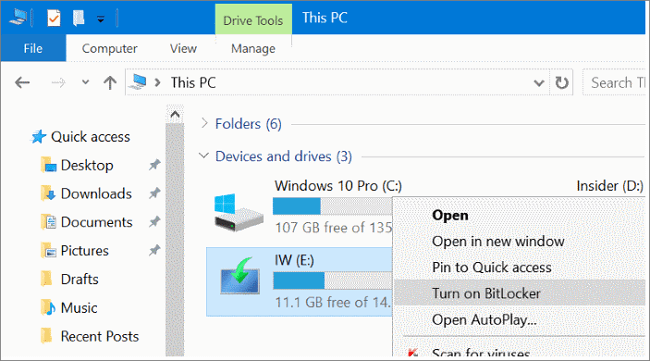
- Connect the drive, open File Explorer, right-click the removable drive, and choose Turn on BitLocker where available.
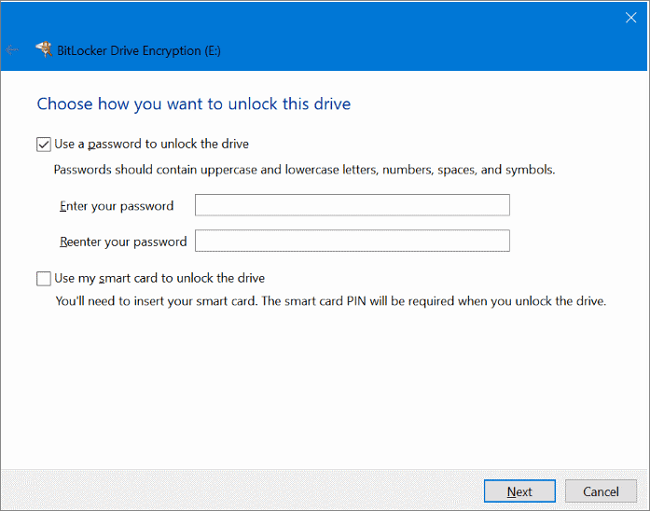
- Select a password unlock method and create a strong, unique password.
- Save the recovery key somewhere separate from the encrypted drive.
- Choose used-space encryption for a new or empty drive, or full encryption for a drive that has already held sensitive data.
- Start encryption, keep the drive connected, and test both password and recovery access after completion.
On managed company PCs, BitLocker policy can also control removable-drive behavior, including whether unencrypted removable drives may be written to.
Password Protect an External Drive with Disk Utility
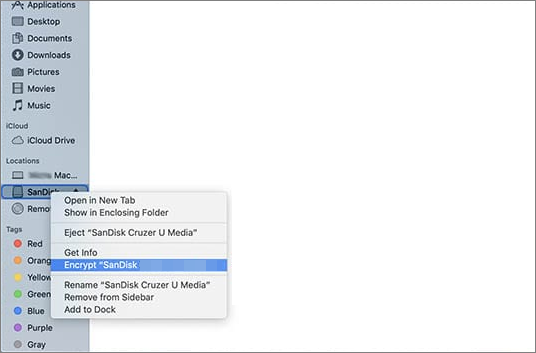
Apple Disk Utility can erase and format an external storage device using an encrypted format. This gives the whole volume password protection on a Mac, but the operation erases existing content. Back up the drive before starting and confirm that the chosen format is compatible with every computer that must use it.
- Copy all needed files from the external drive to a verified backup location.
- Open Disk Utility, choose View > Show All Devices, and select the physical external device.
- Choose Erase, select an encrypted format, and enter a strong password.
- Complete the erase, copy the files back, then eject and reconnect the drive to test the password.
Create a VeraCrypt Container on the External Drive
A VeraCrypt container is an encrypted virtual volume stored as a file. It can sit on an external drive alongside ordinary files. The official tutorial notes that creating the container does not encrypt existing files automatically; after mounting it, you move sensitive files into the new encrypted volume.
- Open VeraCrypt and choose Create Volume, then create an encrypted file container.
- Save the new container file on the external drive and choose its maximum size.
- Select the encryption and filesystem settings, then create the volume with a strong password.
- Mount the container to a free drive letter and move sensitive folders into it.
- Dismount the volume before unplugging the external drive.
Put a Folder in an Encrypted Archive
An encrypted archive can be reasonable for a folder that is sent, stored, or opened only occasionally. Create a new archive, enable strong encryption, use a unique password, test extraction, and only then decide whether the unprotected source should remain.
This method is less convenient for a folder that changes every day because each update may require reopening or rebuilding the archive. It is also a protected copy, not the same as applying access control to the original folder.
Why NTFS Permissions Alone Are Not a Portable Folder Password
Windows permissions can restrict access between accounts on a particular Windows installation, but they are not a standalone folder password and do not encrypt the external drive. Their behavior can also change when the drive is connected to another computer or accessed by an administrator. Use permissions for account-based access on managed PCs, not as the only protection for a portable drive that may be lost.
Which Method Should You Choose?
| Your main goal | Recommended approach |
|---|---|
| Keep one or two folders private while the rest of the drive remains open | GiliSoft File Lock Pro |
| Protect all data if the external drive is lost | BitLocker To Go on Windows or encrypted Disk Utility format on macOS |
| Store a portable encrypted vault beside ordinary files | VeraCrypt container |
| Send a small password-protected package | Encrypted archive |
| Control which Windows users can access a shared workstation drive | NTFS permissions, optionally combined with encryption |
External Drive Protection Checklist
- Keep a verified backup. Locking and encryption do not replace a second copy.
- Store recovery material separately. Never keep the only recovery key on the protected drive.
- Test with disposable data first. Verify lock, unlock, eject, reconnect, and recovery behavior.
- Safely eject the drive. Disconnecting during writes or encryption can damage the filesystem.
- Use a unique password. A reused password weakens otherwise sound protection.
- Confirm cross-platform needs. Windows and macOS encrypted formats are not interchangeable in every setup.
Frequently Asked Questions
Can I password protect only one folder on an external hard drive?
Yes. Use folder-level software such as GiliSoft File Lock Pro when selected folders need locking or hiding while the rest of the external drive remains available.
Is folder locking the same as encryption?
No. Folder locking controls access to selected content. Encryption transforms data so it remains unreadable without the correct key. For loss or theft protection, whole-drive encryption is usually the stronger fit.
Will an encrypted external drive work on both Windows and Mac?
Compatibility depends on the encryption method and filesystem. Check every computer that must open the drive before committing important data to a platform-specific encrypted format.
What happens if I forget the password?
Recovery depends on the method. BitLocker uses a recovery key; other tools may use recovery email or separate recovery material. Set this up before protecting the only copy of important data.
Official References
Protect Selected External-Drive Folders on Windows
Use File Lock Pro when you need a straightforward folder lock or hide workflow without encrypting the entire external drive.
Buy File Lock Pro