
Lock a Folder on an External Hard Drive
Lock a Folder on an External Hard Drive is not only a matter of clicking Lock. First identify whether the risk is casual browsing, unauthorized access, unwanted changes, portable delivery, or physical loss; then apply the narrowest control and test recovery before relying on it.
Quick answer
For selected folders on removable storage, use the external-disk locking workflow. For whole-device encryption, choose a dedicated removable-drive encryption product instead. Preserve an independent backup and verify the result from the real user and application context.
Choose the Right Protection Layer
| Need | Best-fit layer | Important check |
|---|---|---|
| Reduce casual visibility | Hide selected content | Test Explorer, recent items, and shortcuts |
| Require controlled access | Lock a file, folder, or supported drive | Test from a standard user context |
| Stop editing or deletion | Protecting File rules | Test save, rename, move, overwrite, and delete |
| Protect content during delivery | Encrypt selected files | Decrypt and compare a test copy |
| Protect an entire lost or stolen drive | Full-volume encryption | Verify recovery key and boot recovery |
Prepare Before You Lock or Encrypt Anything
- Keep a restorable original.
Make a separate backup and open a sample from that backup.
- Choose a limited test target.
Use a copy that represents the real files without risking active work.
- List legitimate access.
Record the users and applications that must still read or update the content.
- Set recovery information.
Use a unique password and confirm the recovery email or documented recovery process.
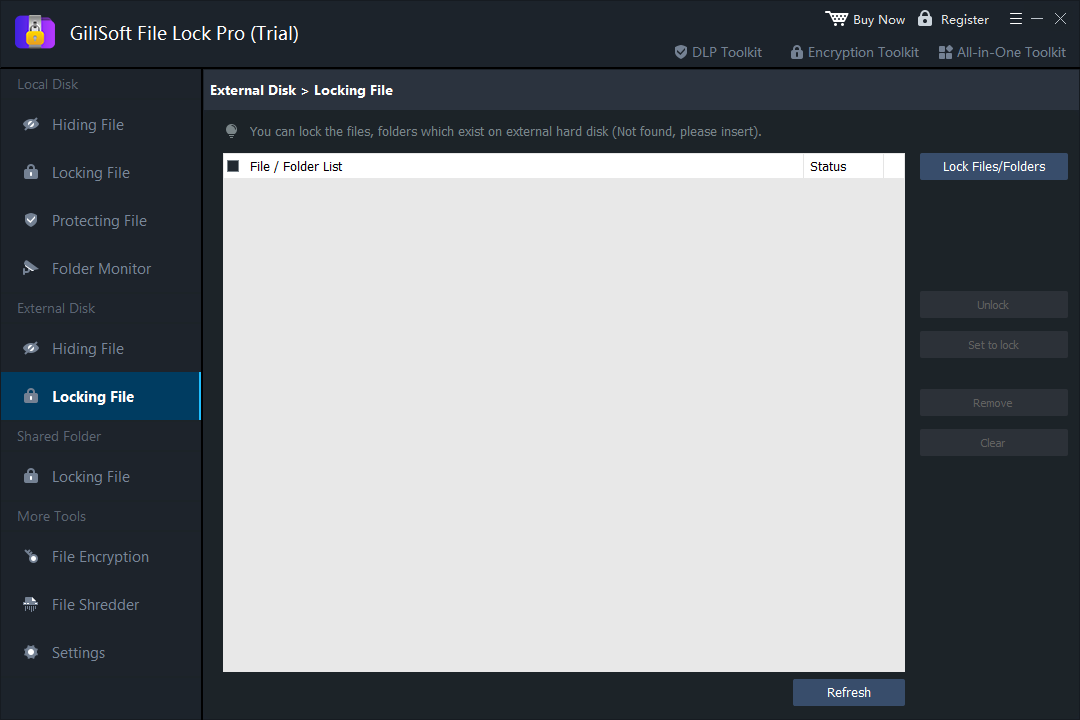
Lock folders on removable and external storage with GiliSoft File Lock Pro
The interface below is the actual GiliSoft product workspace used for this task. Open the same area in the installed trial and follow the sequence with a noncritical sample.
- Connect and identify the drive.
Confirm the correct USB or external drive letter before adding protection.
- Open External Disk > Locking File.
Use the dedicated external-storage workspace in GiliSoft File Lock Pro.
- Add the intended folder or file.
Protect the smallest practical scope and avoid selecting backup or recovery material accidentally.
- Safely reconnect and test.
Eject the drive, reconnect it, and verify access behavior on a representative Windows PC.
- Plan for loss and recovery.
Keep an independent backup and store credentials separately from the portable device.
Verify Access and Recovery
- Close the protection program.
Do not judge the result only while the management window is open.
- Test the normal user path.
Use File Explorer and the applications that normally open or update the content.
- Check every restricted operation.
Test read, write, copy, move, rename, overwrite, and delete behavior as relevant.
- Restore access deliberately.
Unlock, unhide, or decrypt the sample and compare it with the original.
- Record the final rule.
Document the protected path, owner, purpose, date, and recovery location.
What This Workflow Does Not Replace
File Lock Pro adds focused controls for selected Windows content. It does not replace a tested backup, malware defense, Windows account and NTFS permissions, centralized endpoint management, or full-volume encryption for a lost device. Microsoft documents these as separate layers: file permissions control requested access, file encryption protects selected data, Controlled Folder Access limits untrusted application changes, and BitLocker-style encryption addresses whole volumes.
For business use, test protection with a standard user account and the actual software workflow before deployment. Do not assume a successful rule blocks every alternate path or administrative recovery method.
Lock a Folder on an External Hard Drive FAQ
Is lock a folder on an external hard drive the same as full-disk encryption?
Usually not. File and folder controls protect selected content, while full-disk encryption addresses an entire volume and physical device-loss scenarios.
Should I keep a backup before applying protection?
Yes. Keep a tested backup that is independent of the protected path, and do not store the only recovery information beside the protected data.
Can GiliSoft File Lock Pro protect every business workflow?
No single desktop utility replaces Windows account permissions, endpoint management, backups, audit policy, malware protection, and staff procedures. Use GiliSoft File Lock Pro for the focused task described on this page.
How should I test the result?
Use a noncritical sample first, close the product, sign in as the type of user who will encounter the rule, and test open, edit, copy, move, rename, and delete behavior as relevant.
What happens if the password is lost?
Recovery depends on the configured product and account options. Set and verify recovery information before protecting important data.