

Can You Add a Password Without Encrypting the Drive?
The phrase "password protect without encryption" usually means that the user wants quick access control without formatting the disk, waiting for whole-drive encryption, or changing how all files are stored. That is a valid workflow for privacy on known Windows PCs, but it is different from cryptographic protection against drive theft.
Compare the Non-Full-Encryption Options
| Method | What it controls | Best use | Main limitation |
|---|---|---|---|
| GiliSoft File Lock Pro | Selected external-drive files and folders | Password-managed locking or hiding on Windows | It is access control, not whole-drive encryption against forensic recovery |
| NTFS permissions | Named Windows users and groups | A drive used on the same PC or managed domain | Not a portable password; administrators and other operating systems may bypass or reinterpret permissions |
| Removable-storage policy | Read or write access on a computer | Company-owned Windows endpoints | Protects the PC policy boundary, not the drive after it leaves that PC |
| Hide a drive letter | Visibility in File Explorer | Reducing accidental browsing | Cosmetic only; it is not password protection |
| BitLocker To Go | The complete removable volume | Protection if the drive is lost or stolen | This is encryption, so it does not meet a strict "without encryption" requirement |
Method 1: Lock Selected External-Drive Folders with File Lock Pro
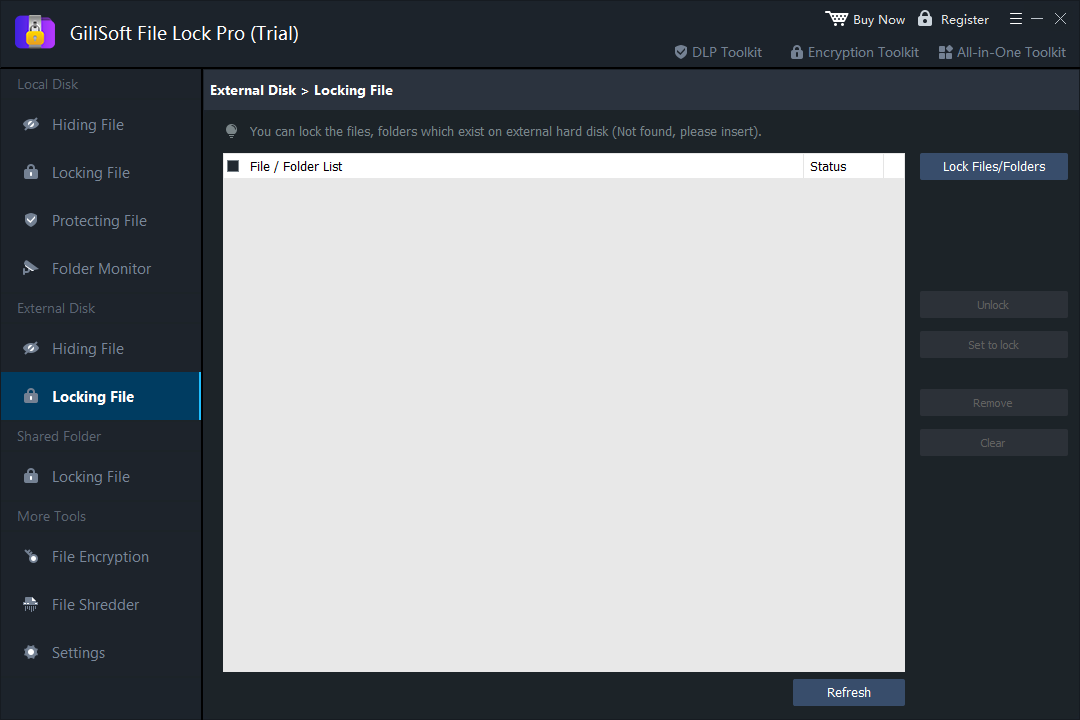
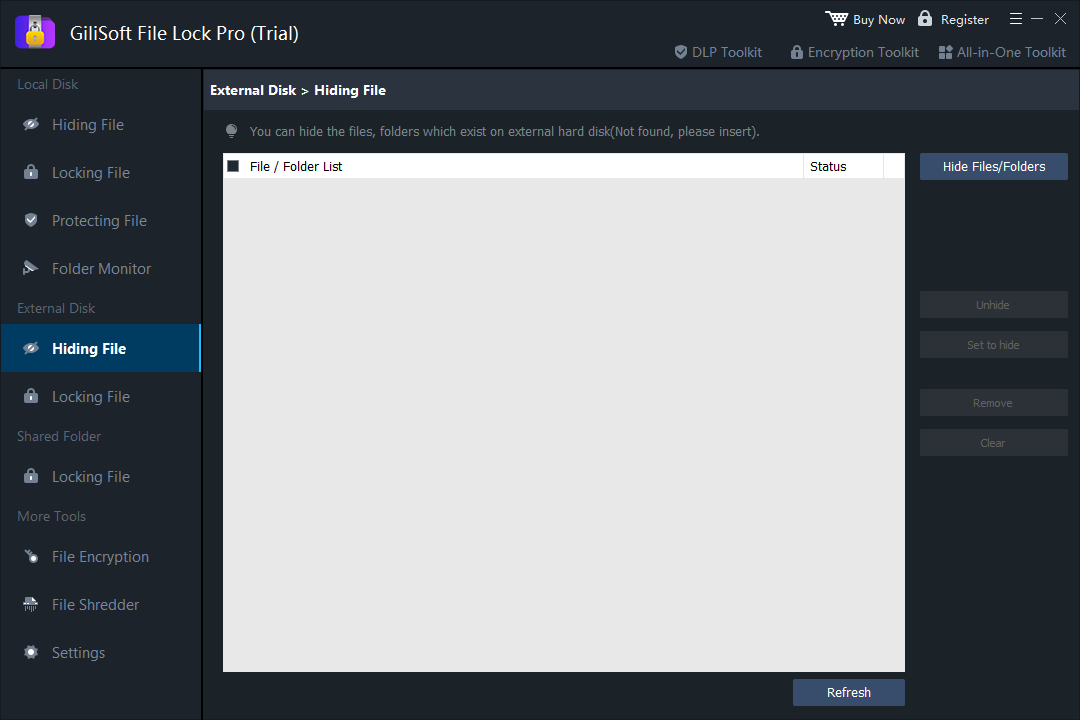
File Lock Pro is the clearest answer when only part of the external drive needs privacy. Its External Disk section contains separate Locking File and Hiding File tasks. Locking keeps a selected item visible but blocks ordinary access; hiding removes it from normal File Explorer browsing until it is restored through File Lock Pro.
- Connect the external hard drive and confirm that Windows assigns it a stable drive letter.
- Open File Lock Pro and enter the master password.
- Choose External Disk > Locking File to keep the folder visible but inaccessible, or choose External Disk > Hiding File to remove it from ordinary browsing.
- Select Lock Files/Folders or Hide Files/Folders, add the target folder, and apply the action.
- Open File Explorer and test the protected folder. Safely eject and reconnect the drive before relying on the setup.
Method 2: Restrict Other Windows Accounts with NTFS Permissions
Windows access control lists can decide which users may read, modify, or delete files on an NTFS volume. Microsoft documents NTFS permissions as file- and directory-level access control, and the icacls command can display or modify those discretionary access control lists.
- Confirm the external drive uses NTFS. FAT32 and exFAT do not provide the same Windows ACL model.
- Right-click the target folder, choose Properties > Security > Advanced, and review inherited permissions before changing anything.
- Disable inheritance only when necessary, keep your own administrator account with Full Control, and remove or restrict only the intended local users.
- Sign in with a test account and verify read, modify, rename, and delete behavior.
- Record the original permission state so it can be restored if the drive later moves to another Windows installation.
Method 3: Apply Read/Write Restrictions on Company PCs
For an organization, the real requirement may be "staff can read this drive but cannot write to it" or "this PC must not use removable storage." Windows policy can control removable-device access on managed endpoints. Microsoft documents policies for removable data drives and device-class access, while NIST recommends restricting portable media to approved devices and identifiable owners.
- Define whether the requirement is deny read, deny write, or block the device class entirely.
- Apply the chosen Group Policy or device-management policy to a small test group first.
- Test approved and unapproved external drives with standard user accounts.
- Document the exception and recovery process for administrators and support teams.
Methods That Look Like Protection but Are Not Password Security
Removing the drive letter
Removing a drive letter can make a volume disappear from ordinary File Explorer navigation, but Disk Management or another operating system can mount it again. Use this only to reduce accidental access.
Marking files hidden
The Hidden attribute is a visibility preference. Anyone who enables hidden items can reveal the content, so it should never be described as password protection.
Making a folder read-only
The folder Read-only checkbox does not function as a reliable access-control password. Use NTFS permissions or managed removable-storage policy when modification must be restricted.
Renaming the drive or folder
A less obvious name may discourage casual browsing, but it provides no meaningful security.
When You Should Use Encryption Instead
CISA recommends encrypting removable media when unauthorized physical access is a realistic threat. If the external drive may be lost, stolen, mailed, checked into luggage, or connected to untrusted computers, access-control-only methods are not the strongest choice because the underlying data is not cryptographically transformed.
Microsoft identifies BitLocker To Go as BitLocker protection for USB flash drives, SD cards, and external hard disks. It can unlock a removable drive with a password or smart card on another compatible computer. Save the recovery key separately from the drive.
| Situation | Better choice |
|---|---|
| The drive remains inside a trusted home or office and only some folders are private | File Lock Pro folder locking or hiding |
| The drive is shared among known Windows accounts on the same PCs | NTFS permissions |
| The company wants to restrict removable-media use on managed endpoints | Group Policy or endpoint device control |
| The drive may be lost, stolen, or inspected outside your control | BitLocker To Go or another reputable whole-drive encryption solution |
Before You Protect the External Drive
- Keep a verified backup. Access control does not protect against drive failure or accidental deletion.
- Test with noncritical data. Confirm lock, unlock, eject, reconnect, and recovery behavior.
- Keep recovery details separately. Do not store the only password or recovery key on the protected drive.
- Safely eject after writes. Avoid disconnecting while Windows is updating files or metadata.
- Check every target PC. A workflow that works on one Windows installation may not behave identically elsewhere.
- Use encryption for theft risk. Locking and hiding are not substitutes for data-at-rest encryption.
Frequently Asked Questions
Can Windows password protect an external hard drive without BitLocker?
Windows does not provide a native standalone drive-password feature without encryption. You can use File Lock Pro for selected folders, NTFS permissions for Windows accounts, or endpoint policy for computer-level restrictions.
Can I lock only one folder and leave the rest of the drive open?
Yes. File Lock Pro is designed for that selected-folder workflow. The rest of the external drive can remain available for ordinary files.
Do NTFS permissions work when I connect the drive to another PC?
The ACL information can remain on an NTFS drive, but user identities differ between Windows installations and administrators may change ownership or permissions. It is not equivalent to a portable password.
Will hiding a drive protect it if it is stolen?
No. Hiding reduces visibility in the current interface. Use whole-drive encryption when protection after physical loss is required.
Official Research Sources
Lock Selected External-Drive Folders Without Reformatting the Disk
Use GiliSoft File Lock Pro when you need straightforward folder-level privacy on Windows and do not want to encrypt the complete external drive.
Buy File Lock Pro