GiliSoft USB Encryption

Protect personal and business files on your USB drive with a password-protected private area. Keep public files available for sharing on the same drive.

Create encrypted and public areas on the same USB drive Open protected files through a password-secured virtual drive Open files read-only and manage secure-area backups


Windows XP/7/10/11 (32 bits &64 bits)

Download TrialVersion 12.6 BUY NOW$49.95 $59.95

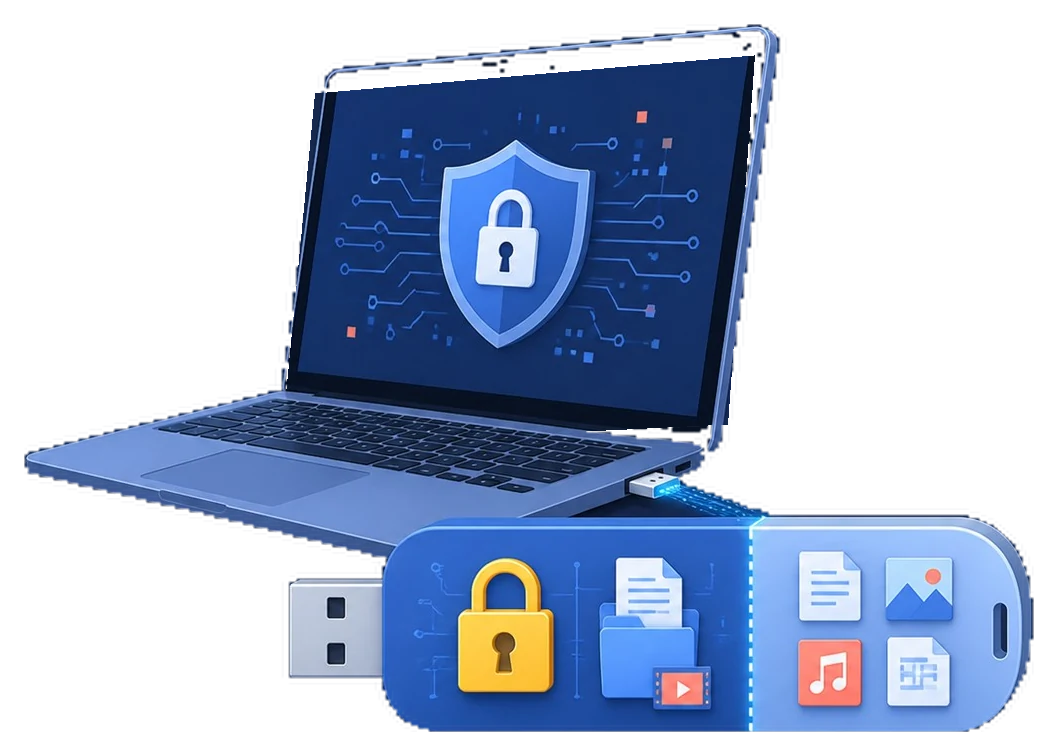
USB flash drive with separate encrypted private storage and public sharing areas
GiliSoft USB Encryption product box

Protect Files on One USB Drive with Private and Public Areas

GiliSoft USB Encryption keeps confidential files private when you carry or share a USB drive. Create a password-protected private area for business documents, photos, videos, archives and backups, while leaving the public area available for everyday sharing.

Choose how much space to reserve for encrypted storage on a USB flash drive, thumb drive, pen drive, memory card or external USB disk. Enter your password to open the private area as a virtual drive in Windows and work with files in a familiar drive view. Read-only mode lets you view protected files without changing them.

Manage protected storage with tools for password changes, backup and restoring the USB opener file. The private area locks when you close the secure session or disconnect the drive.

Designed for office teams, consultants, remote workers and personal users carrying client documents, project files, financial records or private photos between Windows PCs. See how to create and open your private USB area.

Core USB Encryption Features

Create a Secure Area on a USB Drive

Create a password-protected secure area from free space on a USB flash drive, thumb drive, memory card, or external USB disk. Sensitive files stay in the encrypted area while ordinary files can remain in the public area.

Open the Secure Area with a Password

When the protected area is closed, users must enter the correct password before they can open private files. This helps protect business documents, client files, backups, photos, and travel data if a USB drive is misplaced.

Public Area and Private Area on One Drive

Keep a normal public area for files that can be shared and a private encrypted area for confidential files. This is useful when one USB drive needs both everyday sharing and password-protected storage.

Open as a Virtual Drive Letter

After password verification, the secure area opens as a virtual drive letter such as D:. Users can browse and work with protected files in a familiar Windows drive view, then close it when finished.

Read-Only Open Mode

Open the secure area in read-only mode when files need to be viewed without being changed. This is helpful for reference files, delivery drives, and shared removable media.

Change Password and Restore the USB Opener

The USB Toolbox can change the secure-area password and recover the agent file used to open protected storage. These tools make long-term USB drive maintenance easier after encryption is created.

Backup and Manage the Secure Area

Use toolbox actions such as backup, uninstall, and password management when the encrypted USB area needs to be maintained, migrated, or removed from the removable drive.

Supports Common USB Storage Devices

Protect private files on USB flash drives, thumb drives, pen drives, memory cards and external USB hard drives.

Protect Any File Stored on USB

Documents, photos, videos, archives, folders, and backup files can all be stored inside the encrypted USB area without strict file type limitations.

Back Up USB Files to a Hard Disk

Use Fast Copy to back up files from the USB drive to a hard disk and keep a separate copy of important documents and folders.

Reduce Exposure if a USB Drive Is Lost

Password-protected encrypted storage helps reduce the risk of data exposure if a removable drive is misplaced, borrowed, or used on a shared Windows PC.

Choose the Size of Your Private Area

Allocate the space you need for private files when creating the secure area, leaving the rest for public files on the same USB drive.

Testimonials

USB Encryption helped us protect confidential files on shared USB drives without changing our daily file-sharing workflow.

- Olivia M., IT Security Lead

The encrypted safe area is easy to set up, and our team can carry project files securely between office and home.

- Kevin T., Systems Administrator

Password-protected USB access reduced accidental data exposure when drives were passed between departments.

- Rachel P., Compliance Manager

The separation of public and encrypted areas made it simple to keep sensitive files private while still sharing non-sensitive documents.

- Daniel K., IT Administrator

Automatic encryption in the secure area worked reliably, and users did not need extra steps to protect files.

- Brian C., Support Engineer

Auto-lock on unplug gave us peace of mind, especially when employees used USB drives on travel or public computers.

- Megan S., Operations Manager

Our consultants can keep client files in the encrypted area while leaving general handouts available in the public area.

- Laura D., Compliance Analyst

It gave our backup drives a simple password-protected layer without asking every user to manage complex encryption settings.

- Ethan W., Digital Asset Manager

GiliSoft USB Encryption Screenshots

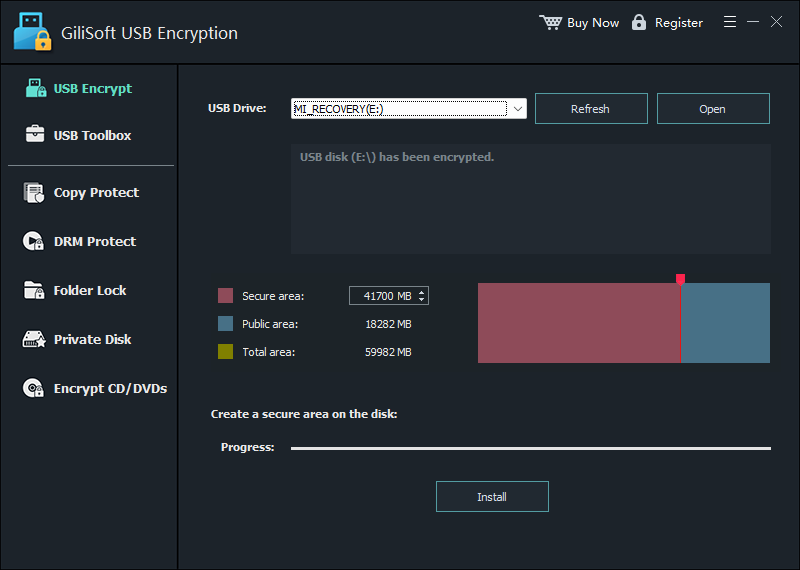
Preview the updated USB encryption workflow: create the secure area, open it with a password, browse the mounted virtual drive, and manage password, backup, recovery, and uninstall tools.

Create a secure encrypted area on a USB drive

Create a secure USB area

Select a USB drive, divide it into secure and public areas, and create password-protected storage on the removable disk.

How-to Guides

Who Is This For?

USB Encryption is for people who need the data on a removable drive to stay protected, even when the drive is carried, shared, misplaced, or used on another Windows PC.

Teams carrying business files

Protect client documents, project archives, and internal reports when employees move files between office, home, travel, and field computers.

Users sharing removable media

Keep public handouts, installers or presentations available for sharing while private documents remain in the password-protected area.

People worried about lost USB drives

If a thumb drive, memory card, or external USB disk goes missing, protected files inside the secure area remain unavailable without the password.

Remote and hybrid workers

Carry work files between office, home, and travel computers while keeping sensitive files inside a password-protected USB area.

Consultants and client-facing teams

Separate public handouts from confidential client files when one USB drive is used during meetings, site visits, or project delivery.

Backup drive users

Add password-protected storage to external drives that hold backups, archives, finance files, tax records, or personal documents.

Common USB Encryption Use Cases

USB Encryption is useful when portable files need password-protected storage, but some non-sensitive files may still need to remain shareable.

Helpful related guides: secure thumb drive / flash drives in Windows 11/10/8/7, password protect USB flash drive on Windows and Mac, password protect a USB flash drive, encrypt a thumb drive, protect client files on USB drive, USB Encryption vs BitLocker, and free BitLocker alternatives.

USB Encryption FAQ

Can I password protect a USB flash drive on Windows?

Yes. GiliSoft USB Encryption creates a password-protected secure area on the USB drive so only authorized users can open the protected files.

Does USB Encryption encrypt the entire USB drive?

No. It creates an encrypted secure area for private files and leaves the remaining public area available for ordinary files. Files left in the public area are not encrypted.

Can one USB drive have both public and private areas?

Yes. You can keep everyday files in the normal area and confidential files in the secure encrypted area on the same removable drive.

What happens when the USB drive is unplugged?

The secure area locks automatically when the USB drive is unplugged or the secure session is closed.

What types of files can I store in the private area?

You can store documents, photos, videos, audio, archives, folders and backup files inside the encrypted area. Protection applies to the files stored there regardless of file type.

Can I open protected files in read-only mode?

Yes. Choose read-only mode when opening the secure area to view files without changing them.

What does the Recover tool restore?

The Recover tool restores the USB Encryption opener (agent) file used to access the private area. You still use the private-area password to open your protected files.