GiliSoft File Lock Pro

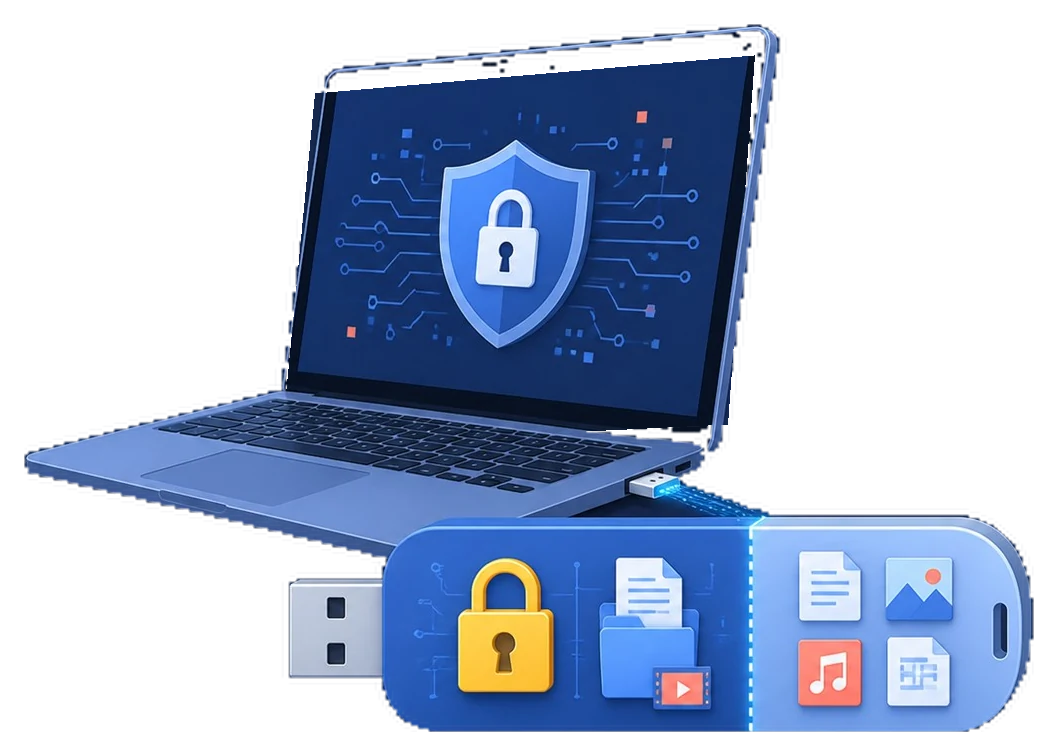
Lock or hide a selected folder on a USB drive while keeping the rest of the removable drive available for ordinary files.

  • Lock or hide selected folders on external storage
  • Restrict opening, changing, renaming, or deletion
  • Create encrypted output when portability matters
GiliSoft File Lock Pro protecting a folder on a USB drive
USB Folder Protection Guide

How to Lock a Folder on a USB Drive

A USB folder can be protected in several different ways. You can lock the active folder where it is, create a portable encrypted copy, encrypt the whole removable drive, divide the USB drive into public and secure areas, or build a mountable encrypted container. The right choice depends on where the folder must open and what should remain visible.

Selected folderPortable encrypted copyBitLocker To GoPublic + secure areasVeraCrypt container
Quick answer

Use GiliSoft File Lock Pro when one active folder on a USB drive should be locked, hidden, or protected while other folders remain usable. Use encrypted output or a 7-Zip archive when the protected copy must travel between computers. Choose BitLocker To Go when the whole USB drive should require a password, or GiliSoft USB Encryption when one device should contain both a public area and a password-protected secure area.

First Decide What Locking the USB Folder Means

Folder locking, file encryption, and whole-drive encryption solve different problems. CISA distinguishes file encryption from removable-drive encryption because one protects selected content while the other protects the storage device as a whole.

Keep one working folder in place

The folder stays on the USB drive and remains easy to update, but unauthorized opening or changes should be blocked.

Carry a password-protected copy

The folder becomes an encrypted package that can be stored or opened on another compatible computer.

Protect everything if the USB is lost

The complete removable drive should stay unreadable until a password or recovery method unlocks it.

Keep public and private files together

Some USB space should remain open while sensitive files live inside a separate password-protected area.

Compare Five Ways to Protect a Folder on USB

MethodProtection scopeOther-computer accessBest fit
File Lock Pro External Disk RecommendedSelected active folders, files, or drivesUse on managed Windows PCs where File Lock Pro is availableOne working folder while the rest of the USB stays normal
Encrypted output or 7-ZipA separate encrypted packageYes, with the compatible opener and passwordPortable backup, handoff, or archive copy
BitLocker To GoThe complete removable driveWindows password or recovery-key unlockLost-device protection for the entire USB
GiliSoft USB EncryptionA secure area plus an optional public areaPassword opens the mounted secure areaPublic and private content on one USB drive
VeraCrypt containerA mountable encrypted container fileRequires VeraCrypt and the password or keyfileAdvanced reusable encrypted vaults
1

Lock One USB Folder with GiliSoft File Lock Pro

This is the direct choice when the folder should stay active on the removable drive instead of being repackaged into an archive.

Connect the USB drive, open File Lock Pro, and enter the master password.

Under External Disk, choose Locking File. Use Hiding File instead when the folder should disappear from normal File Explorer views.

Select Lock Files/Folders, add the target folder from the USB drive, and apply the lock.

Test the folder from File Explorer. Confirm the intended files are restricted while unrelated USB folders still open normally.

Lock a folder on an external USB drive with GiliSoft File Lock Pro
External Disk > Locking File protects a selected USB folder without converting the whole drive into an encrypted volume.
Use the matching protection mode. Locking keeps the folder visible but controls access. Hiding removes it from normal browsing. Protecting File is intended for restricting operations on selected content. Test the chosen mode with disposable files before using it on the only copy.
2

Create a Portable Encrypted Folder Copy

Choose this path when the protected folder must travel between computers. It creates another protected object; it does not automatically secure the original source folder.

Option A: Create File Lock Pro encrypted output

Open More Tools > File Encryption and add the folder contents.

Create the available GFL or EXE encrypted output and save it on the USB drive.

Open the result, confirm the password and recovery path, then decide whether the unprotected source should remain.

Create encrypted USB folder output with File Lock Pro
Encrypted output is more suitable for a protected copy than for a folder that is edited constantly.

Option B: Create an AES-256 archive with 7-Zip

Right-click the folder, select 7-Zip > Add to archive, and choose the 7z format.

Enter a long unique password, select AES-256, and enable Encrypt file names when filenames are also sensitive.

Test the archive from another location before deleting or changing the original folder.

Add a USB folder to a 7-Zip archive
Add the selected folder to a new archive.
Set AES-256 password protection in 7-Zip
Use AES-256 and encrypt file names for a more private package.
3

Encrypt the Entire USB Drive with BitLocker To Go

BitLocker To Go is the Windows whole-drive option for removable data drives. Microsoft documents support for USB flash drives, SD cards, external hard drives, and NTFS, FAT16, FAT32, or exFAT removable volumes.

Connect the USB drive, open File Explorer, right-click the drive, and select Turn on BitLocker.

Select password unlock, create a strong password, and save the recovery key somewhere other than the USB drive.

Choose the encryption scope and compatible encryption mode requested by the wizard, then start encryption.

After completion, safely eject and reconnect the drive to verify that the password is required before any folder can be read.

Turn on BitLocker for a USB drive
BitLocker To Go starts at the removable-drive level.
Save the BitLocker recovery key for a USB drive
Keep the recovery key separate from the encrypted USB drive.
BitLocker is not a one-folder lock. Once enabled, the whole removable volume is protected. Microsoft also notes that organization policy can control password and recovery options, so work-managed PCs may present different choices.
4

Create Public and Secure Areas with GiliSoft USB Encryption

Use this method when the USB drive should keep an ordinary public area while private files are stored inside a separate password-protected secure area.

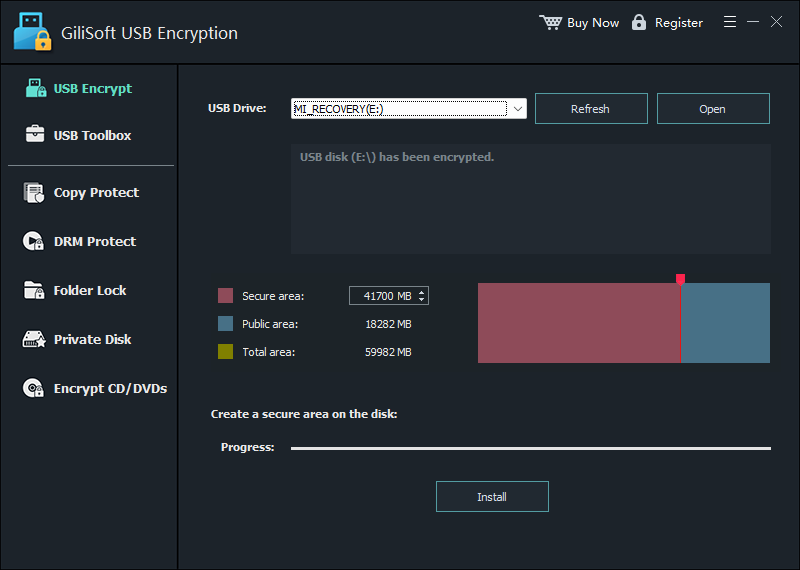
Select the USB drive and allocate space between the secure area and the public area.

Install the secure area, set its password, and move the private folder into the protected area.

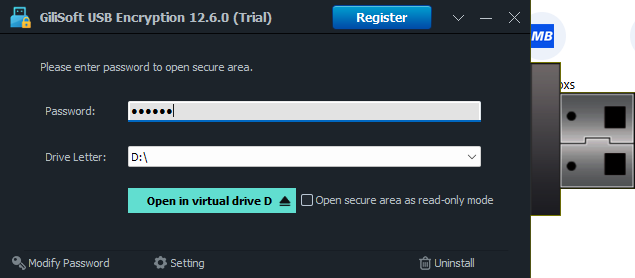
Open the secure area with the password and select a virtual drive letter. Use read-only mode when files should be viewed without modification.

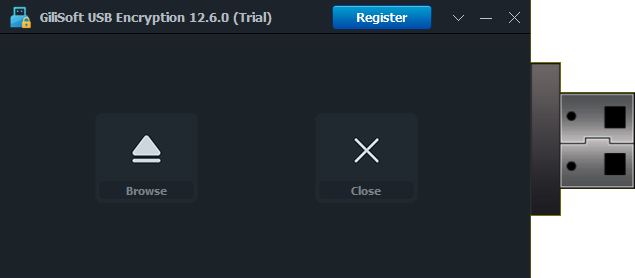
Close the mounted area when finished and retain any recovery or backup material separately.

Create a secure and public area with GiliSoft USB Encryption
Allocate the private and public portions of the removable drive.
Open the encrypted USB secure area with a password
Enter the password and mount the secure area as a virtual drive.

See the full GiliSoft USB Encryption guide for setup, password changes, backup, recovery, read-only access, and secure-area removal.

5

Build a VeraCrypt Container on the USB Drive

VeraCrypt can store a file-hosted encrypted volume on a USB drive. The container is mounted as a drive when needed and dismounted when private work is finished.

1. CreateCreate a new file-hosted VeraCrypt volume on the USB drive.
2. ConfigureChoose its size, encryption settings, filesystem, and password.
3. MountSelect the container, assign a drive letter, and enter the password.
4. DismountClose files and dismount the volume before ejecting the USB drive.

VeraCrypt is suitable for users comfortable with mounting and dismounting a vault. Its official documentation also describes a USB container and portable mode, but running portable mode can require administrative privileges and leaves operational considerations that a simple archive does not have.

Methods That Do Not Properly Lock a USB Folder

Hidden attribute alone

Hidden files can be revealed by changing File Explorer settings or using a command. Hiding is organization, not encryption.

Read-only attribute alone

Read-only may discourage casual edits, but it does not encrypt the folder or stop someone from copying its contents.

Renaming the folder or extension

A changed name does not protect file content. Anyone who recognizes the file type can restore or open it.

A password without a recovery plan

Encryption can protect the data from everyone, including its owner. Keep verified recovery information and a separate backup.

USB Folder Protection Checklist

Keep a verified backup

A USB drive can fail, be lost, or be damaged. Encryption and access control do not replace a separate tested backup.

Test portability before travel

If another computer must open the folder, test that exact computer, Windows edition, filesystem, and required software first.

Store recovery material elsewhere

Do not keep the only recovery key, certificate, or password note on the same USB drive it unlocks.

Safely eject after closing

Close files, dismount secure volumes, and use safe removal to reduce the risk of filesystem or container corruption.

Frequently Asked Questions

Can I lock only one folder without locking the entire USB drive?

Yes. File Lock Pro can apply a lock or hide rule to a selected folder on external storage. An encrypted archive or VeraCrypt container can also protect selected content while leaving other USB space open.

Will the locked folder open on another computer?

That depends on the method. An active File Lock Pro rule is intended for managed Windows systems where File Lock Pro is available. A 7-Zip archive, encrypted output, BitLocker drive, USB secure area, or VeraCrypt container requires its matching password and compatible opener.

Is BitLocker better than a folder lock?

It protects a different scope. BitLocker To Go is stronger for the lost-drive scenario because it encrypts the whole removable volume. A folder lock is more selective when other USB content must remain available.

Does hiding a folder protect its contents?

The normal Windows hidden attribute does not. File Lock Pro Hiding File adds product-managed access control, while encryption methods protect content cryptographically.

Can FAT32 or exFAT USB drives use BitLocker To Go?

Microsoft lists FAT16, FAT32, exFAT, and NTFS among the supported removable-drive filesystems for BitLocker To Go.

What is the safest choice for a lost USB drive?

Use complete removable-drive encryption or a secure encrypted area for every sensitive file, keep the recovery material separately, and maintain a verified backup.

Sources and Further Reading

Protect One USB Folder Without Locking Everything Else

Use File Lock Pro for a selected active folder, or choose encrypted output when the protected copy needs to travel.

Download TrialVersion: 13.5Buy File Lock Pro$39.95