

How to Remove Subtitles from a Video on Windows
First Check Whether the Subtitles Can Be Switched Off
If a player's CC or Subtitles menu can hide the captions, they are probably a separate soft subtitle stream. Remove or exclude that stream. If the words remain in every player and frame export, they are hardcoded and the hidden background must be reconstructed.
HandBrake's official documentation makes the distinction explicit: soft subtitles remain separate selectable tracks, while hard-burned subtitles are written permanently over the image and cannot be toggled off. FFmpeg likewise supports excluding subtitle streams with -sn. Pixel cleanup is therefore the fallback for hardcoded captions, not the first step for every subtitled file.
Choose the Correct Subtitle Removal Method
| Subtitle type | How to recognize it | Best removal method | Image quality impact |
|---|---|---|---|
| External SRT, VTT, ASS, or SSA file | Separate subtitle file sits beside the video | Do not load or distribute the subtitle file | None |
| Selectable text subtitle stream | Player can turn it off; file contains a subtitle stream | Remux/export without that stream | None when video is copied without re-encoding |
| Selectable bitmap subtitle stream | DVD/Blu-ray style PGS or VobSub can be toggled | Exclude that subtitle stream | None when remuxing is supported |
| YouTube caption track | CC control and YouTube Studio subtitle entry exist | Channel owner deletes the language track in Studio | None |
| Hardcoded subtitles | Text remains visible in every decoded frame | GiliSoft Subtitle Remover reconstructs the caption area | Depends on the hidden background |
| Hardcoded caption bar | Opaque or translucent lower band is part of the picture | Reconstruction, crop, clean master, or designed replacement band | Large hidden areas are harder to recover |
Soft subtitles
Preserve the video stream and remove only the caption stream whenever the container and workflow support remuxing.
Hardcoded text
Use Subtitle Removal when many changing lines occupy a consistent lower region and cannot be disabled.
One isolated label
For a fixed title, date, or corner text rather than repeated captions, GiliSoft Watermark Remover may be the closer fit.
Clean project available
Disable the subtitle layer and export again. This preserves detail better than reconstructing pixels hidden by old text.
How to Remove Hardcoded Subtitles with GiliSoft Subtitle Remover
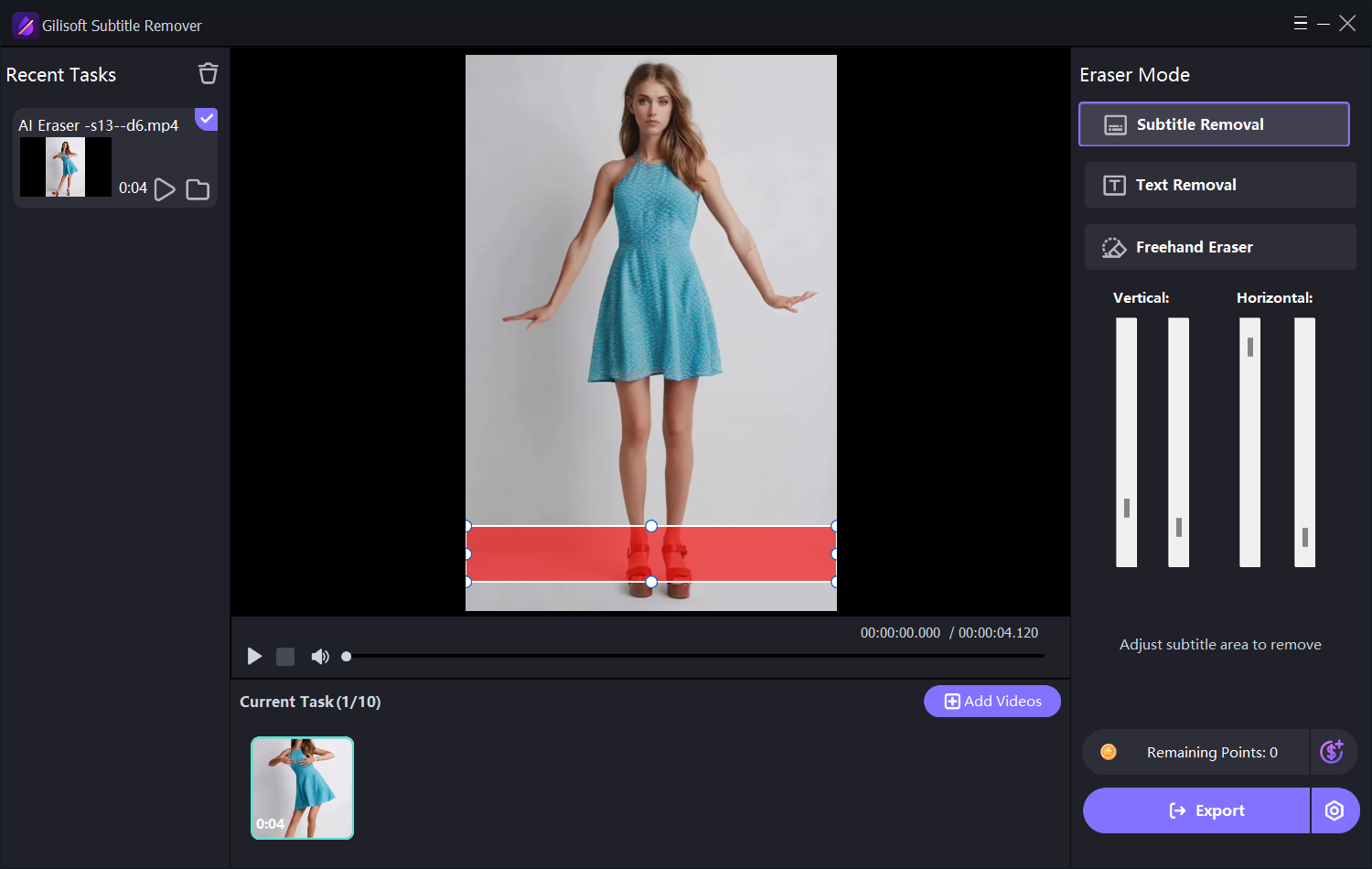
Use these steps only after confirming the subtitles are burned into the frames. Start with a short section containing scene changes, two-line captions, and the most detailed background.
- Load the highest-quality authorized sourceUse the cleanest available video and keep an untouched original plus any existing subtitle files.
- Choose Subtitle RemovalSelect the subtitle-focused mode rather than Text Removal or Freehand Eraser when caption lines occupy a repeated lower area.
- Adjust the complete subtitle regionCover all lines, outlines, shadows, descenders, and any background strip without including unnecessary faces or scenery.
- Check position changes and vertical formatsCaptions may move for speaker labels, signs, or mobile layouts. Prepare separate tasks when one region cannot fit safely.
- Preview representative scenesInspect static backgrounds, camera motion, hands, faces, slide text, lower thirds, and every scene cut.
- Export a short test firstReview at native resolution for blur, repeated texture, flicker, bent edges, and remaining letter outlines.
- Process the complete video and verify audioConfirm frame dimensions, duration, sound synchronization, output quality, and the beginning and end of subtitle cleanup.
Test the hardest caption scene first
Download GiliSoft Subtitle Remover for Windows and evaluate a representative hardcoded subtitle section before processing the entire video or a repeated group.
Download Subtitle RemoverHow to Get Cleaner Hardcoded Subtitle Removal
Why a consistent lower subtitle band is easier
Subtitle-focused cleanup benefits when many caption lines occupy one stable area and surrounding frames reveal enough of the hidden background. Adobe's official Content-Aware Fill documentation describes video repair as time-aware pixel synthesis from current and neighboring frames, and recommends work ranges and reference frames for difficult backgrounds. Wide opaque bars, rapid cuts, and captions over unique motion provide less recoverable information.
Prepare the Clean Video for New Subtitles or Localization
Keep the old caption text before removal
Save the original SRT, VTT, ASS/SSA, transcript, or translation document when available. If the only copy is burned into the picture, transcribe it before cleanup so timing and meaning are not lost.
Add new selectable subtitles when possible
Soft subtitles remain editable, searchable, translatable, and switchable. They also preserve the picture because the words are not permanently written over the video. Use GiliSoft's video subtitle generator or GiliSoft Speech to Text to prepare a new caption draft, then review names, numbers, technical terms, line breaks, and timing.
Recheck meaning after removing a language layer
Do not assume a clean picture is a finished localized video. Rebuild speaker identification, translated signs, sound cues, accessibility information, and forced-narrative captions where the audience still needs them.
Keep both a clean master and delivery versions
Store a subtitle-free master separately from language-specific exports. This avoids repeated pixel cleanup when adding another language or revising captions later.
Fix Common Subtitle Removal Problems
| Problem | Likely cause | What to change |
|---|---|---|
| Letters or outlines remain | The selected band missed shadows, glow, or a second line | Expand the region slightly to include every visible caption edge |
| A wide blurry strip appears | The region is taller than necessary or hides unique detail | Tighten it, split positions, or use a clean/replacement source |
| Background flickers at cuts | One cleanup task spans unrelated shots | Split processing at scene boundaries and preview each section |
| Hands, faces, or slide text bend | Captions cover detailed moving content | Test shorter ranges, manual repair, reference frames, or a designed band |
| Subtitles return later | They move to another region or the task misses later frames | Add the additional position or process the complete active duration |
| CC could be switched off | A soft subtitle stream was mistaken for burned-in text | Return to the source and exclude the subtitle stream without pixel cleanup |
Remove Subtitles from Video FAQ
Can I remove subtitles from an MP4 without re-encoding?
Yes, if they are a separate compatible subtitle stream and your remuxing tool can copy the video and audio streams while excluding subtitles. Hardcoded captions require image processing and a new video export.
How do I know whether subtitles are hardcoded?
Try disabling captions in more than one player and inspect a decoded frame. If the words remain, they are probably part of the image.
Can GiliSoft Subtitle Remover remove two subtitle lines?
Yes. Adjust the region to include both lines, their outlines and shadows, while keeping the band as compact as possible.
Can it remove subtitles without cropping?
Yes. The software reconstructs the selected area while retaining the full frame dimensions, although quality depends on the hidden background.
Can subtitles over faces be removed cleanly?
Sometimes, but faces, mouths, hands, and other unique motion are difficult because the caption has replaced important pixels. Test the hardest scene first.
Can I add new subtitles after removing the old ones?
Yes. Keep a subtitle-free master, then generate, edit, or import a new selectable caption track for localization and accessibility.
More Subtitle Guides
Removing only a selectable subtitle stream avoids pixel reconstruction. Hardcoded captions require image cleanup and may leave artifacts when they cover detailed motion.