GiliSoft Video Converter

Convert videos for playback and sharing, extract audio, and reduce large files. Batch processing, subtitles, and editing tools help you prepare the finished result in one Windows app.

  • Batch convert MP4, MOV, AVI, MKV, and more
  • Extract MP3 audio and reduce video file size
  • Trim clips, add subtitles, and use GPU acceleration
GiliSoft Video Converter for batch video conversion, compression, subtitles, and MP3 audio extraction
GiliSoft Video Converter product box

Convert Your Videos for Playback, Sharing, and Storage

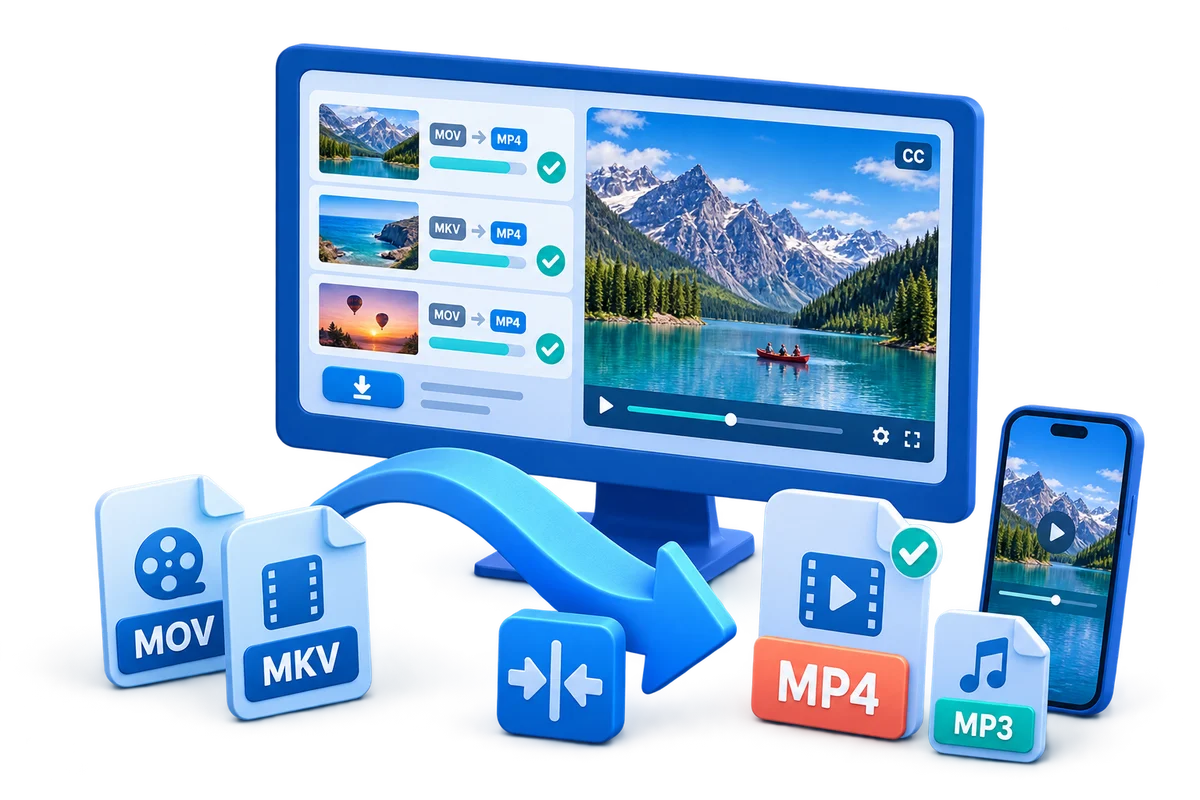
GiliSoft Video Converter (Discovery Edition) converts video and audio files on Windows. Work with MP4, MOV, AVI, MKV, WMV, FLV, and other video sources, choose the format your device or project needs, or extract a soundtrack as MP3 when you only want the audio.

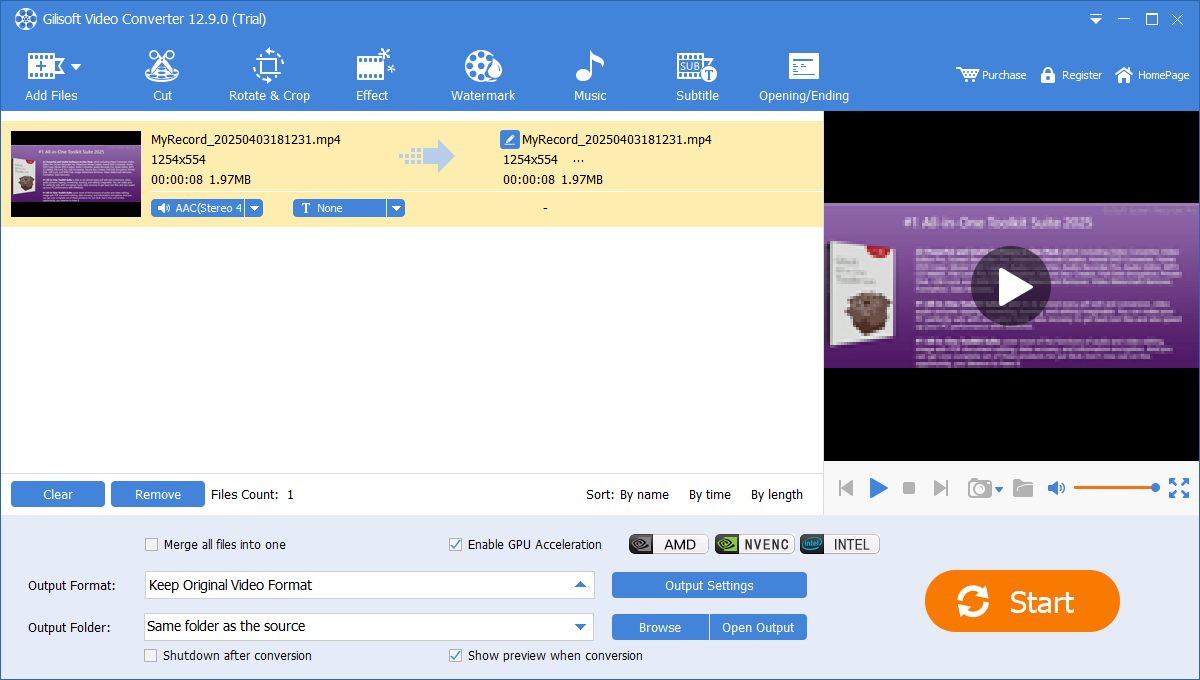
Load individual files or a folder and prepare several conversions in one queue. Review each source, choose output profiles, and set the destination before starting. GPU acceleration controls include AMD, NVIDIA NVENC, and Intel options for encoding work, while batch processing keeps repeated conversion tasks organized.

Prepare the content as you convert it: cut unwanted sections, join clips, crop or rotate the frame, adjust playback speed, and add music or narration. Load or create subtitles, set their font and position, and preview the timing. Text, watermark, filter, and audio tools help you give lessons, demos, and presentation videos a clear finish.

Make large videos easier to upload, send, and store by adjusting the output format, resolution, bitrate, and quality. Choose device or publishing profiles, save a smaller working copy, and review the converted picture, sound, and subtitles before sharing. Video download and text-to-audio tools are also available when you need supporting media for the same project.

Core Video Conversion and Media Tools

Convert Video and Audio Formats

Convert MP4, MOV, AVI, WMV, MKV, FLV, and other video files into the output format you need. Choose an audio profile such as MP3 to save a soundtrack without its video picture.

Batch Conversion with GPU Acceleration

Load multiple files or a folder into one queue. Use Enable GPU Acceleration with the AMD, NVIDIA NVENC, or Intel options available for your hardware and selected encoder.

Video Download Tools

Open the YouTube Download or TikTok Download tools to save online source clips, then use the conversion and compression tools to prepare the files for your project.

Compress Video for Sharing and Storage

Reduce file size for uploads, email, team review, or storage. Adjust output format, resolution, bitrate, and quality to produce a smaller copy suited to your destination.

Cut, Join, Crop, Rotate, and Change Speed

Keep useful sections, combine clips, correct framing or orientation, and change playback speed before producing the converted result.

Subtitle, Text, and Document Tools

Load or create subtitles and adjust their font, position, and timing. The Text category also provides Doc To Video, Subtitle Extraction, and Text to Audio tools for supporting content.

Audio Conversion and Sound Processing

Extract an audio track, replace or remove background sound, and adjust music or narration. Audio tools include cutting, joining, silence removal, and Text to Audio.

Output Profiles and Finishing Tools

Choose a device or publishing profile, then refine the output with visible text or image watermarks, filters, and frame adjustments. Review the result before starting the final conversion.

Testimonials

The converter helped us standardize exports for web, mobile, and training portals without constant profile adjustments.

- Olivia M., Digital Delivery Lead

Batch conversion handles mixed source files reliably, which reduced prep time before weekly publishing.

- Kevin T., Systems Administrator

Output quality remains stable after compression, which helps us meet upload limits without obvious quality loss.

- Brian C., Support Engineer

GiliSoft Video Converter Screenshots

Explore the conversion queue, output controls, subtitle editor, and supporting audio, text, download, and AI media tools.

Batch conversion and output settings

Review the loaded files, audio and subtitle selection, output format, destination folder, and GPU options, then use Start to run the conversion.

Top How-to Guides

Video Conversion for Everyday Projects and Teams

Creators and marketing teams

Prepare clips from different cameras and sources for publishing. Standardize formats, trim unused sections, add subtitles, and create smaller upload copies.

Teachers and training teams

Convert lessons, demonstrations, and screen recordings for student playback. Add readable subtitles or extract an audio copy for listening.

Businesses with shared media libraries

Process incoming files in batches, create consistent working copies, and reduce storage or transfer demands for reviews and team sharing.

Home and everyday video users

Make family videos and downloaded clips easier to play on your preferred device, combine useful sections, or save just the soundtrack.

Convert Your Video in Three Steps

1. Add your source files

Use Load File, Load Folder, or drag and drop. Review the loaded files and preview the video, soundtrack, and subtitle selection.

Import files and choose output

2. Prepare the result

Choose a video or audio output profile. Set quality and resolution, trim or join clips, and adjust subtitles, sound, or watermarks as needed.

Trim, join, and adjust clips

3. Convert and review

Select the destination folder and start conversion. Play the finished file to check the picture, sound, timing, and file size before sharing.

Check the converted file

Video Conversion Guides by Task

Formats, batches, and GPU encoding

Choose a conversion profile and prepare repeated jobs on Windows.

Smaller files for sharing and storage

Balance playback quality and file size for the destination.

Subtitles, audio, and visual finishing

Prepare the picture, text, and sound before the final conversion.

Clips and device-ready output

Keep the useful parts and choose an output suited to playback.

Video Converter FAQ

How do I convert a video to MP4 on Windows?

Use Load File or Load Folder to add your source videos, then choose MP4 under Output Format. Review Output Settings for the required resolution and quality, choose the output folder, and click Start. Play the completed MP4 to check its picture, sound, and duration.

Can I convert several videos in one batch?

Yes. Add multiple files or a folder to the conversion queue and apply the required output settings. Leave Merge all files into one unchecked when you want a separate result for each source. Set the output folder before starting the batch.

Can I extract MP3 audio from a video?

Yes. Add the video, select the intended source audio track, and choose an MP3 audio output profile. Review the audio settings and destination, then convert and listen to the saved file. MP3 keeps the soundtrack without the video picture.

How can I make a converted video smaller?

Adjust the output bitrate, resolution, quality, and format, or use the video compression tool. The right settings depend on the source and how the video will be viewed. Convert a short sample to check the balance between file size and picture quality before processing a long video or batch.

Which GPUs can accelerate video conversion?

The conversion queue includes Enable GPU Acceleration with AMD, NVIDIA NVENC, and Intel options. Availability depends on the installed hardware and selected output encoder. Enable an available option for supported encoding tasks; GPU acceleration does not apply equally to every format or processing step.

Can I add subtitles while converting a video?

Yes. Select the loaded video and open Subtitle to load or create subtitles. Preview the wording and timing, adjust the font and position, then apply the changes before conversion. Check the subtitle display in the converted video, not only in the editor preview.

Can I trim or join clips before converting?

Yes. Use Cut to keep the sections you need, and arrange clips in the required order before enabling Merge all files into one. Choose an output profile and review the result at the cut points and joins after conversion.

Is there a Mac version of GiliSoft Video Converter?

Yes. GiliSoft provides a separate Video Converter for Mac. This page contains the Windows installer and Windows product guide. Use the Mac product page for the macOS download and its features.

Media Review

Editors highlighted broad format compatibility, practical conversion presets, and useful batch processing for mixed media sources.

Write-ups emphasized that the converter remains useful when teams need conversion plus related download, compression, subtitle, and audio tools in one product.

Reviewers praised conversion stability on large files and long-duration media assets. Lab notes cited dependable queue behavior during repeated multi-file batch runs.

Independent commentary also noted that subtitle, trim, compression, and audio controls help reduce tool switching during routine media processing.

Independent analysis described the converter toolset as practical for daily video and audio conversion tasks. Commentary emphasized consistency and low operator overhead for production teams.

Coverage also pointed out that the software remains approachable when conversion work needs richer processing options without turning into a full editing project.

Get GiliSoft Video Converter

Convert video formats, extract audio, reduce file size, and prepare clips with subtitles and editing tools in one Windows app.

Download TrialBuy Now