
GiliSoft USB Encryption
Compare no-cost USB encryption methods with a dedicated Windows trial for public and password-protected private areas.
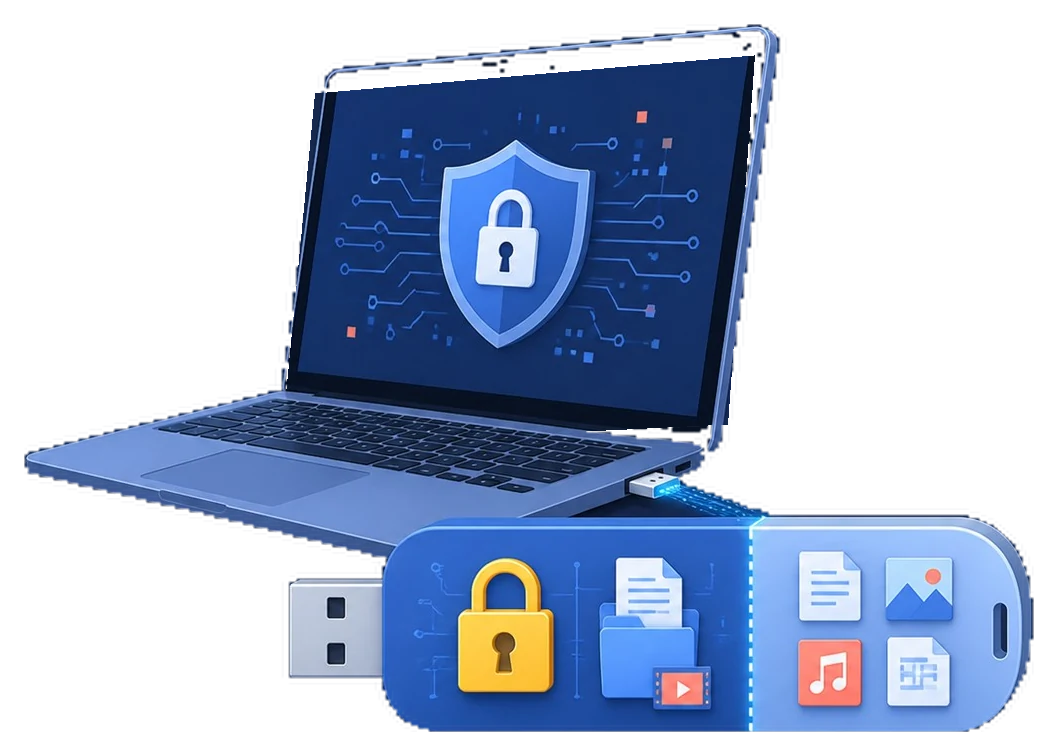
A USB disk encryptor protects files stored on a removable drive so another person cannot simply open them if the USB drive is lost, borrowed, stolen, or used on a shared computer. Some tools encrypt the whole removable drive, while others create a protected container, secure area, or encrypted archive.
Start with the protection target: an entire removable drive, a few files in an encrypted archive, or a private area beside public files. BitLocker To Go is included on supported Windows editions, while GiliSoft USB Encryption is a trial product, not a permanently free tool.
Free USB encryption methods can work well for simple cases, but they are not all the same. BitLocker To Go, VeraCrypt, password-protected ZIP files, and small USB vault tools have different strengths, setup steps, recovery risks, and compatibility limits.
If free methods feel too technical or limited for daily use, GiliSoft USB Encryption is the GiliSoft product to compare because it focuses on password-protected secure areas for USB flash drives, thumb drives, memory cards, and external USB disks.
| Free tool or method | Best for | What you need to check | Limits to know |
|---|---|---|---|
| BitLocker To Go | Windows users who want Microsoft removable-drive encryption on supported editions. | Windows edition, administrator rights, recovery key storage, and whether the target computers can unlock the drive. | Availability and management depend on Windows edition and organization policy; mixed-PC sharing may be inconvenient. |
| VeraCrypt | Technical users who want open-source containers or volume encryption for a USB disk. | Container size, mount/dismount habits, password recovery plan, and whether VeraCrypt can be installed or run where the drive will be used. | Powerful, but setup, mounting, dismounting, and recovery planning can feel complex for casual users. |
| 7-Zip encrypted archive | Protecting a small set of documents before copying them to a USB drive. | Use strong AES encryption, choose a non-obvious password, and remember that extracted files may leave traces on the PC. | Good for file bundles, not convenient for daily editing, whole-drive protection, or public/private areas on the same USB drive. |
| Cryptomator | Creating encrypted vault-style storage when files may also sync through cloud folders. | Whether the portable workflow fits your USB use, and whether every PC has the app or access method needed to open the vault. | Better known for cloud vaults than simple plug-and-use USB disk encryption; may be more workflow than some users need. |
| USB manufacturer tools | Specific encrypted USB models or brand utilities from the drive maker. | Drive brand, model, firmware support, software download availability, and whether the tool still supports your Windows version. | Often tied to one brand or model, so it may not help when you use several ordinary USB flash drives. |
| Windows EFS on copied files | Not recommended as a portable USB encryption method. | Certificate and account availability on every PC. | EFS is tied to Windows identity and does not provide a straightforward removable-drive unlock workflow. |
| Small USB vault tools | Creating a small password-protected folder or vault on a removable drive. | Vault size limit, update history, Windows compatibility, recovery options, and whether the vendor is still maintained. | Free versions may limit vault size, portability, support, or advanced recovery options. |

After comparing free USB disk encryptor methods, choose GiliSoft USB Encryption when you need a simpler Windows workflow for password-protected secure areas on USB flash drives, thumb drives, memory cards, and external USB disks.
Download the trial to test a public area and a password-protected private area with noncritical files. Confirm the unlocking path on every Windows PC where the drive will be used.
If the main worry is losing a USB drive with tax files, ID scans, work documents, or private photos, use real encryption instead of hiding files.
If one USB drive needs both shareable files and private files, a secure area workflow is easier than repeatedly creating encrypted ZIP archives.
If a drive is handed to clients, coworkers, school staff, or print shops, encryption helps separate confidential files from files meant to be shared.
| Question | Free method answer | When GiliSoft helps |
|---|---|---|
| Can I encrypt the entire USB drive? | BitLocker To Go and VeraCrypt can help, depending on your Windows edition and skill level. | Use USB Encryption when you prefer a dedicated secure-area workflow for USB storage. |
| Can I password protect only some files? | Encrypted ZIP files can protect selected files, but daily editing and file updates become clumsy. | Use a secure area when protected files need to be opened, edited, and saved repeatedly. |
| Is hiding files enough? | No. Hidden files can be revealed from File Explorer settings or found by search. | Use encryption when the files should remain inaccessible without a password. |
| Can I share non-private files on the same USB? | Yes, but free methods may require careful folder organization. | GiliSoft USB Encryption supports a public area plus a password-protected secure area on the same USB drive. |
| What if the USB drive is used on another PC? | Compatibility depends on the encryption method, permissions, and software availability. | Choose a workflow designed for Windows removable-media use across common PCs. |
For an easier Windows workflow, compare GiliSoft USB Encryption. It is designed for password-protected secure areas on USB flash drives, thumb drives, memory cards, and external USB disks. Related guides: Password Protect a USB Flash Drive, USB Encryption vs BitLocker, Best USB Encryption Software, and Lost USB Drive: Can Someone Access Files?.
It depends on your situation. BitLocker To Go is convenient on supported Windows editions, VeraCrypt is strong but more technical, and encrypted ZIP files are useful for small file bundles. For a simpler dedicated Windows USB workflow, compare GiliSoft USB Encryption.
Yes. VeraCrypt, encrypted archives, USB vault tools, and dedicated USB encryption software can protect removable-drive data without relying on BitLocker.
It can be enough for a few files, but it is not ideal for daily USB use, public/private drive areas, repeated editing, or protecting an entire removable disk workflow.
No. Hiding files only reduces casual visibility. Anyone who changes File Explorer settings or searches the drive may still find them.
Use USB encryption when the goal is password-protected storage on the removable drive itself. Use USB port control when you need to block devices on a PC, and use folder lock software for local folders stored on the computer.