GiliSoft Screen Recorder Pro

Use the upgraded Screen Recorder Pro suite when your work goes beyond capture: record screen, webcam, system sound, and microphone, then prepare the result with video tools, audio tools, download tools, text utilities, and AI-assisted media tools.

  • Record screen, webcam, system sound, and microphone
  • Edit and convert recordings with video and audio tools
  • Use download, text, subtitle, and AI-assisted utilities
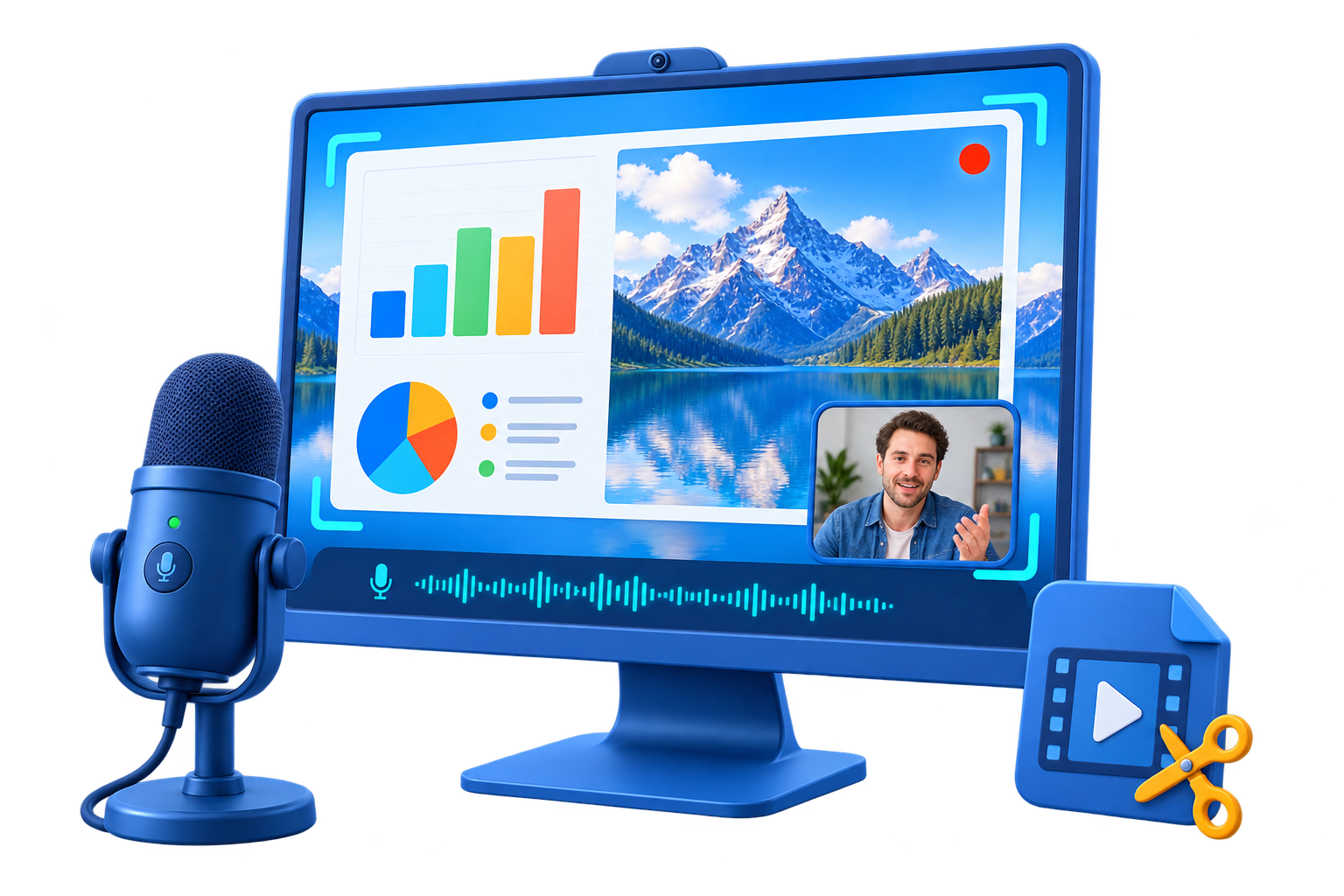
GiliSoft Screen Recorder Pro illustration showing screen capture, webcam picture-in-picture, microphone audio, and video editing

Screen Recorder Pro for Windows Recording and Media Preparation

GiliSoft Screen Recorder Pro is the upgraded Windows screen recording suite for users who need more than basic capture. It records full screen, selected regions, application windows, webcam video, system sound, and microphone input, including the core recording features available in GiliSoft Screen Recorder.
The Pro edition is stronger when the job continues after recording. Use the built-in video tools, audio tools, online video download, text utilities, and AI-assisted media tools to prepare tutorials, webinars, meeting archives, product demos, software walkthroughs, and internal training videos for delivery.
Choose it when you want one workflow to record, review, trim, convert, caption, watermark, and export screen videos instead of moving every recording through several separate utilities. For Android users, go to Screen Recorder for Android


Core Recording and Pro Toolkit Features


Flexible Screen and Webcam Capture

Record the full screen, a selected region, a single application window, webcam video, streaming video, or screen and webcam together.

Record Video and Audio in Sync

Capture video with system sound, microphone input, or both at the same time, keeping voice and on-screen action aligned.

Webcam Beauty and Background Tools

Use webcam beauty, skin smoothing, background removal, virtual background, and green screen matting when presenter videos need a cleaner look.

Zoom, Cursor, and Click Clarity

Magnify the cursor area up to 4x, highlight pointer movement, show click effects, and keep important on-screen actions easy to follow.

H.264 Encoder with GPU Acceleration

Use hardware-accelerated H.264 encoding, including NVIDIA CUDA/NVENC support, to reduce render time and keep smooth output.

MP4, AVI, WMV, FLV, and Converter Tools

Export recordings to MP4, AVI, WMV, or FLV, then use the built-in converter tools when finished videos need additional format preparation.

Recording with Watermarks

Add text or image watermarks (JPG/PNG/GIF) during recording to brand content and discourage unauthorized reuse.

Capture Snapshots

Create photo snapshots with png, jpg and bmp format at any time when recording video.

Hotkeys, Cursor and Click Effects

Use hotkeys to start, pause, stop, and capture screenshots. Highlight cursor movement and click effects to improve instructional clarity.

Schedule, Auto Stop, and Auto Split

Schedule recording tasks, stop capture automatically, and split long recordings by time or file size so webinars, classes, and meetings stay manageable.

Trim, Merge, and Prepare Recordings

Cut unwanted sections, merge clips, prepare recording segments, and keep only the parts needed for tutorials, demos, training, or support videos.

Pro Video Tools After Recording

Convert, trim, join, crop, rotate, adjust color, add subtitles, music, picture-in-picture, watermarks, and other finishing edits after recording.

Capture Areas, Windows, and Streaming Video

Switch between full-screen, selected region, application window, webcam, and streaming-video capture depending on the recording task.

Picture-in-Picture Presenter Videos

Overlay webcam footage on screen capture to create picture-in-picture lessons, software walkthroughs, product demos, and presentation videos.

Online Download and Source Preparation

Download authorized online video materials and prepare source clips when a recording project needs additional media before editing, conversion, or final delivery.

Audio, Text, Subtitle, and AI Utilities

Use audio tools, text and subtitle utilities, and AI-assisted media tools alongside recording when the final video needs captions, scripts, sound preparation, or extra media processing.

Testimonials

We record weekly onboarding sessions in 1080p with webcam and screen at the same time, and sync stays stable through long takes.

- Olivia M., Training Operations Lead

The region capture and window capture modes save setup time when we prepare short product tutorials for release notes.

- Kevin T., Systems Administrator

Recording system audio plus microphone in one pass removed our post-sync work and made meeting recap videos much faster to publish.

- Rachel P., Compliance Manager

Scheduled recording is reliable for recurring webinars, so our team no longer has to manually start every session.

- Daniel K., IT Administrator

Zoom and click effects make troubleshooting demos easier to follow, especially for new users watching on smaller screens.

- Brian C., Support Engineer

GPU-accelerated export helped us cut turnaround time on large recordings while still keeping clean text and UI detail.

- Megan S., Operations Manager

GiliSoft Screen Recorder Pro Screenshots

Preview the upgraded Screen Recorder Pro workflow: record screen and webcam first, then use video, audio, download, text, and AI-assisted media tools to prepare recordings for final delivery.

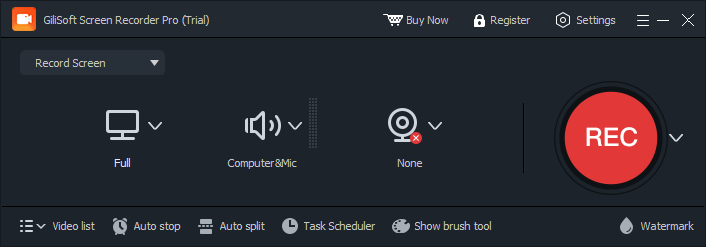
Screen recording tool in GiliSoft Screen Recorder Pro

Screen recording controls

Record desktop activity, selected areas, webcam, system audio, and microphone input for tutorials, demos, webinars, and meetings.

Top How-to Guides

Who Is This For?

Teams recording tutorials and onboarding videos

Create training videos, product walkthroughs, and internal how-to content with screen, webcam, and audio captured in sync.

Professionals recording meetings and webinars

Record conference calls, webinars, and recurring sessions with scheduled capture and both system sound and microphone input.

Support and product teams creating demo videos

Capture a selected window or custom area, zoom in during recording, and add cursor effects to make software demos easier to follow.

Teachers and trainers recording lessons

Record slide explanations, software lessons, webcam narration, and voice guidance for online classes or internal training libraries.

Creators recording game or app activity

Capture screen motion, system sound, microphone commentary, snapshots, and lightweight edits for shareable video clips.

Users who want recording plus media preparation

Choose this page when recording is the starting point and you also need video tools, audio tools, download, text, and AI-assisted utilities to prepare the final file.

Why Choose Screen Recorder Pro Instead of a Basic Recorder?

Record screen, webcam, and audio together

Use Screen Recorder Pro when you need more than simple screen capture and want webcam overlay, microphone input, and system audio handled together.

Scheduled recording helps recurring capture tasks

Choose this page if you record webinars, meetings, or timed demos and want scheduled capture instead of manual starts every time.

Record first, then prepare the finished video

Use it when you need recording plus practical post-capture preparation without opening a separate converter, downloader, audio utility, or subtitle tool for every task.

A broader workspace than ordinary screen capture

It combines recording controls with video conversion, audio handling, online video download, text utilities, and AI-assisted media tools for richer screen video projects.

Common Screen Recording Use Cases

Record tutorial videos with voice narration

Capture on-screen steps together with microphone input for software training, onboarding, and customer education.

Record screen and webcam together for teaching videos

Use picture-in-picture capture when face presence helps explain tutorials, lessons, and product walkthroughs more clearly.

Capture meetings, webinars, and scheduled sessions

Schedule recordings and keep both system sound and voice commentary aligned for later review or internal documentation.

Create product demos for release notes and support

Record specific windows or selected regions, zoom in on key actions, and export lightweight videos ready to share.

Create onboarding and internal training videos

Build reusable onboarding videos for employees, contractors, and partners with screen capture, narration, and optional webcam overlay.

Create support videos and guided troubleshooting walkthroughs

Record app steps, spoken guidance, and selected screen areas for help-center videos, ticket replies, and customer troubleshooting flows.

Find the guide for a specific recording job

The Screen Recorder Pro guide organizes setup, webcam, audio, scheduling, training, support, troubleshooting, and post-recording topics without turning this product overview into a link directory.

Browse all Screen Recorder Pro guides

Screen Recorder Pro FAQ

Can Screen Recorder Pro record screen and webcam at the same time?

Yes. It supports picture-in-picture capture so you can record screen activity and webcam video together for tutorials and presentation videos.

Can it record system sound and microphone together?

Yes. You can record system audio, microphone input, or both in sync with the video capture.

Is scheduled screen recording supported?

Yes. The recorder supports scheduled start and stop times for recurring webinars, meetings, and timed recording tasks.

How is Screen Recorder Pro different from the standard recorder?

The standard recorder is best when you mainly need to capture the screen. Screen Recorder Pro is better when you also need to prepare recordings with video tools, audio tools, download, text, and AI-assisted media utilities.

Is Screen Recorder Pro a good fit for onboarding and tutorial videos?

Yes. It fits onboarding recordings, software lessons, and repeatable internal walkthroughs where screen actions and spoken guidance need to stay aligned.

Can it be used for support videos and software walkthroughs?

Yes. It works well for product support videos, software walkthroughs, and guided troubleshooting content that needs zoom, cursor emphasis, and voice narration.

Media Review

Editors highlighted smooth capture performance for tutorials, meetings, and product demos. Coverage noted practical presets that reduce setup time before recording.

Review coverage emphasized dependable desktop capture, clear audio handling, and quick output preparation for daily publishing.

Reviewers praised stable audio-video sync in longer sessions and higher resolutions. Lab notes cited reliable behavior when recording multi-window desktop activity.

Independent testing highlighted stable recording of custom regions, full-screen sessions, and multi-window desktop activity.

Independent articles described the recorder as production-ready for daily content teams. Commentary emphasized fast export and low friction from capture to publish.

Editorial summaries described Screen Recorder Pro as a practical choice for guides, internal training videos, gameplay capture, and demo publishing.

SPECIAL OFFER | MEGA SALE
#1 Multimedia Toolkit Suite
11 Video Tools in Ultimate Multimedia Bundle