Computer
Browser playback and PC audio
Choose Computer and the intended playback device. Capture the sound playing on the PC without adding a microphone track.

Capture computer sound and your voice in one Windows recorder. Mix both sources, keep them separate, and schedule sessions for lessons, interviews, webinars, and narration.
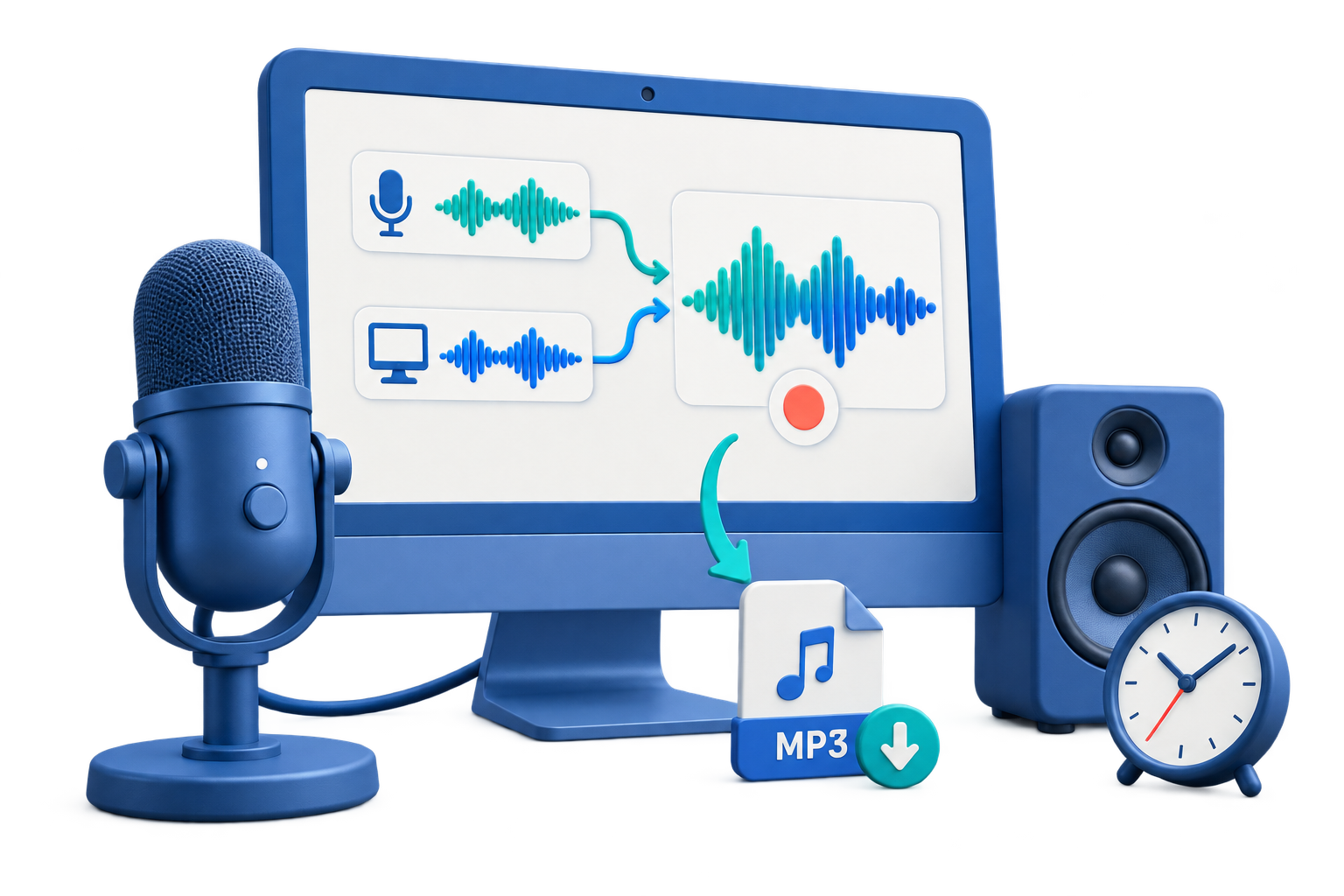
GiliSoft Audio Recorder Pro captures Windows playback, microphone speech, or both in the same session. Record online lessons, webinars, interviews, tutorial narration, and reference audio with a source setup that matches the job.
Choose Computer, Microphone, or Include both. Mix the sources automatically, place microphone and computer audio on separate left and right channels, or save each source to a separate file. Independent volume controls help you balance narration against PC playback before capture.
Prepare scheduled sessions with Auto Record, respond to silence with Voice Activation, and control capture with a Start / Stop hotkey. Set time or size limits for new output files or automatic stopping, save in MP3, WAV, or WMA, and use noise suppression or Denoise tools when your recording needs cleanup.

Capture browser playback, media players, online lessons, narration, or interviews. Choose Computer, Microphone, or Include both from the recorder's Audio Source controls.
Combine PC audio and your voice automatically, put the sources on separate left and right channels, or save them as separate files. Adjust microphone and computer volume independently for a balanced recording.
Prepare Auto Record plans for classes, broadcasts, webinars, and other timed sessions. Choose start conditions, an automatic stop rule, and the destination for the captured audio.
Set a silence threshold and interval, then choose how the recorder responds. Pause through quiet periods, create a new recording when sound returns, or stop after a defined silence.
Start and stop recording with a configurable keyboard shortcut while working in another window. Keep the main task in view during a presentation, demonstration, or narrated walkthrough.
Set a duration or size limit for the recording. Continue into a new file for a long session, or stop when the limit is reached when you only need a bounded capture.
Use recording Effect settings for noise suppression and volume gain. Explore the Denoise workspace for background-noise, wind, hiss, echo, and voice-enhancement tasks.
Choose the output format, bitrate, sample rate, channels, folder, and naming pattern. Save recordings for replay, sharing, course production, editing, or an organized audio archive.

We use Audio Recorder Pro to capture webinars and internal training sessions, and the audio quality stays consistent across episodes.
Recording system sound and microphone together made tutorial narration much easier to review before editing.
Scheduled recording is reliable for sessions in different time zones, so our team no longer misses important audio.
Capture only the sound you need, with a clear choice between PC playback, microphone input, and both sources.
Browser playback and PC audio
Choose Computer and the intended playback device. Capture the sound playing on the PC without adding a microphone track.
Narration, interviews, and voice notes
Choose Microphone and the intended input device. Record speech or another source connected through the microphone input.
PC playback plus spoken commentary
Choose automatic mixing, separate left/right channels, or separate microphone and computer files. Set each source volume independently.
Choose the sources, set the output, and capture a recording ready for playback or your next edit.
Open Start Record and select Computer, Microphone, or Include both. Choose the input and playback devices used by the session.
For both sources, choose a Mixing mode. Set the format, recording quality, save location, and file-name options, then record and replay a short sample.
Use Auto Record for a timed session, Voice Activation for silence handling, or File limits to continue into new files or stop capture automatically.
Start capture with Record or your configured Start / Stop hotkey. Stop when finished, replay the saved audio, and keep the original before applying cleanup.
Explore source mixing and separate-file output, recording settings, schedules, silence actions, start/stop shortcuts, file limits, and audio cleanup tools.
Capture online lessons, lectures, and tutorial narration. Record the computer and your voice together, or keep each source separate for the next editing stage.
Prepare audio capture for planned broadcasts, webinars, and internal sessions. Use scheduled starts, stop conditions, and named output files to organize the recording.
Record microphone speech and computer playback with independent volume controls. Use channel-based or separate-file output when the two sources need different editing later.
Record product-demo narration, spoken walkthroughs, and reference audio. Use a start/stop shortcut, choose practical file limits, and prepare a recording for review or publishing.
Yes. Choose Computer for PC playback, Microphone for voice input, or Include both to capture the two sources. With Include both, the Mixing menu offers Automatic mixing, microphone and computer audio on separate left and right channels, or separate files for each source. Adjust the two volume controls before recording.
Yes. Auto Record provides recording plans with start-time choices and stop conditions such as duration, file size, or a specified time. The plan also provides output-folder and file-name settings. Keep Windows awake and the selected audio devices available for the session, and check the plan before relying on an unattended recording.
The Voice Activation tab provides a silence-detection threshold and actions based on a chosen number of silent seconds. You can pause and continue when sound returns, start a new recording when sound returns, or stop after silence. Choose the action and threshold for your recording environment, then check a short sample.
Yes. The File tab lets you choose a time or size limit. Select Record a new file when the limit is reached to continue into another file, or Stop recording when the limit is reached to end capture instead. These are different actions, so choose the one that matches the session.
Audio Recorder Pro supports MP3, WAV, and WMA recording. The Record settings include output format, bitrate, sample rate, channels, save location, and file-name options. Use MP3 for convenient sharing or WAV when you want an uncompressed recording for later editing.
Yes. The Hotkey tab provides a Start / Stop shortcut setting. Choose a key that does not conflict with the application you are using and check it before the session.
Yes. The Effect tab provides Noise suppression mode and Volume Gain settings. The separate Denoise workspace includes tools for background noise, wind, hiss, echo, and voice enhancement. Choose a treatment suited to the recording and compare the result with the original, since stronger processing can also affect speech detail.
A trial download is available; some settings and automatic-recording features may require activation. The $34.95 Buy Now offer on this page is the Lifetime / 1 PC license. The purchase page also lists one-year, three-PC lifetime, and team or OEM options. Choose the license for the number of computers and the deployment you need.
Record both sources together or keep them separate, automate the session, and save audio ready for review, sharing, or editing.


Enter your email address to get our latest newsletter