
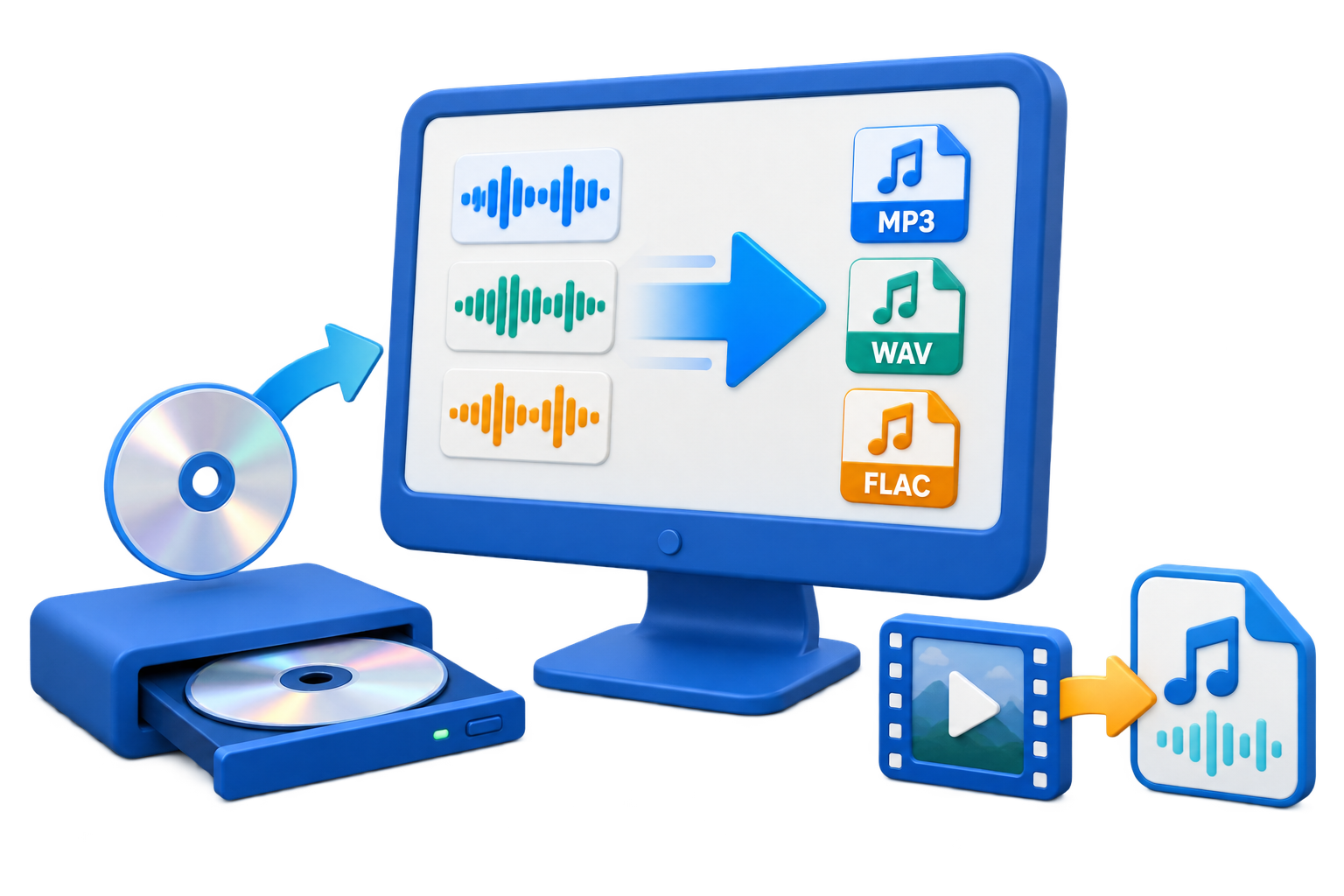
Free Audio Converter for Windows: Choose by Task
A free audio converter may be enough for one file or a simple CD rip. The best option depends on the source, destination format, batch size, privacy needs, and whether you need editing or track information too.
Quick answer
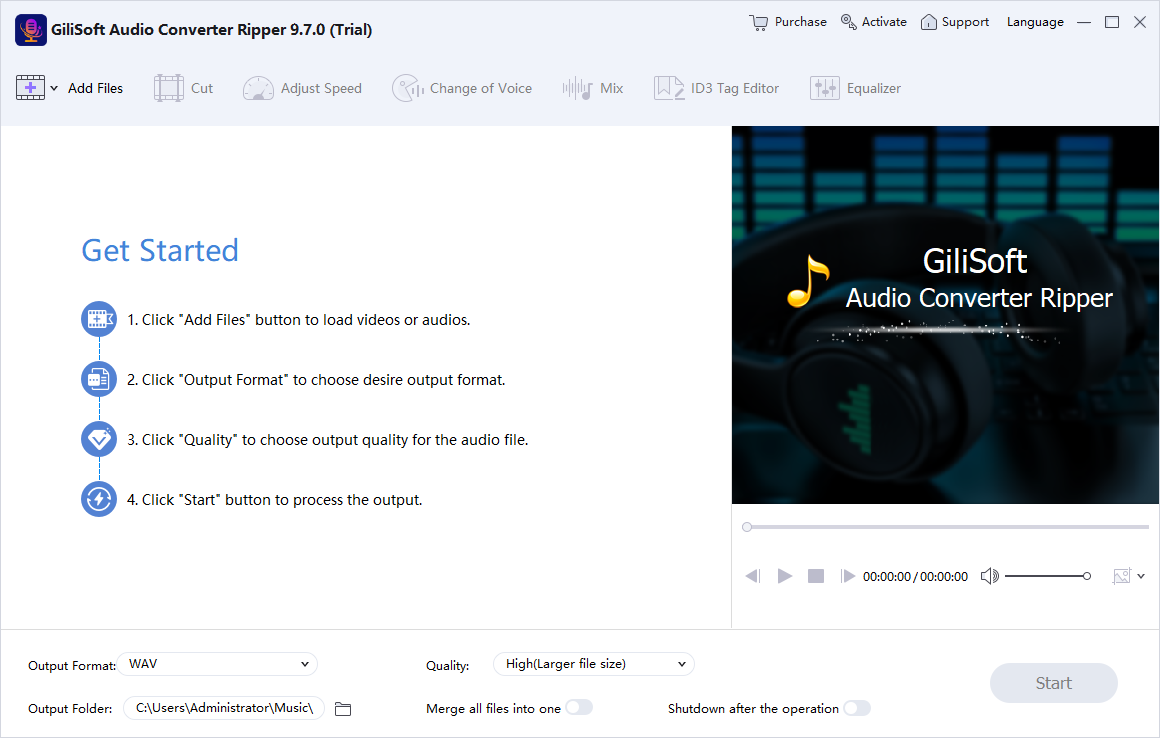
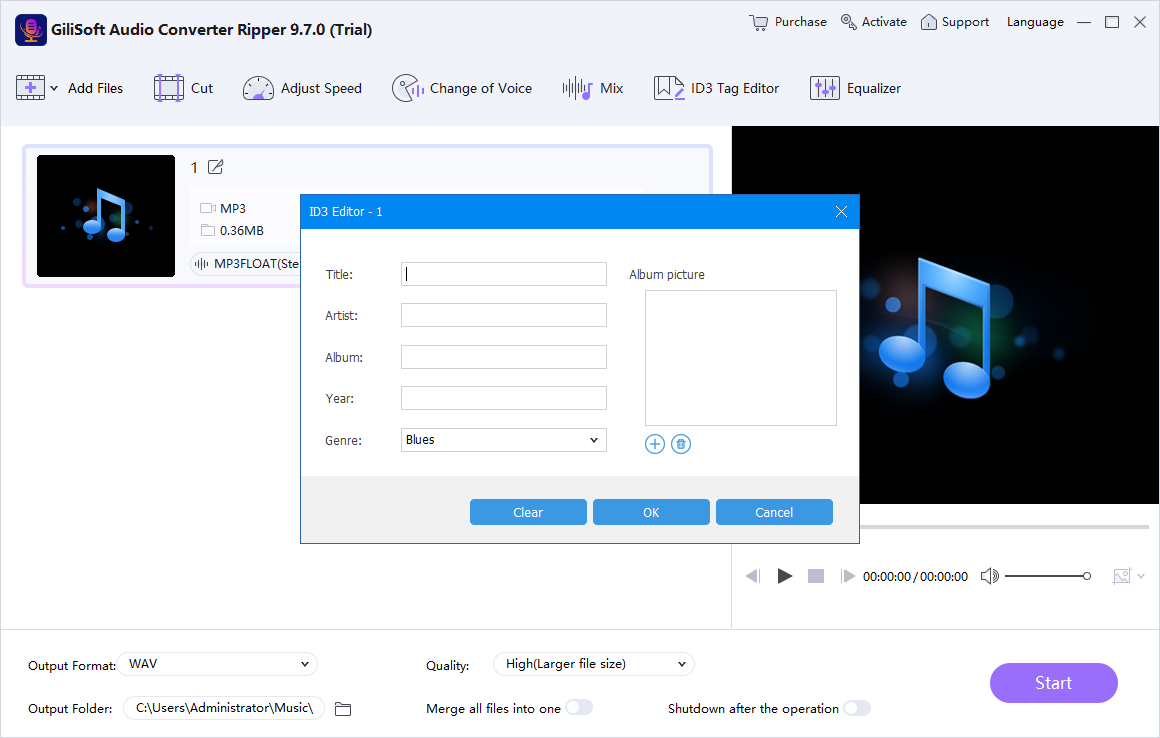
For an occasional file, use a trusted free desktop converter or a service approved for that audio. Windows Media Player can rip an audio CD to WMA, WAV, or MP3, but that is not a general multi-format library converter. Choose GiliSoft Audio Converter Ripper when you need batch format conversion, CD ripping, audio extraction from video, trimming, mixing, or ID3 tag editing. Its download is a trial.
Choose the audio conversion by what you need to do
| Task | Possible output | Check before converting |
|---|---|---|
| Make music play on more devices | MP3, AAC, or another supported format | Player compatibility, bitrate, and file size |
| Keep an editing or archive master | FLAC or WAV | Retain the original and avoid lossy re-encoding |
| Copy tracks from an audio CD | WMA, WAV, MP3, or a converter-supported output | CD drive access, track order, artist and album tags |
| Save a soundtrack from video | MP3, WAV, or another supported audio output | Source compatibility, duration, and rights to process it |
| Prepare a large music library | Consistent format and metadata | Batch queue, destination folder, filenames, and tags |
Free audio conversion options and their limits
Windows Media Player CD ripping
Useful when you only need to copy tracks from an audio CD. Microsoft documents WMA, WAV, and MP3 output options. It does not cover every audio-to-audio conversion or batch library workflow.
Free desktop converters
Can handle common formats and occasional jobs. Check supported codecs, batch limits, output controls, installation terms, and whether the files remain on your PC.
Online converters
Convenient for a small non-sensitive file, but upload size, queue time, file retention, and privacy terms vary. Avoid uploading private or licensed audio without approval.
Audio editors
Useful when you also need waveform editing. For a straightforward format change, a converter may take fewer steps and preserve a clear batch workflow.
Keep a source copy. MP3 and AAC are lossy formats. Converting a lossless file to a lossy format discards audio information; converting it back does not restore that information.
Convert audio files with GiliSoft Audio Converter Ripper
- Keep the original files in a separate folder.
Choose a new output location so the source library stays unchanged.
- Add one representative file or a small batch.
Include a typical track and, when relevant, a file with tags or a long duration.
- Choose the output format and quality.
Match the destination device or editor and keep lossless output when preserving an archive master.
- Set the destination and metadata workflow.
Review filenames, track order, and ID3 tags before processing a large library.
- Convert and inspect the result.
Check playback, duration, quality, file size, tags, and the beginning and end of sample tracks.
Protect sound quality and file organization
- Keep FLAC or WAV originals when you may need future editing or lossless archiving.
- Use MP3 or AAC when device compatibility or smaller files matter more than lossless preservation.
- Test one track before converting a large collection.
- Check tags and track numbers before importing a batch.
- For CD ripping, compare the number and order of output tracks against the disc.
- Do not convert copyrighted audio unless you have the rights or permission to do so.
Frequently asked questions
Can I convert audio files for free?
Yes. Some desktop applications and online services handle basic conversions for free. Check supported formats, batch limits, privacy terms, output quality, and whether the tool adds restrictions.
Can Windows Media Player convert any audio file?
No. Microsoft documents CD ripping to WMA, WAV, or MP3. That CD workflow is different from converting an existing library between many formats.
Which audio format should I choose?
Choose the format supported by the destination. Keep a lossless source such as FLAC or WAV for archiving or editing, and make MP3 or another lossy copy when compatibility or smaller size matters.
Can I extract audio from a video for free?
Some tools can extract a soundtrack from supported video files. Check the output format and preserve the original video; only process media you own or are authorized to use.
Is GiliSoft Audio Converter Ripper free?
The download is a trial. Use it to test the formats, CD drive, video sources, batch workflow, and output quality you need before purchasing.