Voice Cleanup and Silence Removal
Noise Reduction (Voice), Audio Repair, and Remove Silence help you clean spoken recordings and reduce unwanted gaps. Keep the original available so you can compare the processed voice.

Turn recordings and music into finished audio. Trim unwanted sections, join clips, mix voice with music, reduce noise, and shape the sound with waveform editing and audio effects on Windows.
GiliSoft Audio Editor brings waveform editing, audio cutting and joining, mixing, recording, and sound effects into one Windows application. Work with music, interviews, podcasts, lessons, voiceovers, and meeting recordings: remove an unwanted section, assemble clips in order, or blend narration with background music.
Go beyond a basic MP3 cutter with Noise Reduction (Voice), Audio Repair, EQ, Compressor, Normalize, Hard Limiter, fades, and speed controls. Clean up a voice recording, make uneven levels easier to listen to, and shape the sound before exporting the finished audio.
Use the waveform editor for a focused edit, the task hub for Cutter, Batch Cutter, Joiner, Splitter, or Mix, and Multitrack Beta for separate audio channel lanes. Local drafts, audio analyzers, and ID3 tags help you move from the first recording to an organized final file.
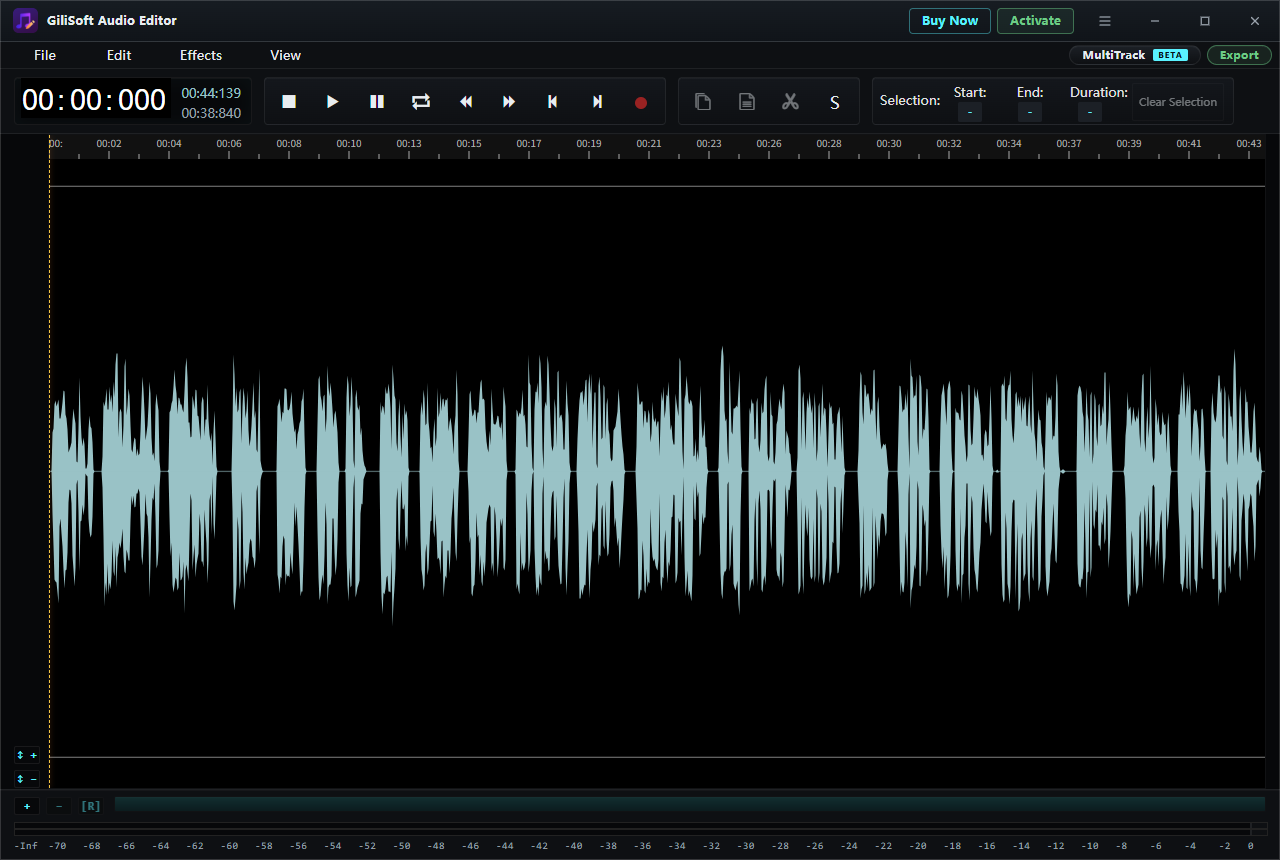
Select an unwanted waveform range, check its start, end, and duration, and remove mistakes or long pauses. Dedicated Cutter, Splitter, and Batch Cutter tasks support focused clip preparation, from one short recording to multiple source files.
Put recordings one after another with Joiner, or blend voice, music, and other sounds with Mix. Multitrack Beta adds separate channel lanes with mute, solo, volume, and balance controls when your project needs layered sources.
Capture computer sound or microphone audio through Audio Recorder, or start from File > New recording in the editor. Save a draft locally while work is in progress and reopen it when you are ready to continue.
Use Noise Reduction (Voice) to reduce background noise in speech and Audio Repair for cleanup work. Combine these with careful waveform cuts and Remove Silence to prepare clearer interviews, lessons, and spoken recordings.
Adjust the overall level with Gain or Normalize, reduce loud-to-quiet differences with Compressor, and control peaks with Hard Limiter. Give voice recordings more consistent listening levels while keeping the final sound under control.
Smooth clip openings and endings with Fade In and Fade Out. Shape tone with Paragraphic EQ or Graphic EQ, including a 20-band option, then add Reverb, Delay, or Distortion when the project calls for a creative effect.
Use the editor's speed and pitch controls or open Adjust Speed from the task hub. Prepare a shorter practice clip, adjust a spoken passage, reverse audio, or use Invert as part of a sound-editing project.
Edit common formats including MP3 and WAV, then use Export for the finished audio. View provides Frequency Analyser, Spectrum Analyser, Tempo Tools, and ID3 Tags; the task hub also includes Converter and Video to MP3.

GiliSoft Audio Editor helped us clean interview recordings faster and keep export quality consistent.
The waveform tools made it easy to remove filler sections and deliver clearer podcast clips.
We record online sessions, trim the result, and prepare MP3 files in one place.
See the current waveform editor, Multitrack Beta, menus, and focused audio tasks in the original product screenshots.
Choose an effect for the sound you want to change, from a cleaner voice to a smoother transition or a different playback speed.
Noise Reduction (Voice), Audio Repair, and Remove Silence help you clean spoken recordings and reduce unwanted gaps. Keep the original available so you can compare the processed voice.
Gain, Normalize, Compressor, and Hard Limiter handle different level problems: overall loudness, inconsistent voice levels, and peaks. Combine them around the recording rather than applying the same correction to every file.
Fade In, Fade Out, Paragraphic EQ, Graphic EQ, Graphic EQ (20 Bands), Reverb, Delay, and Distortion cover transitions, tonal adjustments, space, echoes, and creative processing.
Speed Up / Slow Down (Pitch), Speed / Playback Rate, Reverse, and Invert provide timing, pitch-related, direction, and polarity changes. Use a short selection to listen to the adjustment before processing a longer passage.
Keep the main editing steps together, whether you are polishing one voice recording or combining several clips.
Choose Audio Editing and use File > Load from computer or Load from URL. For a new take, open File > New recording or Audio Recorder from the task hub.
Play the recording and select a waveform range. Check start, end, and duration, then cut mistakes or remove the part you do not need.
Use Joiner for a sequence or Mix for layered sound. Apply fades, voice noise reduction, EQ, or level adjustments according to the recording.
Choose Save draft locally to continue later, or Export for a finished audio file. Play the saved result to check the edit, levels, and clip joins.
Remove false starts, repeated lines, and long pauses; reduce voice noise and balance the levels. Join edited sections into a clear episode or a short interview clip.
Cut a long recording into focused lessons, prepare voice explanations, and improve inconsistent levels so students can listen without constantly changing the volume.
Record a take, trim the opening and ending, shape the voice with EQ and compression, and mix narration with a music bed for a tutorial, presentation, or project.
Trim a music passage, add fades, adjust playback speed, combine clips, and prepare a finished file for practice, a ringtone, or your personal audio collection.
GiliSoft Audio Editor supports common audio formats such as MP3, WAV, M4A, AAC, FLAC, OGG, and WMA. Open a file in Audio Editing for waveform work, or choose the dedicated Converter task for a format change. The editor's Export screen provides the output choices for the current project.
Open Audio Editing, load the recording, and select the unwanted waveform range. Check the selection's start, end, and duration, preview the cut point, and remove the unwanted audio. Use a short fade where a transition needs smoothing, then export the finished file.
Joining places clips one after another in a single sequence; choose Joiner from the task hub. Mixing layers sources so they play together, such as narration with background music; choose Mix or use separate channel lanes in Multitrack Beta.
Yes. The Effects menu includes Noise Reduction (Voice) and Audio Repair. Apply a suitable adjustment and compare the processed audio with the original so speech stays natural. For a quieter or muffled voice, gain and EQ may be more useful than stronger noise reduction.
Normalize changes the overall level, while Compressor reduces the difference between louder and quieter passages. For speech that varies in volume within one recording, start with compression and listen again; use normalization for the overall output level and Hard Limiter when peaks need controlling.
Yes. The Effects menu includes Speed Up / Slow Down (Pitch) and a separate Speed / Playback Rate entry, and the task hub also has Adjust Speed. Choose the control for the change you need and listen to a short result before applying it to a full recording.
Yes. File includes Save draft locally and Open local drafts. Use a draft for work you plan to continue, and use Export for a finished audio file you want to play or share. A local draft and an exported audio file serve different purposes.
GiliSoft Audio Editor is paid Windows software with a trial download. The purchase page offers a one-year license for 1 PC at $24.95 and a lifetime license for 1 PC at $34.95, with multi-PC and team options. The Buy Now buttons on this page show the lifetime 1-PC price.
Cut, join, mix, record, and polish audio with waveform tools and effects in one Windows application.
Compare one-year, lifetime, multi-PC, and team licenses 


Enter your email address to get our latest newsletter