Lock Desktop Apps (EXE)
Add desktop EXE programs, shortcuts, browsers, games, finance tools, editors, and admin utilities to the protected app list.

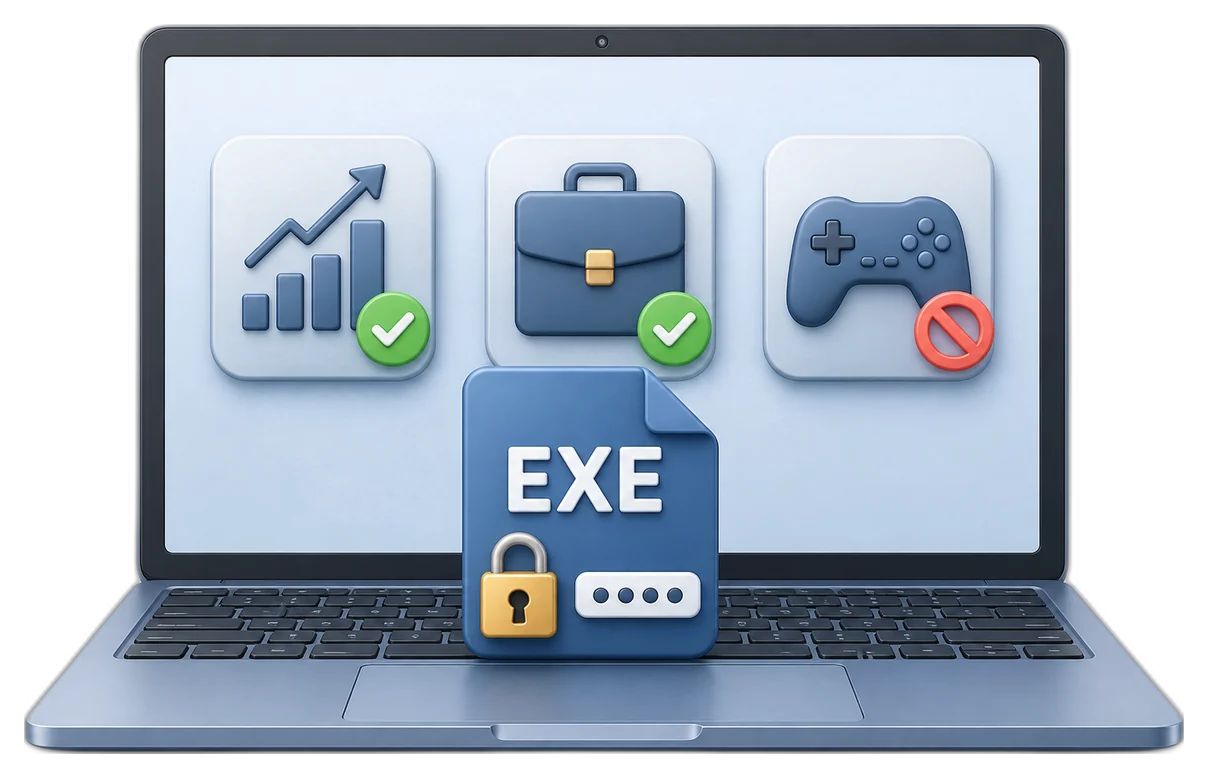

GiliSoft EXE Lock is built for Windows computers where selected applications should not be opened freely by every user. Instead of only hiding shortcuts, it controls app launch for desktop EXE programs and supported Microsoft Store/UWP apps from one interface.
The new workflow lets you choose between two clear policies: Direct Block when an app should not start at all, or Password Verification when an authorized user may approve the launch. Temporary Unlock, App Whitelist, recent intercept logs, blocked-attempt records, and password recovery email make it easier to manage shared family PCs, office workstations, school labs, and public-facing computers.

Add desktop EXE programs, shortcuts, browsers, games, finance tools, editors, and admin utilities to the protected app list.
Use the Store Apps (UWP) section to find supported modern Windows app targets and apply the same launch-control policies.
Choose Direct Block when selected software should be prevented from starting with no password prompt or extra user interaction.
Choose Password Verification when a parent, manager, teacher, or administrator should be able to approve a protected app launch.
Temporarily release protected apps during maintenance, supervised use, demonstrations, or short authorized work sessions.
Use the whitelist and system protected items area to keep trusted apps and system-critical processes away from the lock list.
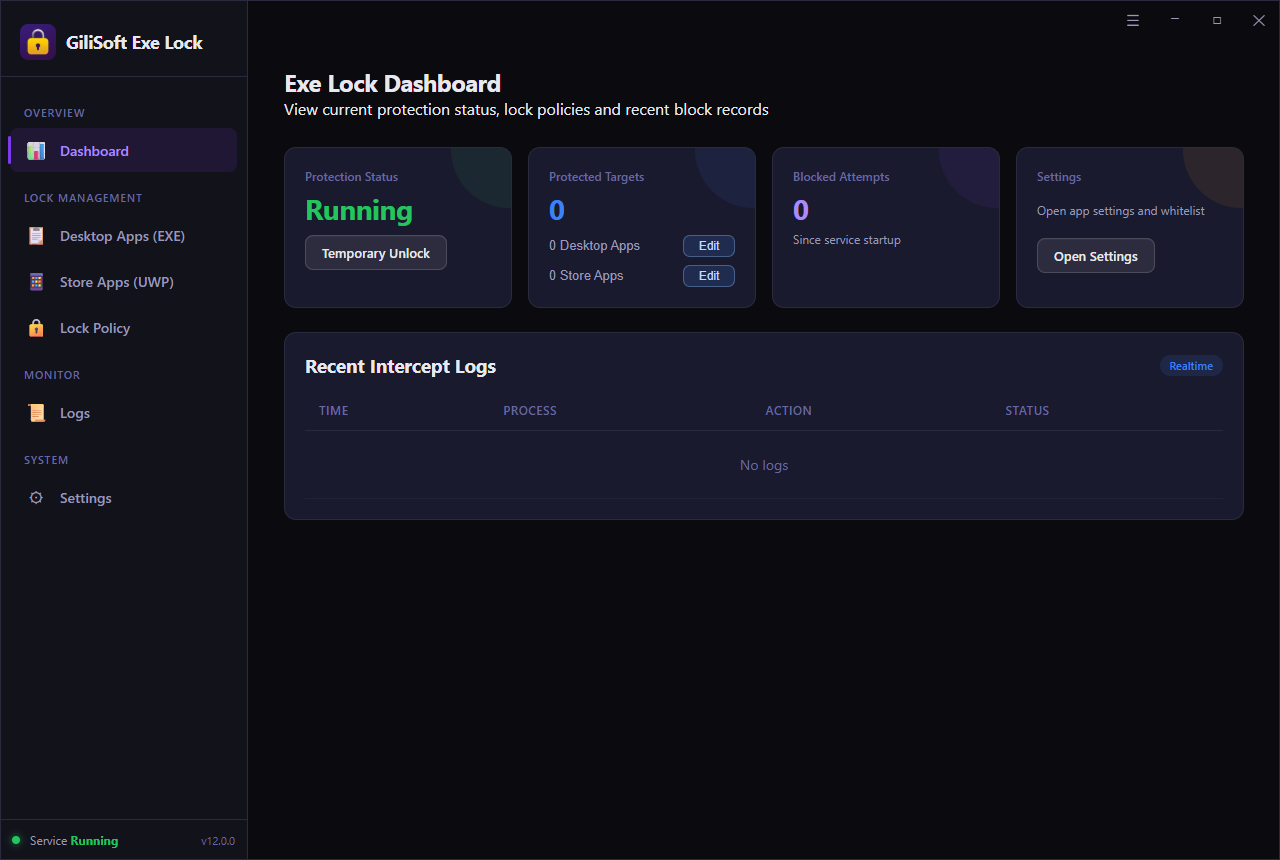
Review blocked attempts, launch activity, protected target counts, and service status from the dashboard and logs area.
Set a recovery email in Settings so app-lock administration stays recoverable before the PC is shared with other users.
Restrict accounting, payroll, ERP, tax, reporting, remote-access, and internal tools so only authorized staff can launch them.
Apply app-level control on office desktops, school labs, kiosks, reception PCs, training rooms, and family computers.
Use a focused local app-lock tool for Windows 11 and Windows 10 instead of relying only on shortcuts or account separation.
Add protected targets, choose the launch policy, adjust whitelist entries, and verify results without building a large rule framework.

We use EXE Lock to protect finance tools with Password Verification and block unrelated apps directly on shared office PCs.
The Desktop Apps and Store Apps lists make it clear which targets are protected, so daily administration is much easier.
Direct Block works well for prohibited software, while Password Verification gives managers a controlled way to approve access.
The whitelist helps us avoid locking trusted system items while still protecting the apps that matter on shared workstations.
Temporary Unlock is useful during maintenance because we can release protected apps briefly without removing the policy.
Recent intercept logs help us confirm when blocked apps were attempted and whether protection is running as expected.
For school lab PCs, EXE Lock helps us block games and admin utilities while keeping approved learning software available.
Password recovery email gives our team a cleaner fallback before deploying app locks on computers used by multiple staff.
On Windows 11 and Windows 10 front-desk machines, the product gives us focused app control without a heavy policy setup.
Preview the main app-lock workflow: monitor protection status, lock desktop EXE apps, manage Microsoft Store apps, choose a launch policy, and maintain whitelist and recovery settings.
Use EXE Lock when different users can sign in to the same computer but selected apps still need a launch password or direct block rule.
Keep payroll, accounting, reporting, remote-access, and internal utilities behind Password Verification so only approved staff can launch them.
Use Direct Block for games, settings utilities, browsers, or unsupported apps on classroom, lab, reception, and public-facing computers.
Choose EXE Lock when the real job is controlling app launches instead of encrypting folders, blocking USB devices, or hiding disks.
Password-protect or directly block games, browsers, chat tools, media apps, and Microsoft Store apps on a shared family computer.
Use whitelist protection, recent intercept logs, and temporary unlock to manage restricted apps without accidentally blocking key system items.
Add Password Verification before selected desktop programs open, while keeping the original application installed and unchanged.
Use one release password to approve app launches on shared Windows 11 and Windows 10 computers.
Use Direct Block for prohibited apps and Password Verification for applications that supervisors may approve.
Use the dedicated Store Apps (UWP) list to find supported modern Windows app targets and apply the same launch policies.
Keep non-work software, games, launchers, and entertainment apps unavailable unless an authorized person approves access.
Select desktop and Store apps visually, apply launch policies, protect whitelist entries, and review blocked attempts without building a large rule framework.
It controls app launch on Windows PCs. You can lock desktop EXE apps and supported Microsoft Store/UWP apps with Direct Block or Password Verification.
Direct Block prevents the selected app from starting. Use it when a game, utility, browser, or business app should remain unavailable to ordinary users.
Password Verification shows a password prompt before launch, so an authorized parent, manager, teacher, or administrator can approve the app.
Yes. The new Store Apps (UWP) area is designed for supported Microsoft Store app targets, separate from the Desktop Apps (EXE) list.
The whitelist helps keep trusted apps and system-critical items away from the lock list, reducing the risk of blocking essential Windows processes.
Yes. The dashboard and logs show recent intercept records, blocked attempts, protected target counts, and current protection status.
Choose based on what needs to be controlled: application launch, files and folders, automated PC operation, website access, or USB devices.
Use EXE Lock when the main goal is stopping unauthorized users from launching specific Windows applications.
Use File Lock Pro when the main risk is file or folder access, deletion, copying, hide mode, or shared-folder exposure.
Use AI Agent Lock when the risk is scripted control, injected input, screen capture, or machine-driven PC operation.
Use WebLock when the problem is website access, allowed lists, blocked websites, internet schedules, or browsing time control.
Need endpoint device policy instead of app launch protection? Review USB Lock. Need a broader security bundle? Compare GiliSoft Encryption Toolkit.

 Editors highlighted practical EXE launch protection for shared desktops and office environments.
Coverage noted straightforward setup for teams needing app-level access control.
We think its easy-to-use UI and shortcut key supporting also lead
to its great popularity...

Reviewers praised stable password prompting and predictable lock behavior for controlled program access on Windows PCs.
Lab observations mentioned reliable use on repeated open and relaunch attempts.
A perfect solution to solve the permission problem of operating your
apps when you are not around...

Independent write-ups described EXE Lock as a focused utility for app access control on multi-user systems.
Commentary emphasized low learning curve and clear administration flow.
Lock any EXE program in 3 steps to make sure no one can use it without authorization...


Enter your email address to get our latest newsletter