Subtitle Removal
Burned-in captions and subtitle lines
Choose a horizontal or vertical layout and fit the region to the caption area. Check the longest lines and any change in caption position.

Remove burned-in subtitles and unwanted video text with AI. Select the area, clean the frame, and prepare your videos for new captions, dubbing, or a fresh edit on Windows.

GiliSoft Subtitle Remover cleans burned-in captions, translated subtitle lines, timestamps, and unwanted text embedded in video frames. Select the region you want to change and use AI-assisted reconstruction to prepare the picture for new captions, dubbing, or another edit.
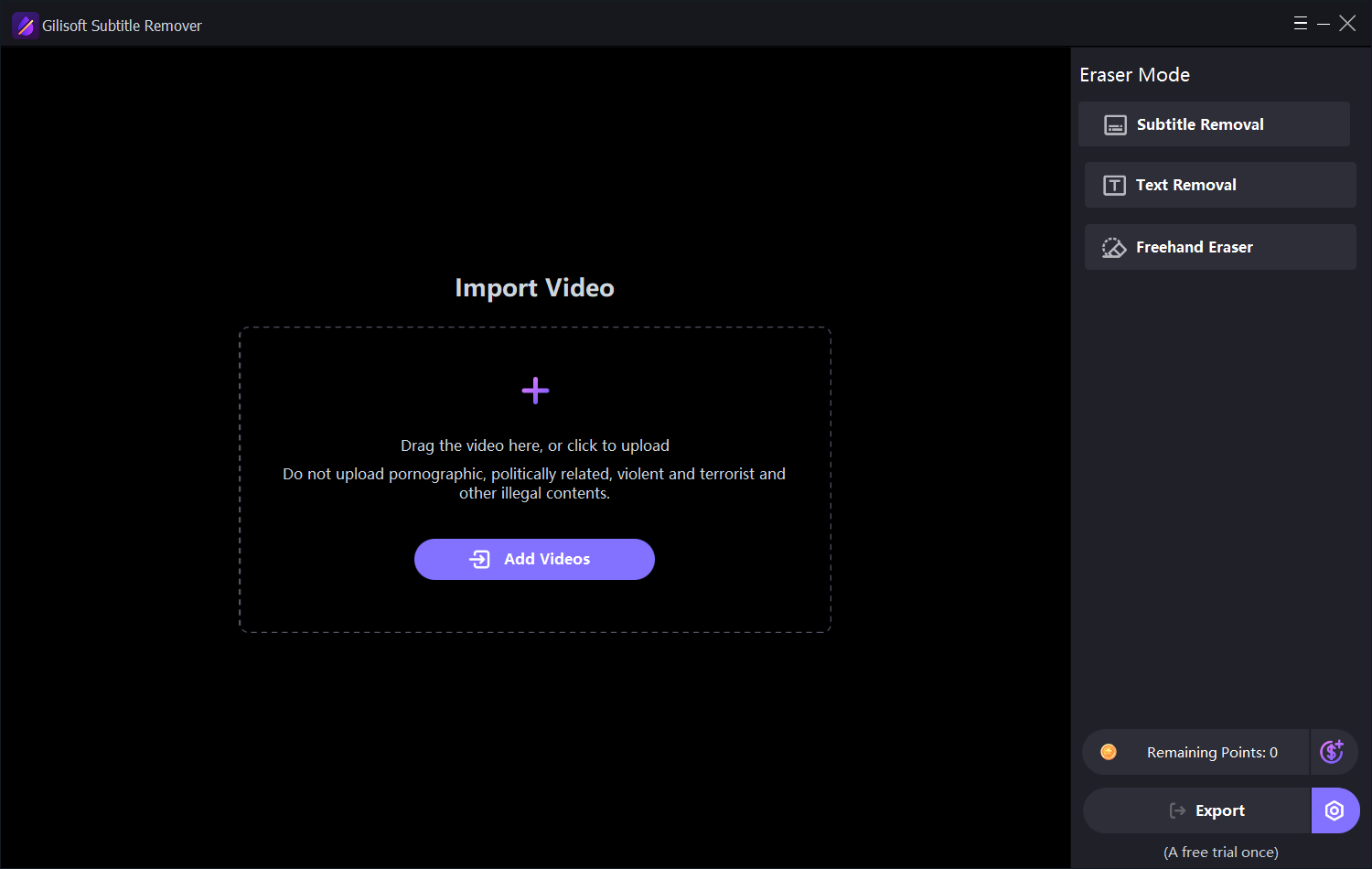
Choose Subtitle Removal for caption bands and subtitle layouts, Text Removal for fixed on-screen text, or Freehand Eraser for irregular marks and logos. Adjust the selected area directly over the video and keep the full frame when you do not need to crop.
Built for course creators, localization teams, marketers, and video editors, the Windows workspace brings together video import, region selection, optional Cut/Crop controls, a task queue, and export. Prepare each clip for its next release while keeping the original footage available.
AI video processing uses points. Check the requirement for your selected job and the remaining balance in the app. View AI point options.

Clean subtitle lines and translated captions embedded in the picture. Prepare a new version for fresh captions or narration without having to cut away the caption band.
Choose a subtitle layout and adjust the region on the video. Match the selection to the actual caption position, including longer lines, outlines, and shadows.
Use Text Removal for on-screen labels, timestamps, titles, and other text overlays. Focus the cleanup on the area that needs changing while keeping the rest of the composition.
Choose Freehand Eraser for irregular marks and logos. Smart Pen, Brush Pen, and Eraser give you control over the selected shape and brush size.
Use AI processing to fill the selected text region from the surrounding visual content. Review the reconstructed area through the scene, especially around motion and detailed textures.
Use the optional Cut/Crop window to set the clip's start and end times or change its framing. Keep the full frame when you only need to remove subtitles from a selected region.
Add clips to the current task queue and use Recent Tasks to return to processed work. Set the cleanup area for each video when caption placement differs between lessons or episodes.
Create a processed video copy for new subtitles, dubbing, course updates, and social publishing. The workspace keeps Export, Remaining Points, and recent-task access together.

It cleaned embedded subtitles from our training videos with very little manual touch-up.
The logo and ticker removal quality was better than we expected for weekly social clips.
Batch processing saved us hours when preparing multilingual versions for localization.
We use it for archive cleanup before re-editing old footage, and the background fill looks natural.
Match the mode to the shape and position of the text or mark you want to remove.
Burned-in captions and subtitle lines
Choose a horizontal or vertical layout and fit the region to the caption area. Check the longest lines and any change in caption position.
Titles, timestamps, and fixed labels
Select the on-screen text you want to remove. Include its outline or shadow while keeping the surrounding selection as focused as possible.
Irregular marks and logos
Refine the region with Smart Pen, Brush Pen, and Eraser. Adjust the tool size for tighter control of the selected shape.
Load the clip, fit the removal region, and export a processed copy for your next project.
Use Import Video or Add Videos to load the clip. Play it through the scenes where subtitles or other unwanted text appear.
Select Subtitle Removal, Text Removal, or Freehand Eraser. Mark the complete text or logo area without selecting unnecessary background.
Review the selected region across different frames. Set a shorter clip interval with Cut/Crop when needed and check the AI processing requirement.
Run Export, then watch the processed scenes for fragments or uneven fill. Keep the original clip for another edit or a different selection.
Explore the video import workspace, freehand tools, subtitle region controls, optional Cut/Crop settings, and AI point management.
Remove embedded captions before adding a new language, translated subtitles, or fresh narration. Prepare a cleaner picture for your localization workflow.
Update course lessons, demonstrations, and training videos when old captions or labels no longer match the material. Reuse the footage in a revised lesson.
Clean outdated promotional text, fixed logos, and timestamps from clips for a new campaign or publishing format. Choose the selection method to match each overlay.
Prepare older recordings for another edit by removing dated labels and subtitle regions. Review reconstructed areas before placing the clip into the new project.
Yes. Hardcoded subtitles are part of the video image, so turning captions off in a player does not remove them. GiliSoft Subtitle Remover lets you mark the caption region and use AI processing to reconstruct that area for a new edit, translated captions, or dubbing.
If the subtitles can be switched off in your player, they are a separate subtitle track or file. Disable that track or remove it from a new copy of the video. Use AI subtitle removal when the text stays visible because it is burned into the frames.
Import the video, choose Subtitle Removal, and adjust the selected area to cover the full caption line, including its outline and shadow. Check the region against different frames, review the AI point requirement, and export. Watch the processed scenes before using the new file in your next project.
Yes. Subtitle Removal processes a selected area within the frame rather than cutting away the bottom or side of the picture. The separate Cut/Crop controls are optional. AI estimates the scene behind the text; it cannot guarantee recovery of the exact original detail covered by the subtitles.
Yes. Use Text Removal for fixed text overlays, timestamps, and labels. Freehand Eraser provides Smart Pen, Brush Pen, and Eraser controls for irregular areas and logos. Choose the mode for the shape and position of the mark, then inspect the affected scenes after processing.
Yes. Add Videos places clips in the current task queue, and Recent Tasks provides access to processed work. Check the subtitle region and settings for each clip, especially when caption placement or the video layout changes. A queue does not mean one selection will fit every video.
A selection that misses a character edge, shadow, or longer caption line can leave fragments. Detailed textures, scene changes, and moving objects behind the text make reconstruction more difficult. Refine the selected area and inspect several frames, including the longest caption and any fast scene changes.
A trial download is available. AI video processing uses points; buying points is not a lifetime desktop license or an unlimited-processing plan. Review the requirement shown for your job before running a longer export. The app displays Remaining Points and provides a Points Privileges window with purchase and registration-code redemption controls.
Clean burned-in subtitles, old labels, and unwanted text with GiliSoft Subtitle Remover. Prepare your course, social, and localized videos for their next release.


Enter your email address to get our latest newsletter