
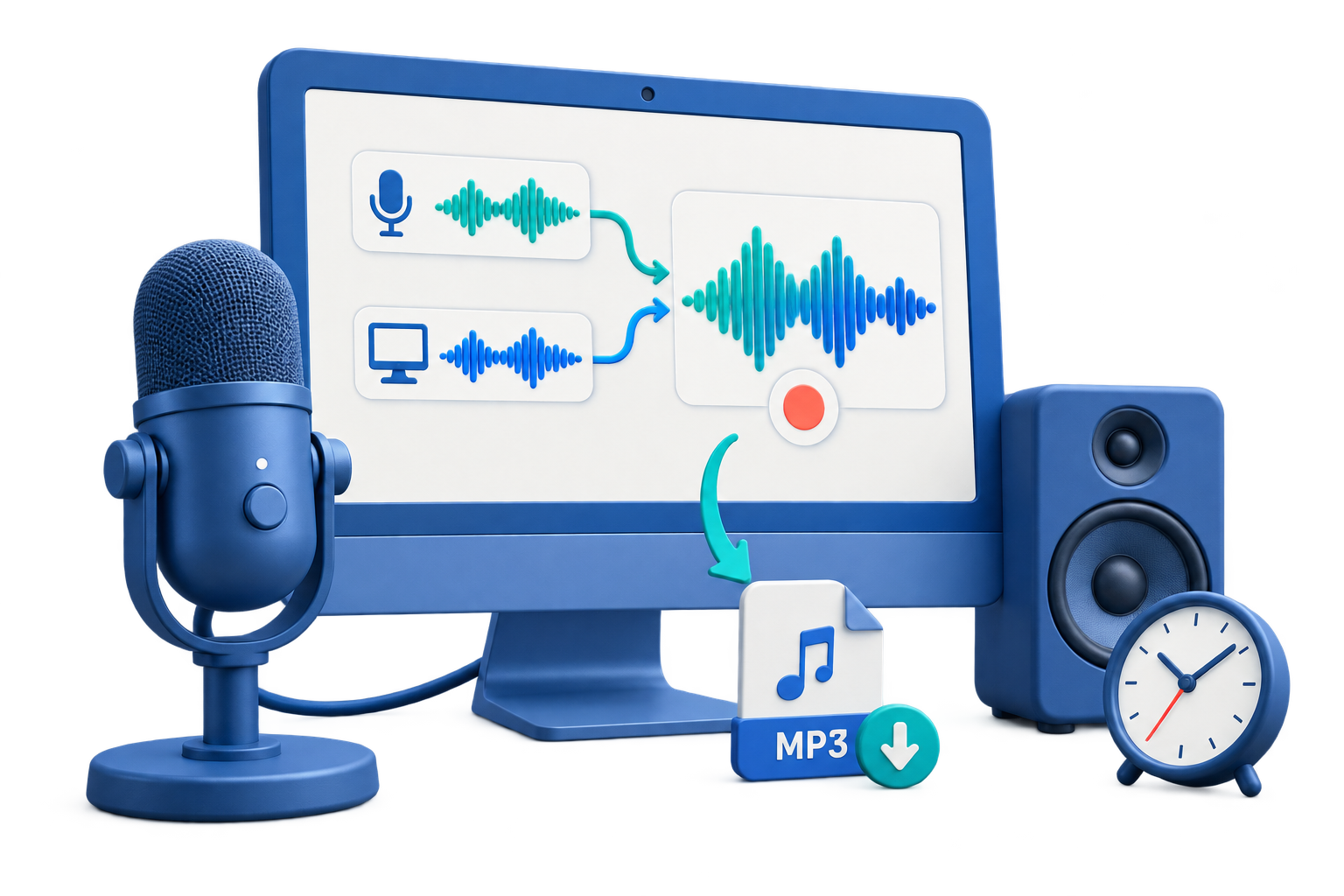
Free Audio Recorder for Windows: Which Sound Can You Capture?
Quick answer: For a voice note, Windows Sound Recorder is a free starting point for microphone input. To capture sound playing on the PC or mix it with a microphone, choose a recorder that explicitly supports those sources and test the selected devices. GiliSoft Audio Recorder Pro offers a trial download for that broader workflow; it is not an unlimited free license.
The right tool depends less on the word "free" than on the source: microphone, computer audio, or both. Decide where the finished file should be saved and make a short test before recording an interview, class, or meeting.
Choose a Recorder by Audio Source
Microphone only
For voice notes, interviews, or spoken drafts, start with Windows Sound Recorder and check microphone permission and level.
Computer sound
For app or browser audio, choose a desktop recorder that supports system sound. A microphone-only voice recorder will not necessarily capture playback.
Microphone and computer
For narration over app sound, select both sources, balance their levels, and play back a short test before the full session.
Compare Free Windows Audio Recorder Options
Check what each option actually captures before choosing it. Free desktop tools can be capable, but may require more device setup; GiliSoft Audio Recorder Pro is a separate trial option for a more directed recording workflow.
| Option | Best for | Check before recording |
|---|---|---|
| Windows Sound Recorder | Short microphone voice notes on Windows 11. | It is a microphone-focused starting point; test whether it captures the source you need. |
| Free desktop recorder | Computer sound, microphone, or both when supported by the app and device setup. | Confirm the input and output devices, app routing, export format, and recording length. |
| Browser voice recorder | One-off microphone capture without a desktop install. | Review microphone permission, upload behavior, and the saved file before relying on it. |
| GiliSoft Audio Recorder Pro trial | Testing system sound, microphone, mixed capture, and scheduled recording in one Windows tool. | The download is a trial, not an unlimited free license; check current limits before a long project. |
Free Audio Recorder Limits and When to Consider More Control
Free audio recorders are convenient for quick capture, but recording quality and reliability become more important when the source is computer playback, a long meeting, a scheduled event, or a file that will be edited, archived, or shared professionally.
- Source capture can be limited. Some free recorders capture only microphone audio and need extra setup to record computer sound or mixed audio sources.
- Long recordings need stability. Lectures, webinars, online radio, and interviews can run for a long time, so automatic saving and stable capture matter.
- Scheduling is not always included. Free tools may not support timer recording, auto-start, auto-stop, or silence detection.
- Formats and quality settings vary. MP3, WAV, M4A, FLAC, bitrate, sample rate, and channel settings may be limited or hard to control.
- Recording is only one step. You may also need trimming, conversion, volume adjustment, noise cleanup, or CD/audio delivery after capture.
For repeatable microphone, system-sound, or mixed recordings with scheduled tasks, review the GiliSoft Audio Recorder Pro trial. It provides separate source controls; verify the output format and any trial limits before an important session.
Test a Recording in GiliSoft Audio Recorder Pro
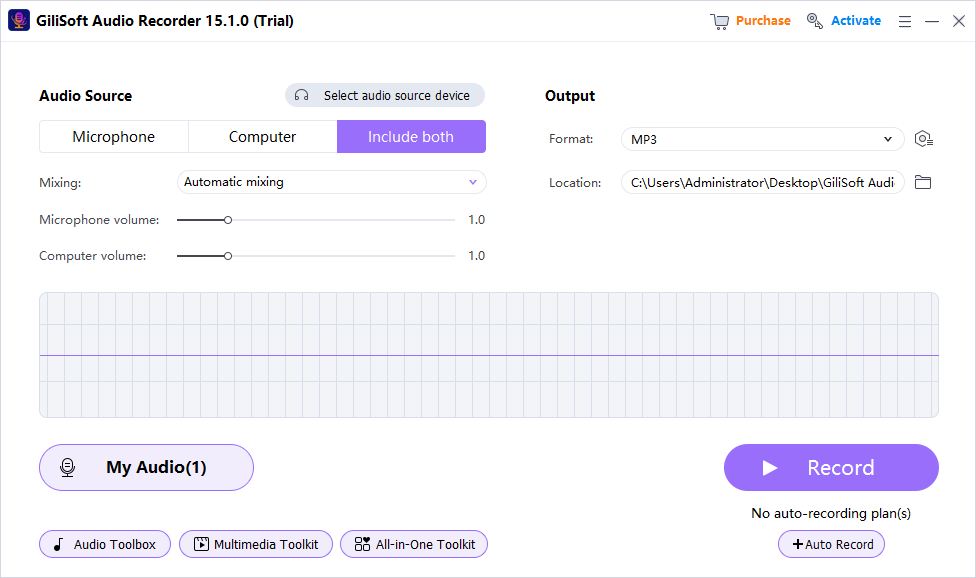
- Select Microphone, Computer, or Include both for the source you need.
- Choose an output format and a folder on a drive with enough free space.
- Record a short sample with the actual app and devices you plan to use.
- Play the saved file and check both channels, volume, duration, and background noise before starting a longer session.
Free Audio Recorder FAQ
Can I record computer audio for free?
Yes. Some free desktop recorders can capture computer audio when the audio device and app routing are configured correctly. Test the saved file before a long session.
Can I record microphone and system sound together?
Yes, with a recorder that supports both sources. Select the devices, balance the levels, and check a short saved test.
What format should I save audio recordings in?
MP3 is convenient for sharing, WAV is better for editing and lossless quality, M4A works well for many devices, and FLAC is useful when you want compression without losing audio data.
Are online audio recorders safe for private recordings?
They are convenient for quick microphone capture, but browser permissions, upload behavior, and privacy policies should be checked before recording confidential meetings or sensitive voice content.
When should I choose GiliSoft Audio Recorder Pro?
Try it when you need one Windows workspace for microphone, system sound, mixed capture, or scheduled recording. Test the settings and the trial limits before relying on it.
Is GiliSoft Audio Recorder Pro completely free?
No. GiliSoft provides a trial download; check the current evaluation terms before planning a long recording.


