PDF to Word
DOC / DOCX
Revise paragraphs, proposals, reports, and contract text in Word.

Turn PDF reports, tables, and slides into editable files, or create PDFs from documents and pictures. Batch conversion, OCR, and PDF tools help prepare contracts, invoices, course materials, and business records for their next use.


GiliSoft PDF Converter turns fixed-layout PDF content into working documents and creates PDFs from the files you already use. Update a report in Word, reuse table data in Excel, prepare slides in PowerPoint, or export page content as images, text, HTML, and supported eBook formats. Choose the output that fits the next job instead of retyping the document.
Convert Office documents, pictures, text, HTML, and supported eBooks into PDF for consistent sharing, printing, and record keeping. File to PDF includes output-folder, watermark, and Image-Only PDF options, giving you control over how the finished copy is prepared.
For scanned material, use OCR Tools to recognize text or TextLayer PDF to make page images searchable. Batch conversion handles repeated file sets, while merge, split, compression, and password tools help finish the PDFs you plan to send.
These PDF Converter tools are included in GiliSoft Formathor for Windows. Download the trial, open PDF Tools, and select PDF to File or File to PDF. The illustrated conversion guide shows both directions and their settings.

Create DOC or DOCX working copies of reports, proposals, and contracts. Choose Word under Type, select the available Format, and continue editing the converted document.
Reuse PDF tables and figures in XLS or XLSX spreadsheets. Prepare data for reporting and analysis, then check column alignment, cell boundaries, and numeric values.
Turn PDF content into supported PPT or PPTX output for presentations and training materials. Open the resulting slides to adjust wording, spacing, and object placement.
Choose image output for page visuals, TXT for text reuse, HTML for web-oriented content, or a supported eBook format for reading copies.
Create PDF copies of supported Word, Excel, and PowerPoint files for sharing and printing. Keep editable originals while preparing finished versions for recipients.
Convert supported pictures, text, HTML, and eBook sources to PDF. File to PDF includes watermark settings and an Image-Only PDF option for the intended output.
Load multiple supported files using Add Files or drag and drop. Apply the chosen conversion Type, Format, and output folder to repeat work across a document set.
Use Image Quick Recognition, Snapshot Recognition, or Batch Recognition. Choose a recognition Language, Export format, and Output folder for the text you need.
Use TextLayer PDF to add recognized text to image-based pages while retaining the page images. Find words in scanned invoices, contracts, and archived records.
Combine related PDFs with an output file name and optional Unify page width. Use the separate Split PDF task when a long document needs smaller outputs.
Choose a Compression preset and save a smaller sharing copy. Check the finished file size and the readability of text, diagrams, and pictures before sending.
Set the Password and Output fields in Encrypt PDF to protect a sharing copy. Decrypt PDF is available as a separate task for supported existing protection.

We use PDF to Word and PDF to Excel every day for report updates, and table structure is much easier to work with after conversion.
Batch PDF conversion helped us process legacy archives quickly while maintaining consistent output quality across departments.
The OCR option is useful for scanned contracts and invoices, especially when we need searchable text for audits.
Converting Word and PPT files to PDF for client delivery is now a one-step process for our team.
DOC / DOCX
Revise paragraphs, proposals, reports, and contract text in Word.
XLS / XLSX
Reuse tables and figures in a spreadsheet, then verify cells and values.
PPT / PPTX
Prepare slides from PDF content for presentations and lessons.
Image / TXT / HTML
Export page visuals, extract text, or reuse content in a web-oriented format.
Supported eBook formats
Create a reading copy and review text flow and embedded images.
Office / image / text / HTML / eBook sources
Make PDF copies for sharing, printing, and keeping finished records.
Open PDF Tools in GiliSoft Formathor and choose the conversion direction for your files.
Select PDF to File to export a PDF, or File to PDF to create a PDF from supported documents and images.
Use Add Files or drag the sources into the workspace. Add several supported files when you need a batch with the same target format.
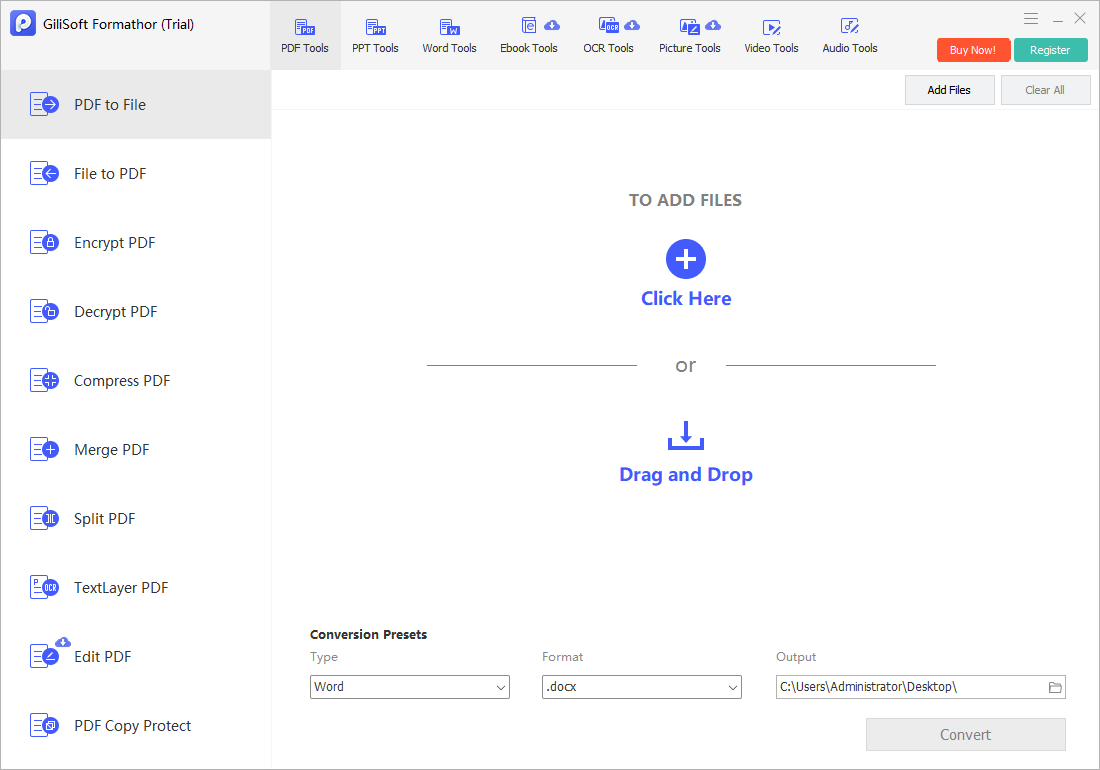
In PDF to File, choose Type and Format, then set Output. For example, select Word and .docx for a Word document. Run Convert.
Review text flow, tables, slides, and images in the destination application. Keep the original PDF as a reference while making further edits.
See the real Formathor workspaces for PDF conversion, recognition, searchable pages, compression, merge, split, and password tools.
Add PDFs, choose Type and Format, and set the Output folder. This view shows Word with .docx selected in PDF to File.
Find the steps for the output you need.
Convert PDF to Word Convert PDF to Excel Convert PDF to PowerPoint Create PDF from Word Make scanned PDFs searchable Open the User GuideConvert reports and proposals into working Office documents, then create PDF copies of completed files for review, approval, and record keeping.
Reuse tables in Excel, recognize text from invoice scans, and combine supporting PDFs into reporting packets with a consistent reading order.
Turn PDF learning materials into slides or editable documents, create PDF handouts from source files, and make scanned notes easier to search.
Prepare reusable document copies, batch-convert repeated file sets, and compress or password-protect finished PDFs before sending them to clients.
The PDF Converter tools are included in GiliSoft Formathor. After installing Formathor on Windows, open PDF Tools and choose PDF to File, File to PDF, or a PDF preparation task. The download and purchase links on this page are for Formathor, which includes these PDF conversion tools.
A free trial is available through the Formathor download. A paid Formathor license is available for continued use of the full product. Check the installed trial and activation screens for the limits of the selected tools; a trial download does not mean that every feature is permanently free.
PDF to File offers supported outputs including Word DOC/DOCX, Excel XLS/XLSX, PowerPoint PPT/PPTX, images, text, HTML, and eBook formats. File to PDF accepts supported Office documents, images, text, HTML, and eBook sources. Choose the direction first, then use the Type and Format options available for that task.
Image-based pages need text recognition because their visible words may not exist as selectable text. Use the OCR tools for recognized text, or TextLayer PDF when the goal is to search the original page images. Searchable PDF output is not the same as a fully reconstructed editable Word document. Proofread recognized names, dates, and numbers against the scan.
Yes. Use Add Files or drag supported PDFs into PDF to File, choose the output Type and Format, set the Output folder, and run the conversion. Group files by the output you need rather than expecting one batch to assign a different target format to every source. Open a representative result before processing a large collection.
PDF to Word, Excel, and PowerPoint creates working files for further editing, but the result depends on the source structure, fonts, tables, images, and whether the pages are scans. Check text flow and page breaks in Word, table cells and values in Excel, and object positions in PowerPoint. Keep the original PDF as a visual reference.
GiliSoft PDF Converter runs in the Windows Formathor application. Some workspaces, including OCR Tools, are marked with cloud-service symbols. Internet requirements can vary by task; check the selected tool's requirements rather than assuming that every feature works without an internet connection.
Yes. Open the separate Merge PDF, Split PDF, or Compress PDF task in PDF Tools. Merge PDF includes an output file name and Unify page width option. Compress PDF provides a compression preset and output folder. Review the resulting page order, file size, and readability before sharing the finished PDF.

Editors highlighted strong PDF conversion accuracy and practical OCR support for mixed document sources.
Coverage noted reliable tools for converting, merging, splitting, compressing, and securing PDF files.
Reviewers praised consistency on large PDF files and mixed-format source documents.
Batch conversion and export behavior were noted as useful for teams handling frequent PDF processing tasks.

Independent notes described the suite as a dependable option for PDF conversion, OCR, and document preparation.
Local processing, predictable output, and batch tools were highlighted for long-term document management.
Get GiliSoft PDF Converter in Formathor for PDF-to-Office conversion, PDF creation, OCR, batch processing, and PDF preparation.


Enter your email address to get our latest newsletter