
GiliSoft Copy Protect
Compare free ways to discourage copying, then choose protected delivery when files must leave your PC.
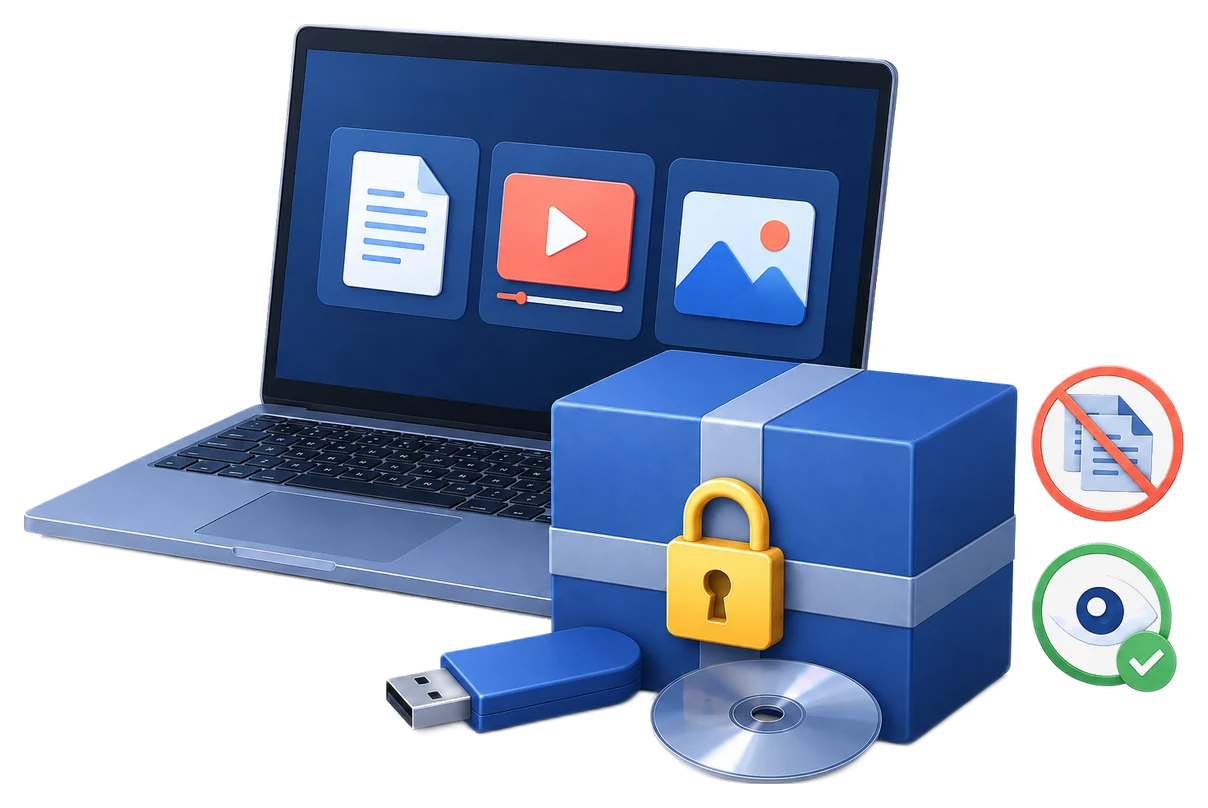
Free methods can restrict access before opening or discourage reuse after sharing, but they do different jobs. Encrypted archives protect a file in transit, watermarks identify previews, and read-only settings limit changes; none of these reliably prevents an authorized recipient from copying visible content.
This is different from simple file hiding. Copy protection focuses on what happens after someone receives or opens content: can they duplicate it, move it to another device, upload it, remove ownership marks, or share it with people who should not have access?
Free methods are useful for personal sharing, early testing, simple previews, class materials, demo files, and low-risk media delivery. If the content is paid, confidential, client-facing, or must remain controlled after delivery, compare stronger GiliSoft solutions after reviewing the free options below.
People who share videos, audio lessons, course files, photos, templates, or previews and want to reduce casual copying or reposting.
Teams that send client drafts, internal training media, design samples, or sales material and need basic control before choosing a full workflow.
Users who distribute files by USB drive, local disk, download link, or offline package and need to understand what free protection can and cannot stop.
The free options below cover common ways to protect audio, video, pictures, documents, folders, and USB content. They can reduce casual copying, but each method has clear limits once files leave your control.
| Free tool or method | Best for | Important limit |
|---|---|---|
| 7-Zip password archives | Packaging audio, pictures, videos, documents, or folders before transfer. | Files become ordinary files after extraction; it does not control copying after opening. |
| VeraCrypt containers | Creating encrypted vaults for local files, archives, or removable drives. | Strong storage protection, but not a playback DRM or redistribution control system. |
| BitLocker To Go | Encrypting supported USB drives or removable storage devices. | Protects the drive, not individual file copying after authorized access. |
| Windows NTFS permissions | Restricting access between Windows user accounts on the same PC. | Does not help much when users share the same account or files are copied elsewhere. |
| Cloud share permissions | Limiting download, edit, or share permissions in cloud storage links. | Permissions vary by service and cannot prevent screenshots, recording, or re-uploading. |
| Visible watermarking | Marking photos, videos, PDFs, or previews with owner, buyer, or project identity. | Discourages misuse but does not technically block copying. |
| Low-resolution previews | Sharing sample images, preview videos, demos, or audio clips before final delivery. | Reduces value of copied files but does not protect the final high-quality version. |
| PDF read-only settings | Discouraging editing, printing, or casual copying in simple document workflows. | PDF restrictions can often be bypassed and are not enough for sensitive content. |
| Video password protection | Protecting local preview videos or class materials with basic playback passwords. | Does not usually stop screen recording, file copying, or sharing after access. |
| Read-only optical or USB delivery | Reducing accidental changes when files are distributed offline. | Read-only delivery does not reliably prevent copying to another device. |
Free copy protection methods can reduce casual misuse, but they usually do not create persistent control after a file has been opened, copied, downloaded, or moved to another device.
Choose by delivery: for a preview, start with a watermark or reduced-resolution copy; for a private archive, use encryption; for a package that recipients open offline, test GiliSoft Copy Protect with the actual document or media type. No desktop method can guarantee that a viewer cannot photograph the screen.
If you need controlled video playback, compare GiliSoft Video DRM Protection or GiliSoft Video Encryption. For offline file delivery, review GiliSoft Copy Protect. Use GiliSoft USB Lock only when the separate goal is controlling USB device access on a Windows PC. For broader protection workflows, GiliSoft Encryption Toolkit may be easier to evaluate than several separate free methods.
Free tools can reduce casual copying, protect storage, add passwords, or discourage misuse with watermarks. They usually cannot fully stop copying once an authorized user can open or view the content.
Encryption protects data until the right password or key is used. Copy protection tries to control what users can do after access, such as copying, transferring, recording, or redistributing.
Yes. The same free methods often apply across media types, but the right professional workflow may differ. Video may need DRM playback, pictures may need watermarking, and USB delivery may need device-level controls.
Consider a professional solution when content is paid, confidential, client-facing, distributed by USB, or needs playback control, device binding, expiration, watermarking, or repeatable protection for non-technical users.


Enter your email address to get our latest newsletter