
Free Video Cutter for Windows: 7 Ways to Trim Videos
A free video cutter can remove an unwanted beginning or ending, extract a highlight, delete a section from the middle, or split a long recording into smaller files. The main tradeoff is whether the cut should preserve the existing encoded stream or create a new export for more accurate timing and consistent output.
Quick answer
Choose Clipchamp or Shotcut for a free visual timeline, LosslessCut or FFmpeg when compatible media should be processed with minimal re-encoding, Avidemux for a lightweight graphical workflow, or an online cutter for a small non-sensitive file. GiliSoft Video Editor Pro is commercial software with a trial: use Easy Cutter for one quick clip, Batch Cutter for several files, and Advanced Cutter when trimming also needs captions, watermarks, cropping, rotation, or effects.
Cut, trim, and split do not mean exactly the same thing
| Task | Typical result | Example |
|---|---|---|
| Trim | Shortens the beginning or ending | Remove setup time before a screen recording starts |
| Cut or extract | Keeps a selected section or removes an unwanted middle section | Create a highlight from a longer interview |
| Split | Creates several separate output files | Divide a two-hour class into lessons |
Compare 7 ways to cut videos on Windows
| Method | Best for | Processing approach | Main limitation |
|---|---|---|---|
| Clipchamp | Free visual trimming and simple timeline edits | Creates a new export | More workflow than a focused cutter |
| LosslessCut | Fast trimming of compatible media | Usually stream-copy based | Cut points can be constrained by keyframes |
| FFmpeg | Repeatable command-line cutting and automation | Stream copy or re-encoding | Commands and timestamps require care |
| Avidemux | Lightweight graphical cutting and copy mode | Copy or encode | Limited multitrack editing |
| Shotcut | Free timeline editing beyond one simple trim | Creates a new export | Longer learning path for a quick cut |
| Online cutter | Small, public, one-off clips | Upload and new export | Privacy, size, and upload-time limits |
| GiliSoft cutters | Focused single, batch, and advanced Windows workflows | Depends on source and output | Commercial software with a trial |
Lossless cutting and frame-accurate cutting
Most compressed videos store complete reference frames at intervals. Frames between them depend on nearby frames for decoding. A stream-copy cutter avoids re-encoding and can be fast, but its start point may move to a nearby keyframe.
A frame-accurate workflow can place the cut more precisely by decoding and re-encoding at least the affected section. That takes longer and creates newly encoded data, but it is often the more reliable choice when an exact visual or audio boundary matters.
Choose a cutter in GiliSoft Video Editor Pro
GiliSoft Video Editor Pro keeps quick cutting tasks in separate tools so you do not need to build a full timeline project for every edit.
- Choose the correct cutter
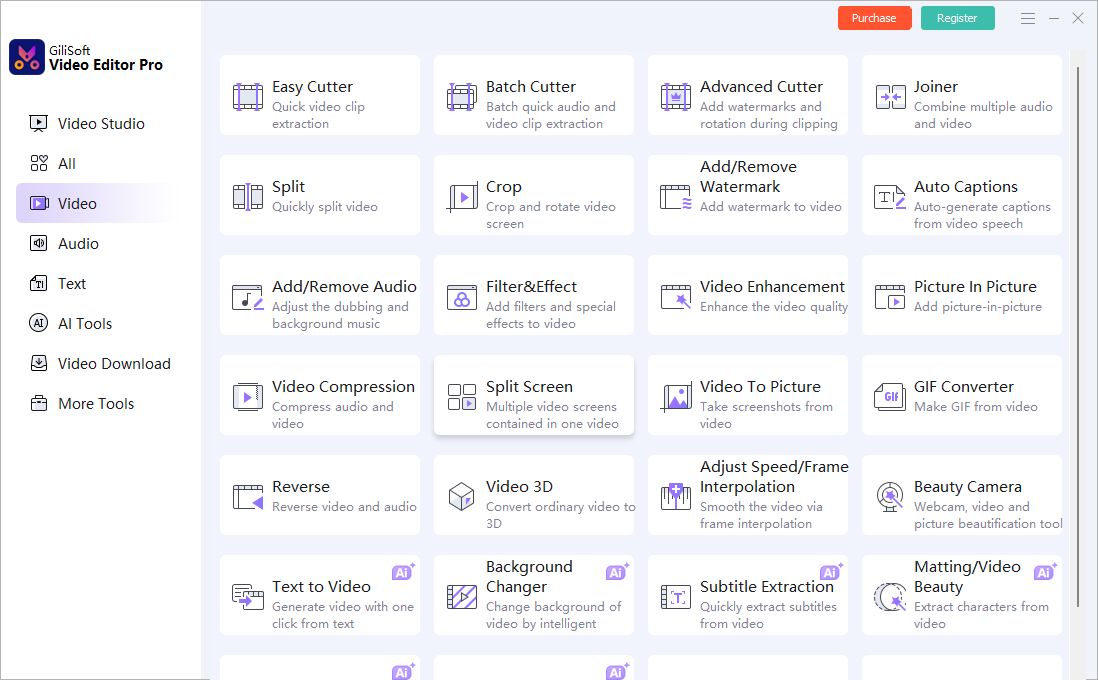
Open Video, then select Easy Cutter for one quick extraction, Batch Cutter for several files, or Advanced Cutter when the cut also needs additional visual changes.
- Add the source file
Open the video and keep the original unchanged. Check its duration, orientation, audio, and playback before setting cut points.
- Mark the section
Set the start and end of the part to keep or remove. Preview several seconds before and after each boundary.
- Review output settings
Choose the format, resolution, frame rate, codec, bitrate, and audio settings required by the destination.
- Export to a new file
Verify the beginning, cut points, audio sync, duration, ending, and playback outside the editor before deleting temporary files.
Use Video Studio only when the edit becomes a project
Move to Video Studio when the finished video needs multiple tracks, layered audio, titles, overlays, picture-in-picture, or detailed transition timing. For one clean extraction or repeated batch work, a focused cutter is faster to understand.
Fix common video cutting problems
The cut starts earlier than selected
A stream-copy tool may move the start to the previous keyframe. Try a frame-accurate export or move the selected point and verify the output.
The first frames are black or damaged
The selected start may not have enough decoding information. Re-encode around the cut or choose a nearby clean boundary.
Audio is missing or out of sync
Check all source tracks and timestamps. Variable-frame-rate recordings and unusual audio formats may need a normalized export.
The output is larger than the source section
Review the selected resolution, frame rate, codec, and bitrate. A new export can become larger when its bitrate or dimensions exceed the source.
Which video cutter should you choose?
- Free visual trim on Windows: Clipchamp.
- Fast stream-copy cuts: LosslessCut or FFmpeg.
- Lightweight graphical copy mode: Avidemux.
- Free editing beyond a simple cut: Shotcut.
- Small non-sensitive clip without installation: an online cutter.
- Single, batch, and advanced cutting in one Windows product: the GiliSoft Video Editor Pro trial.
Free video cutter FAQ
Can I cut videos for free on Windows?
Yes. Clipchamp, LosslessCut, FFmpeg, Avidemux, Shotcut, and browser-based tools can trim or split videos for free. The best option depends on privacy, file size, format support, and whether a new encoded export is acceptable.
Can a video be cut without re-encoding?
Sometimes. Stream-copy cutting can preserve the encoded video and finish quickly, but the start point may be limited by nearby keyframes. A frame-accurate cut often requires partial or full re-encoding.
Why does a lossless cut start on the wrong frame?
Many compressed videos can begin clean playback only at keyframes. A lossless cutter may move the cut to the previous keyframe, while a frame-accurate workflow decodes and re-encodes the affected section.
Are online video cutters suitable for private recordings?
They can be convenient for small, non-sensitive files, but confidential recordings and large videos are generally better handled with offline software so the source stays on the PC.
Which GiliSoft cutter should I use?
Use Easy Cutter for one quick clip, Batch Cutter for several files, Advanced Cutter when trimming also needs visual changes, and Video Studio only for complex multitrack editing.


