

Free Folder Protector for Windows: What Works and What Does Not
A free folder protector may mean account permissions, an encrypted archive, EFS, BitLocker, or a limited software trial. The right choice depends on whether you need privacy, encryption, or protection against changes.
Quick answer
For a free first step, use a separate Windows account, NTFS permissions, an encrypted archive, EFS on supported editions, or BitLocker when the whole drive needs protection. Choose GiliSoft File Lock Pro when you need one interface to lock, hide, prevent changes to, encrypt, or monitor selected folders. Its download is a trial, not an unlimited free license.
Compare free folder-protection methods
| Method | Best use | Main limit |
|---|---|---|
| Separate Windows account | Basic separation on a shared PC | Administrators can still change access |
| NTFS permissions | Restrict another local account | Not a portable folder password |
| Hidden attribute | Keep clutter out of normal File Explorer views | Not a security control; the folder can be shown again |
| Encrypted archive | A small fixed set of files | Files must be repacked after changes |
| EFS | Per-account encryption on supported editions | Unavailable on Windows Home and requires certificate recovery |
| BitLocker | Protect an entire supported drive | Does not add a separate password to one ordinary folder |
Choose the protection result you actually need
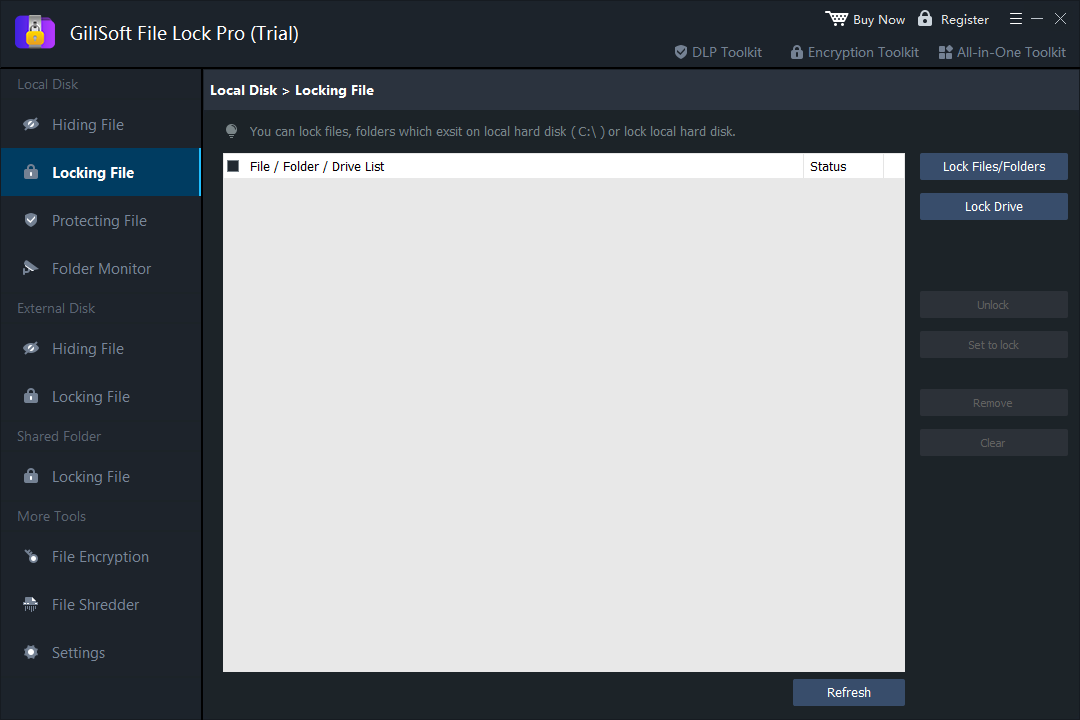
Lock access
Keep the folder visible but block ordinary opening until authorized.
Hide the folder
Remove it from normal File Explorer browsing on the protected PC.
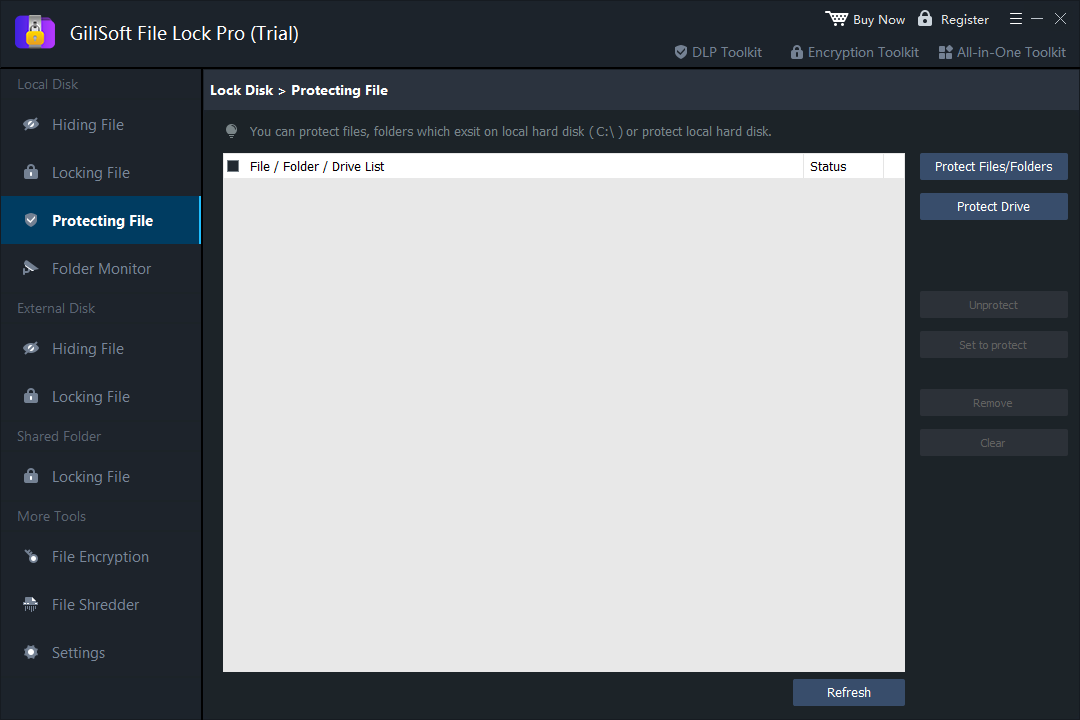
Prevent changes
Allow visibility or reading while restricting write, delete, or rename actions.
Encrypt contents
Protect the data itself when offline access or device loss is the main threat.
Protect a folder with GiliSoft File Lock Pro
- Back up important files.
Keep a separate verified copy before applying access restrictions.
- Open the matching feature.
Choose Locking File, Hiding File, Protecting File, or File Encryption according to the required result.
- Add the exact folder.
Verify its full path and avoid selecting Windows, application, backup, or synchronization folders by mistake.
- Apply the rule and test it.
Close the program and confirm the expected blocked or allowed actions from File Explorer.
- Verify recovery.
Remove the rule from File Lock Pro and confirm the original files remain usable.
Avoid the common folder-protection mistakes
- Do not protect the only copy of an important folder.
- Do not confuse a hidden attribute with encryption.
- Do not store the only recovery information inside the protected folder.
- Do not lock folders currently used by Windows or an active application.
- Test with noncritical data before applying the rule broadly.
Frequently asked questions
Can Windows password protect a folder by itself?
Windows can restrict access through account permissions, EFS on supported editions, BitLocker for drives, or an encrypted archive. It does not provide one universal password button for every ordinary folder.
Is hiding a folder the same as encrypting it?
No. Hiding removes a folder from normal browsing, while encryption protects file contents against unauthorized reading.
Can File Lock Pro stop deletion without hiding the folder?
Yes. Protection rules can keep an item visible while restricting deletion, rename, writing, or other changes.
Can I protect folders on a USB drive?
File Lock Pro supports selected files and folders on supported external data drives. Test the exact drive and recovery workflow before relying on it.
Is the File Lock Pro download completely free?
The download is a trial. Windows built-in options may be free, while advanced File Lock Pro features require a license after evaluation.