GiliSoft Slideshow Maker

Turn your photos and video clips into a slideshow with music. Tell the story with narration, titles, and transitions, then export a video to share.

Combine photos and clips with music and voiceover Add titles, subtitles, transitions, and animated effects Arrange the timeline, preview, and export your video
GiliSoft Slideshow Maker illustration showing photos combined into a video with transitions and music

Turn Your Photos into Videos with Music

GiliSoft Slideshow Maker turns photos and video clips into a complete slideshow video on Windows. Bring your pictures together, add a soundtrack, and create wedding memories, birthday videos, travel stories, event recaps, or product presentations.

Arrange scenes on the multi-track timeline and control how the story unfolds. Reorder photos and clips, adjust scene timing, and connect moments with transitions. Keep pictures, text, music, narration, and layered visuals on separate tracks so each part is easy to work with.

Add background music and record voiceover to explain a lesson, introduce a product, or narrate a personal memory. Use titles, captions, subtitles, filters, frames, split-screen effects, and animated stickers to give each scene its own look.

Preview the complete project in the built-in player, then export the finished video for your audience. Whether you are organizing family photos, preparing a classroom presentation, or creating a business photo video, the editing tools stay together in one workspace.

GiliSoft Slideshow Maker box

Slideshow Maker Features

Combine Photos and Short Video Clips

Import local pictures and clips, preview each source, and arrange the visual story in the order you want.

Build on a Multi-track Timeline

Control video, picture-in-picture, text, audio, voiceover, and effects on separate timeline tracks.

Add Music and Voiceover

Place background music on the Audio track and record narration without flattening the rest of the project.

Create Titles and Subtitles

Add opening titles, captions, lower thirds, credits, and subtitle content with editable text styles.

Connect Scenes with Transitions

Browse transition categories, preview a style, and place it between photos or clips to control how one scene moves into the next.

Preview and Export the Finished Video

Review picture timing, sound, text, and effects together before creating the completed slideshow video.

Apply Filters, Frames, and Split-Screen Effects

Explore visual treatments and layered layouts, place an effect on the timeline, and preview it together with your photos and text.

Add Animated Stickers and Overlays

Place animated elements on PIP layers to decorate selected scenes while keeping your main pictures, captions, and soundtrack separate.

User Reviews

The separate photo, text, and audio tracks made our event slideshow much easier to organize.

- Olivia M., Event Coordinator

We combined product photos, captions, and background music without moving the project between different tools.

- Kevin T., E-commerce Content Lead

Transition previews helped us keep the pacing consistent before exporting a school presentation video.

- Rachel P., Education Media Assistant

The voiceover and subtitle tracks are useful for turning photo collections into narrated training summaries.

- Daniel K., Training Content Manager

GiliSoft Slideshow Maker Screenshots

Explore the Windows workspace for arranging photos and clips, adding music and narration, editing text, and applying transitions and layered effects.

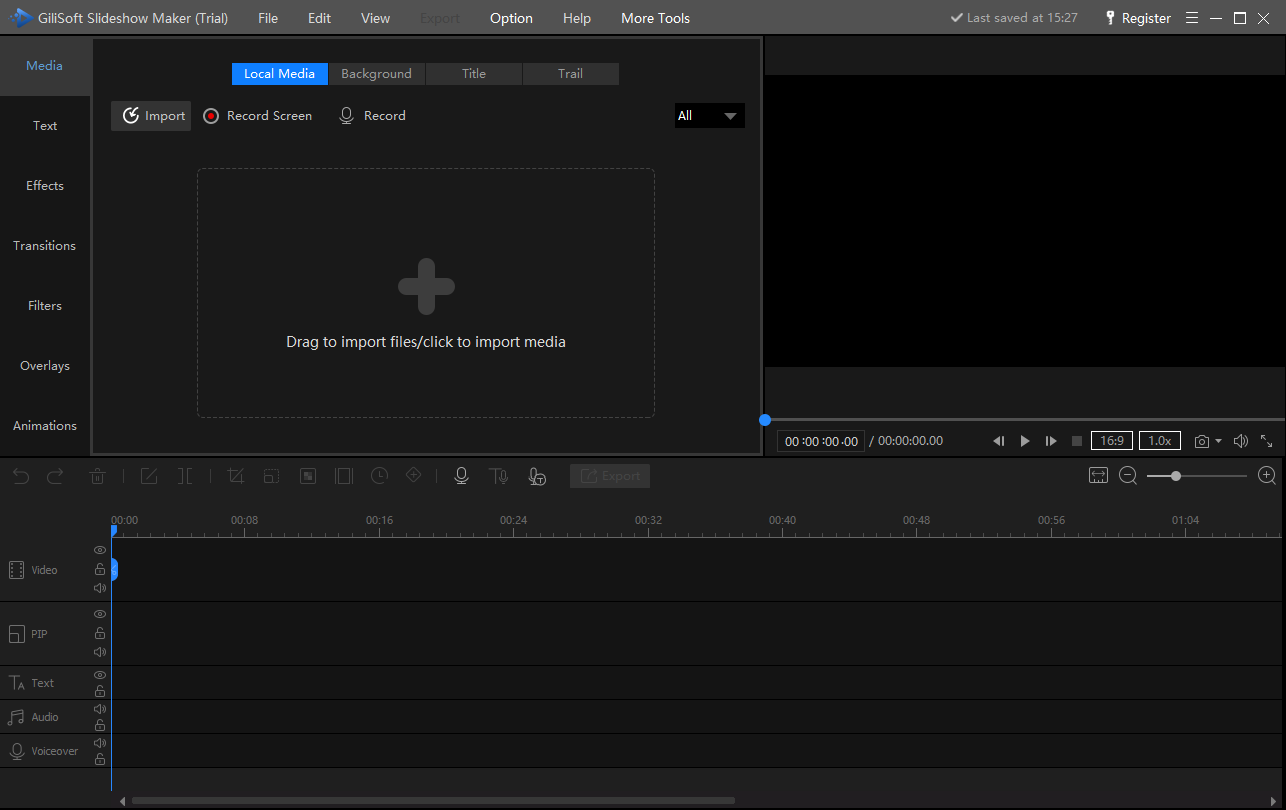
GiliSoft Slideshow Maker media import workspace

Start with photos and short video clips

Import local photos and short video clips by clicking Import or dragging files into the media library, then preview each source before adding it to the timeline.

Who Is Slideshow Maker For?

Families and event organizers

Bring wedding photos, birthday memories, travel pictures, and event clips together with music, dates, names, and personal narration.

Teachers and training teams

Create narrated photo presentations, activity recaps, and lesson summaries using captions, voiceover, and clearly ordered scenes.

Small businesses and creators

Turn product images, portfolio work, or project photos into presentation videos with text callouts, layered visuals, and a soundtrack.

Slideshow editing guides

Follow the full workflow or go straight to the part you want to create.

Open User GuideCompare Free Options

Slideshow Maker FAQ

How do I make a photo slideshow with music?

Import your photos, add them to the Video track, and arrange them in the order you want. Place your music on the Audio track, adjust its position against the slideshow, and preview the beginning, scene changes, and ending before exporting the video.

Can I combine photos and video clips in one slideshow?

Yes. Import pictures and video clips into the same project and place them on the Video track. Reorder the scenes, add transitions between them, and use the built-in player to check the complete sequence.

Can I add voiceover, titles, and subtitles?

Yes. Keep background music on Audio and narration on the separate Voiceover track. Open Text to choose title and caption templates, use Add Subtitles or Import subtitle, and place the text on its own track. Preview the wording and timing together with the soundtrack.

Can I preview transitions and effects before export?

Yes. Preview scene transitions, text, filters, effects, overlays, and animated stickers in the built-in player. Place transitions between scenes and use the Effects or PIP tracks for layered visual elements, then play through the scene to check the combined result.

Why does an imported photo not appear in my slideshow?

Importing adds the photo to the media library. Add it to the Video track to include it in the slideshow, then move the playhead over that scene and preview it. Check the scene order and duration if it appears at a different point in the project.

How do I create the finished slideshow video?

Play the project from beginning to end, then click Export and choose the output settings and destination. After export, open the completed video in a player to check the picture, music, narration, and text. The user guide covers the full workflow.

Is Slideshow Maker available for Windows and Mac?

This page offers GiliSoft Slideshow Maker for Windows. A separate Slideshow Maker for macOS is available from the Mac product page.

Create your slideshow video with photos, music, and text

Download the Windows trial and build a complete project with your own media.

Download TrialBuy Now