
A calculator lock is a privacy app disguised as a working calculator. On a phone, the familiar calculator screen helps keep a private album away from casual browsing. On Windows, the same idea is available through calculator-vault apps, but people who manage a large or frequently updated photo collection may prefer to protect the original folder rather than repeatedly import files into a separate vault.
Part 1. How to Hide Photos on Android with Calculator Lock
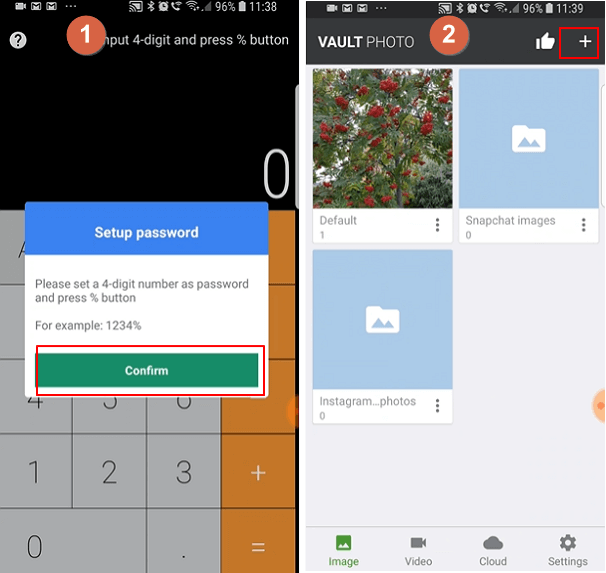
Calculator Lock is an Android photo-vault app that presents a calculator interface while storing selected photos and videos behind a passcode. The usual setup is to create a password, open the hidden vault, create an album, and import the media that should no longer appear in the normal Gallery.
- Install a reputable calculator lock or calculator vault app from Google Play, then open it.
- Create a memorable vault password and configure the recovery option offered by the app.
- Open the hidden vault and choose the option to add a folder or album.
- Name the private folder, then import the photos and videos you want to hide.
- Check the normal Android Gallery to confirm the imported media is no longer shown there.
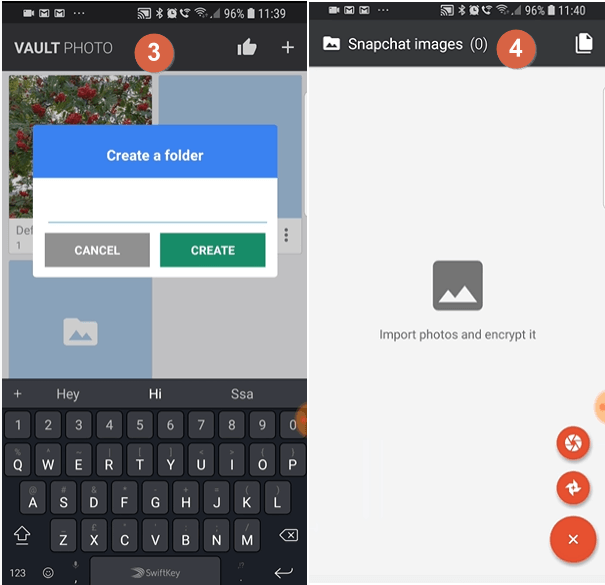

Depending on the selected app, common image and video formats can be displayed inside the vault. Test several files before moving a large library, especially if the collection includes less common formats.
Part 2. How to Hide Photos on iPhone with Calculator Lock
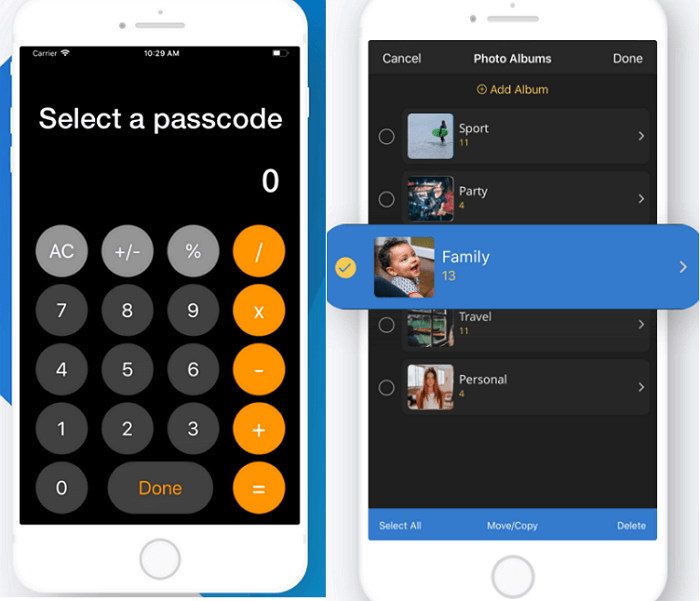
Calculator-style photo vaults are also available for iPhone and iPad. They normally create a passcode-protected album and let you import selected photos or videos from the Photos app. The public-facing screen resembles a calculator, while the private album opens only after the configured code is entered.
- Choose a current calculator vault app from the App Store and review its privacy information.
- Create a passcode that you can remember and set up any available recovery method.
- Allow access only to the photos you intend to import, then add them to a protected album.
- Open the vault again and verify every imported item before removing any original copy from Photos.
Part 3. How to Hide Photos on Windows with Calculator Vault
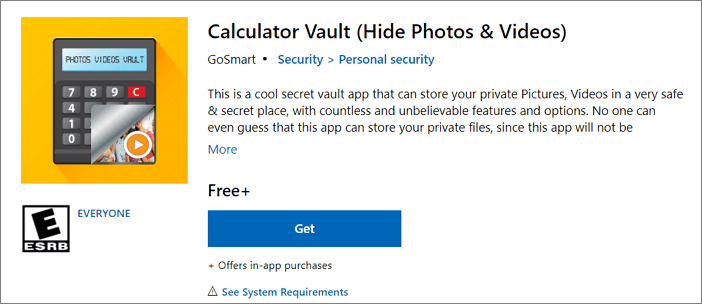
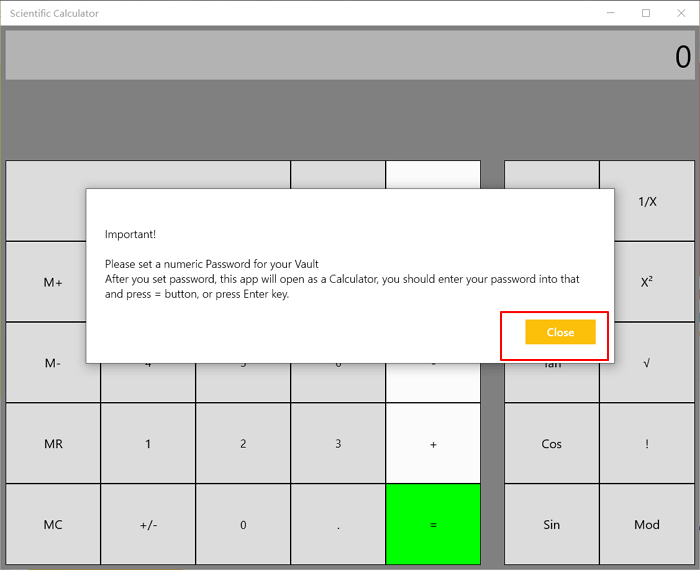
Windows calculator-vault apps use the same disguise: the app appears to be a calculator, while a password opens a separate area for private images and videos. A typical Windows setup is to install the vault from Microsoft Store, create a password and recovery email, then add selected files.
- Open Microsoft Store, review the current listing and publisher, and install a calculator vault app.
- Launch the app, create its password, and configure the recovery email when available.
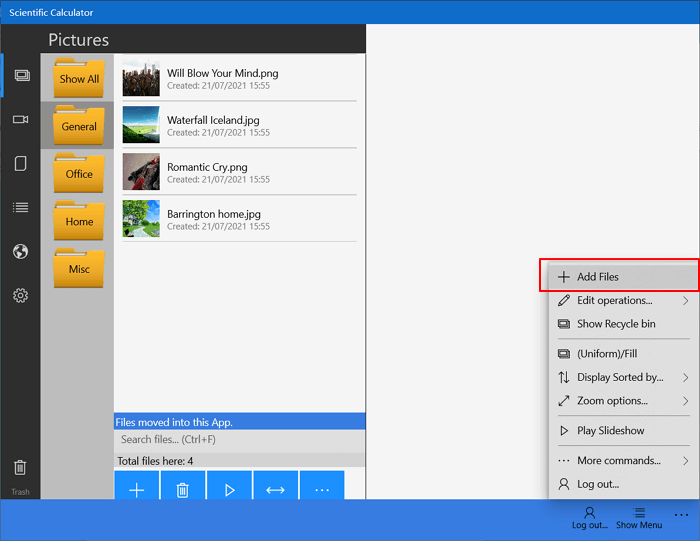
- Choose Add Files or the equivalent command, then import the photos and videos you want to place in the vault.
- Close and reopen the app to confirm that the protected media is available only after authentication.
Part 4. Protect Active Photo Folders with GiliSoft File Lock Pro
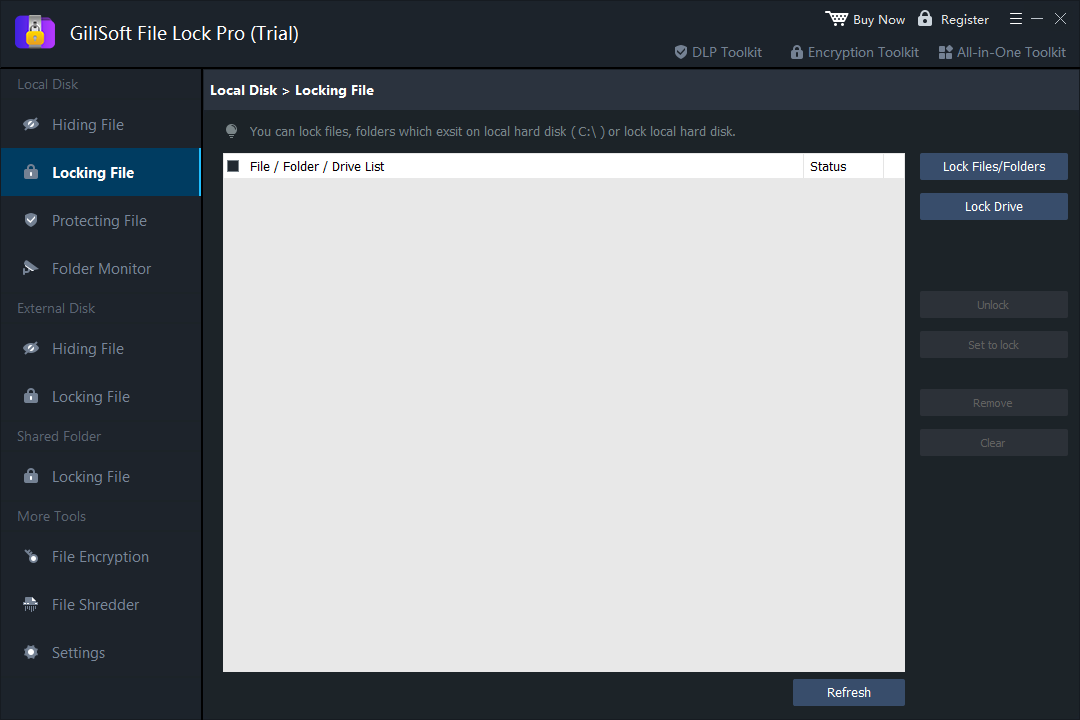
A calculator vault is useful when the disguise itself is important. For a Windows photo library that is updated regularly, GiliSoft File Lock Pro protects the real folder you already use. It can hide private photo folders, lock them with the master password, protect folders on local or external drives, and keep personal media on the PC without cloud syncing.
- Hide photos, private videos, scans, and other personal files from normal browsing.
- Lock active folders and local drives without moving every photo into a calculator app.
- Protect photo folders on USB flash drives and external storage.
- Use folder monitoring and program logs when changes to a protected location need review.
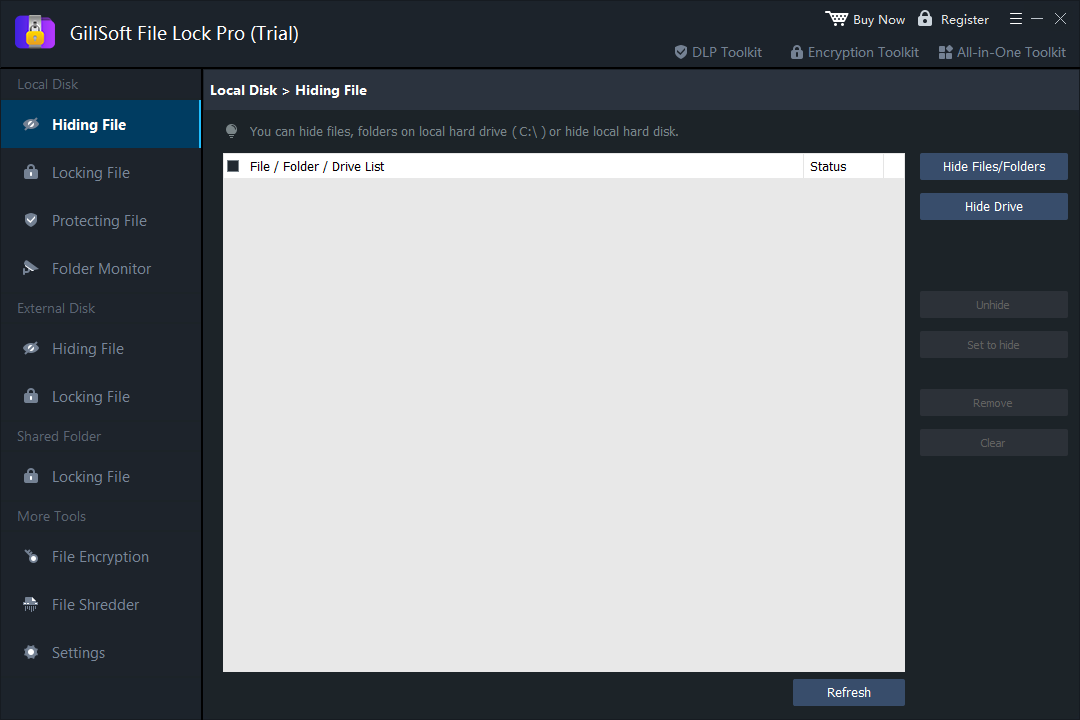
- Open File Lock Pro and enter the master password.
- Choose Local Disk, then open Hiding File or Locking File.
- Add the photo folder or drive you want to protect and apply the selected action.
- Test File Explorer and Windows Search to confirm the private album is no longer casually accessible.
Calculator Lock or File Lock Pro: Which Should You Choose?
Choose a calculator lock when you specifically want a disguised vault on a phone or tablet. Choose File Lock Pro when the photos remain on a Windows PC, USB drive, or external drive and you want to hide or lock the original folder directly. The two approaches solve related privacy problems, but they are not the same product type.
Conclusion
Calculator lock apps provide a discreet way to place selected mobile photos behind a passcode. On Windows, a calculator vault can offer the same visual disguise, while GiliSoft File Lock Pro is better suited to ongoing local photo folders that should remain hidden or password controlled. Whichever method you choose, verify access and keep a separate backup before deleting original media.