

Free Website Blocker for Windows: 4 Free Methods Compared
You can block websites on Windows for free with browser extensions, family controls, the hosts file, or DNS filtering. The right option depends on whether you need one-browser focus, family settings, or rules that apply across the local PC.
Quick answer
For basic needs, free options include a browser extension, Microsoft Family Safety, the Windows hosts file, or DNS filtering. They work at different levels and have different bypass limits. GiliSoft Web Blocker is a separate paid product with a trial for password-protected website, IP, program, and service rules, plus allow lists and logs on a Windows PC. No local blocker can guarantee control against an untrusted administrator or every VPN.
Compare free website-blocking methods
| Method | Best for | Main limitation |
|---|---|---|
| Browser extension | Personal focus in one browser | May be disabled or bypassed in another browser |
| Hosts file | Small static domain list | No schedules, logs, or easy category control |
| Family Safety | Family accounts | Requires supported account and browser workflow |
| DNS filtering | Network or device-wide domain policy | Encrypted DNS, VPN, and roaming-device considerations |
| GiliSoft Web Blocker trial | Password-protected rules for one Windows PC | Paid product after trial; local rules still require a trusted administrator |
Define the website policy first
- Choose block list or allow-list mode.
- List required work, school, update, sign-in, and support domains.
- Decide whether IP addresses, applications, or network services also need rules.
- Set an administrator password and documented recovery method.
- Test normal browsing, private windows, alternate browsers, and required business apps.
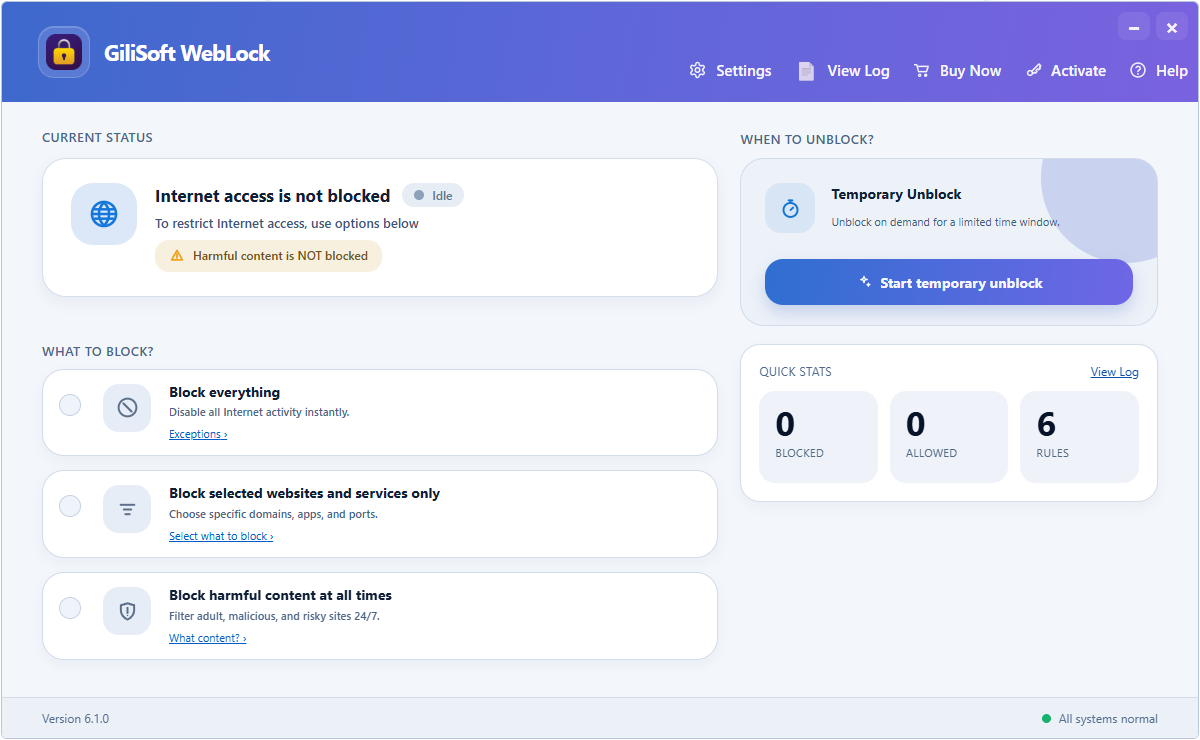
Configure website rules with Web Blocker
- Set the administration password.
Prevent ordinary users from changing the local policy.
- Choose blocking or allow-list behavior.
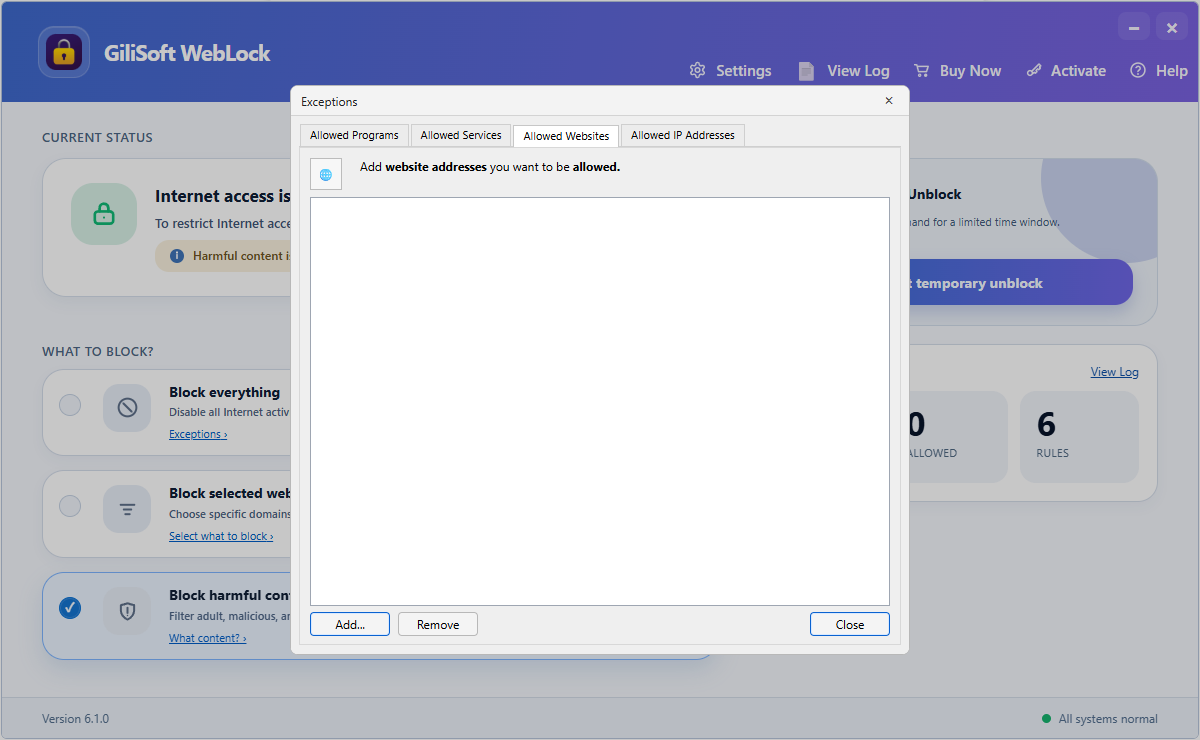
Use allow-list mode only when every required destination is known.
- Add websites and supporting domains.
Include sign-in, content, update, and service endpoints the allowed site needs.
- Apply program, IP, or service rules only when required.
Avoid broad rules that break unrelated Windows functions.
- Test with a standard user account.
Review permitted sites, blocked attempts, browsers, and logs.
Understand bypass and administration limits
A user with administrator control may remove software or reverse local rules. VPNs, proxies, encrypted DNS, remote desktops, virtual machines, and personal hotspots can change the network path. Combine technical controls with standard accounts, device policy, and clear acceptable-use rules.
Frequently asked questions
Can I block a website for free on Windows?
Yes. Browser extensions, the hosts file, Family Safety, DNS filtering, or firewall policy may fit basic scenarios.
Is the hosts file enough for website blocking?
It can block a small static domain list, but it lacks scheduling, logs, password administration, and automatic handling of related domains.
Can I allow only selected websites?
Yes, but allow-list mode requires every sign-in, content, update, and service domain the approved workflow needs.
Can a website blocker stop every VPN or private browser?
No single local rule should be assumed to stop every alternate path, especially when the user controls the administrator account.
Is GiliSoft Web Blocker free?
GiliSoft Web Blocker is not freeware; the download is a trial. Test required websites, browsers, applications, IP rules, and logs before deciding whether the paid product fits.