Mac users converting camera and downloaded video
Prepare MOV, MP4, M4V, MKV, WebM, and other files for playback, editing, archive storage, client review, or upload.

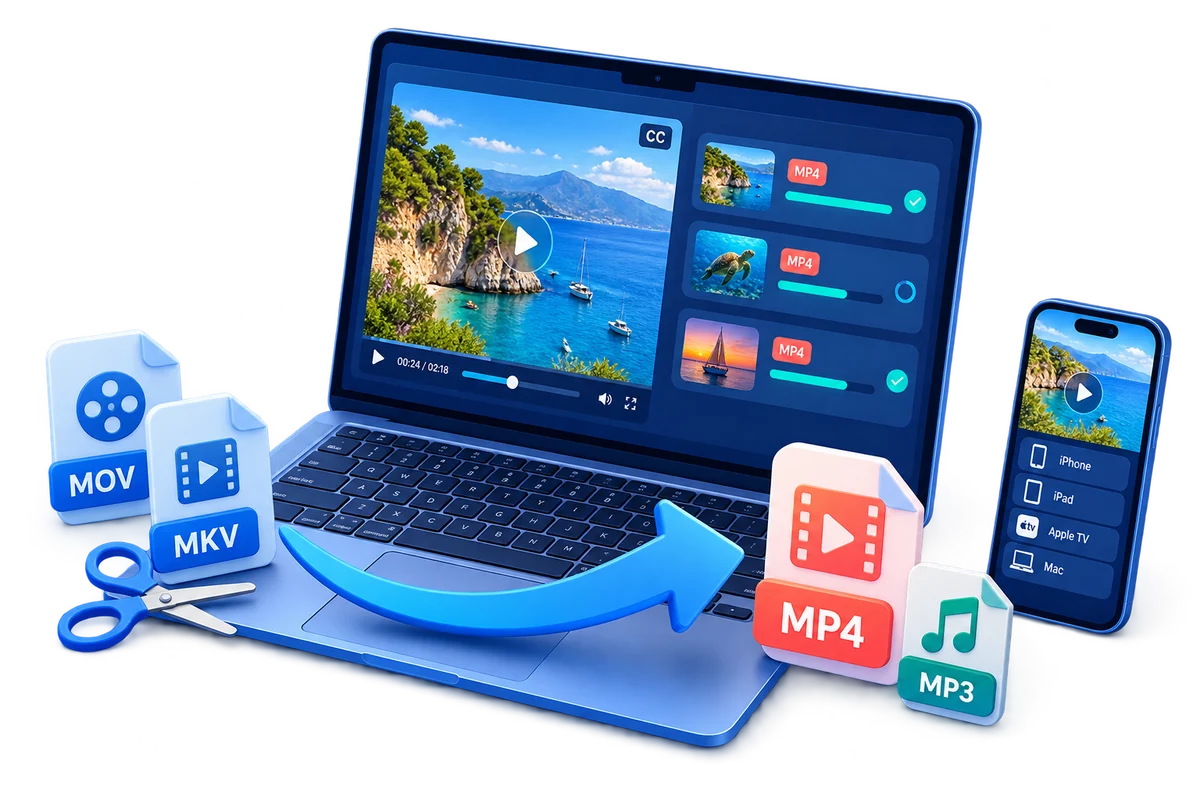
GiliSoft Video Converter for Mac is built first for video and audio conversion. Add one file or a batch, choose a video, audio, device, HD, or web-sharing profile, and create output that suits playback, upload, archive, or client delivery.
The same workspace also provides substantial editing controls: trim unwanted time ranges, merge several videos, crop or rotate the frame, adjust picture settings, apply effects, add text or image watermarks, and load subtitle files. These are usable product features, not separate advertised tools. For step-by-step operation, see the Video Converter for Mac guide.
Convert files such as MP4, MOV, AVI, MKV, M4V, MPEG, VOB, WebM, WMV, and other practical media formats used by cameras, editors, players, and websites.
Extract sound from video or convert media to audio formats such as MP3, M4A, WAV, WMA, AC3, and DTS for listening, editing, narration, or archive use.
Add multiple source files to one queue, choose the required output profile, and process repeated Mac conversion jobs without opening each video separately.
Choose video, audio, device, HD, or web-sharing profiles for phones, tablets, Apple TV, media players, websites, and other delivery targets.
Handle high-resolution source files, including 3840×2160 video shown in the conversion queue, while choosing an output format and resolution suited to the destination.
Set the start and end time, keep the selected section, and remove unwanted openings, endings, pauses, or other material before conversion.
Turn on Merge All Videos when several clips should become one output file for lessons, event footage, compilations, presentations, or delivery packages.
Crop unwanted edges, rotate the picture, flip the frame, adjust the visible area, and keep or change the aspect ratio for incorrectly oriented or poorly framed video.
Adjust volume, brightness, contrast, and saturation, then apply looks such as black and white, old film, embossment, carving, woodcarving, pencil, or posterize.
Add text or image watermarks with transparency controls, or load a subtitle file and adjust its font and position before creating the converted video.
Batch conversion helps us prepare several client preview files without repeating the same setup for every clip.
The trim and merge controls are useful because our conversion jobs often include real editing work, not only a format change.
Device and web profiles make routine Mac exports easier to standardize across the team.
We can crop, rotate, add subtitles, and extract audio without moving each file through several small utilities.
Review the actual Mac workflow for conversion, trimming, merging, frame adjustment, effects, watermarks, and subtitles. Select a view below, then click the large screenshot to enlarge it.
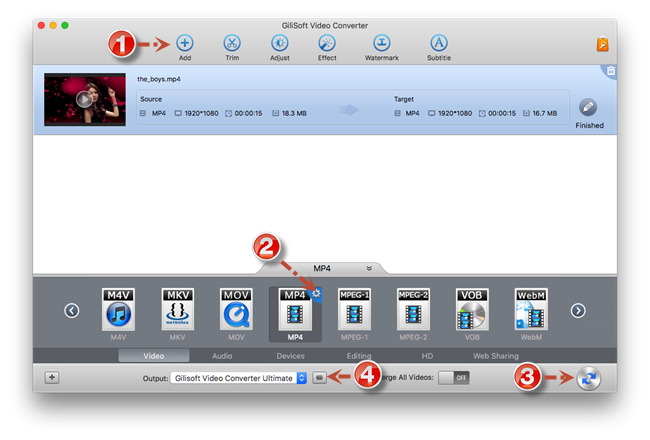
Add source files, choose a video, audio, device, HD, or web-sharing profile, select the output folder, and start conversion.
Prepare MOV, MP4, M4V, MKV, WebM, and other files for playback, editing, archive storage, client review, or upload.
Use one batch queue when recurring projects require the same output format across many source clips.
Trim, merge, crop, rotate, adjust, watermark, and subtitle videos without treating every task as a separate application.
Choose output categories for phones, tablets, HD playback, web sharing, and other practical destinations.
The product starts with source files, output profiles, and a conversion queue, while keeping substantial editing tools available in the same workflow.
Add multiple videos, review their source and target details, and convert the queue in one run.
Keep the required segment, combine clips, fix orientation and framing, adjust the picture, and prepare subtitles or branding before output.
Work locally on Mac with visible format categories, destination controls, multi-file conversion, and detailed video adjustments.
Add the source video, select MP4 or another required profile, choose the output folder, and start conversion.
Choose an audio output profile such as MP3, M4A, WAV, WMA, AC3, or DTS when only the soundtrack or spoken audio is needed.
Keep an exact time range from a clip, or add several videos and enable Merge All Videos for one combined file.
Load subtitles, add text or image marks, crop the visible area, and rotate sideways footage before creating the final output.
Yes. Add the MOV file, select MP4 as the output format, review the target settings, and start conversion.
Yes. Multiple source files can be added to one queue and converted in the same run.
Yes. The conversion queue supports high-resolution sources, including 3840×2160 footage. Choose an output resolution appropriate for the final destination.
Yes. Use the Trim panel to keep a selected time range and Merge All Videos to combine multiple clips.
Yes. It supports text or image watermarks with transparency controls and subtitle files with font and position settings.
Choose Video Editor Pro for Mac when timeline editing and broader creative production are the main job. Choose this page when format conversion remains the primary task.

 Editors highlighted strong format compatibility for Mac video and audio conversion. Coverage noted clear presets for web, mobile, and playback-device targets.
The product is most useful when Mac users need predictable export formats without moving into a full video editor.

Reviewers praised conversion stability on large files and long-duration media assets. Lab notes cited dependable queue behavior during multi-file batch processing.
Batch conversion, device profiles, and common editing controls help reduce manual preparation before export.

Independent analysis described the converter toolset as practical for daily delivery tasks. Commentary emphasized speed, consistency, and low operator overhead.
The interface stays approachable for users who need conversion, audio extraction, trimming, merging, and export presets in one Mac tool.


Enter your email address to get our latest newsletter