
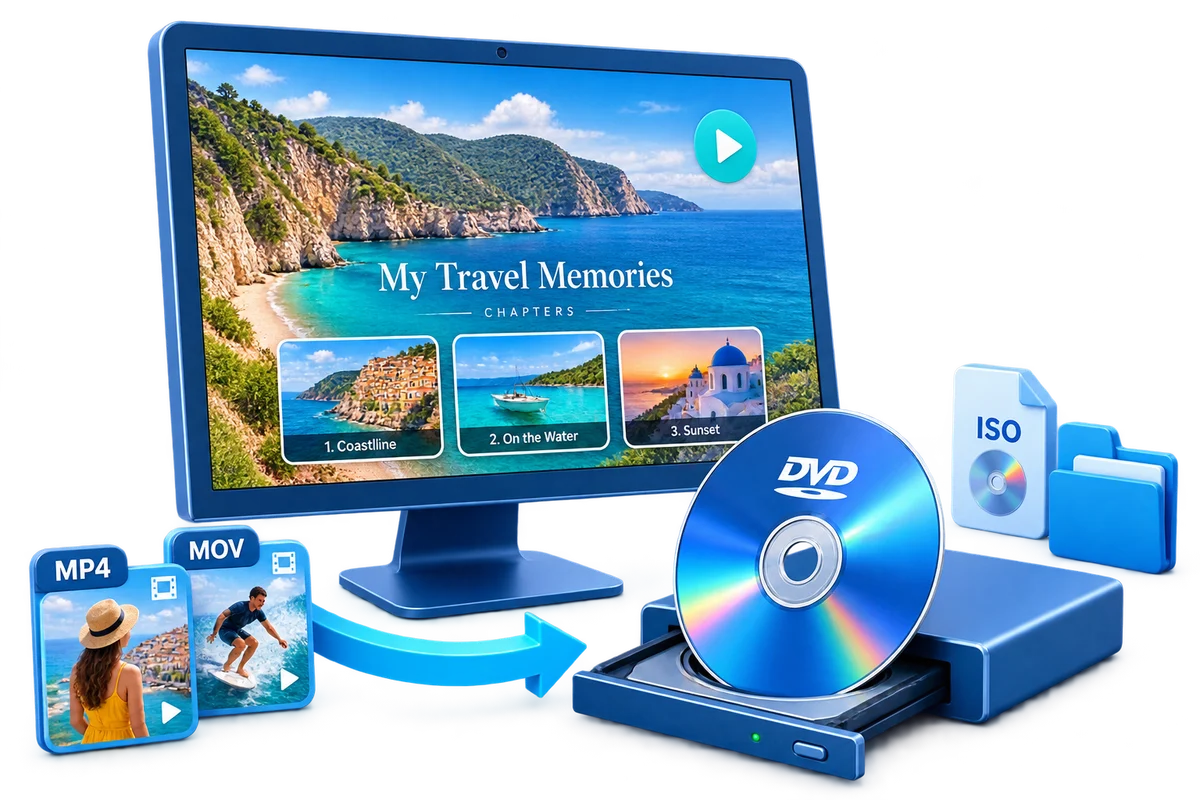
Free DVD Maker for Windows 11/10: What Actually Works
A free DVD maker should do more than copy video files to a blank disc. This guide compares genuine free authoring options, explains their limits, and shows how to create a DVD-Video structure that works with menus and a standard player.
Quick answer
For a genuinely free menu-based workflow, start with DVDStyler; it is open source and designed for DVD authoring on Windows. DVD Flick is another free Windows option, but its older interface and workflow deserve extra compatibility testing. Windows can burn files or an existing ISO, but it cannot turn MP4 files into a menu-based DVD-Video project. GiliSoft Movie DVD Creator is a commercial product with a downloadable trial, not freeware.
What a free DVD maker must actually do
The phrase DVD maker is used for several different tasks. Identify the output you need before choosing software.
| Workflow | What it creates | Plays in a standard DVD player? |
|---|---|---|
| Copy videos to a data disc | MP4, AVI, or other files stored on disc | Only if the player supports those file formats |
| Burn an existing ISO | A physical copy of an already-authored disc image | Yes, if the ISO contains a valid DVD-Video structure |
| Author a DVD-Video project | VIDEO_TS structure, menus, chapters, and encoded video | Yes, when the TV standard and media are compatible |
| Create an ISO or DVD folder | A testable authored project for later burning | After it is burned correctly to compatible media |
Compare free DVD maker options for Windows
| Option | Best for | Menus and ISO | Main limitation |
|---|---|---|---|
| DVDStyler | Free menu-based DVD authoring | Menus, chapters, and ISO/disc workflows | Advanced menu design and encoding settings require learning |
| DVD Flick | Simple Windows video-to-DVD projects | Basic menu and authored DVD output | Older interface; test modern formats and Windows compatibility carefully |
| Windows disc burning | Writing files or an existing ISO | Burns an ISO that is already authored | Does not create DVD menus or convert MP4 into DVD-Video |
| GiliSoft Movie DVD Creator | One guided import-to-menu workflow | Menus, chapters, subtitles, ISO, folder, and disc | Commercial software with a trial; not a permanently free DVD maker |
Choose the right free DVD workflow
Use Windows burning tools when the DVD is already authored
Windows can write files to a disc or burn an existing ISO image. This is enough when another program has already created the DVD structure. It is not enough when you are starting with phone videos, MP4 files, or camera footage.
Use DVDStyler for a current free menu-based workflow
DVDStyler supports Windows DVD authoring with customizable menus. It is a sensible first free option when you can spend time learning menu layout, encoding, and project settings. Create an ISO first and test every menu button before burning a disc.
Use DVD Flick only after a compatibility test
DVD Flick can turn many video formats into an authored DVD, but its older workflow makes a small test project important on a current Windows PC. Confirm that the source codec, subtitles, menu, and burner all work before preparing a long project.
Evaluate a dedicated creator for a complete workflow
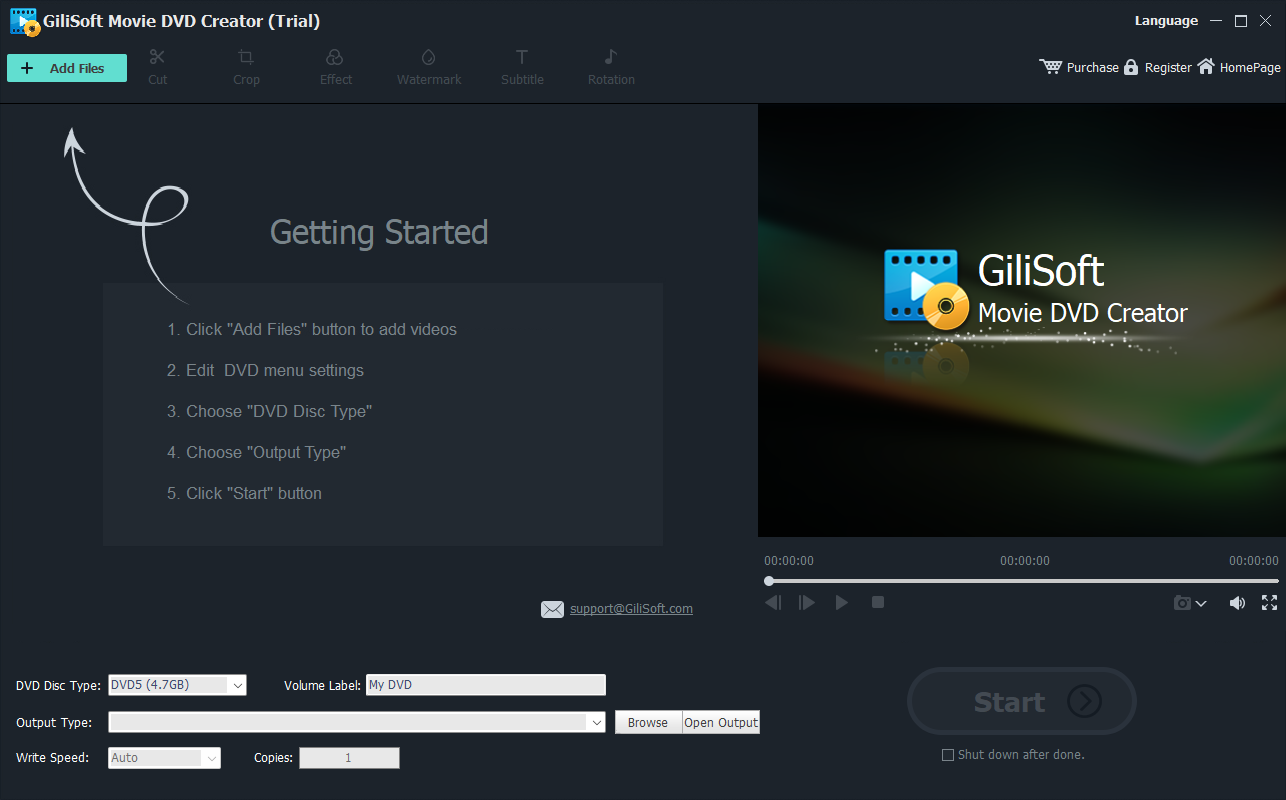
GiliSoft Movie DVD Creator is a paid product with a downloadable trial. It brings video import, preparation, menu creation, subtitles, chapters, preview, ISO, DVD folder, and disc output into one workflow. The trial is useful for evaluating the interface and project process before purchasing.
How to make a playable DVD from video files
- Prepare the source videos
Collect the clips, remove unwanted beginnings or endings, and decide the order viewers should see them.
- Import and arrange the clips
Add the files to the authoring project, review their duration, and arrange them in the intended playback order.
- Choose DVD-5 or DVD-9, aspect ratio, and TV standard
Select the disc capacity, use 16:9 or 4:3 to match the project, and choose PAL or NTSC for the target country or player.
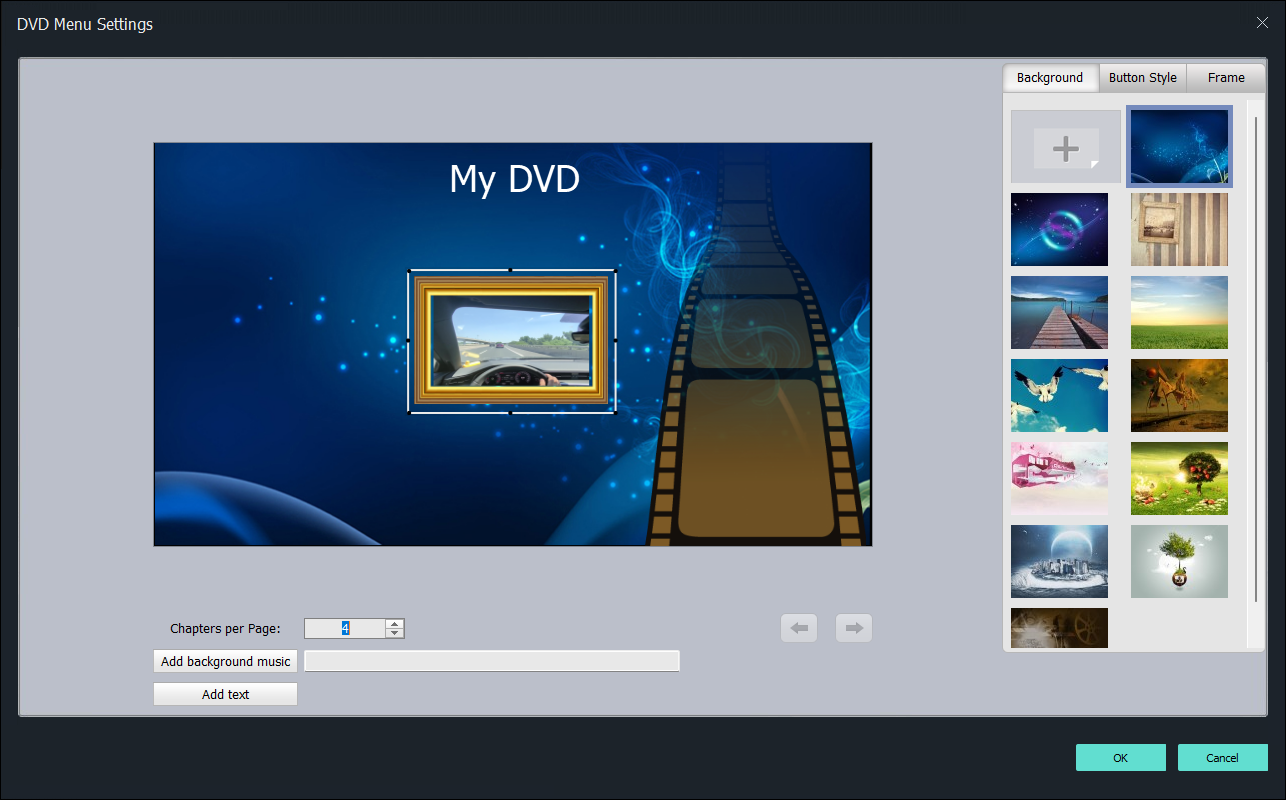
- Create menus, chapters, and subtitles
Choose a readable menu template, keep labels short, verify every navigation button, and add subtitles when required.
- Create and test an ISO image or DVD folder
Preview the complete project first. Creating an ISO or folder lets you verify the authored structure without wasting a blank disc.
- Burn the disc and test it on the target player
Use compatible media, allow the burn to finish and finalize, then test menu navigation, chapters, audio, and subtitles on the device that will be used.
Settings that affect DVD quality and compatibility
- DVD-5 vs. DVD-9: DVD-5 holds about 4.7 GB; DVD-9 holds about 8.5 GB. Longer projects need more capacity or a lower video bitrate.
- PAL vs. NTSC: choose the television standard used by the target player or region.
- 16:9 vs. 4:3: match the source and target screen to avoid stretching or unnecessary cropping.
- Video duration: fitting many hours onto one disc reduces bitrate and visible detail.
- Disc media: some older players read DVD-R more reliably than rewritable media.
Why a burned DVD may not play
The disc contains MP4 files but no DVD menu
You created a data disc rather than an authored DVD-Video disc. Import the videos into an authoring application and create a VIDEO_TS structure or DVD ISO first.
The ISO works on the PC but the disc fails in a player
Use compatible DVD media, burn at a conservative speed, finalize the disc, and confirm PAL or NTSC matches the target player. Test another known-compatible player before rebuilding the project.
The menu opens but a chapter button does nothing
Preview every menu link before export. Long labels, overlapping buttons, missing chapter targets, and custom navigation can produce a menu that looks correct but does not navigate correctly.
The video is stretched or cropped
Match the project to the source aspect ratio. Use 16:9 for widescreen projects and 4:3 only for standard-format footage or a specifically required display.
An online DVD maker does not solve the job
Online converters may create a video file, but full DVD authoring also needs menus, chapters, DVD-Video encoding, ISO or folder generation, and physical-disc burning. A local desktop workflow is usually more practical for large private videos.
Free DVD maker FAQ
Can I make a playable DVD for free?
Yes. A free authoring workflow can create a simple personal DVD. Features and reliability vary, so verify menus, subtitles, current format support, and the final disc on the target player.
Is copying an MP4 file to a DVD the same as DVD authoring?
No. Copying an MP4 creates a data disc. DVD authoring creates the VIDEO_TS structure that a standard DVD player expects.
Does Windows 11 include a DVD maker?
Windows 11 can burn files or an existing disc image, but it does not include a complete tool for authoring video DVDs with menus and chapters.
What is the difference between DVD-5 and DVD-9?
DVD-5 is a single-layer disc with about 4.7 GB of capacity. DVD-9 is dual-layer and holds about 8.5 GB, allowing longer video or a higher bitrate.
Can I create a DVD ISO without a blank disc?
Yes. An ISO image can be created and tested before it is burned to physical media.
Why does HD video look softer on a DVD?
DVD-Video uses standard-definition resolution, so HD source footage must be downscaled and encoded for DVD playback.
Is there a free DVD creator without a watermark?
DVDStyler and DVD Flick are free authoring options, but always test a short output and verify the software license, menu behavior, subtitles, and encoded video before committing to a long project.
Can an online DVD maker create a disc with menus?
Most online converters produce downloadable video files rather than a complete DVD-Video structure. Menu authoring, ISO generation, and physical burning are usually better handled by a local desktop application.


