1. Choose the Source
Open DVD Copy and select the DVD drive, ISO image, or DVD folder. Confirm that the source is readable and the expected content is present.
Prepare the source and destination
Keep a backup of your DVD movies, family recordings, and training discs. Save DVDs to ISO images or folders, duplicate them to blank discs, and burn saved backups whenever you need another copy.
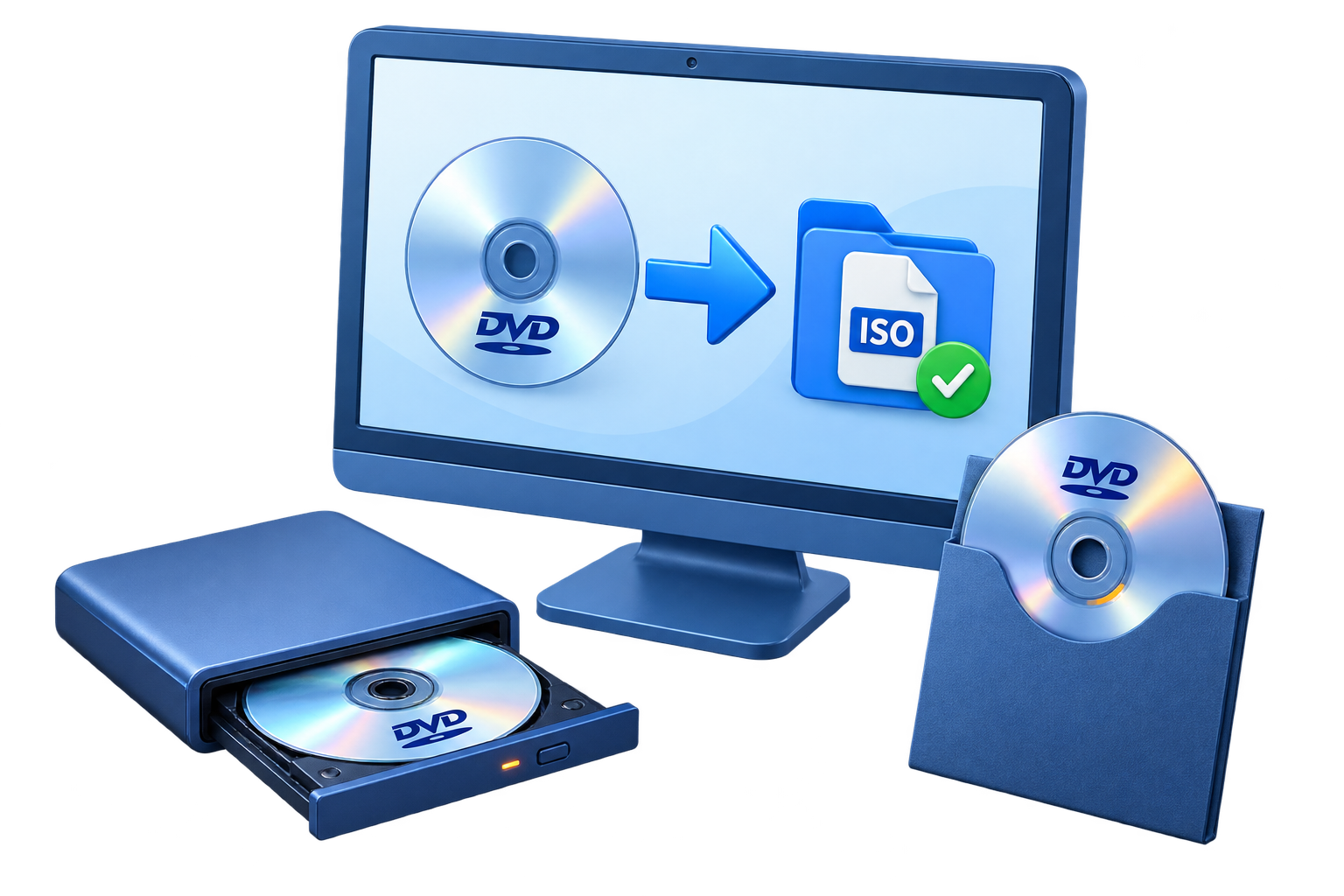
GiliSoft Home DVD Copy backs up DVD movies, home videos, wedding recordings, lessons, and event discs on Windows. Copy a DVD to another disc, save it as an ISO image, or keep the DVD folder on a hard drive. Retain the existing DVD structure, including its menu and chapter files, rather than converting the movie into a standalone video.
Use saved backups again whenever you need them. Burn an ISO image or VIDEO_TS folder to blank DVD media, or turn an existing DVD folder into one ISO file for easier storage and transfer. Mount an ISO with Virtual Disc to access its contents without inserting the original disc.
The copy workspace puts Source and Destination together, with Refresh controls for the available drives. Choose Image File and ISO to create an archive, or select a writer and set Copies and Volume Label for disc output. Clear source and destination choices make it straightforward to repeat the same backup task.
Additional tools cover audio CD copying, audio-image tasks, and data CD/DVD backups. The Home DVD Copy user guide explains the disc, image, folder, and virtual-drive workflows with their preparation and completion checks.

Choose ISO when you want one archive file that is easy to store, mount, verify, and burn to another disc later.
Choose a DVD folder when you need direct access to the VIDEO_TS structure or want to inspect individual DVD files.
Create a physical copy for a DVD player, a classroom, or a family collection. Use a DVD writer and blank media with enough capacity for the source.
See where to choose the source, destination, image type, output path, copy count, and disc label.
Choose the source DVD drive, select Image File as the destination and ISO as the Image Type, then set the image-file path before clicking Start.

Duplicate an existing DVD to blank media for a family collection, classroom, or event. Choose the source drive and destination writer, then review the disc capacity and copy options before starting.
Save the DVD structure as one ISO image on your hard drive. Select Image File as the destination, choose ISO, and set the save path to keep a reusable archive for mounting or later burning.
Choose Open DVD Folder as the source and write the saved DVD structure to a blank disc. Restore a folder backup to physical media without reading the original DVD again.
Use the Virtual Disc tool to mount an ISO as a virtual drive. Open its folders and files, or use DVD playback software to inspect the saved video structure before creating another disc.
Choose an existing ISO through Open Image File, select the DVD writer, and burn the saved image to blank media. Reuse the same archive when you need another physical copy.
Package an existing DVD folder as a single ISO image. Keep the VIDEO_TS structure together in one file for storage, transfer, mounting, or a later disc-writing task.
Save a DVD as a folder when direct access to the VIDEO_TS files is useful. Keep the complete directory structure together so the backup remains usable for DVD playback or burning.
Choose a source drive, image, or DVD folder and a separate destination. Use Refresh to update available drives, and confirm the image path or writer before starting the copy.
Set Copies for disc output and enter a clear Volume Label. Prepare multiple copies from the same source or saved image for family, classroom, or presentation use.
Handle audio CD duplication, BIN or APE audio-image tasks, and data CD/DVD backups alongside DVD copying. Keep movie-disc, audio-disc, and data-disc workflows in the same toolkit.

We use Home DVD Copy to archive our old disc collection to ISO files, and restore jobs are much easier now.
DVD to folder backup works reliably for our training discs, and burning back to blank media is straightforward.
The compatibility support saved us time when consolidating DVD content for internal playback and archiving.
Copying DVD to ISO first and burning later gave us much more flexibility during large backup batches.
Virtual drive playback is practical for quick verification before we commit files to final discs.
The interface is simple for non-technical staff, but robust enough for routine DVD backup operations.
We regularly create multiple copies for offline distribution, and the process is consistent from start to finish.
Open DVD Copy and select the DVD drive, ISO image, or DVD folder. Confirm that the source is readable and the expected content is present.
Prepare the source and destinationChoose an image file, DVD folder, or destination writer. Enter the save path or review the copy count, volume label, and blank-disc capacity.
Create an ISO backupClick Start and wait for completion. Open the saved folder, mount the ISO, or test the completed DVD before putting the original into storage.
Check the finished backupKeep a backup of wedding recordings, holidays, school performances, and other family DVDs. Store an ISO or folder on a hard drive and make another disc when you need one.
Duplicate lesson and demonstration DVDs with their existing menu structure. Reuse a saved image for additional classroom or presentation copies.
Organize DVD archives as named ISO images or folders instead of relying on the original disc for every access. Mount an ISO to inspect the backup before burning it.
Handle DVD, audio CD, and data-disc backup tasks with clear source and destination choices. Label the output and retain a reusable image for future copies.
Open DVD Copy in GiliSoft Home DVD Copy and select the source drive. Choose an image file, DVD folder, or destination writer for the backup. Set the file path or disc options, click Start, and wait for completion before opening the saved backup or removing the finished disc.
Choose ISO when you want the DVD structure stored as one image file for mounting, storage, or later burning. Choose a DVD folder when you prefer direct access to the VIDEO_TS files. Keep the complete folder structure together if you plan to burn it back to a playable DVD.
Yes. Choose Open Image File or Open DVD Folder as the source, select the destination DVD writer, and insert suitable blank media. Check capacity, set the copy count and volume label, then click Start. The saved source must contain a complete DVD structure for DVD-video playback.
Use a saved image as an intermediate step. First copy the source DVD to an ISO on your hard drive. After that job completes, replace the source disc with a blank DVD and burn the saved ISO using the same drive. The drive must support DVD writing for the second step.
Copying the complete DVD structure to an ISO, DVD folder, or another disc retains the existing DVD files used for menus and chapter navigation. Verify the finished backup in a DVD-capable player. This workflow does not create new menus or turn the movie into a standalone MP4 file.
Use the Copies control for disc output, enter a clear Volume Label, and follow the prompts for each blank disc. You can also create one ISO backup first and reuse it for later disc copies, so you do not need to read the original DVD for each new job.
No. DVD copying retains the DVD structure as a disc, ISO image, or folder. MP4 conversion creates a normal video file for direct playback and does not keep an interactive DVD menu. Choose Home DVD Copy when the goal is a disc backup, a duplicate DVD, or a reusable DVD archive.
Check that the source disc is readable, the output drive can write the selected media, and the blank disc has enough capacity and has not already been finalized. Close other software using the drive and check free space for temporary or image files. A damaged source cannot be repaired merely by starting another copy task.

 Editors highlighted reliable DVD backup paths, including disc-to-ISO, folder export, and direct disc copy. Coverage noted practical compatibility with common burners and playback environments.
GiliSoft Home DVD Copy was described as easy to operate, reliable for routine DVD copy tasks, and light enough for everyday backup use.

Reviewers praised stable copying on full-length DVD movies and mixed disc structures. Lab notes cited dependable behavior during repeated backup tasks.
The product was noted for copying DVD content to blank discs, ISO files, or hard-drive folders with practical speed and predictable results.
Independent analysis described the toolset as practical for daily DVD backup and duplication tasks. Commentary emphasized speed, consistency, and low operator overhead.
Coverage emphasized that users can create DVD movie copies with only a few configuration choices, which keeps the backup process approachable.
Copy to an ISO image, DVD folder, or blank disc, and reuse saved backups whenever you need another DVD.


Enter your email address to get our latest newsletter