
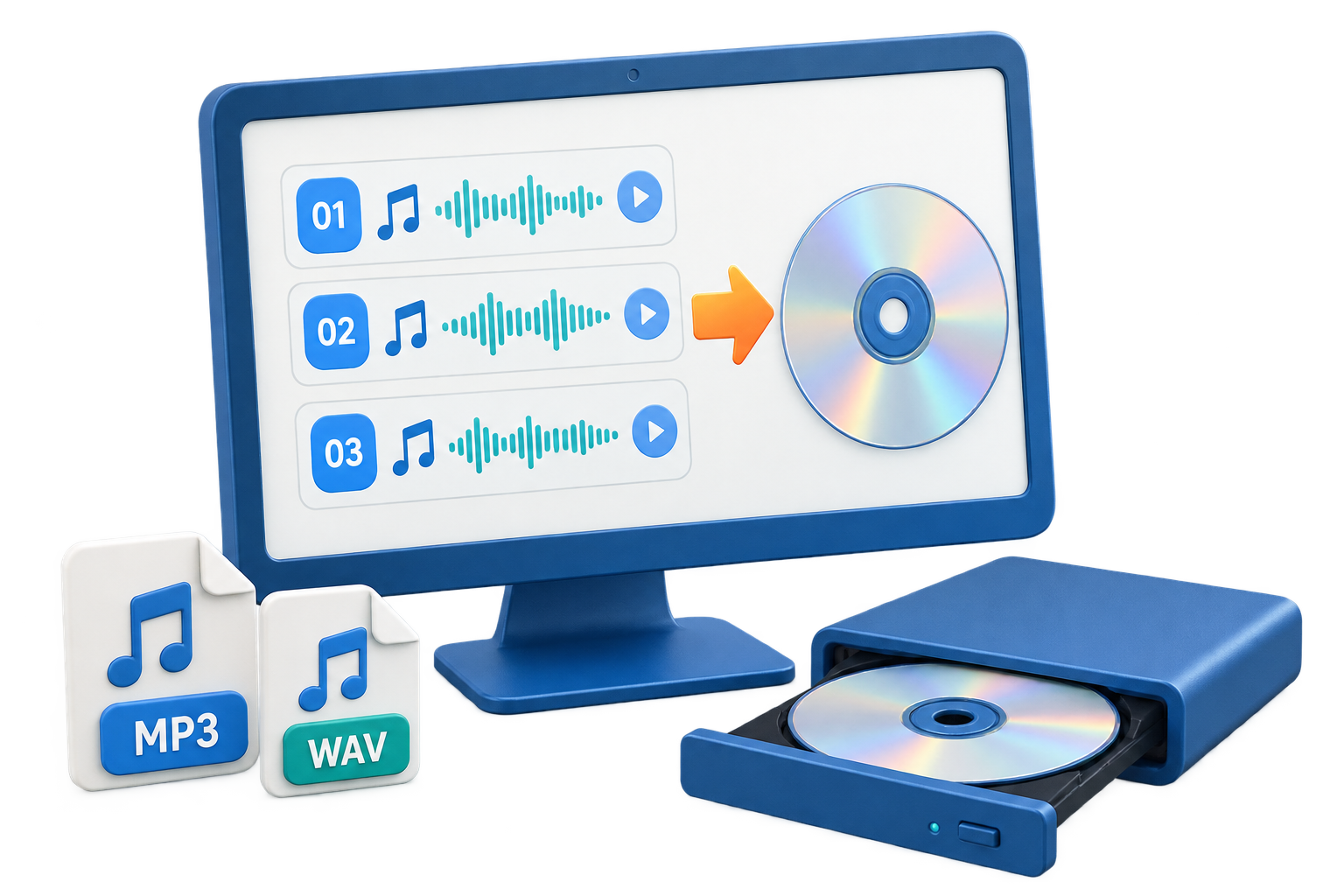
Free Audio CD Burner for Windows: Make a Compatible Music Disc
Successful CD burning begins with the target player. A standard Audio CD and an MP3 data disc may use the same blank media, but they are not interchangeable.
Quick answer
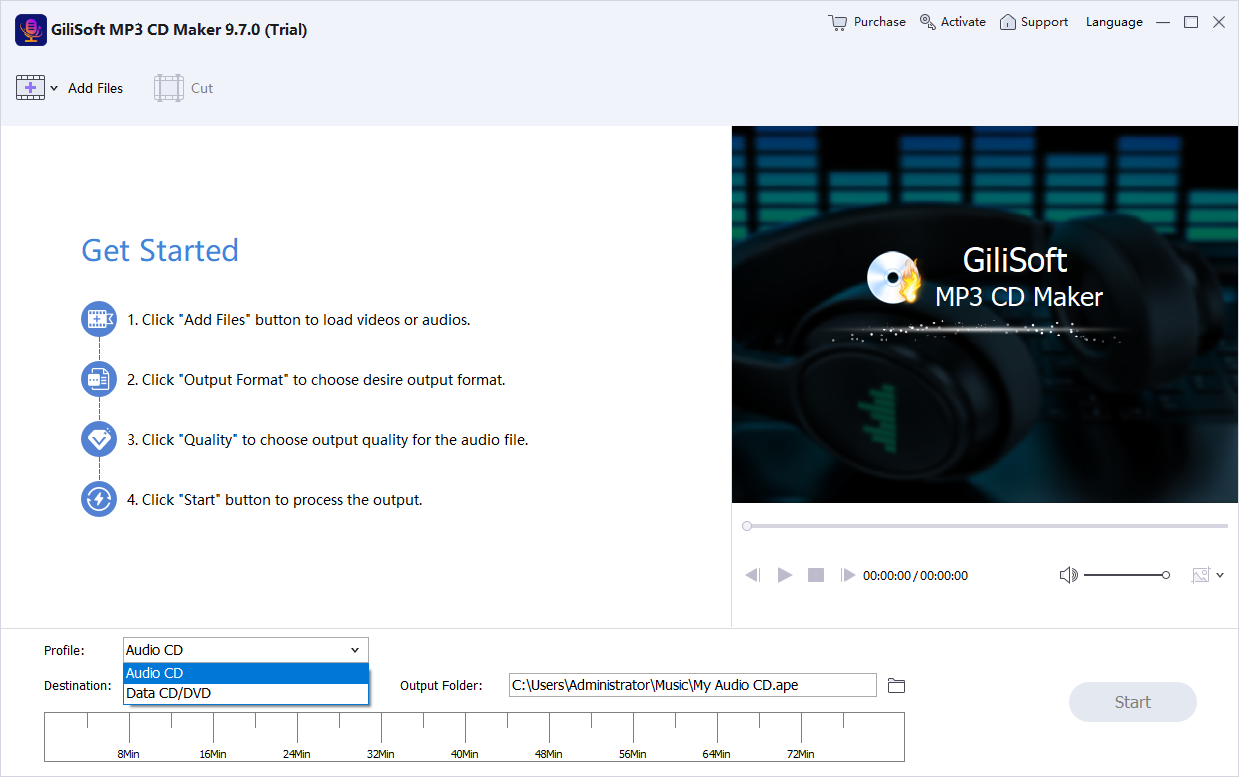
Choose an Audio CD for ordinary CD players and an MP3 data disc only when the target player explicitly supports MP3 files. Free tools can handle a basic project; use GiliSoft MP3 CD Maker when you need broader source support, track preparation, and a repeatable Audio CD or MP3 CD workflow. The download is a trial.
Choose Audio CD or MP3 CD before burning
| Disc type | Compatibility | Capacity behavior |
|---|---|---|
| Audio CD | Most home and car CD players | Limited by total playing time |
| MP3 CD | Players that explicitly support MP3 data discs | Limited by file size and disc capacity |
| WMA data disc | Only players that support WMA files | Limited by file size and disc capacity |
Prepare music for a compatible CD
- Confirm the target player.
Check whether it supports standard Audio CD, MP3, WMA, CD-R, and CD-RW.
- Choose reliable blank media.
Use a disc type supported by both the burner and playback device.
- Check the source files.
Play each track completely enough to catch corruption, silence, or the wrong version.
- Set the track order.
Confirm titles and sequence before starting the burn.
- Use a moderate burn speed.
Older players may read a carefully burned CD-R more reliably than a high-speed disc.
- Finalize and test.
Close the session when required, eject the disc, and test it in the actual target player.
Create a disc with GiliSoft MP3 CD Maker
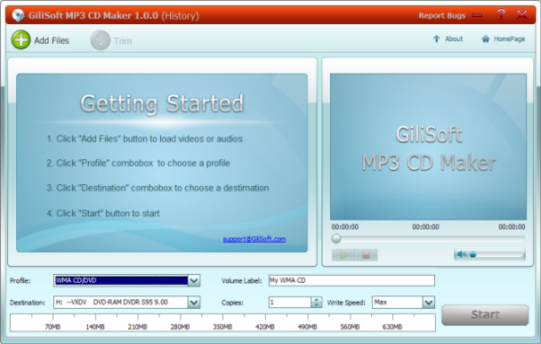
The product supports Audio CD and MP3/WMA music-disc workflows and can prepare tracks from supported audio or video sources.
Why a burned music CD may not play
- The project was burned as a data disc instead of an Audio CD.
- The target player does not support MP3, WMA, CD-RW, or the selected media.
- The disc session was not finalized.
- The burn speed or blank media produced read errors.
- A source track was damaged or encoded in an unsupported format.
- The disc works on a computer but was never tested in the intended car or home player.
Frequently asked questions
Can I burn an audio CD for free?
Yes, free and built-in tools may create a basic Audio CD when the drive and file formats are supported. Test the disc in its intended player.
What is the difference between an Audio CD and an MP3 CD?
An Audio CD stores standard CD audio for broad player compatibility. An MP3 CD stores compressed files and requires a player that supports MP3 data discs.
Why will a burned CD not play in my car?
The disc may use the wrong project type, unsupported media, an unfinalized session, excessive burn speed, or audio formats the player cannot read.
Should I use CD-R or CD-RW?
CD-R generally offers broader compatibility with older players. CD-RW is reusable but is not supported by every car or home CD player.
Is GiliSoft MP3 CD Maker free?
The download is a trial. Use it to verify source formats, drive compatibility, track order, and disc playback before purchasing.