GiliSoft Video Editor Pro for Mac

Turn clips, photos, and recordings into finished videos on your Mac. Arrange the timeline, add text and music, refine picture and sound, and export for playback or sharing.

  • Cut, join, and edit on a multi-track timeline
  • Add titles, captions, music, and recorded narration
  • Add effects, adjust color, and export to MP4
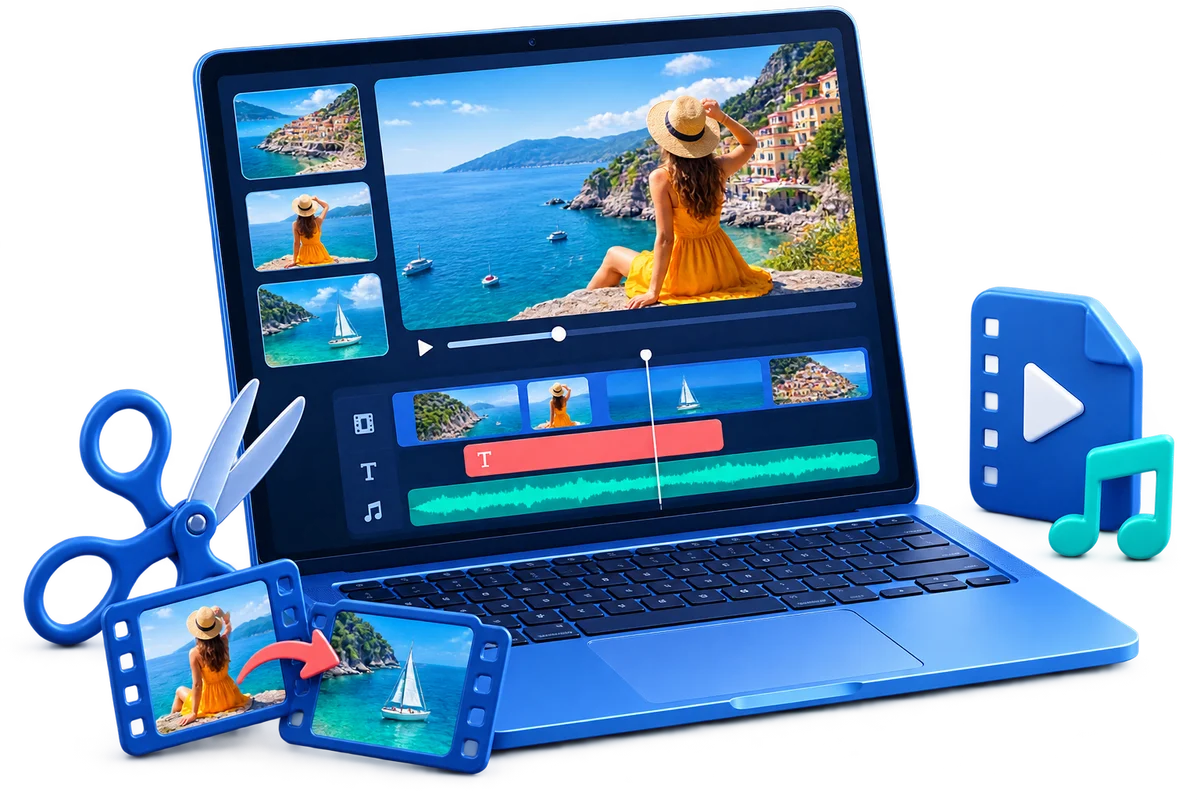
Mac video editing illustration with clip trimming and joining, titles, music, preview, and video export
GiliSoft Video Editor Pro for Mac

Turn Your Clips into Finished Videos on Mac

GiliSoft Video Editor Pro for Mac brings video clips, photos, music, narration, and on-screen text together in one multi-track editing project. Trim unwanted footage, split long recordings, join scenes in the right order, and keep supporting audio, text, overlays, and effects aligned with the picture.

Create titles, labels, and captions, record a voiceover or computer sound, and balance the soundtrack with volume, fades, sound effects, and noise reduction. Crop and rotate clips, change speed, correct color, add animation, and combine transitions, filters, overlays, and stickers to shape the finished video.

Prepare tutorials, lessons, product demonstrations, social clips, event highlights, and family movies. Watermarks identify your work, while mosaic regions help hide faces, account details, and other private information. Clip-level controls let you refine one scene without applying the same adjustment to the entire project.

Export to MP4, AVI, WMV, MKV, MOV, or GIF, or choose the separate Audio output tab when you need a sound-only result. Set the destination, resolution, and quality for playback or sharing. The Video Editor Pro for Mac user guide covers importing, timeline edits, creative tools, and final export.

Video Editor Pro for Mac Features

Multi-Track Timeline Editing

Import video, photos, and audio into Material, then arrange separate video, text, music, voice, overlay, and effect tracks. Use the preview and playhead to keep every layer aligned with the scene.

Cut, Trim, Split, and Join Clips

Keep the useful sections, remove pauses or mistakes, split long recordings, and place clips in their intended order. Review the joins and close unwanted gaps before exporting the sequence as one video.

Speed, Reverse, Rotate, and Reframe

Change Speed, enable Reverse, fix rotation, or flip the picture in the Video panel. Set zoom and X/Y location, then choose a color, blur, or custom image for exposed canvas areas.

Crop Video with Live Preview

Drag the crop boundary around the area to keep and check the result beside the source. Keep Aspect Ratio preserves the selected frame shape while you remove unwanted edges or recompose the shot.

Text, Titles, and Subtitles

Choose opening titles, labels, dialog styles, and ending cards, or use Insert new subtitle. Edit the wording, size, placement, start time, and duration so the text supports each scene.

Music and Voice Recording

Add a music track or record narration from an input device. The recording panel also provides Recording computer sound and Timeline Mute options for preparing the sound you need around an editing project.

Volume, Fades, and Noise Reduction

Balance original sound, music, and narration with clip-level Volume, Fade In, and Fade Out controls. Apply sound effects or enable Noise Reduction, then listen to the mix before export.

Color Correction and Beauty Controls

Adjust contrast, saturation, brightness, tone, sharpen, and vignetting. The separate Beauty panel provides smoothing, brightness, tone, face-lift, and eye controls for presenter-focused footage.

Animation and Scene Transitions

Use In, Combo, and Out animation presets with duration controls for clip motion. Add transitions between scenes and preview how each change fits the timing of the edit.

Filters, Effects, Overlays, and Stickers

Shape the visual style with filters and effects, including split-screen treatments. Add frames, light effects, film overlays, and stickers, then position and time each layer over the source footage.

Branding and Mosaic Masks

Use text and visual layers to identify your work. Position mosaic regions over faces, account details, logos, or other private information, and check that the target stays covered throughout the scene.

Video, Audio, and GIF Export

Choose MP4, AVI, WMV, MKV, MOV, or GIF in the Video export panel, or switch to Audio output. Set the file name, destination, quality, and resolution before saving the finished result.

User Reviews

The timeline makes it easy to keep clips, text, music, and effects organized while we build training videos.

- Olivia M., Training Producer

Color, crop, audio, and transition controls cover the adjustments we use most for short social projects.

- Kevin T., Content Manager

Mosaic and text tools are especially practical when preparing product walkthroughs for customers.

- Rachel P., Marketing Coordinator

The export panel keeps the last stage straightforward after a project has been reviewed.

- Daniel K., Product Support Lead

Build Your Video from First Cut to Final Export

Keep clips, sound, text, and effects aligned as you shape the finished video.

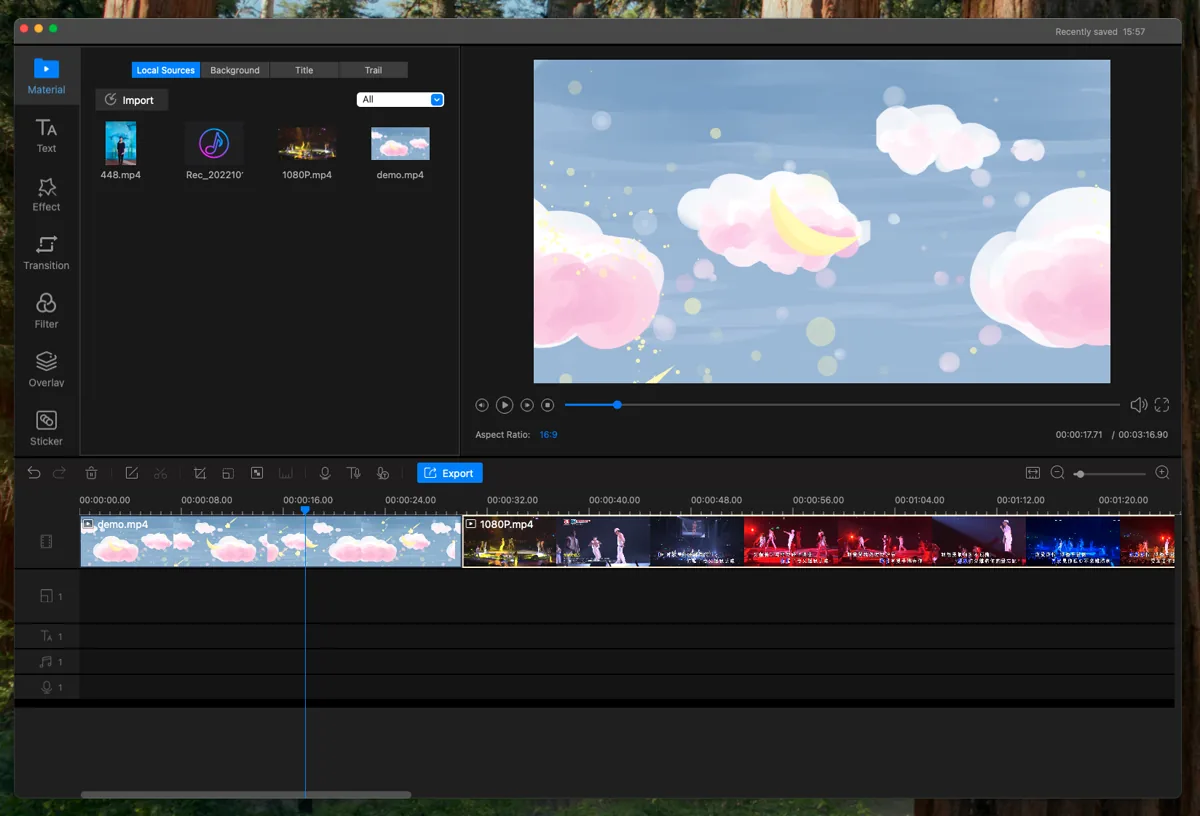
GiliSoft Video Editor Pro for Mac timeline with imported media, preview, and video tracks

Arrange clips on a visual timeline

Import video and audio, preview the current frame, and organize project elements across dedicated tracks. The timeline keeps cuts, text, music, voice, overlays, and effects aligned with the playhead.

  • Media library and preview in the same workspace
  • Separate tracks for video, text, audio, voice, and effects
  • Zoomable timeline for short clips and longer projects
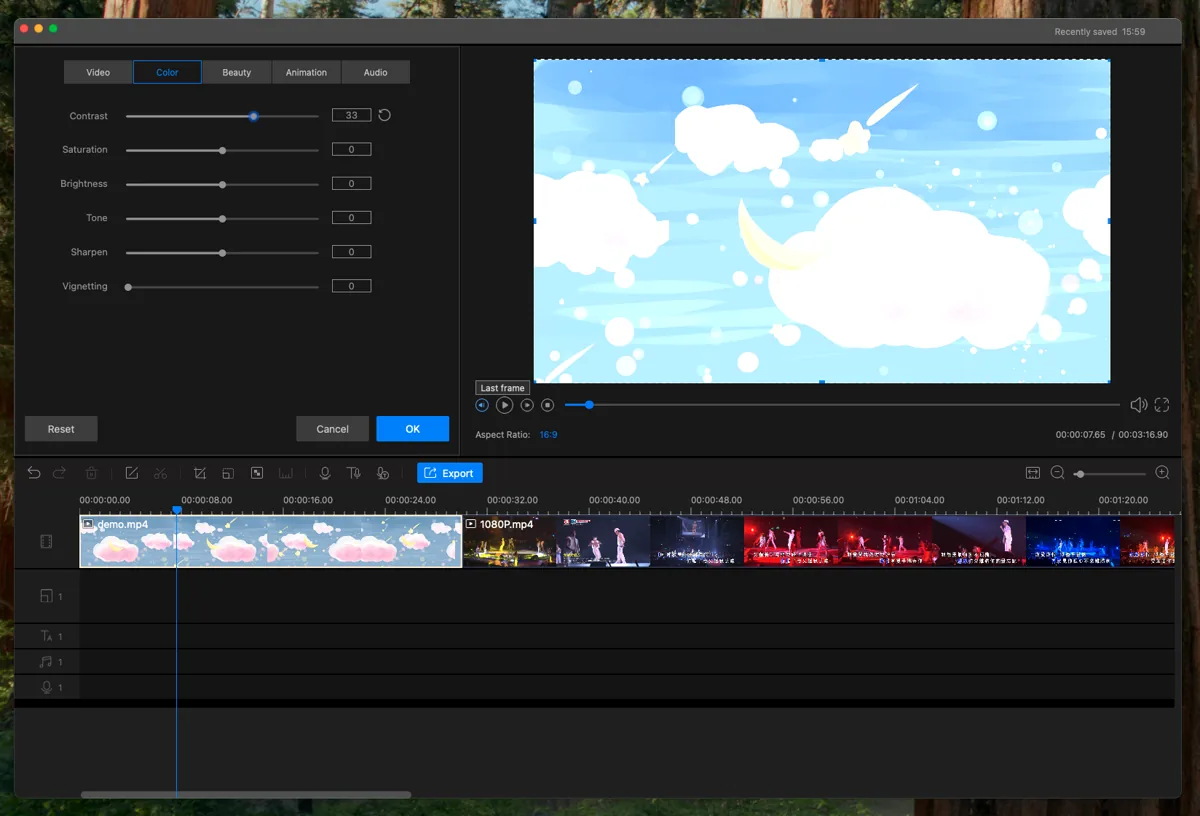
Color correction controls in GiliSoft Video Editor Pro for Mac

Correct picture, motion, and sound

Open a selected clip for detailed control instead of applying one preset to the entire project. Tune color and sharpness, change speed and framing, improve faces, animate the clip, or refine its audio.

  • Contrast, saturation, brightness, tone, sharpen, and vignette
  • Speed, reverse, flip, rotate, zoom, and position
  • Volume, fades, sound effects, and noise reduction
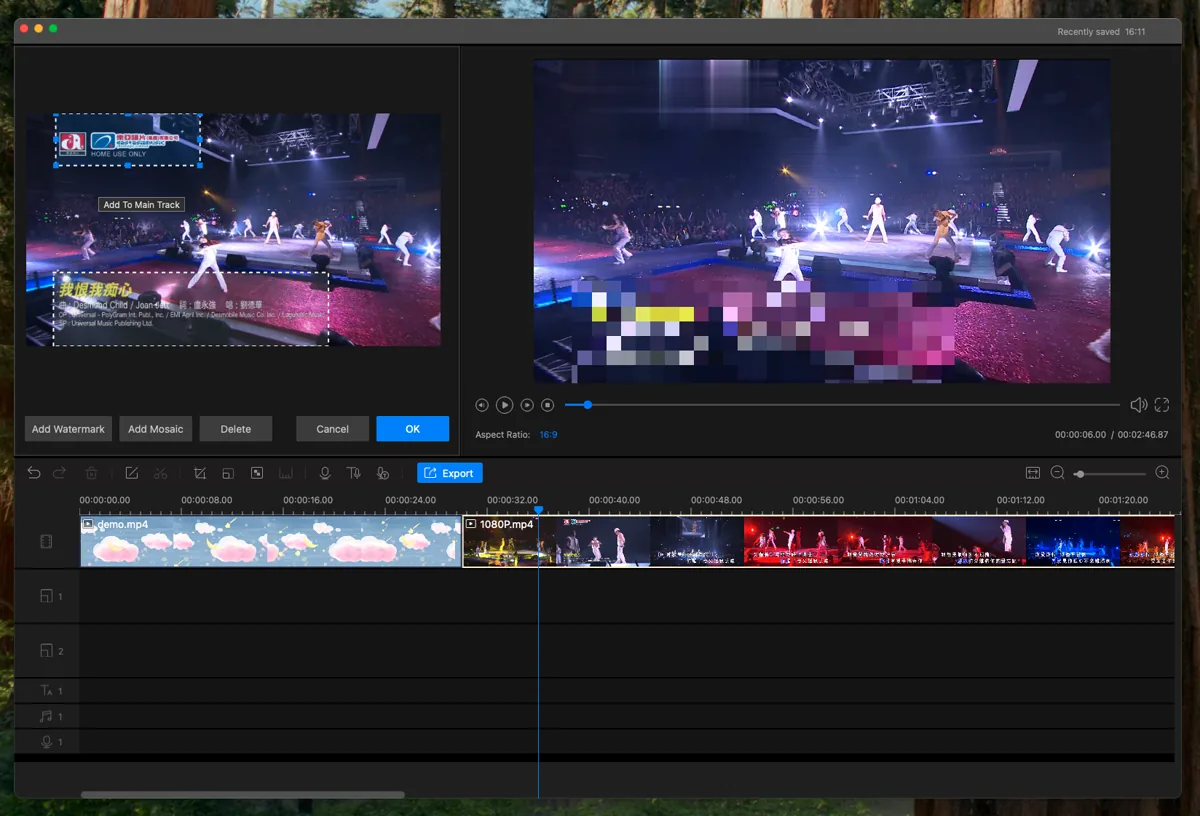
Watermark and mosaic controls in GiliSoft Video Editor Pro for Mac

Add context, branding, and privacy masks

Build a clearer finished video with titles, captions, overlays, and stickers. Add a brand mark where appropriate, or place mosaic over sensitive details before a tutorial, demonstration, or client video leaves your Mac.

  • Text templates for titles, labels, dialog, and captions
  • Positionable watermarks, overlays, and stickers
  • Mosaic masks for logos, faces, and private information

GiliSoft Video Editor Pro for Mac Screenshots

Explore the timeline, picture and audio adjustments, text, creative effects, privacy masks, and export controls.

Multi-track timeline editing

Arrange source clips and project elements while previewing the current frame.

Video Editor Pro Guides

Made for Everyday Mac Video Projects

Tutorial and training creators

Clean up recordings, add explanatory text, emphasize key areas, mix narration, and prepare focused instructional videos.

Marketing and product teams

Build demonstrations, campaign clips, feature highlights, and branded videos with transitions, overlays, text, and music.

Social content creators

Trim longer footage into shorter stories, correct framing and color, add visual energy, and export a polished version.

Schools and community groups

Combine event clips, titles, music, captions, and decorative elements for class, club, and community presentations.

Support and operations teams

Create clear walkthroughs while masking account details, customer information, and other sensitive content with mosaic.

Home video editors

Join phone footage, correct rotation, improve color and audio, add titles, and preserve family or travel memories.

Create Your Video on Mac in Three Steps

1. Add and arrange media

Import video, images, and audio into Material. Add the source files to their tracks and arrange the scene order on the timeline.

Start a project and import files

2. Refine picture, text, and sound

Trim the footage, add titles or subtitles, prepare music and narration, and adjust framing, color, motion, or effects for each scene.

Adjust clips and audio

3. Export and check playback

Choose the output format, resolution, quality, and folder. Export the project and play the saved file to check picture, sound, text, and the ending.

Export the finished video

Video Editor Pro for Mac FAQ

How do I cut and join video clips on Mac?

Import the source files into Material and add them to the main video track in the required order. Move the playhead to a cut point, split the clip, and remove the sections you do not need. Close unwanted gaps, preview the joins, and export the sequence as one finished video.

Can I add titles, text, and subtitles to a video?

Yes. Open Text and choose a title, label, dialog, or caption style, or use Insert new subtitle. Edit the wording and set its size, position, start time, and duration. Preview it over the footage to check readability and timing before export.

Can I add music and record a voiceover on Mac?

Yes. Import music or narration and place it on an audio or voice track. The recording panel includes an input-device selector, Recording computer sound, and Timeline Mute options. Select the source you need, record a short test, and balance the recorded track against the original video sound.

How do I reduce background noise and add audio fades?

Select the clip and open Audio. Adjust Volume, Fade In, and Fade Out, then enable Noise Reduction when background sound is distracting. Preview different reduction levels and listen with headphones so speech remains clear without an overly processed sound.

Should I crop a video or change its aspect ratio?

Choose the project aspect ratio for the intended destination. Crop a clip when you need to remove unwanted edges or change the composition within that canvas. The crop tool provides Keep Aspect Ratio and a live preview; Video controls also provide zoom, location, and color, blur, or custom-image backgrounds.

Can I change video speed or reverse a clip?

Yes. Open the selected clip's Video controls to adjust Speed or enable Reverse. The same panel provides flip, rotation, zoom, and position controls. Preview motion, duration, and sound together before applying the changes.

Can I hide a face, logo, or private information in a video?

Use Add Mosaic to place a mask over the selected area, then resize and position it in the preview. Play through the entire affected range, especially when the target moves. Split the clip or adjust the regions when one fixed mask does not cover the detail for the full scene.

Which video formats can I export on Mac?

The Video export panel offers MP4, AVI, WMV, MKV, MOV, and GIF. Set the name, output folder, quality, and resolution, then click Export. A separate Audio output tab is also available. Open the saved file and check picture, sound, text, and the ending frame before sharing.

Get GiliSoft Video Editor Pro for Mac

Build your video with a multi-track timeline, text, music, picture adjustments, and creative effects, then export the finished result.