Temporary RAM Disk
Use an empty drive for cache, extracted files, test output, and other data you can recreate. Contents are discarded when the RAM drive's memory is released.

Turn available memory into a fast Windows drive for cache, temporary files, build output, and editing previews. Choose an empty drive for disposable work or save its contents to an image for the next session.
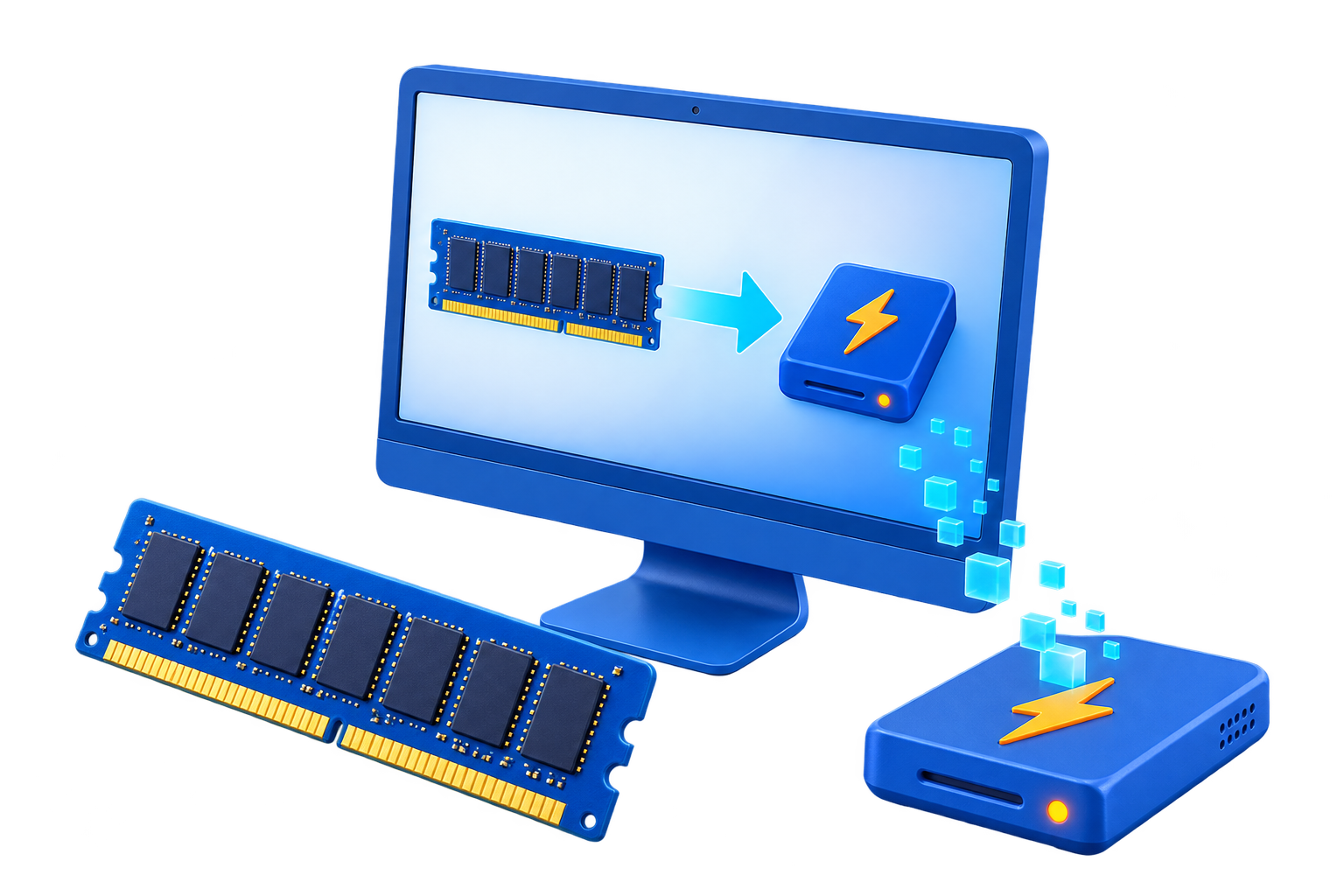
GiliSoft RAMDisk turns part of your computer's physical memory into a Windows drive with its own drive letter. Give browser cache, build output, test files, editing previews, and other frequently accessed working data a dedicated memory-backed workspace.
Choose the disk size, drive letter, and file system, then start with an empty drive or mount a saved image. Image creation, automatic loading, scheduled saving, and backup options help you reuse a working folder structure and selected files across sessions.
Use available memory for the RAM drive while keeping enough for Windows and your applications. Permanent storage still holds your important originals and any saved RAM disk images.
Allocate part of the installed memory to a virtual disk that Windows applications can access through a normal drive letter.
Set the capacity in Size(MB), select an unused drive letter, and choose the available file system for the intended files and application.
Create a fresh drive for temporary work, or mount an existing image to bring back the folders and files saved in an earlier session.
Enable Create an image and choose a file on permanent storage. Save working contents so they can be loaded into memory again.
Use the Options setting to load the image mounted last time, making the saved workspace available again without starting from an empty drive.
Configure saving at normal restart or shutdown, during sleep or standby, or at an interval. The Options dialog also provides a real-time image backup setting.
Enable the backup-before-save option to retain an earlier image when the current one is updated. Keep independent backups for important data.
Point supported application cache, scratch, build, and preview folders to the RAM drive. Keep source files and finished work on permanent storage.
Both modes use system memory. The difference is whether you want to start fresh or restore previously saved contents.
Use an empty drive for cache, extracted files, test output, and other data you can recreate. Contents are discarded when the RAM drive's memory is released.
Save the RAM drive to an image on an SSD or hard drive, then load that image in a later session. Choose a save policy when selected files or a prepared folder structure need to return.
Only changes successfully written to the image are saved. A crash or power loss can still discard newer changes, so keep important originals and independent backups on permanent storage.
Open the creation wizard. Select a new RAM disk for a fresh workspace, or mount an existing image to restore saved contents.
Choose File system, Drive letter, and Size(MB). Leave enough free memory for Windows and your normal application workload.
Enable Create an image when contents should return later. Set Path on a normal drive, add a Description, and select Complete.
Choose loading and saving settings in Options. Point a supported application cache or temporary folder to the new drive and test a small workload.
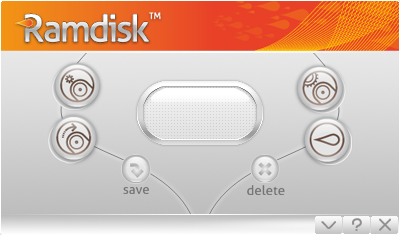
See the main window, creation wizard, image path, and automatic loading and saving controls.
These example tests illustrate the difference between a memory-backed drive and ordinary local storage on the tested system. Results vary with memory, CPU, storage hardware, test settings, and system load; they are not a guarantee for every computer or application.


Use a dedicated location for rebuildable compiler output, intermediate files, and test artifacts. Keep source code and release builds on permanent storage.
Separate supported preview, render, and application cache folders from original footage and project files, using a drive sized for the temporary workload.
Start with a clean temporary workspace or restore a prepared image for repeated file-handling and application tests.
Give disposable cache a separate drive when the application supports a custom location. Keep browser profiles, credentials, and recovery data in their normal persistent locations.
A RAM disk uses part of the computer's installed physical memory as a Windows drive with its own drive letter. Applications can read and write files there, but the allocated memory is no longer available for their normal memory use. It does not add RAM, replace the Windows page file, or replace an SSD or hard drive.
An unsaved RAM disk loses its contents when its memory is released. An image-backed disk can restore the contents saved to its image file. Changes made since the last successful save can still be lost during a crash or power failure; saving at normal shutdown cannot protect against a sudden power cut.
Size the drive from the temporary workload you need to store, not from all the RAM installed in the computer. Leave enough memory for Windows and the peak usage of your normal applications. Start with a small disk, watch memory pressure and free drive space during a real task, and adjust only when there is comfortable spare memory.
In the creation wizard, choose a new RAM disk, set its file system, drive letter, and Size(MB), then enable Create an image. Put the image file on a normal SSD or hard drive and complete the wizard. Use Options to choose image loading and saving behavior. Save a test file and verify that the saved image restores it before relying on the setup.
No. A memory-backed drive can help storage-bound tasks that repeatedly access suitable temporary data, but it does not speed up CPU work, add memory, or improve every application. Leaving too little RAM for applications can make performance worse. Image saving also writes to permanent storage. Compare the complete task, including image loading and saving, with your normal SSD workflow.
Creating a drive does not automatically redirect every browser, editor, or Windows temporary folder. Create a folder on the RAM drive and use the application's supported cache, scratch, or temporary-path setting. Change one workload at a time, keep its original path, and verify startup and restart behavior before expanding the setup.
Keep important documents, source code, original media, project files, databases, recovery files, and final outputs on permanent storage. Use the RAM drive for disposable or rebuildable data, or for selected working files with a deliberate image-save policy. A saved RAM disk image is useful for restoration but is not a substitute for an independent backup.
GiliSoft RAMDisk has a free trial download and paid licenses for the full product. Use the trial to evaluate disk creation, your intended workload, and image loading and saving. Check the installed trial and activation screens for the applicable limits before choosing a license.
Use the product guide for creation and image settings, then choose a focused guide for your application's temporary files.
Create a dedicated RAM drive, choose how its contents are saved, and prepare a faster workspace for suitable cache and temporary-file tasks.
View the RAMDisk User Guide 


Enter your email address to get our latest newsletter