DVD Disc
Create a physical DVD for viewing on a DVD player or handing to a customer, student, or family member. Use a DVD writer and suitable blank media, then check playback on the intended equipment.

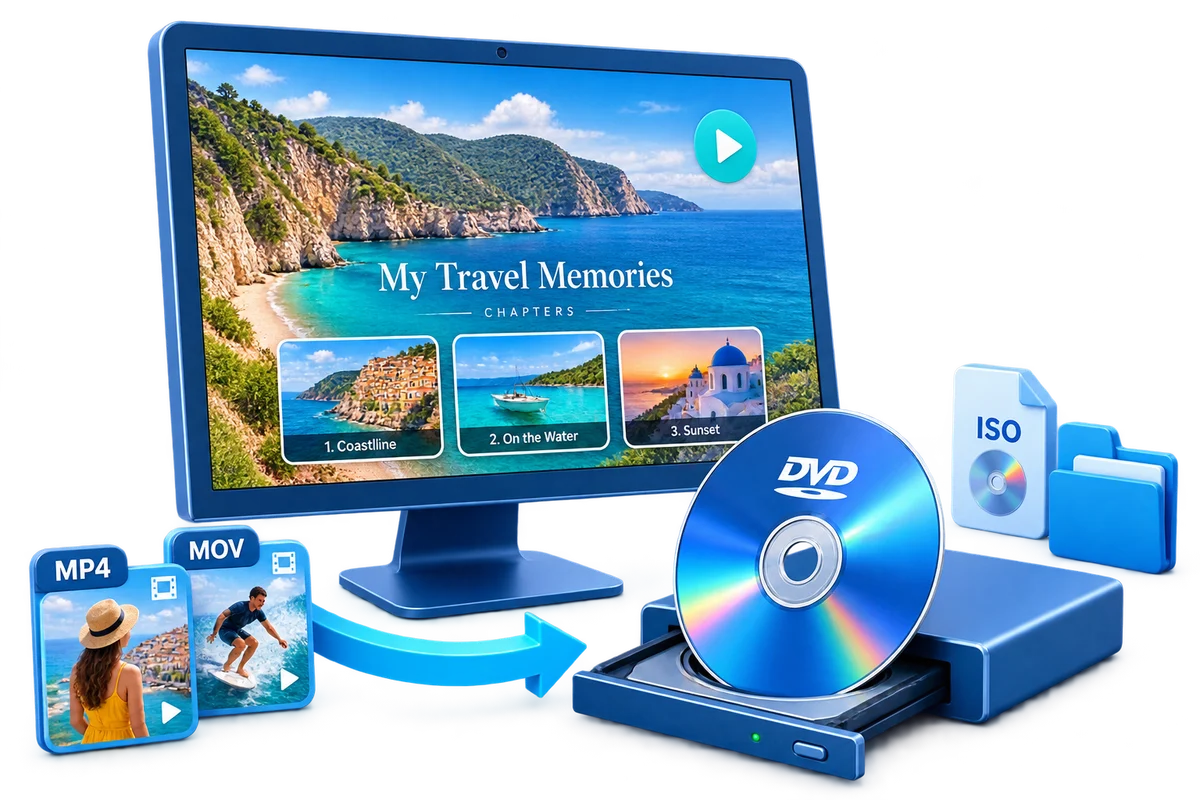
GiliSoft Movie DVD Creator turns MP4, MOV, AVI, WMV, MKV, camcorder footage, and other video files into DVD projects on Windows. Bring your clips together in the intended playback order, build a menu viewers can navigate, and create a disc for home movies, weddings, school events, lessons, or presentations.
Make the menu part of the project: choose a background, button style, and frame, add your own images, menu text, and background music, and set the number of chapters shown per page. Preview the navigation before creating the final output.
Prepare each clip before authoring. Cut unwanted sections, crop or rotate the picture, adjust brightness, contrast, and saturation, load subtitles, and add text or image watermarks. Font, color, position, duration, and transparency controls help make the finished video readable and clearly branded.
Burn directly to DVD or save an ISO image or DVD folder for storage and later burning. Choose the target capacity, quality, PAL/NTSC standard, and aspect ratio for the intended playback equipment. The Movie DVD Creator user guide covers source preparation, menu design, and all three output choices.
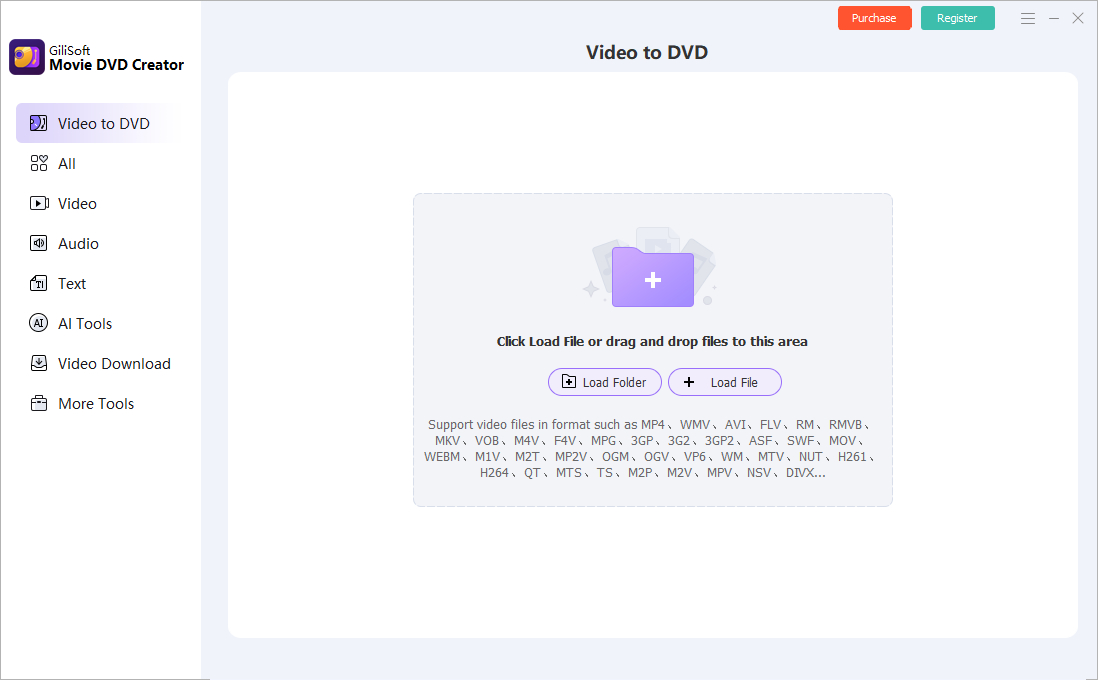

Import MP4, MOV, AVI, WMV, MKV, MPG, VOB, MTS, FLV, and other video sources. Arrange mixed camera, phone, and downloaded clips into the playback order for one DVD project.
Choose a background, button style, and frame for the DVD menu. Use a supplied template or your own image, then preview the title and navigation before creating the disc.
Burn directly to DVD disc or save the authored project as an ISO image or VIDEO_TS folder. This makes it easier to keep an archive copy, test output, or burn the same project later.
Set start and end times, remove unwanted edges, and correct orientation. Adjust brightness, contrast, saturation, or effects such as Black and White, Old Film, and Pencil before authoring.
Choose the target DVD disc type and review the project running time and capacity estimate. Balance quality and available space before creating a long recording or multi-video collection.
Choose PAL or NTSC and 16:9 or 4:3 for the intended playback equipment. Preview differently shaped source videos and use letterboxing when the complete frame should remain visible.
Use Add background music and Add text in DVD Menu Settings to personalize the opening menu. Prepare a wedding, school, family, or business theme with matching imagery, wording, and sound.
Set Chapters per Page to control the menu layout. Review thumbnail entries and navigation buttons so viewers can reach the intended part of a lesson, event recording, or video collection.
Load subtitles and adjust font, color, and vertical position. Use Add Text or Add Picture in Watermark to prepare labels and logos with duration, transparency, and font controls.
Preview source clips and the DVD menu, then choose the output destination and volume label. For disc output, review Write Speed and Copies before clicking Start.

We use Movie DVD Creator to compile event footage into menu-based discs, and delivery quality has been consistent.
The broad input-format support helped us author DVDs from mixed camera and phone sources without conversion headaches.
Menu templates and custom backgrounds made our family and school archive discs look much more professional.
ISO and DVD folder export options are practical when we need digital backup and physical disc delivery together.
Built-in trimming, subtitle, text, and watermark tools saved us from jumping between multiple apps before burning final DVDs.
Chapter navigation made long training recordings easier to browse on standard meeting-room DVD players.
PAL and NTSC settings helped us prepare discs for different regional playback requirements.
Preview the DVD creation workflow: add source videos, prepare clips, adjust subtitles, watermarks, effects, and build a DVD menu before burning to disc, ISO, or DVD folder.
Start a DVD project, review the authoring workspace, and choose the tools needed before adding videos and creating the final disc output.
Create a physical DVD for viewing on a DVD player or handing to a customer, student, or family member. Use a DVD writer and suitable blank media, then check playback on the intended equipment.
Keep the authored DVD as one image file for storage, transfer, or later burning. Create the project without inserting a disc, and retain the menu and DVD playback structure in the image.
Save the authored DVD folder structure, including VIDEO_TS files, on a hard drive. Use it for folder-based storage, project review, or a later disc-writing workflow.
Bring camera and phone footage together with readable menus and clear playback order. Create a disc to share and an ISO or folder copy to keep with the project.
Organize lessons, demonstrations, school programs, and recorded presentations into a menu-based disc that viewers can browse without searching through one long video.
Prepare a DVD with a matching menu background, event title, and menu music. Trim the footage, label the project, and create the required disc copies.
Package product demonstrations, recorded talks, and customer material with subtitles and visible branding. Keep disc, ISO, and folder output available for different delivery needs.
Load the source files, check their order, and trim or adjust the clips. Prepare subtitles and watermarks before authoring.
Choose the background, button style, and frame. Add menu music and text, set the page layout, and preview the navigation.
Review the disc size, quality, PAL/NTSC standard, and aspect ratio. Select DVD disc, ISO, or DVD folder, then check the finished result.
Prepare source files and choose the DVD creation workflow for your PC.
Choose a menu design and make the authored disc easier to browse.
Keep an authored DVD project on your hard drive before creating a disc.
Prepare the footage and menu around the people who will watch it.
Yes. Add MP4, MOV, AVI, WMV, MKV, or other supported video files, arrange them in the intended order, prepare the DVD menu, and choose the disc output. Movie DVD Creator authors a DVD playback structure rather than simply copying MP4 files onto a data disc. Check the completed DVD on the intended player.
Yes. DVD Menu Settings includes Background, Button Style, and Frame options, along with Add background music and Add text controls. Set Chapters per Page and preview the navigation so the menu is readable and each entry opens the intended video.
DVD disc output writes the authored project to blank media and requires a DVD writer. ISO output saves the DVD as one image file for storage or later burning. DVD folder output saves the authored folder structure, including VIDEO_TS files. ISO and folder output can be created without inserting a disc.
Yes. Open Subtitle to load the matching subtitle file and set its font, color, and vertical position. Watermark provides Add Text and Add Picture controls with duration, transparency, and font settings. Preview the wording, timing, and placement before returning to the DVD project.
Choose PAL or NTSC for the intended playback equipment, then select the aspect ratio appropriate for the project. Preview differently shaped source videos before output. Use letterboxing when preserving the full picture is more important than filling the screen without borders.
Capacity depends on the total running time, selected quality, and target disc size, not only the number of source files. Review the capacity estimate after adding videos. Trim material you do not need, adjust quality, or split a long collection across more than one disc when necessary.
First check whether the disc contains an authored DVD structure or only copied video files. For Movie DVD Creator output, verify the selected PAL/NTSC standard, blank-disc type, writer, available capacity, and the player's supported media. ISO output can help separate project-authoring checks from physical disc-writing problems.
Add a photo slideshow that has already been exported as a video. Movie DVD Creator authors video files into a DVD; assemble the photos and music into a slideshow video first, then import it and create the menu and DVD output. Menu background images and background music can also be customized separately.

 Editors highlighted strong DVD authoring compatibility across mixed video sources. Coverage noted practical menu tools and stable disc-writing performance.
This program allows us to create customized DVDs in an easy and fast way. We only need to select the videos we want to include in our compilation, classify them in the order we want them to appear, push the Start button, and that's all.

Reviewers praised stable output on long-duration video projects and mixed source files. Lab notes cited dependable queue behavior during multi-file authoring tasks.
If you are looking for software for converting different video files to DVD and then burning them on disc, this is a practical answer for that job.

Independent analysis described the toolset as practical for recurring DVD creation and delivery tasks. Commentary emphasized speed, consistency, and low operator overhead.
You can create DVD movies quickly from different video files, and the multi-core engine keeps authoring performance practical for repeated projects.
Bring your videos together, build a menu, and create a DVD disc, ISO image, or DVD folder on Windows.


Enter your email address to get our latest newsletter
Movie DVD Creator
Windows DVD Maker Alternative
DVD Menu Creator for Windows
Video to Movie DVD Creator for Windows
Burn MP4 to DVD with Menu
Burn Videos to DVD with Menu
Burn Home Videos to DVD
Create DVD ISO from Video Files
Create DVD Folder from Video Files
DVD Maker for Windows 11
Windows DVD Menu Maker
DVD Burner with Menu Creator