Record Screen and Webcam
Record the full screen, a selected area, or a single window. You can also capture webcam video alone or combine webcam and screen capture in one recording session.

Capture full screen, selected areas, app windows, webcam video, internal audio, microphone narration, cursor activity, annotation marks, snapshots, auto-stop sessions, and split recordings for tutorials, meetings, demos, support videos, and training content.

GiliSoft Screen Recorder for Mac is built for practical desktop capture on macOS. Use it to record screen activity, webcam video, internal audio, microphone narration, cursor movement, mouse clicks, quick annotations, and screenshots for walkthroughs, meetings, support clips, training material, gameplay capture, and share-ready demos.
It focuses on the tasks most Mac users need every day: choose the recording area, capture sound clearly, add webcam when needed, highlight the mouse, stop recordings automatically, split long captures by time or file size, and keep recorded files organized after export.
For Windows users, go to Screen Recorder Pro for Windows
For Android users, go to Screen Recorder for Android
Record the full screen, a selected area, or a single window. You can also capture webcam video alone or combine webcam and screen capture in one recording session.
Select the whole display or a defined capture region before recording, so tutorials, product demos, and support videos show only the area viewers need to see.
Capture system sound, microphone narration, or both together, so tutorials, webinars, support recordings, and reaction-style clips stay easy to produce.
Add camera video to the screen recording when you need presenter-led lessons, onboarding clips, reaction videos, or more personal product walkthroughs.
Set recordings to stop after a defined duration or file size, which is useful for meetings, scheduled lessons, long demos, and unattended capture sessions.
Split long recordings automatically by time or file size, so large sessions stay easier to store, upload, review, and share in smaller parts.
Use on-screen annotation tools to point out key areas during recording, helping viewers follow steps in tutorials, troubleshooting clips, and software walkthroughs.
Capture desktop screenshots in common image formats whether or not you are actively recording video, which is useful for documentation and support workflows.
Use keyboard shortcuts to start, pause, stop, or capture screenshots quickly, which helps keep recording sessions smooth and less distracting.
Include cursor movement and click effects when you want tutorials and walkthrough recordings to feel easier for viewers to follow.
Review captured videos from the file list after recording, making it easier to find recent sessions, replay clips, and manage output files.
Export recordings in practical formats for rapid delivery to teammates, clients, students, or learning platforms without extra conversion steps.

Screen Recorder for Mac made internal training capture easier for our distributed team and kept exports simple enough for non-editors.
We use the combined screen-and-webcam capture mode for onboarding and support walkthroughs on macOS.
The recording process stays light enough for quick demos, but the output still looks polished when we send clips to clients.
Internal audio plus microphone capture reduced retakes for meeting recaps and tutorial updates.
Cursor emphasis and zoom help us make support instructions clearer without moving to a full video editor first.
Preview the Mac recording workflow: choose a capture area, record screen and audio, add webcam or annotation tools, control stopping and splitting rules, and manage recorded files after capture.
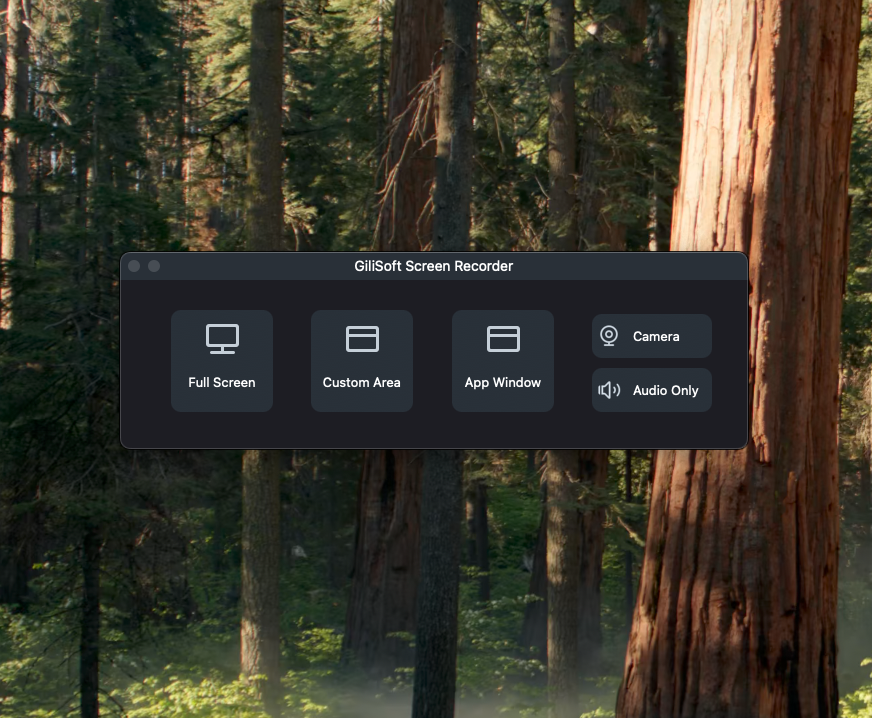
Open the Mac recorder workspace to choose capture mode, manage audio, start recording, and review recorded files from one practical screen.
Capture screen activity, webcam presence, and voice narration together when you need lesson material, course recordings, onboarding content, or reusable training videos on macOS.
Record software demos, support walkthroughs, bug reproduction clips, client review videos, and guided product explanations without moving to a more complicated editing tool first.
Keep practical records of webinars, Zoom sessions, remote presentations, review calls, and everyday desktop communication that needs to be replayed or shared later.
Use one Mac recorder when the final clip needs internal audio, microphone narration, visible screen activity, and optionally a presenter-led webcam view.
Capture presentations, review calls, Zoom sessions, and webinar events with both internal audio and microphone input when recordings need to stay useful after the live session ends.
Record Zoom meeting on Mac | Record webinar on Mac | Record presentation on Mac | Record meeting recap on Mac
Use selected area capture, cursor emphasis, webcam recording, and clean export formats to produce product walkthroughs, onboarding steps, client review clips, and tutorial content for customers or teammates.
Record product demo on Mac | Record sales demo on Mac | Screen recorder for client review on Mac | Record design review video on Mac
Record what happens on screen quickly when you need a visual bug report, a short support explanation, a troubleshooting clip, or a narrated help video that can be sent instead of another live call.
Record support video on Mac | Record bug report video on Mac | Record how-to video on Mac
Record structured online lessons, internal classes, and reusable training material when viewers need to revisit the recording after the live explanation ends.
Screen recorder for online lessons on Mac | Record training video on Mac | Record course lessons on Mac
Yes. You can record screen content, webcam input, and audio together when you need presentation-style output, teaching videos, product walkthroughs, sales demos, or onboarding clips with face presence. See also record screen and webcam on Mac and record customer onboarding video on Mac.
Yes. It is well suited to meetings, webinar capture, replay-ready presentations, demos, onboarding material, async team updates, and general screen capture tasks on macOS. Related pages include Zoom meeting recording, presentation recording, and team update video recording.
Yes. This page is positioned around practical macOS capture tasks that combine screen video with internal audio, microphone commentary, and step-by-step explanation for support, how-to, or bug-report use. See record internal audio on Mac, record bug report video on Mac, and record how-to video on Mac.
Yes. It fits online lessons, replay-focused teaching material, onboarding videos, software walkthroughs, app tutorials, customer success clips, and other screen recording tasks where Mac users need reusable local video afterward. See record training video on Mac, record course lessons on Mac, record software walkthrough on Mac, record app tutorial on Mac, and record customer success video on Mac.

 Editors highlighted smooth capture performance for tutorials, meetings, and product demos. Coverage noted practical presets that reduce setup time before recording.
Review notes emphasized that the Mac recorder stays approachable for everyday users while still producing clean, practical screen videos for work and teaching.

Reviewers praised stable audio-video sync in longer sessions and higher resolutions. Lab notes cited reliable behavior when recording multi-window desktop activity.
Coverage also pointed to meeting capture, video calls, and remote presentation recording as natural use cases for Mac users who want a dependable desktop recorder.

Independent articles described the recorder as production-ready for daily content teams. Commentary emphasized fast export and low friction from capture to publish.
The broader takeaway was simple: screen tutorials, demo videos, lesson recordings, gameplay clips, and share-ready walkthroughs can move from capture to delivery with less friction.


Enter your email address to get our latest newsletter