Block Injected Keyboard and Mouse Input
Intercept software-generated clicks and keystrokes while preserving ordinary input from the physical keyboard and mouse.

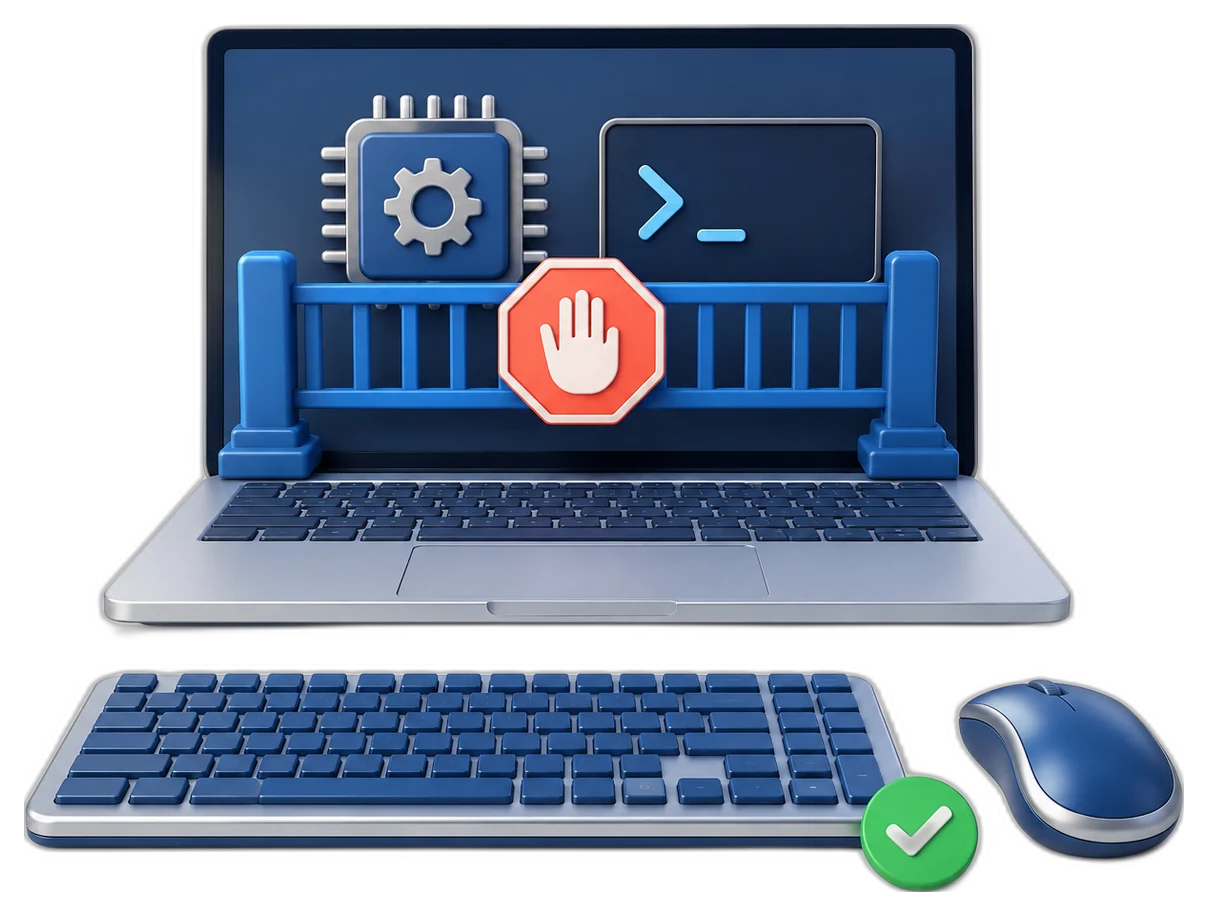
GiliSoft AI Agent Lock is Windows anti-automation software that helps you control how AI agents, scripts and RPA tools operate your desktop. Choose protection modules to restrict injected keyboard and mouse input, scripted window actions, screen capture, selected processes and command-line startup.
Keep normal physical keyboard and mouse operations available. Define trusted applications with a whitelist and unwanted executables with a blacklist. Monitor clipboard access, optionally clear copied content, and use domain rules to decide which applications can access restricted domains.
Start with Audit Mode to see automation-related activity, then enable the protection modules your PC needs. Review event times, process names, modules and results in the logs, and use password protection to control who can stop protection or change its settings.
Built for personal Windows users, office and IT teams, schools, labs, kiosks and shared workstations. It also serves finance, HR, legal and support staff who handle sensitive information on screen. See the AI Agent Lock user guide for module setup, trusted applications and activity review.


Intercept software-generated clicks and keystrokes while preserving ordinary input from the physical keyboard and mouse.
Block non-human foreground switching, closing, minimizing and maximizing through the Window Control Protection module.
Monitor clipboard access and record events in the logs. Review clipboard activity alongside process and input events when investigating automated actions.
Clear clipboard content automatically after changes while protection is active. Enable this option when copied information should not remain on the clipboard.
Add unwanted executables to the process blacklist by name or path. Restrict listed AI automation, scripting and RPA processes under the enabled rules.
Enable capture protection to restrict screenshot, screen-recording and OCR process behavior during protected work.
Use the optional system-interface module to restrict remote-input and assistive-control channels through Windows policy, registry and service controls.
Restrict cmd.exe, powershell.exe and pwsh.exe startup on controlled PCs. Turn this module on or off according to the command-line access the workstation needs.
Define approved applications in List Management. Keep trusted software identified separately from the executables your process blacklist should restrict.
Limit access to blacklisted domains to whitelisted processes. Use Domain Access Control to define which applications may reach restricted destinations.
Record automation-related activity without blocking actions in Audit Mode. Identify normal application behavior before enforcing the selected protection modules.
Review the event time, process, protection module and result. Use the Dashboard, Protection Logs and Realtime Event Stream to investigate activity and check your rules.

AI Agent Lock gives us a clearer way to stop automated control without locking real users out of their PCs.
The block-machines-not-humans model is easy to explain to office users and simple to test.
Audit mode and logs help us understand suspicious automation before enforcing stronger rules.
Screen capture and injected-input protection are useful on shared and semi-public Windows devices.
It fills a different gap than file locking or USB control: stopping software from operating the computer like a person.
Preview the updated AI Agent Lock interface: dashboard status, protection modules, whitelist and blacklist rules, settings, and realtime logs.
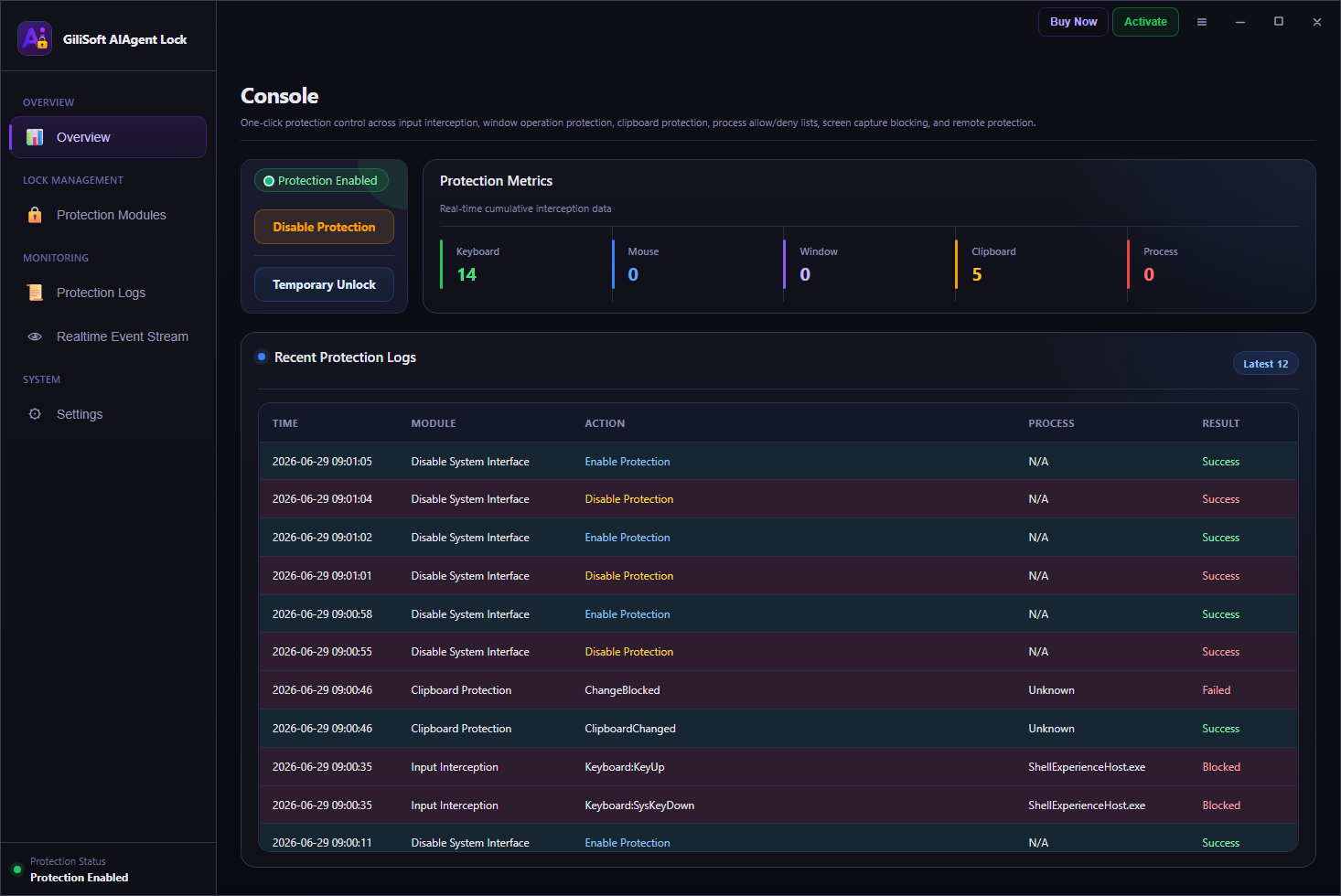
Review protection status, quick statistics, enabled modules, and recent block activity from the main dashboard.
Keep Windows workstations under human control while defining which automated actions and applications are allowed.
People who want to reduce AI-driven clicking, typing, clipboard reading, screen capture, or scripted control while keeping normal manual use available.
Teams that need a practical way to restrict unattended automation, RPA misuse, remote-control behavior, and machine-operated tampering on workstations.
Schools, labs, kiosks, front-desk PCs and training rooms that need defined rules for automated input, application processes and screen capture.
Administrators who need to observe suspicious automation first, then move gradually from audit mode to stronger blocking rules.
Finance, HR, legal, support, or operations PCs where clipboard abuse, screen capture, or unattended scripted control creates extra risk.
Organizations that want real users to keep working normally while reducing what AI agents, scripts, and RPA-style tools can do locally.
Combine action-based controls, trusted-application rules and activity review in one Windows application.
Target software-injected clicks and keystrokes while physical keyboard and mouse use remains available for the person at the PC.
Enable individual modules for input, windows, capture, processes, domains or command-line access. Use process lists to distinguish approved applications from unwanted tools.
Use Audit Mode to observe normal application behavior first. Review logs and adjust trusted-app rules before applying the selected protections.
Choose modules and process rules to match how each Windows workstation is used.
Use input and window controls to restrict software-generated clicks, keystrokes, foreground switching and scripted window changes.
Identify trusted business software in the whitelist and unwanted executables in the blacklist. Review which process triggered a protected action.
Add anti-automation controls to kiosks, front-desk PCs, training-room systems, school labs, and public-access Windows devices.
Review clipboard events, enable optional clipboard auto-clear and use Screen Capture Protection to restrict capture-process behavior during sensitive work.
Restrict CMD, PowerShell, and automation-friendly startup paths when scripts should not be able to operate freely.
Use audit mode, counters, block logs, process names, and realtime events before moving from observation to active blocking.
It provides controls for injected keyboard and mouse input, scripted window actions, screen capture, selected processes and command-line startup. Clipboard monitoring, optional clipboard clearing and domain access rules add further control. Protection follows the modules and rules you enable.
Yes. Input Interception targets software-injected input rather than ordinary physical keyboard and mouse operations. Use the application whitelist and Audit Mode to identify trusted software that your normal work requires.
Yes. Use List Management to add approved applications to the whitelist and unwanted executables to the blacklist. The interface accepts executable names or paths so you can define process rules for the PC.
Audit Mode records automation-related activity without blocking actions. Protection Mode applies the enabled protection modules. Review normal application activity in Audit Mode, adjust trusted-app rules and then enable the controls you need.
Yes. Domain Access Control limits access to blacklisted domains to whitelisted processes. Use the domain policy settings to define the restricted domains and permitted applications.
Review Protection Logs and the Realtime Event Stream for the event time, process, protection module and result. If required software is affected, review its whitelist entry and repeat the task to verify the updated rule.


Enter your email address to get our latest newsletter