
How to Clear Quick Access History in Windows 11
File Explorer Home and Quick access can expose recently opened files and frequently used folders on a shared screen. Pinned folders, automatic suggestions, Office recents, and application jump lists are separate records, so one Clear button may not remove every visible reference.
Quick answer
In Windows 11, open File Explorer, select the three-dot menu, then Options. Under General > Privacy, select Clear to remove recent and frequent references. Unpin private folders separately. This does not delete the original files; review other local traces in GiliSoft Privacy Protector only if needed.
Identify the Quick Access Item First
| Situation | Recommended approach | Check carefully |
|---|---|---|
| Recent file suggestion | Clear File Explorer history | The file itself remains in its original folder |
| Frequently used folder | Clear history or disable frequent-folder suggestions | The folder may return as it is used again |
| Pinned folder | Unpin it manually | Pins are not ordinary history |
| App or Office recent item | Clear the recent list in that application | Explorer cleanup may not affect app-specific history |
Step-by-Step Workflow
- Close private documents
Save or close sensitive files so applications are not actively rebuilding recent-item records while you clean them.
- Clear File Explorer history
In Windows 11 File Explorer, open the three-dot menu, choose Options, then select Clear under General > Privacy. This clears history references, not the source files.
- Review Home and Quick access preferences
Choose whether File Explorer should continue showing recently used files and frequently used folders. Disable only the suggestions you do not want rebuilt.
- Remove pinned folders separately
Right-click any private pinned folder and choose Unpin from Quick access. Clearing history does not remove an intentional pin.
- Review Windows traces and verify
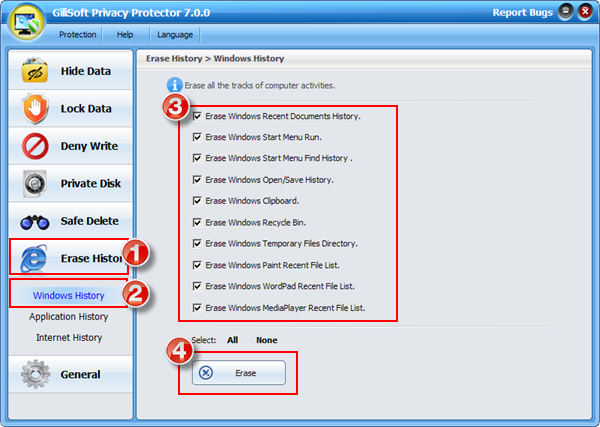
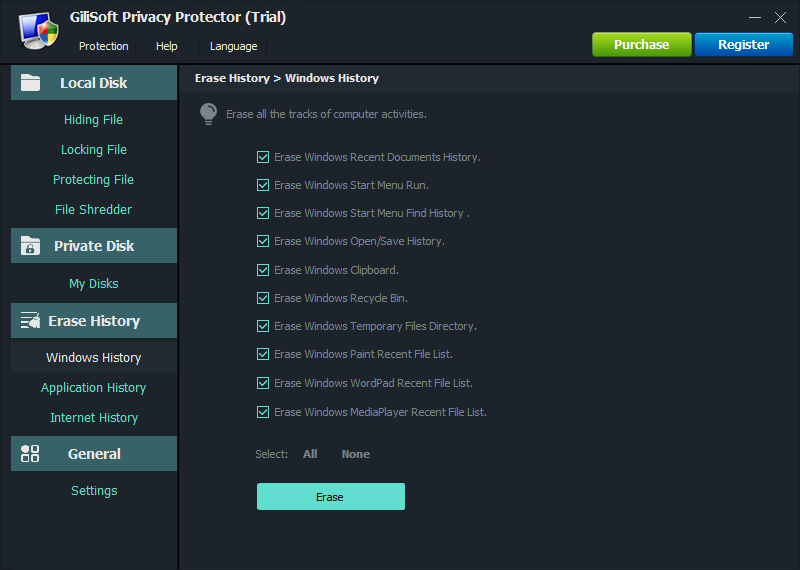
Use the Windows-history area in GiliSoft Privacy Protector for supported local records, reopen File Explorer, and check application jump lists separately.
For every product control and supported cleanup category, see the Privacy Protector user guide.
GiliSoft Privacy Protector Interface
These real product screenshots connect the guidance to the local Windows workflow.
Review Before You Finish
- Sign out of browsers, cloud services, and work accounts when the computer will change hands.
- Check synchronized devices and cloud dashboards separately; deleting a local record may not delete its cloud copy.
- Keep a verified backup of anything you may need before clearing history or shredding selected files.
- Test the result from a standard user account and restart the PC when the workflow calls for it.
Frequently Asked Questions
Does clearing Quick access delete my files?
No. It removes recent or frequent references from the view; the files remain in their folders.
Why is a folder still visible after clearing history?
It may be pinned. Unpin it manually, or it may be one of the standard folders shown by File Explorer Home.
Why do recent items come back?
Windows and applications create new history as you work. Adjust the display settings if you do not want those suggestions shown.
Is Quick access the same as an Office recent list?
No. Office and other applications may maintain their own recent-file lists and require separate cleanup.