

DISM RestoreHealth Failed: What to Do Next
For protected Windows files, Microsoft recommends repairing the component store with DISM before running System File Checker. Total Repair can then help organize the remaining system and application checks.
Quick answer
Record the DISM error, repair the Windows image source, and run SFC only after DISM succeeds. Make one recoverable change at a time, restart when required, and repeat the exact action that exposed the problem.
Use the Windows Repair Order First
| Check | What to confirm | Decision |
|---|---|---|
| First signal | Exact DISM or SFC result and error code | Record the baseline before changing Windows. |
| Native sequence | DISM RestoreHealth, then SFC scannow | Choose the narrowest supported action. |
| Retest | Restart and repeat the action that failed | Retest and keep a rollback path. |
Prepare a Safe Recovery Path
- Back up important files
Keep irreplaceable documents and media on a separate drive or trusted backup destination.
- Record the symptom
Save the exact error, affected action, time, and recent software or Windows change.
- Create a restore point
Turn on System Protection and create a clearly named restore point when Windows is stable enough.
- Close active work
Exit documents, installers, games, and other applications before cleanup or repair.
Use GiliSoft Total Repair for the Matching Task
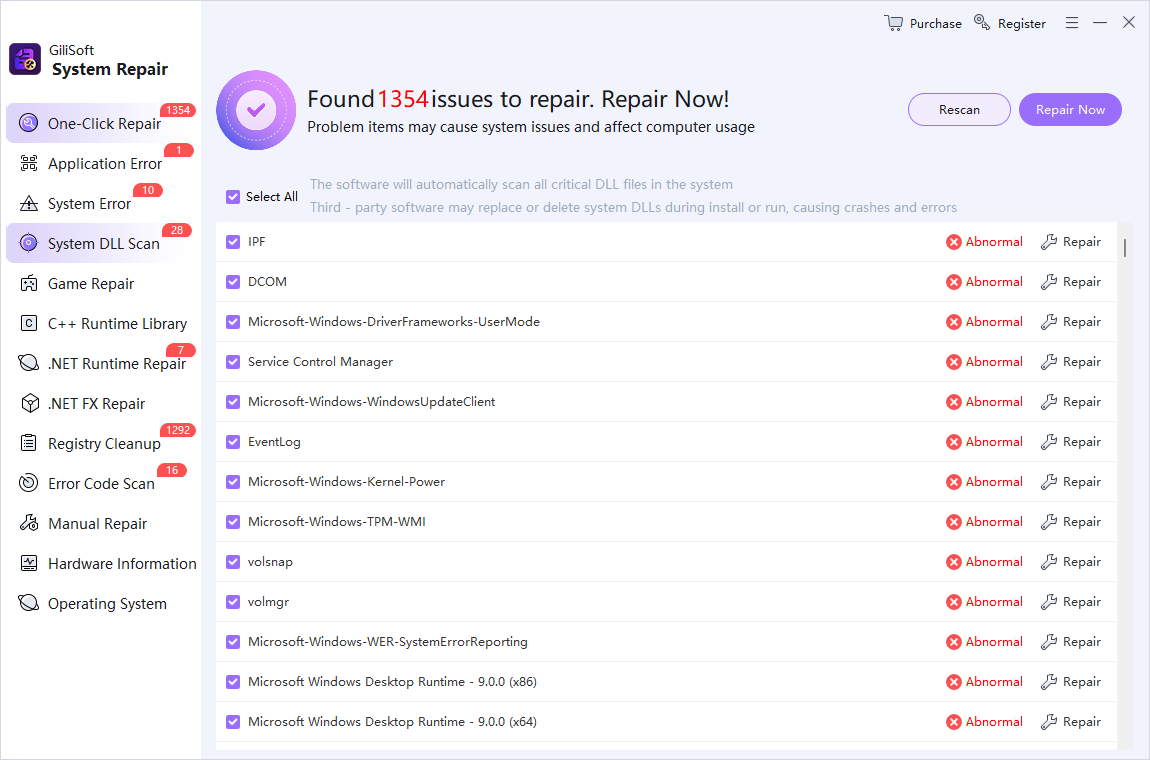
The screenshot below shows the real Total Repair module associated with this workflow. Scan first and review the result before applying changes.
- Record the result
Save the complete command output and the action that exposed the problem.
- Run DISM as administrator
Use DISM /Online /Cleanup-Image /RestoreHealth and allow it to finish.
- Run SFC after DISM
Use sfc /scannow and do not close the window before verification reaches 100 percent.
- Review with Total Repair
Open System Repair and inspect the matching Windows, DLL, or application category.
- Restart and retest
Confirm Windows Update and the affected application now work normally.
Verify the Result Instead of Trusting the Completion Message
- Restart when required
Allow Windows, services, installers, and pending file changes to reload cleanly.
- Repeat the original action
Open the same program, command, file, menu, or workload that previously failed.
- Check for side effects
Verify startup, file associations, network access, installed applications, and important data.
- Compare with the baseline
Confirm the error, free space, responsiveness, or setting actually changed.
- Keep or reverse the change
Use the restore point, backup, or recorded setting if the result is worse.
When to Use Windows Recovery or Specialist Help
Move beyond routine cleanup when Windows cannot start reliably, DISM and SFC continue to fail, a drive reports health errors, files are encrypted without a recovery key, or malware may be active. Preserve logs and backups before using Reset, repair installation, or hardware service.
Total Repair is a maintenance and diagnostic workspace; it is not a replacement for a verified backup, security incident response, or physical hardware repair.
DISM RestoreHealth Failed: What to Do Next FAQ
Can GiliSoft Total Repair fix every dism restorehealth failed: what to do next problem?
No. It can scan and organize supported cleanup, repair, optimization, and file-tool tasks, but hardware failure, malware, unsupported software, and severe Windows damage require the appropriate specialist or Microsoft recovery path.
Should I create a restore point first?
Create one before registry, system, driver, startup, or broad repair changes when System Protection is available. Keep a separate backup of important personal files.
Should I apply every detected result?
No. Review the category, path, owner, size, and relationship to the symptom. Apply the narrowest relevant change and test before continuing.
When should I stop troubleshooting?
Stop if the drive shows health errors, Windows cannot boot reliably, the PC may be infected, encryption recovery is involved, or the same repair fails repeatedly without new evidence.