
Easy File Locker: How to Lock Files, Folders, and Drives Securely
 GiliSoft Editorial Team | Updated July 22, 2026 | File Lock Guide
No one wants to keep important data unprotected. Personal documents, photos, videos, work files, and private folders can be exposed when a computer is shared, borrowed, repaired, or used in a small office. Windows offers several permission and encryption features, but it does not provide one simple password-lock command for every ordinary file, folder, and drive.
You cannot always keep a laptop away from other people. A family member may borrow it, a co-worker may use the same PC, or an external drive may be carried between computers. An easy file locker gives you a direct way to hide, lock, protect, or encrypt the items that should remain private.
Which Easy File Locker Should You Use?
There are many file locker utilities on the Internet, but a useful tool should do more than change a hidden attribute. It should clearly show what is protected, work with local and external storage, and provide several protection choices for different situations.
GiliSoft File Lock Pro brings file hiding, file locking, read and write protection, file encryption, shared-folder locking, folder monitoring, file shredding, and activity logs into one Windows application.
GiliSoft File Lock Pro
Use one Windows tool to hide private content, require a password before access, protect important files from changes, and manage local, external, USB, drive, and shared-folder data.

What GiliSoft File Lock Pro Can Do
1. Hide Files, Folders, and Drives on Local or External Storage
Hide private files and folders from normal Windows browsing and standard search. File Lock Pro also provides hiding controls for external storage when private data should not remain visible after a portable drive is connected.
2. Lock Files, Folders, and Drives with a Password
Lock selected documents, folders, local drives, external drives, USB flash drives, and memory cards. Protected items remain in their familiar locations but require the File Lock Pro password before they can be opened or unlocked.
3. Protect Files from Reading, Writing, Deletion, or Modification
Use protection mode when files should remain visible but should not be changed casually. This is useful for reference documents, shared project files, templates, archives, and other content that must remain intact.
4. Encrypt Files and Folders
Create encrypted GFL files or self-extracting EXE packages for confidential content that must be stored or transferred in encrypted form.
5. Lock LAN Shared Folders
Add password-controlled protection to folders shared on the local network so finance, HR, customer, project, or team data is not casually opened from another computer.
6. Monitor Folders and Review Logs
Monitor selected folders and review recorded events when you need visibility into activity around protected data on a shared or frequently used Windows PC.
How to Use an Easy File Locker
File Lock Pro keeps the main protection tasks in a clear left-hand navigation. The following example shows how to lock local files, folders, or drives.
Open File Lock Pro
Launch GiliSoft File Lock Pro and enter the master password used to manage protected content.
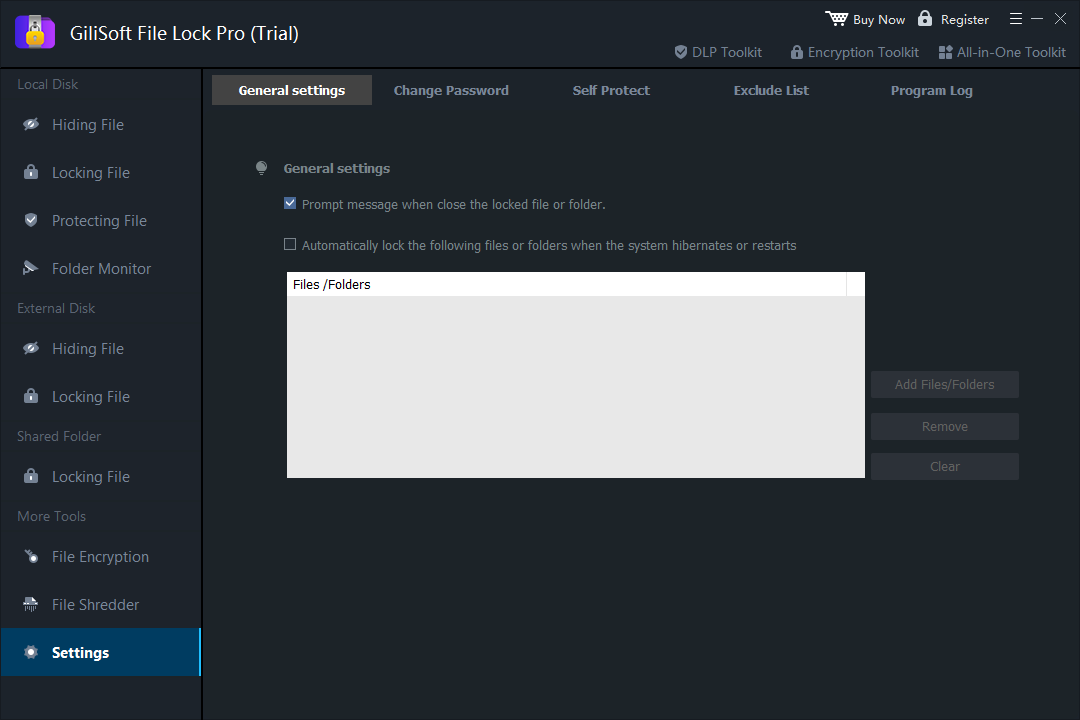 Review the protection settings before adding important files or folders.
Choose the protection task
Select Local Disk and then choose Hiding File, Locking File, Protecting File, or Folder Monitor according to the result you need.
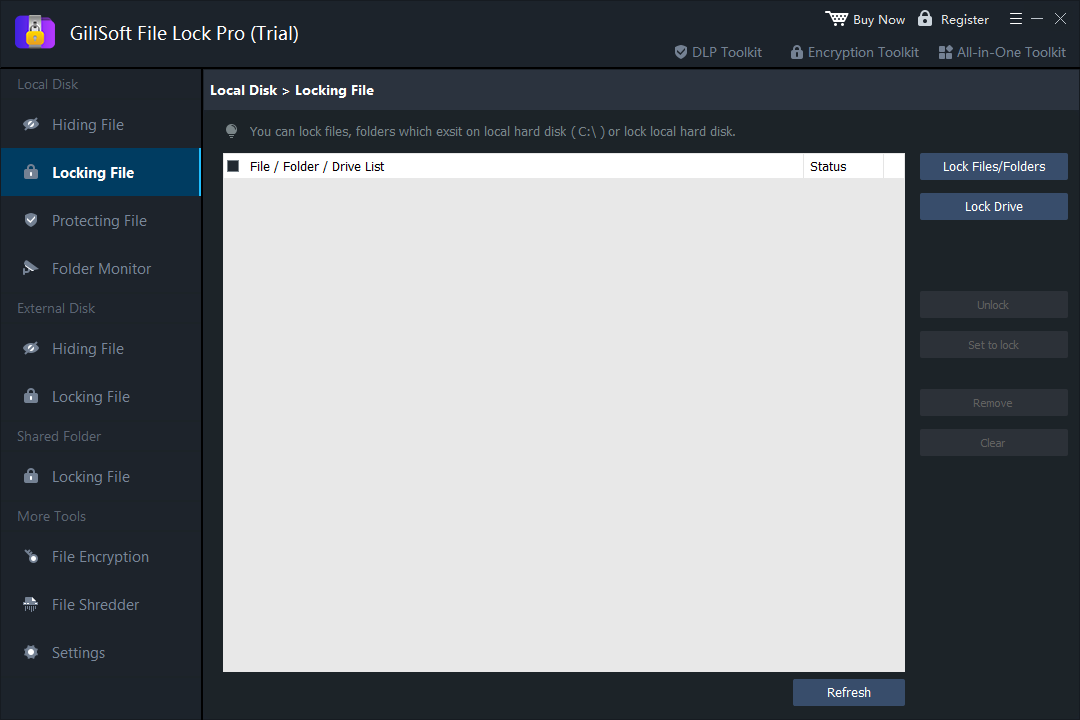 The Locking File workspace accepts individual files, complete folders, or a local drive.
Add the file, folder, or drive
Click Lock Files/Folders or Lock Drive, select the target, and apply the lock. Use the status list to confirm that the correct item was added.
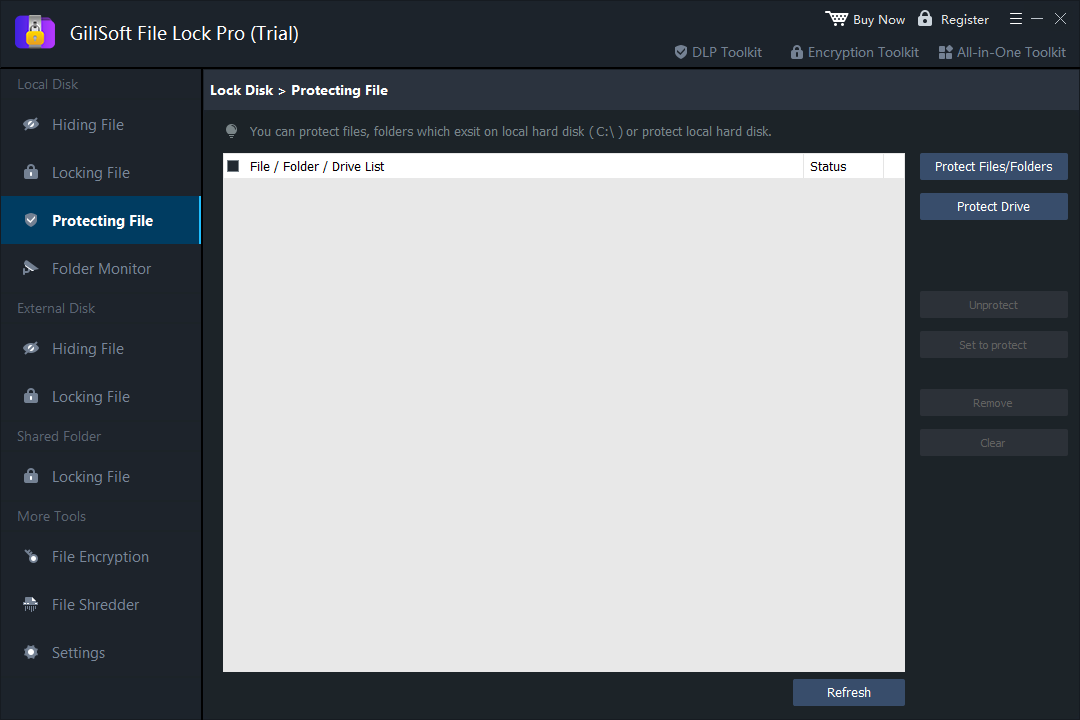 Protection mode is available when content should remain visible but resistant to unwanted changes.
Test the protected item
Return to Windows Explorer and test the file, folder, or drive. Confirm that the selected lock, hide, or protection behavior matches your intended use.
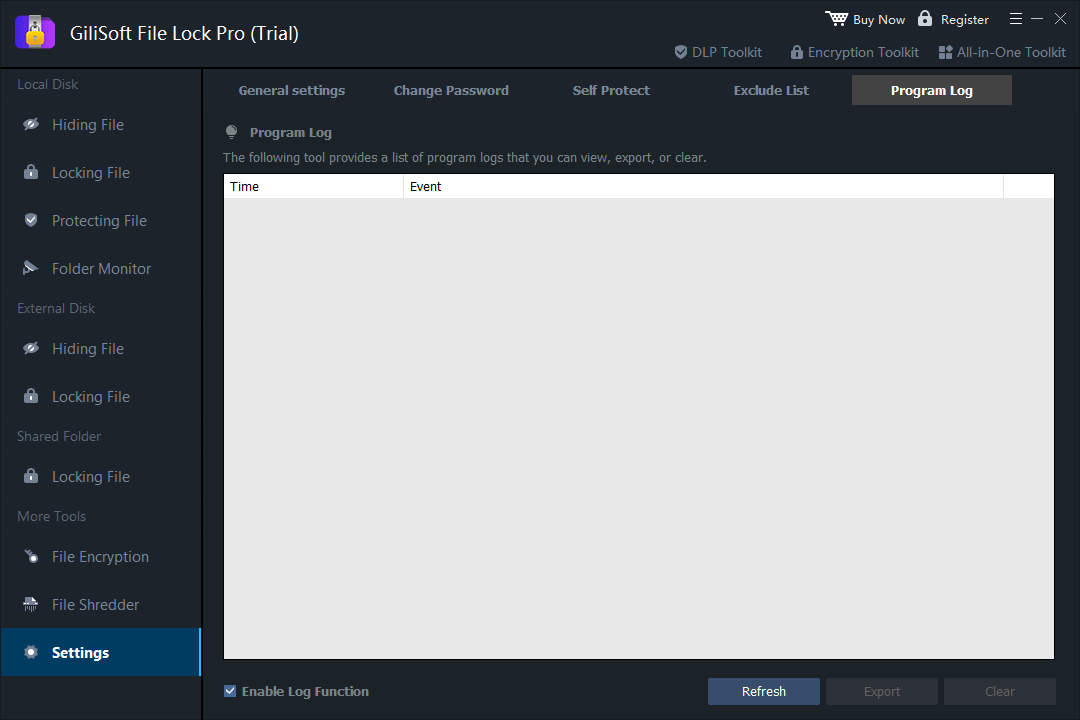 Use Program Log when you need to review recorded activity from the protection software.
Easy File Locker FAQs
Is an easy file locker safe?
Use software from its official publisher and test the selected protection mode before relying on it for important data. GiliSoft provides an official trial so the lock, hide, protect, and encryption behavior can be checked on your own Windows PC.
Can it lock both files and folders?
Yes. File Lock Pro works with individual files, complete folders, local drives, external drives, USB storage, and LAN shared folders.
Can I hide a folder from Windows Search?
Yes. Hiding File mode removes selected content from normal browsing and standard Windows Search discovery.
What is the difference between locking and protecting?
Locking requires access control before an item can be opened. Protecting is useful when content should remain visible but changes such as writing, deletion, or modification should be restricted.
Conclusion
An easy file locker should make everyday privacy easier to understand. GiliSoft File Lock Pro lets you choose whether private data should be hidden, locked, protected from changes, encrypted, monitored, or secured on local, external, USB, drive, and shared-folder storage.
Lock files, folders, and drives with GiliSoft File Lock Pro
Download the trial to test the protection mode that matches your Windows files and storage.
View GiliSoft File Lock Pro