
Face Swap Video Not Stable? Improve Frame-to-Frame Results
Face swapping transfers source identity into target media while trying to preserve target pose, expression, gaze, lighting, and motion. The result depends heavily on input quality and scene difficulty, not only the selected export resolution.
Quick answer
Improve the source and target match before changing export settings: use a clear frontal source face, stable target footage, consistent lighting, and fewer severe occlusions or profile turns. Use only authorized media, preserve the originals, and disclose the alteration whenever viewers could mistake it for an authentic event or endorsement.
Diagnose Why the Face Changes Between Frames
| Decision | What to check | Why it matters |
|---|---|---|
| Source identity | Sharp, unobstructed face with enough detail | Choose the right workflow before adding sensitive media. |
| Target motion | Pose turns, blur, cuts, speaking, and expression | Weak inputs cannot be repaired by export settings alone. |
| Occlusion | Hair, hands, glasses, masks, microphones, or objects | Control quality, privacy, and project risk. |
| Continuity | Lighting, scale, color, and frame-to-frame tracking | Verify the real output and intended use. |
Prepare Source and Target Media
- Confirm authorization
Obtain permission for the source identity, target media, processing, and intended publication.
- Keep unmodified originals
Store the source and target separately from generated output.
- Choose a clear source face
Prefer sharp, evenly lit, unobstructed facial detail without heavy filters.
- Inspect the target difficulty
Note pose, expression, motion, blur, occlusion, cuts, lighting changes, and resolution.
- Select cloud or offline mode
Base the choice on sensitivity, upload limits, hardware, storage, and repeated processing needs.
Run the Face Swap Workflow
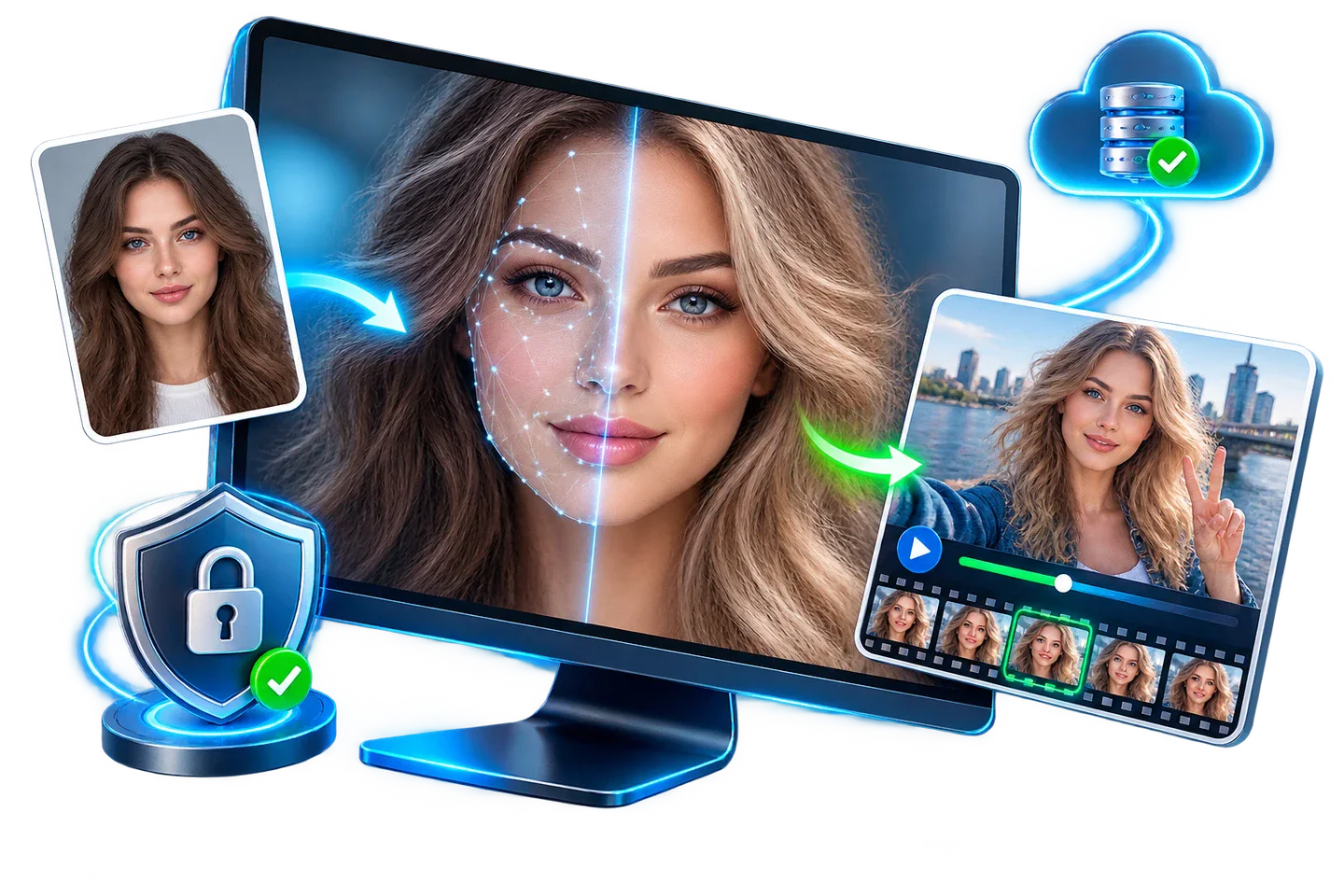
This visual is the product’s face-swap workflow preview rather than a literal screenshot of every control.
- Choose a stronger source portrait
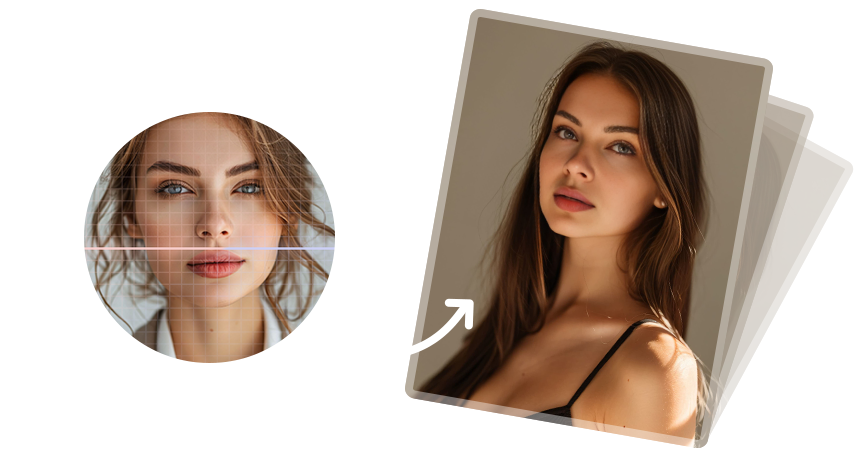
Use a clear face with neutral expression and visible eyes, nose, mouth, jaw, and hairline.
- Trim a representative target clip
Include the hardest profile turn, speech, motion, and occlusion.
- Reduce avoidable ambiguity
Prefer stable footage and consistent lighting before raising resolution.
- Process a short test
Check identity, expression, gaze, edges, skin tone, and temporal flicker.
- Revise the source or shot
Replace weak inputs or split difficult scenes instead of repeatedly exporting the same setup.
Inspect More Than the Face Center
- Check identity and expression
Confirm the intended identity without losing the target’s natural gaze, mouth shape, and expression.
- Inspect difficult boundaries
Zoom into hairline, jaw, ears, neck, glasses, teeth, hands, and foreground objects.
- Compare lighting and color
Look for mismatched exposure, skin tone, shadow direction, sharpness, and noise.
- For video, watch continuously
Check flicker, identity drift, profile turns, motion blur, cuts, and audio synchronization.
- Test the destination copy
Open the exported file on the platform, editor, or device where it will be used.
Use Face Swapping Transparently and Responsibly
Do not use face swapping to impersonate a person, fabricate evidence, create fake endorsements, evade identity verification, facilitate fraud, harass someone, or generate intimate content without explicit consent. Extra care is required for minors, employees, clients, public figures, and private individuals.
Keep the original media and project record. Label or disclose synthetic alterations where context could mislead viewers. Content provenance standards such as C2PA Content Credentials can help carry information about origin and edits when the publishing workflow supports them.
Face Swap Video Not Stable? Improve Frame-to-Frame Results FAQ
Can GiliSoft Face Swap handle an unstable face-swap video?
GiliSoft Face Swap supports authorized photo and video face swapping on Windows, with cloud and offline processing options. Test a representative sample before a long or sensitive project.
What makes a face swap look more natural?
Use a sharp source face and a target with compatible pose, lighting, expression, scale, and visibility. Occlusion, motion blur, profile turns, and low-resolution compression make the task harder.
Does offline mode guarantee privacy?
No. It reduces upload exposure, but local accounts, malware, caches, backups, sync folders, collaborators, output sharing, and retention still require controls.
Can I use any person’s face?
Use faces only with appropriate authorization and rights. Do not impersonate, deceive, harass, defraud, evade identity systems, or create intimate or reputationally harmful content.
Should altered media be disclosed?
Yes when viewers could reasonably believe it depicts a real event, endorsement, statement, or identity. Keep originals and project records, and use available provenance or Content Credentials workflows when practical.