

The message “BitLocker can't encrypt the drive” or “Access is denied” usually appears when Windows cannot start the required encryption service, the current account lacks administrator permission, or the selected drive is not ready for the requested BitLocker operation.
Start with the Windows checks below. If the practical goal is to stop other users from opening a local drive rather than configure full-volume BitLocker encryption, GiliSoft File Lock Pro offers a simpler password-locking path.
Why BitLocker Says Access Is Denied
The error may appear while turning on BitLocker, reopening an encrypted drive, or changing protection settings. Before changing services or drive configuration, back up important files and confirm that you are working with the correct disk.
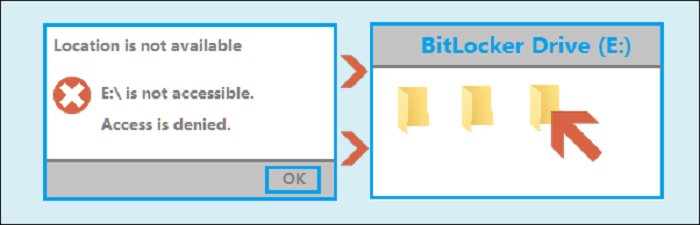 An access-denied message can result from permissions, service state, policy, or drive configuration.
Common causes to check first
- The BitLocker action was started from a standard Windows account instead of an administrator account.
- The BitLocker Drive Encryption Service is stopped or disabled.
- The removable or local drive is in use, read-only, damaged, or has an unsupported configuration.
- Windows policy, security software, or an existing encryption state is preventing the change.
- The Windows edition or device configuration does not expose the expected BitLocker controls.
Before Restarting the BitLocker Service
Sign in with an administrator account, close programs using the target drive, reconnect removable storage if applicable, and restart Windows once. Open Manage BitLocker from Control Panel and try the action again.
Fix 1: Check the BitLocker Drive Encryption Service
BitLocker depends on a Windows service named BitLocker Drive Encryption Service. If that service is disabled or cannot start, Windows may reject encryption operations.
Step 1. Press Windows + R to open the Run dialog.
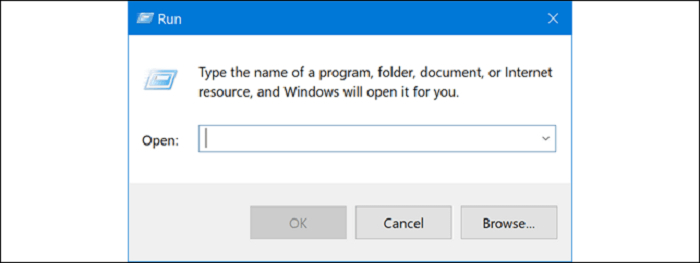 Open Run from the Windows keyboard shortcut.
Step 2. Enter services.msc and select OK.
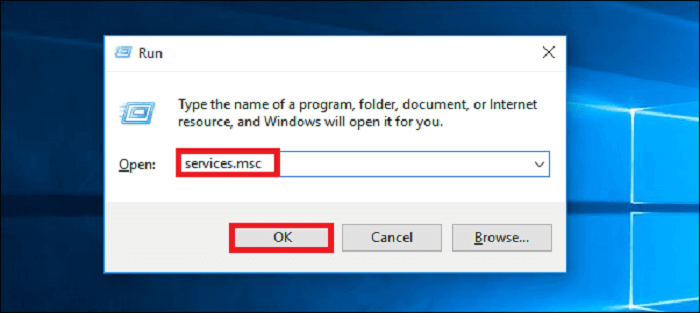 Open the Windows Services management console.
Step 3. Find BitLocker Drive Encryption Service in the list and open its properties.
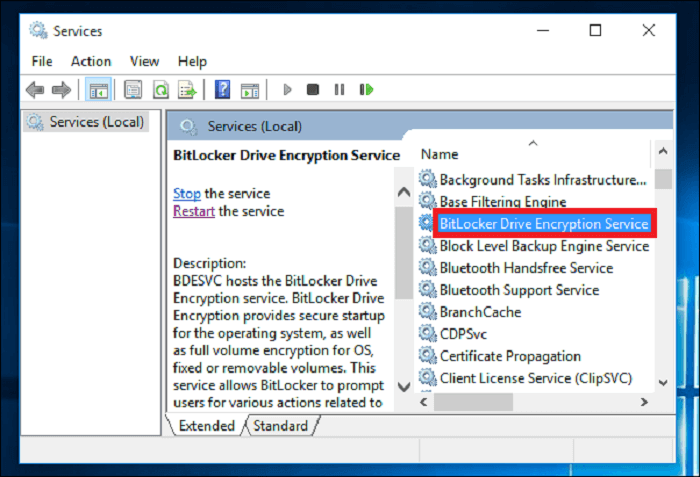 Locate the BitLocker service rather than changing unrelated Windows services.
Step 4. Make sure the service is not disabled. If necessary, choose an available startup setting such as Manual or Automatic, apply the change, and start the service.
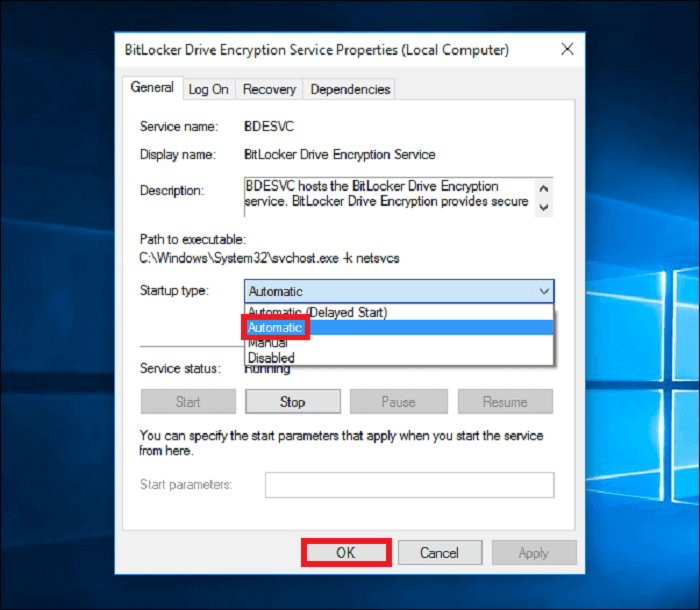 Enable the service when it has been disabled by a previous setting or policy.
Step 5. If the service is already running, restart it, then return to Manage BitLocker and retry the encryption operation.
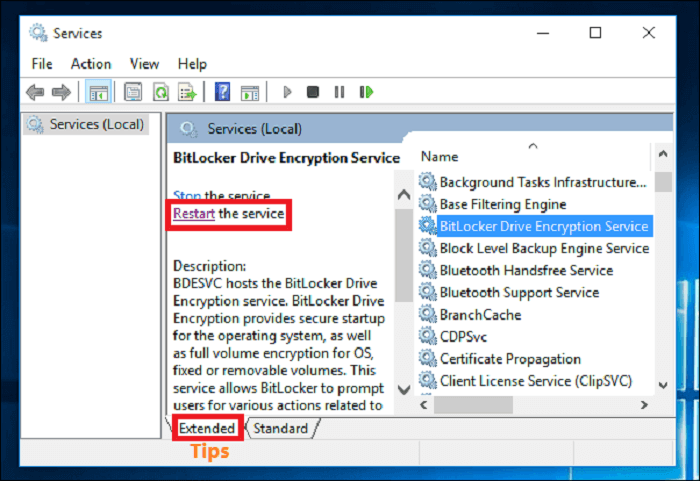 Restart the BitLocker service and test the drive again.
If the service will not start or the error remains, review local policy, drive health, Windows event logs, and administrator permissions before making destructive changes.
Fix 2: Lock the Drive With GiliSoft File Lock Pro
When your main requirement is preventing other Windows users from opening a selected local drive, File Lock Pro can apply a password-controlled lock directly from its Locking File workspace.
A direct drive-locking workflow
Add the selected local drive, apply the lock, and verify that access requires the File Lock Pro password. The same application can also lock or hide individual files and folders.

Step 1. Install File Lock Pro, open it, and enter the master password.
Step 2. Choose Local Disk, then open Locking File.
Step 3. Select Lock Drive and choose the local drive that should require password-controlled access.
Step 4. Apply the lock and test the drive from Windows Explorer.
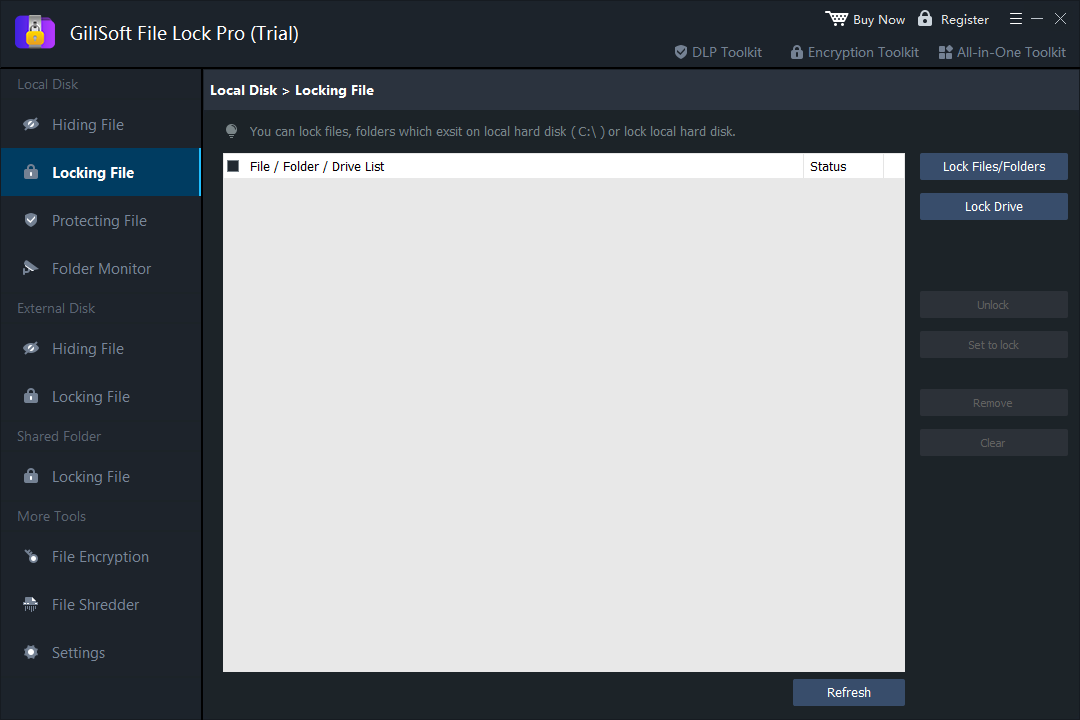 Use Lock Drive when the selected Windows drive should remain visible but should not open without authorization.
If the drive should disappear from ordinary browsing instead, use the separate Hiding File workspace and choose Hide Drive.
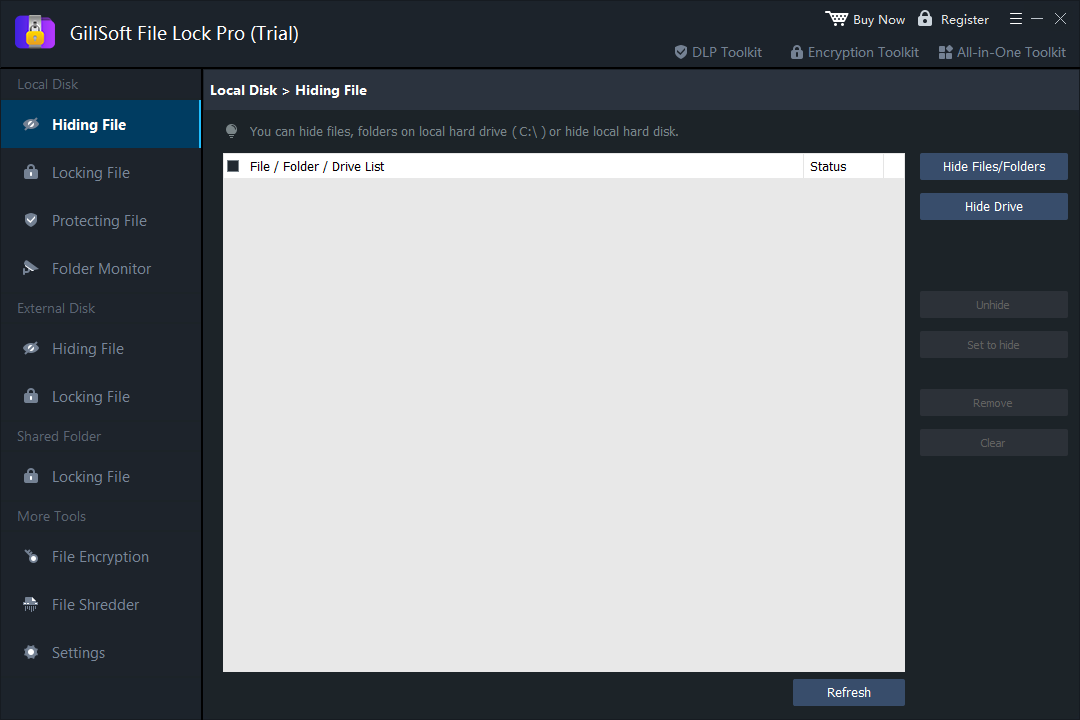 Drive hiding is available when concealment is more suitable than a visible locked drive.
BitLocker Access Denied FAQ
Do I need administrator permission to manage BitLocker?
Most BitLocker configuration changes require administrator privileges. Sign in with an administrator account or approve the Windows elevation prompt before changing drive encryption settings.
What if the BitLocker service is already running?
Restart the service and Windows, then check whether policy, drive state, permissions, or an existing encryption configuration is blocking the operation.
Can I lock a drive without configuring BitLocker?
GiliSoft File Lock Pro can apply password-controlled access to a selected local drive through its drive-locking feature.
Lock a local drive with a straightforward Windows tool
Use GiliSoft File Lock Pro to lock drives, folders, and files with password-controlled access from one local application.
Download File Lock Pro Trial