
Folder Lock Software vs BitLocker: Which Protection Do You Need?
Folder lock software and BitLocker are often compared as if they do the same job. They do not. BitLocker protects a supported Windows volume as encrypted data at rest. Folder lock software controls selected files and folders inside everyday Windows use, where the drive is already unlocked.
Folder Lock Software vs BitLocker at a Glance
The most useful comparison starts with the protection boundary, not the product name. NIST distinguishes full-disk, volume or virtual-disk, and file/folder protection because each type addresses a different amount of data and a different threat.
| Question | GiliSoft File Lock Pro | BitLocker |
|---|---|---|
| Protection scope | Selected files, folders, local drives, external storage, and shared folders | A supported operating-system, fixed-data, or removable-data volume |
| Main purpose | Daily privacy and access control after Windows is running | Full-volume data-at-rest protection, especially against offline access |
| One-folder password | Designed for this | No; BitLocker unlocks a volume, not one ordinary folder |
| Hide selected content | Hide files, folders, or complete local drives from normal Explorer views | No selective hide mode |
| Prevent file operations | Protect mode can restrict reading, writing, renaming, or deletion | Not a per-folder operation-control tool after the volume is unlocked |
| Encryption | Includes a separate file-encryption tool for selected content | AES full-volume encryption with transparent read/write handling after unlock |
| Recovery | Master password and configured recovery email | BitLocker recovery key and the configured key protectors |
| Windows availability | Desktop application for supported Windows PCs | Manual BitLocker management is associated with supported Pro, Enterprise, and Education editions; device encryption availability varies by hardware and configuration |
| Best fit | Shared PCs, personal folders, client files, controlled shared folders, and selected local content | Lost-device protection, retired drives, removable volumes, and organization-wide volume encryption |
What BitLocker Actually Protects
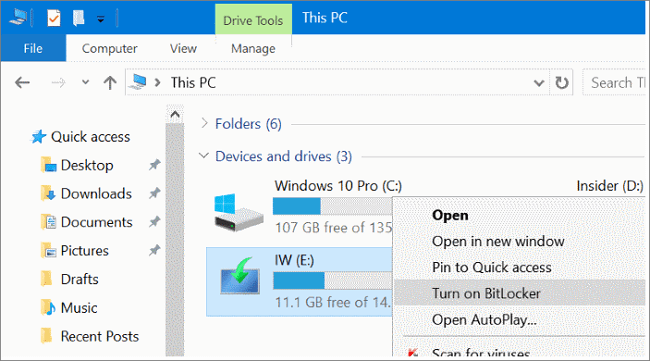
BitLocker is full-volume encryption built into supported Windows editions. Microsoft describes it as protection for data at rest: when a computer or disk is lost, stolen, removed, or booted outside the normal Windows path, the encrypted volume is intended to remain unreadable without its protector or recovery key.
That boundary is important. After the PC starts normally and the volume is unlocked, applications and signed-in users work with files through Windows. At that point, account permissions and folder-level controls determine who can use an individual folder. BitLocker does not create a second password prompt for one selected folder.
Choose BitLocker first when
- A laptop may be lost or stolen while powered off.
- A hard drive or SSD could be removed and examined on another computer.
- The whole Windows or data volume must remain encrypted at rest.
- Your organization needs a consistent volume-encryption policy and recovery-key process.
What Folder Lock Software Adds
Folder lock software works closer to the files a person uses. GiliSoft File Lock Pro separates three common jobs instead of treating them as one vague 鈥減rotection鈥?action:
Lock selected files, folders, or drives
Keep the item visible, but require the File Lock Pro password before it can be opened through the protected access path. This is useful for personal records, client folders, and work files on a shared Windows PC.
Hide private content from normal browsing
Hide selected files, folders, or a local drive so they no longer appear in ordinary File Explorer views. This addresses privacy on family, dormitory, reception, or other shared computers where reducing visibility matters.
Protect against unwanted file operations
Protect mode is for files that should remain present but should not be casually read, written, renamed, or deleted. This is different from BitLocker because the control remains focused on selected content inside the running system.
Which One Fits Your Situation?
| Situation | Better starting point | Why |
|---|---|---|
| Laptop theft or a removed system drive | BitLocker | The complete protected volume should remain unreadable offline. |
| Private photos or journals on a shared family PC | File Lock Pro | Only selected folders need hiding or a separate access control. |
| Stop a visible work folder from being renamed or deleted | File Lock Pro | This is a selected-content operation-control requirement. |
| Encrypt a complete external hard drive | BitLocker To Go | The entire removable volume needs encryption. |
| Protect a sensitive folder on a BitLocker laptop | Use both | BitLocker handles offline theft; File Lock Pro handles daily access after sign-in. |
| Control a LAN shared folder | File Lock Pro plus Windows permissions | BitLocker protects the disk hosting the data, not the network-share access decision. |
Can You Use Folder Lock Software and BitLocker Together?
Yes, and for many Windows PCs this is the clearest design. The two controls sit at different layers:
Where Windows Permissions and EFS Fit
Windows permissions
NTFS permissions are useful when each person has a separate Windows account and the administrator controls ownership and access. They are not the same as a separate folder password, and an administrator or owner can change permissions.
Encrypting File System (EFS)
EFS encrypts selected NTFS files and folders for the Windows account and certificate. Microsoft notes that file encryption is not available in Windows Home. EFS can be appropriate in managed account environments, but certificate backup and recovery planning are essential.
These tools are not reasons to ignore BitLocker. Permissions manage authenticated use, EFS encrypts selected account-bound content, File Lock Pro adds direct selected-item controls, and BitLocker protects the volume at rest.
How to Set Up Each Protection Layer
Set up GiliSoft File Lock Pro for a private folder
- Open File Lock Pro and enter the master password.
- Choose Local Disk, then select Locking File, Hiding File, or Protecting File according to the goal.
- Add the target folder or drive and apply the selected rule.
- Test access from File Explorer, then configure a recovery email and keep the master password secure.
Set up BitLocker for a Windows volume
- Open Manage BitLocker and choose the supported drive.
- Select an unlock method or protector available for that volume.
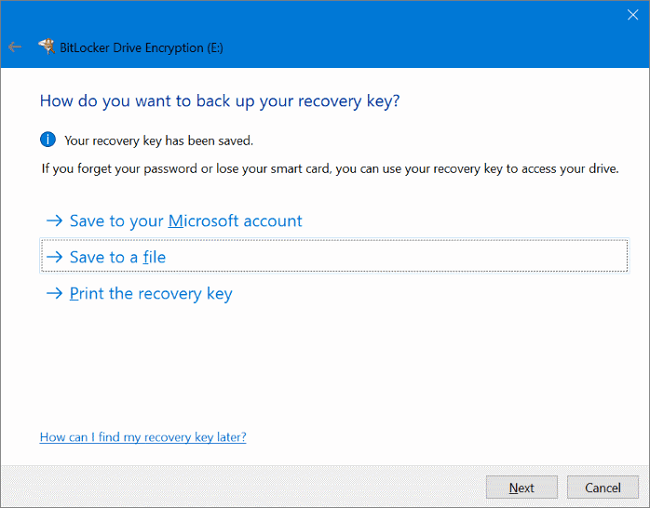
- Back up the recovery key somewhere separate from the encrypted device.
- Choose used-space or entire-drive encryption based on whether the drive is new or has held data.
- Select the appropriate encryption mode, start encryption, and confirm the drive reports protection as on.
Recovery and Safety Checklist
Folder Lock Software vs BitLocker FAQ
Is folder lock software better than BitLocker?
No single answer fits every risk. BitLocker is stronger for complete-volume data-at-rest protection. Folder lock software is more direct for selected content during everyday Windows use.
Can BitLocker password protect one folder?
No. BitLocker protects a drive or volume. It does not assign a separate password to one ordinary folder.
Can I use File Lock Pro and BitLocker together?
Yes. Keep BitLocker for full-volume offline protection and add File Lock Pro for selected folders that need hiding, locking, or operation restrictions after sign-in.
Does BitLocker protect a folder from another signed-in user?
Once the volume is unlocked, Windows permissions and other folder-level controls decide access inside the running system. BitLocker is not a replacement for account separation or selected-folder controls.
Does File Lock Pro encrypt the complete Windows drive?
No. File Lock Pro focuses on selected files, folders, drives, external storage, and shared folders. Use BitLocker or a dedicated full-disk encryption product for complete-volume encryption.
Is hiding a folder the same as encrypting it?
No. Hiding removes the item from normal browsing, while encryption transforms stored data so it cannot be read without the key. Choose the feature that matches the actual risk.
Add selected-folder control to your Windows security setup
Use File Lock Pro for files and folders that need their own daily access, visibility, or operation rules.
Download Trial Buy File Lock ProSources: Microsoft: How Windows uses the TPM | Microsoft BitLocker operations guide | Microsoft BitLocker FAQ | Microsoft: encrypt a file or folder | NIST SP 800-111: storage encryption technologies