GiliSoft AI Agent Lock Help Center

AI Agent Lock User Guide for Windows

Learn how to audit automated activity, block selected computer controls, and keep trusted applications working with GiliSoft AI Agent Lock.

  • Audit automated activity before enabling blocking
  • Block injected input while physical keyboard and mouse use remains available
  • Whitelist trusted applications and review blocked attempts
GiliSoft AI Agent Lock dashboard showing protection status and blocked attempts

Deploy AI Agent Lock Safely

Open AI Agent Lock and confirm the service is running.
Use Audit Mode to observe normal activity first.
Enable the controls required on this Windows PC.
Add approved applications to the whitelist.
Switch to Protection Mode and repeat the test.
Review Logs for blocked and allowed activity.

Choose Audit or Protection Mode

Start by observing activity, then turn on blocking after the applications people need have been identified. This keeps normal work available while unwanted automation is restricted.

1

Audit Mode

Record intercepted activity without immediately blocking it. Use this first on office PCs, shared computers, and systems with unfamiliar business applications.

2

Protection Mode

Apply the enabled input, window, clipboard, process, capture, and command-line controls after testing the required applications.

3

Whitelist and blacklist

Keep approved applications available with the whitelist and restrict selected automation tools or executables with the blacklist.

Check the Dashboard Before Changing Protection

Confirm the service, mode, and recent activity

The Dashboard shows whether protection is running and gives you a starting point before controls are changed.
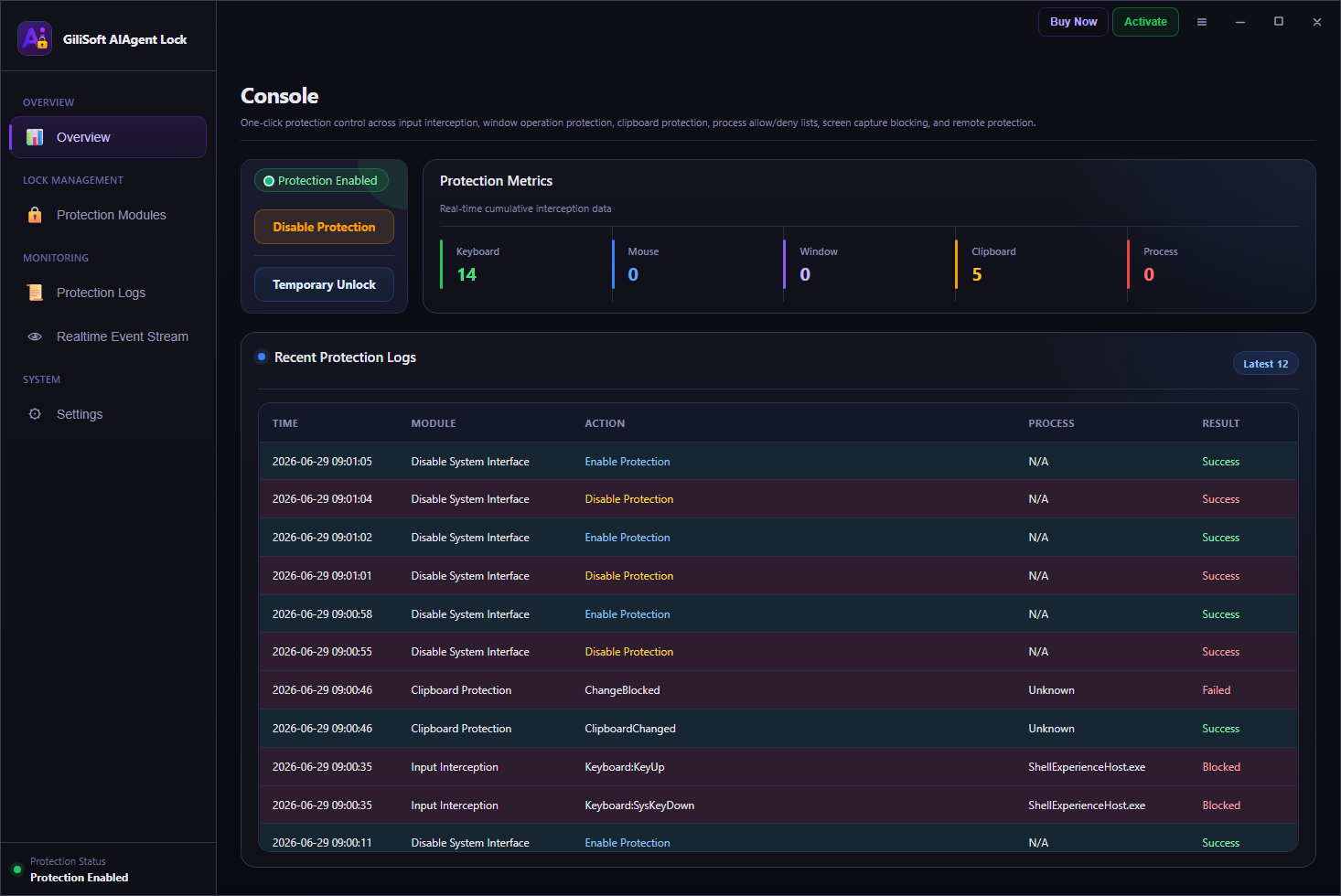
  1. Open AI Agent Lock and enter the management password.
  2. Confirm that the protection service is running.
  3. Check whether Audit Mode or Protection Mode is active.
  4. Review enabled controls, recent events, and blocked attempts.
On a PC already used for daily work, begin with Audit Mode so required applications can be identified before blocking starts.
AI Agent Lock dashboard showing protection status and recent activityDashboard: protection status, current mode, enabled controls, and recent events
Select the Automated Actions to Block

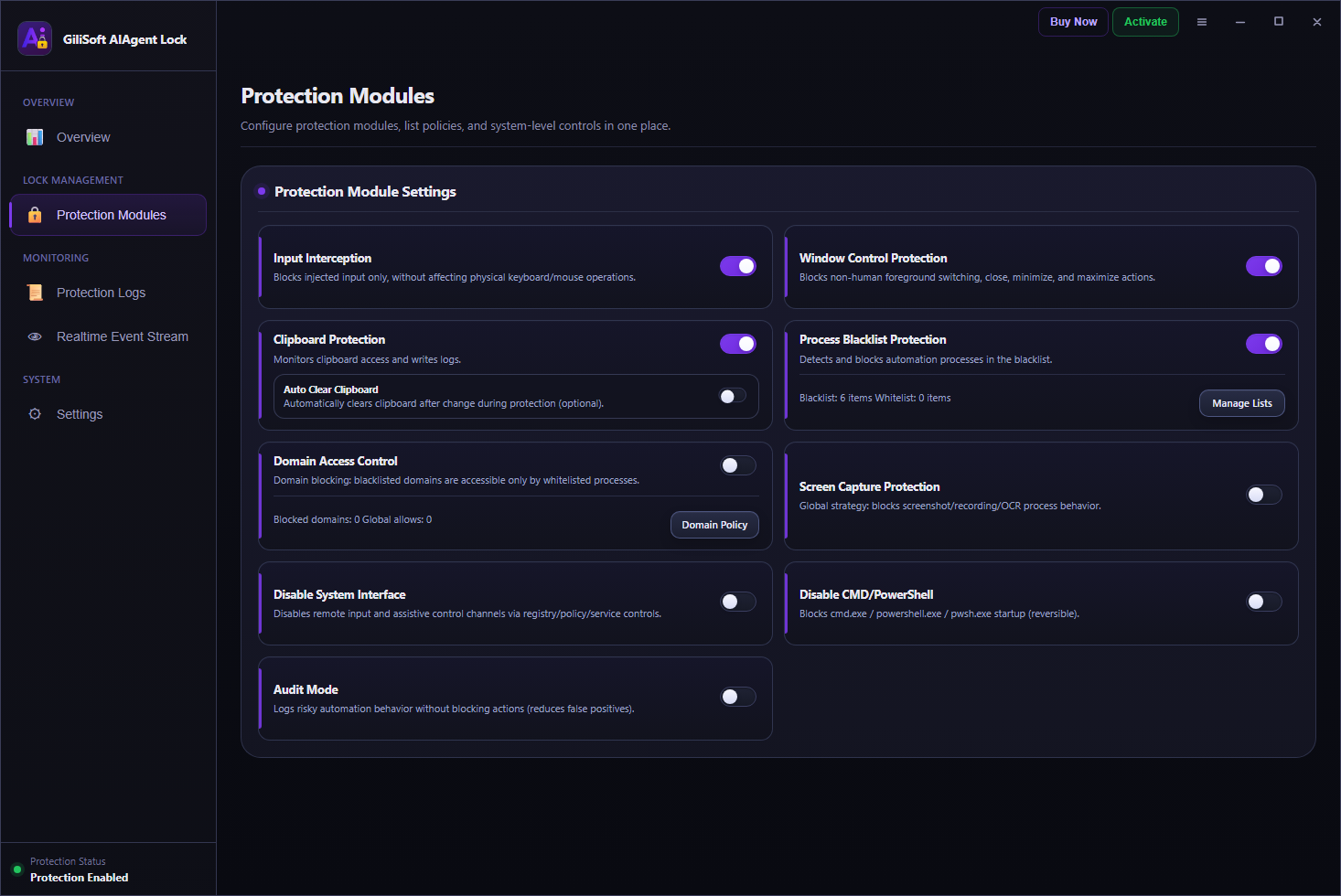
AI Agent Lock controls for automated input, windows, clipboard, capture, and command-line accessProtection controls: enable only the actions that should be restricted on this PC

Match the controls to how the computer is used

A shared office PC and a testing workstation may require different controls. Enable the items connected to the unwanted activity you need to stop.

Injected input and window actionsBlock machine-generated keyboard, mouse, and scripted window operations.
Clipboard access and auto-clearControl clipboard reads and writes and optionally clear copied content.
Processes and screen captureRestrict selected executables, screenshots, recording, OCR, and capture attempts.
CMD, PowerShell, and system accessDisable command-line and selected system control paths on managed PCs.

Keep Trusted Applications Available

Add approved software to the whitelist

Use the activity recorded in Audit Mode to separate legitimate business software from automation that should be blocked.
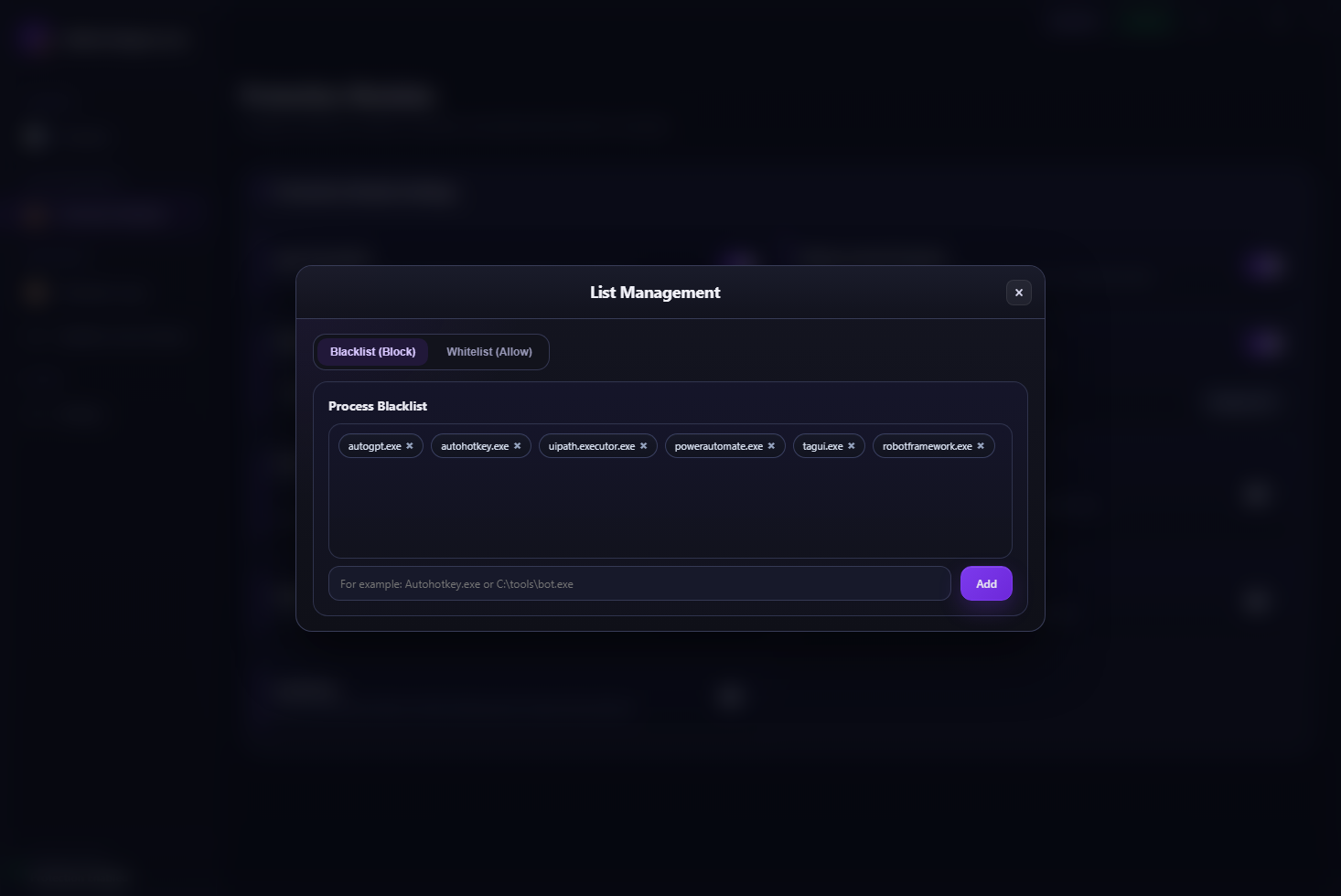
  1. Open the process rules and review applications seen during normal work.
  2. Add approved applications and required system processes to the whitelist.
  3. Add unwanted automation tools or selected executables to the blacklist.
  4. Test each important application with the intended Windows account.
After a major application update, confirm its path and executable name again if it no longer matches an existing rule.
AI Agent Lock process whitelist and blacklist managementApplication rules: allow required software and block selected executables
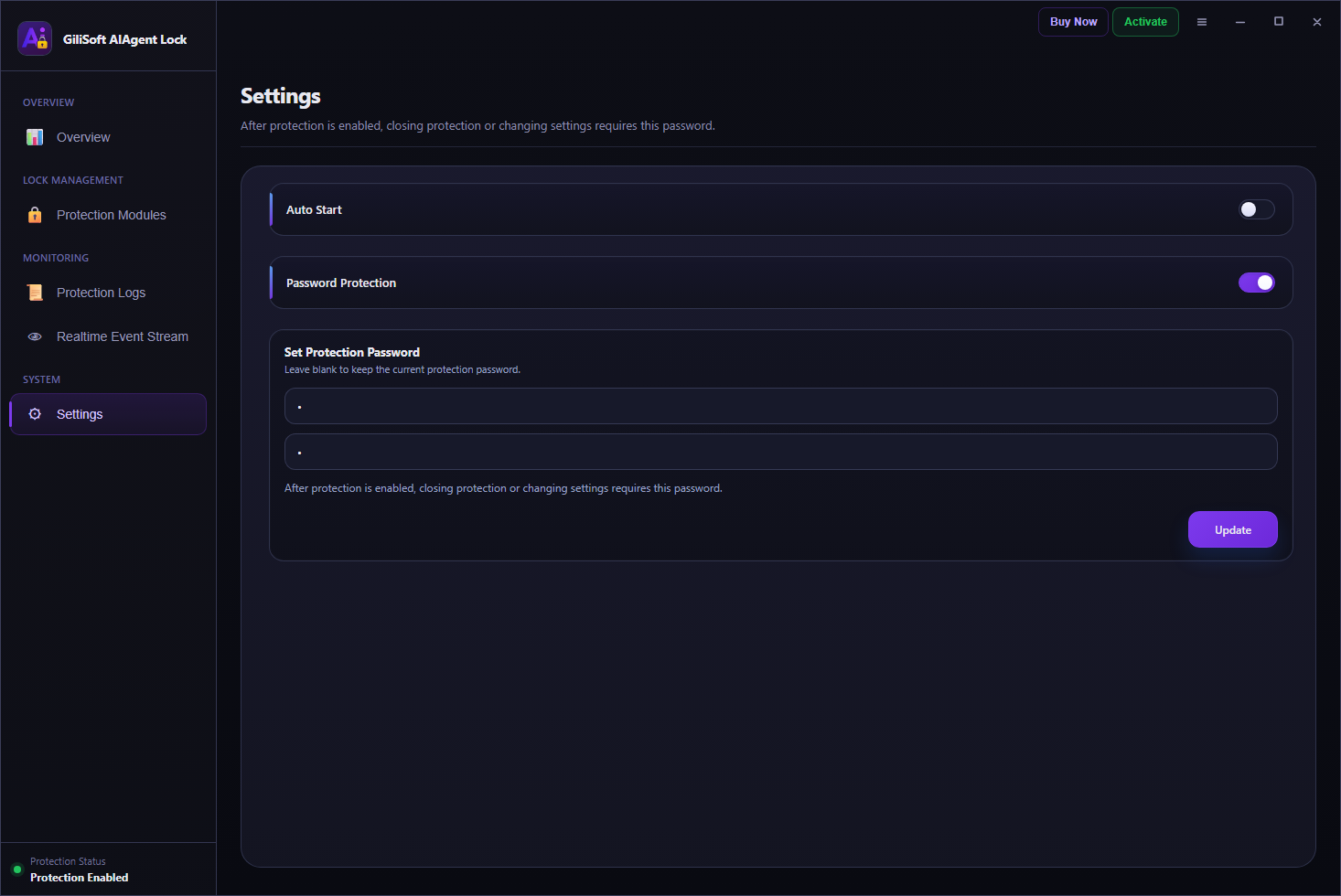
Set the Management Password and Recovery Email

AI Agent Lock password, recovery email, and unlock settingsSettings: protect access to AI Agent Lock and prepare password recovery

Keep policy changes under administrator control

  1. Set a management password that ordinary PC users do not know.
  2. Add a valid recovery email address.
  3. Review the available unlock behavior for maintenance or troubleshooting.
  4. Store the password and recovery details with the person responsible for the PC.

The password protects access to AI Agent Lock settings. The recovery email provides a way back into the console if that password is forgotten.

Review Blocked Attempts and Correct False Positives

Identify the process and control behind each event

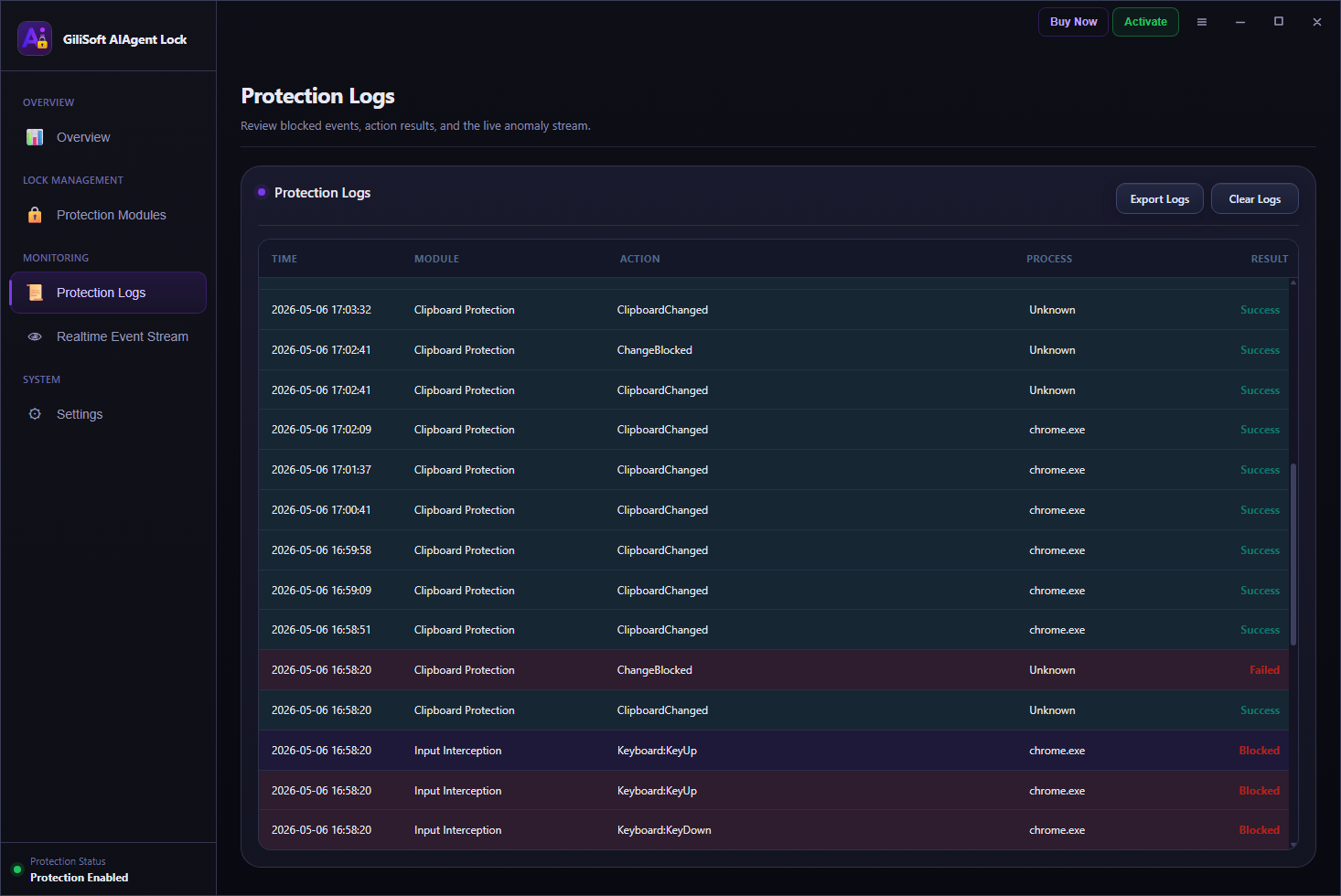
Realtime logs show when an action occurred, which process was involved, which protection control handled it, and whether it was blocked.
  1. Repeat the activity you want to test.
  2. Find the new event and confirm the process name and time.
  3. If approved software was affected, add the exact application to the whitelist.
  4. Test again and confirm unwanted automation is still blocked.
AI Agent Lock realtime intercept and blocked attempt logsLogs: event time, process, protection control, and result

Enable Protection Without Interrupting Trusted Apps

Use this order on an existing Windows PC so every whitelist entry is based on software the user actually needs.

Turn on Audit Mode.
Run the normal applications.
Review the recorded processes.
Whitelist approved software.
Enable Protection Mode.
Test again and check Logs.

AI Agent Lock FAQ

Should I start in Protection Mode?

For a new or unfamiliar PC, Audit Mode is the more practical starting point. It reveals normal activity before enforcement begins.

What should I do if a trusted app is blocked?

Find the event in Logs, confirm the process path, add the approved application to the whitelist, and test the task again.

Can I block selected applications?

Yes. Use the process blacklist for applications that should be restricted and the whitelist for trusted programs that must remain available.

Why add a recovery email?

It provides a recovery route if the management password is forgotten and helps prevent an avoidable lockout from the control console.

When should CMD and PowerShell be disabled?

Use those stricter modules on controlled endpoints where command-line access is not required by the user or approved support tools.

How do I confirm that a rule is working?

Repeat the test action, then review the Dashboard and Logs for the process, module, time, and enforcement result.

Control Automated Activity on Windows

Use GiliSoft AI Agent Lock to audit automated actions, allow trusted software, and enforce selected input, clipboard, capture, process, and command-line controls.

×Expanded AI Agent Lock dashboard screenshot
×Expanded AI Agent Lock module screenshot
×Expanded AI Agent Lock whitelist and blacklist screenshot
×Expanded AI Agent Lock settings screenshot
×Expanded AI Agent Lock logs screenshot