

How to Block Unauthorized Reading of a File
A deny-read or lock rule can prevent ordinary users and applications from opening a selected file in the protected Windows environment. Apply the narrowest rule, because blocking reads can also interrupt previews, indexing, backup, antivirus, and legitimate applications.
Quick answer
Choose Locking File when password access is needed or the supported protection control when read access should be denied. Back up the target first, apply the narrowest useful rule, and test both authorized access and the action that should be blocked.
Choose the Correct Access Control
| Situation | Recommended approach | Check carefully |
|---|---|---|
| Stop ordinary opening on this PC | Lock or deny read for the selected file | Authorized applications and backup |
| Allow viewing but prevent editing | Use Protect or deny write instead | Save, rename, and delete operations |
| Protect the file if copied or removed | Encrypt the file | Recovery key and recipient workflow |
| Hide the filename from casual browsing | Use Hide | Hiding is not confidentiality |
Step-by-Step Workflow
- Identify legitimate readers and keep a backup
List users and applications that must open the file, then preserve a verified copy outside the protected path.
- Open the appropriate File Lock Pro workspace
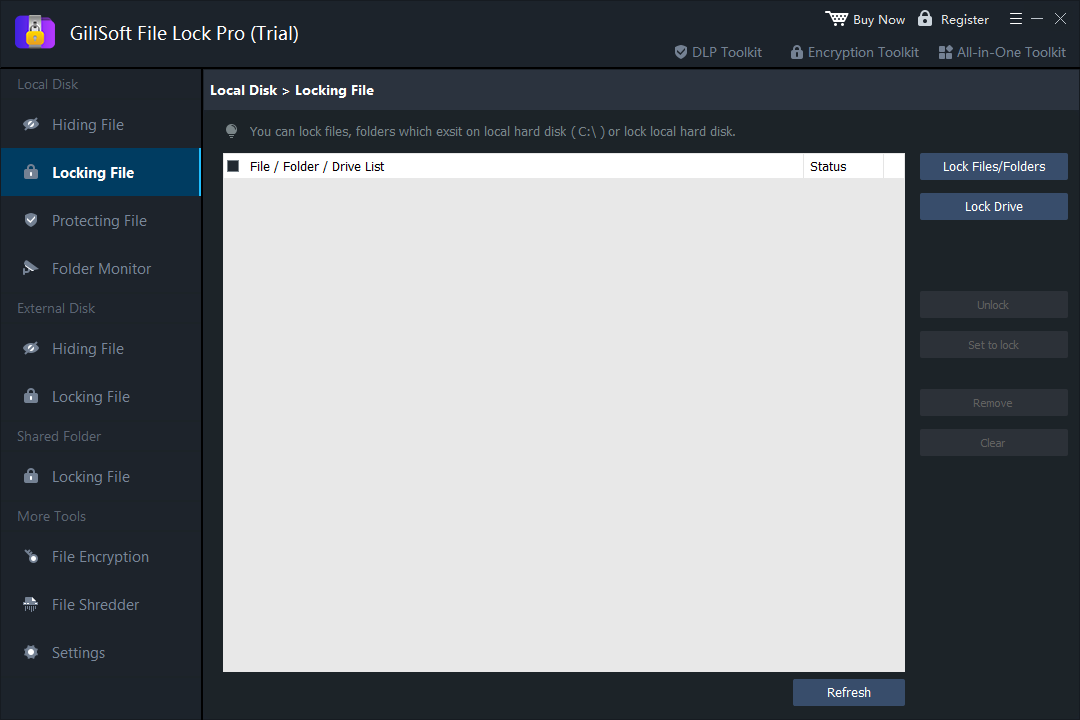
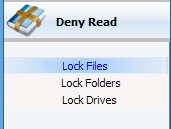
Choose Locking File when password access is needed or the supported protection control when read access should be denied.
- Add only the intended file
Confirm the full path and avoid applying a read block to a broad folder without testing.
- Apply the rule and test both outcomes
Verify that unauthorized opening is blocked while the documented recovery or authorized workflow still works.
- Review logs and remove stale rules
Document the owner and purpose, then remove the restriction when it is no longer required.
See the File Lock Pro user guide for every workspace, password recovery, and related protection task.
GiliSoft File Lock Pro Interface
These product screenshots connect the workflow to the relevant local Windows controls.
Review the Protection Boundary
- Keep a verified backup before applying broad access or write restrictions.
- Use a standard user account to test both the permitted workflow and the blocked action.
- Protect the administration password and document how authorized recovery works.
- Keep Windows Security enabled and use encryption when offline data exposure is in scope.
Frequently Asked Questions
Is deny read the same as read-only?
No. Deny read blocks opening; read-only normally allows viewing while preventing changes.
Why did backup or antivirus software report an error?
The rule may block that application from reading the file. Test required system tools before rollout.
Will the rule follow a copied file?
Do not assume it will. Use encryption for a protected portable copy.
Can I still recover access?
Yes, if the product password and recovery process were prepared and tested first.