

How to Hide a Drive in Windows 11, 10, 8, and 7
A drive can disappear from This PC in several ways, but the result is not always the same. File Lock Pro provides a password-protected hide and unhide workflow. Disk Management and DiskPart remove the drive letter. Group Policy only removes the drive icon from common Explorer views.
Choose the Right Drive-Hiding Method
First decide whether you want to reduce casual visibility, remove a mount letter, or protect data against unauthorized access. Those are separate jobs.
| Method | What changes | Password-protected control | Best fit |
|---|---|---|---|
| GiliSoft File Lock Pro | Supported local drive is hidden from ordinary browsing | Yes | Private drives on shared Windows PCs |
| Disk Management | Drive letter is removed | No | Temporarily unmounting a non-system volume |
| Group Policy | Selected drive icons are hidden in Explorer | No | Managed visibility on supported Windows editions |
| DiskPart | Drive letter or mount point is removed by command | No | Administrators who prefer command-line management |
Method 1: Hide a Local Drive with File Lock Pro
This method is designed for users who want the drive to disappear from ordinary browsing while keeping hide and unhide controls inside a password-protected application. The files stay in their original location.

Hide the drive from one local control panel
File Lock Pro separates hiding, locking, and protection rules so you can choose visibility control without rebuilding the drive as an archive.
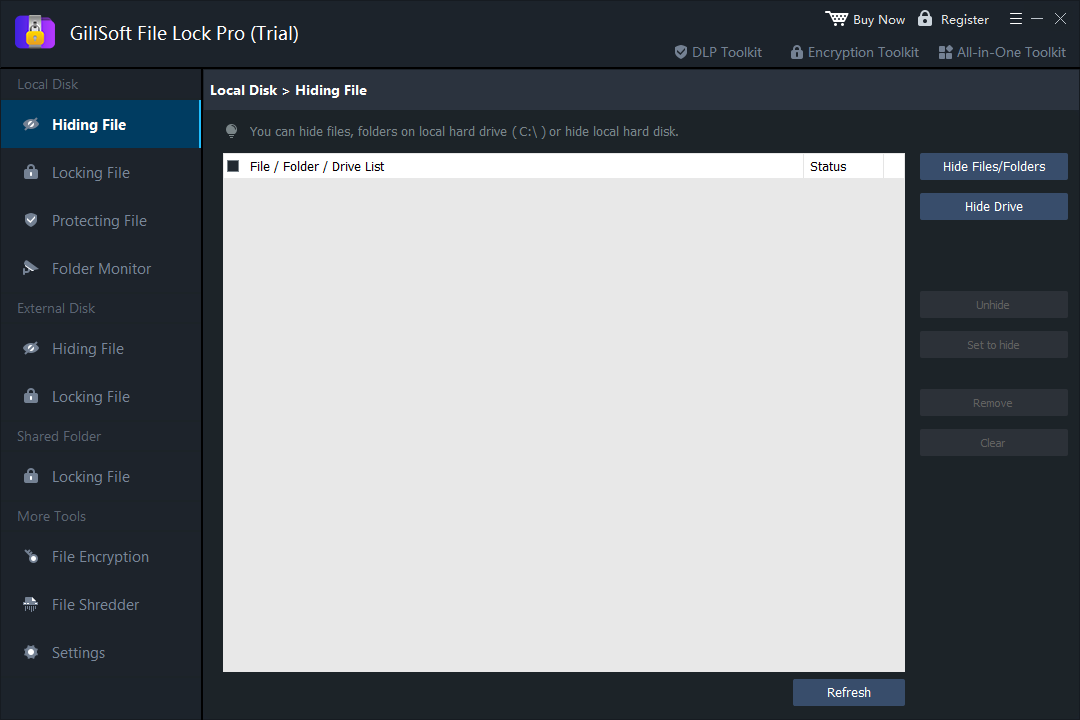
- Open File Lock Pro and enter the master password.
- Choose Local Disk > Hiding File.
- Select Hide Drive, then choose the non-system local drive you want to remove from ordinary browsing.
- Apply the rule and confirm the drive no longer appears in File Explorer or normal Windows search.
- To restore it, return to the same list, select the drive, and choose Unhide.
Method 2: Remove the Drive Letter in Disk Management
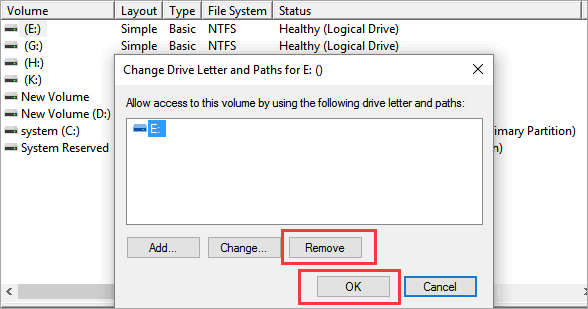
Windows Disk Management can remove a drive letter from a non-system volume. The volume and its files remain on disk, but it no longer appears under a normal drive letter in This PC.
- Press Windows + X and choose Disk Management.
- Right-click the target non-system volume and choose Change Drive Letter and Paths.
- Select the current letter, choose Remove, and read the Windows warning before confirming.
- Open File Explorer and verify that the letter no longer appears.
Method 3: Hide Selected Drives with Group Policy
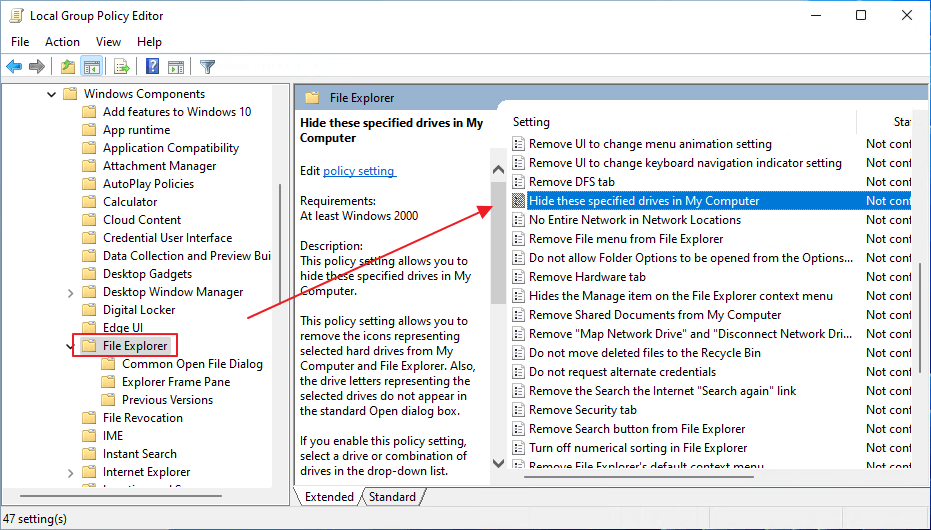
On Windows editions that include Local Group Policy Editor, the Hide these specified drives in My Computer policy can remove selected drive icons from File Explorer and standard Open dialogs.
- Press Windows + R, enter gpedit.msc, and select OK.
- Open User Configuration > Administrative Templates > Windows Components > File Explorer.
- Open Hide these specified drives in My Computer.
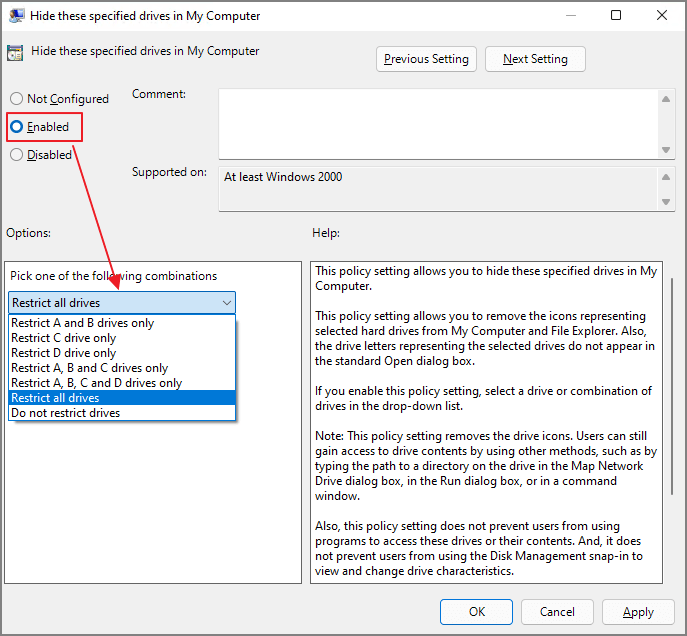
- Select Enabled, choose the drive combination, then apply the policy.
Method 4: Remove a Drive Letter with DiskPart
DiskPart reaches a result similar to Disk Management, but through an elevated command prompt. Use it only when you can identify the correct volume confidently.
- Open Windows Terminal or Command Prompt as administrator.
- Enter diskpart, then enter list volume.
- Identify the target carefully and enter select volume N, replacing N with the correct volume number.
- Enter remove letter=X, replacing X with the current drive letter.
- Enter exit, then verify the result in File Explorer and Disk Management.
DiskPart does not add a password, encrypt data, or stop an administrator from restoring the letter. It is a mount-point management method.
How to Unhide or Restore the Drive
Restore a File Lock Pro hidden drive
Open File Lock Pro, return to Local Disk > Hiding File, select the hidden drive, and choose Unhide.
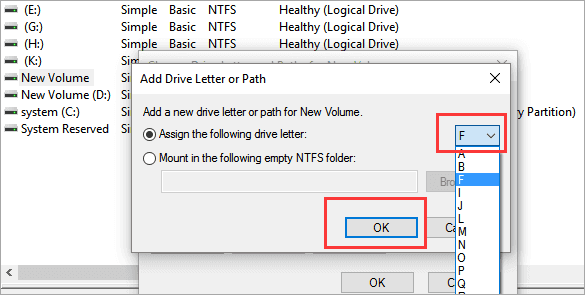
Restore a drive letter in Disk Management
- Open Disk Management and locate the volume without a letter.
- Choose Change Drive Letter and Paths > Add.
- Assign an available letter and confirm the change.
Reverse Group Policy
Return to the same policy, choose Not Configured or Disabled, apply the change, and sign out or restart Explorer if the icon does not return immediately.
Hide, Lock, and Encrypt Solve Different Problems
| Control | Main result | Use it when |
|---|---|---|
| Hide | Reduces normal visibility in Explorer or search | You want privacy from casual browsing |
| Lock | Controls whether a visible item can be opened | You need direct access control |
| Protect | Restricts reading, writing, renaming, moving, or deletion | You need to stop unwanted changes |
| Encrypt | Transforms data so it requires a key or authorized account | The storage device may be lost, stolen, or examined offline |
Before You Hide an Important Drive
Frequently Asked Questions
Does hiding a drive encrypt its files?
No. Hiding changes visibility or removes a mount letter. Encryption protects the content and should be considered separately when hardware loss or offline access is a concern.
Can someone still open a drive hidden by Group Policy?
Yes. Microsoft states that this policy removes the icons but does not stop access through a direct path, another program, or Disk Management.
How do I restore a drive letter?
Open Disk Management, right-click the volume, choose Change Drive Letter and Paths, select Add, and assign an available letter.
Can Windows Home use the Group Policy method?
Windows Home normally does not include Local Group Policy Editor. Use Disk Management, DiskPart, or a compatible local privacy tool instead.
Can File Lock Pro hide an entire local drive?
Yes. Open Local Disk, choose Hiding File, and use Hide Drive for a supported local drive.
Hide a private Windows drive from ordinary browsing
Use File Lock Pro when you want a direct local hide and unhide workflow behind a master password.
Download TrialBuy File Lock ProSources: Microsoft: hide specified drives with Group Policy | Microsoft Policy CSP: Windows Explorer drive visibility | Microsoft: change a drive letter | Microsoft: Disk Management in Windows