

How to Lock a Folder Without BitLocker on Windows 11/10
BitLocker is designed to encrypt a complete supported drive or volume. That is useful for a lost laptop or removed disk, but it is broader than the common task of protecting one customer folder, photo collection, project directory, or local archive. For one folder, use a control designed around the folder itself.
Why BitLocker Is Not a One-Folder Lock
Microsoft describes BitLocker as drive encryption. It protects data at rest by encrypting a complete operating-system, fixed-data, or removable-data volume. It does not add an independent password prompt to one ordinary folder.
You do not need to disable BitLocker when you add folder-level protection. Keeping drive encryption enabled can protect the hardware when it is lost or examined offline, while a folder lock, Windows permissions, or EFS can control selected content during everyday use.
| Security goal | Best starting point | Scope |
|---|---|---|
| Protect a lost or removed drive | BitLocker or device encryption | Whole supported volume |
| Add a separate password to one folder | File Lock Pro | Selected folder |
| Separate users on one shared PC | NTFS permissions | Windows accounts |
| Encrypt selected files for one account | EFS | Selected NTFS files and folders |
| Send a protected package | Encrypted 7-Zip archive | Copied archive contents |
Method 1: Lock the Folder with File Lock Pro
This is the clearest option when the folder should stay where it is and opening it should require the File Lock Pro master password. The same product also provides separate Hide and Protect modes, so visibility and file-operation restrictions do not have to be confused with locking.

Protect the original folder in place
Use one local Windows application to lock a folder, hide it from ordinary browsing, or restrict reading, writing, renaming, moving, and deletion.
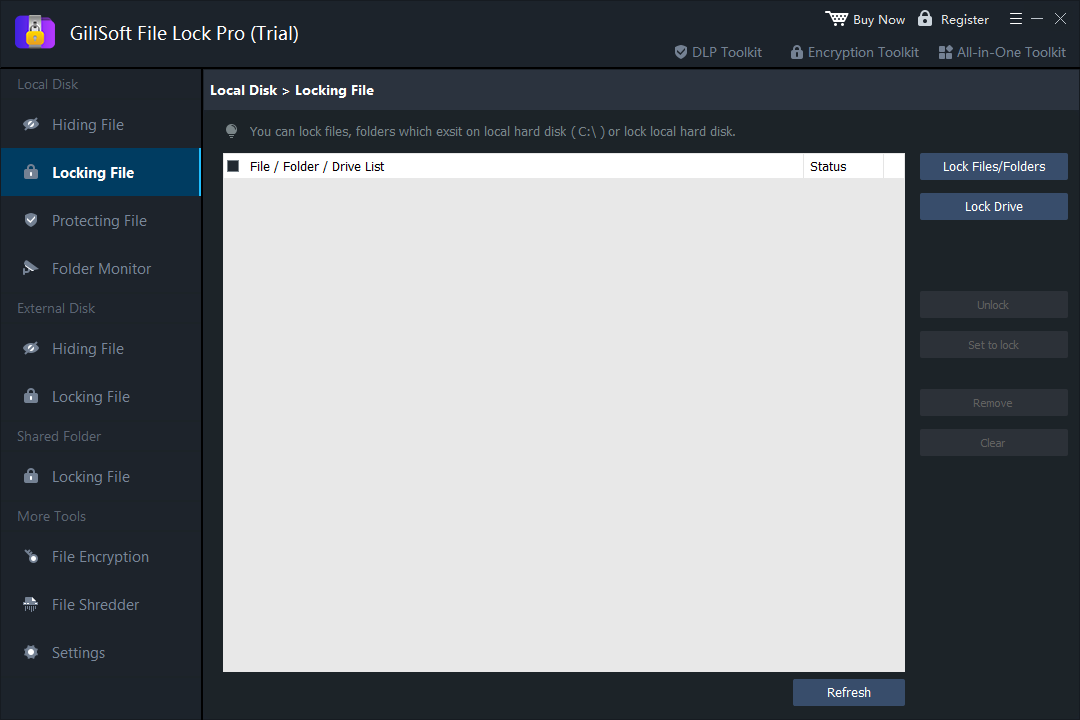
- Open File Lock Pro and enter the master password.
- Choose Local Disk > Locking File.
- Select Lock Files/Folders, browse to the target folder, and add it to the list.
- Apply the lock and test the folder from File Explorer.
- Use Unlock from the same workspace when authorized access needs to be restored.
Method 2: Restrict the Folder with Windows Permissions
NTFS permissions are useful on a shared PC where each person signs in with a separate Windows account. Access follows the signed-in account; this method does not create a new independent folder password.
- Right-click the folder and choose Properties > Security.
- Select Edit, then choose the user or group whose access must change.
- Remove only the permissions that are not required. Avoid applying broad Deny rules to SYSTEM or Administrators.
- Sign in with the affected account and test the folder before using the rule on important data.
Method 3: Encrypt the Folder with EFS
Encrypting File System (EFS) encrypts selected files and folders for the current Windows account on a supported NTFS volume. Microsoft states that file encryption is not available in Windows Home, and EFS does not create a separate password prompt.
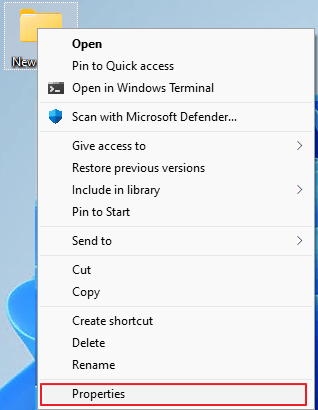
- Right-click the folder and choose Properties.
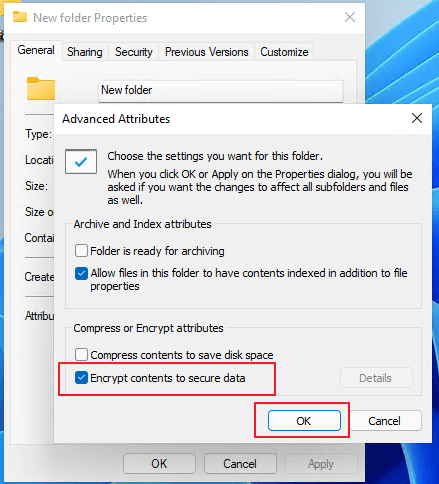
- Select Advanced, enable Encrypt contents to secure data, and confirm.
- Apply the change to the folder, subfolders, and files as required.
- Back up the EFS certificate and private key immediately and keep the recovery copy away from the protected folder.
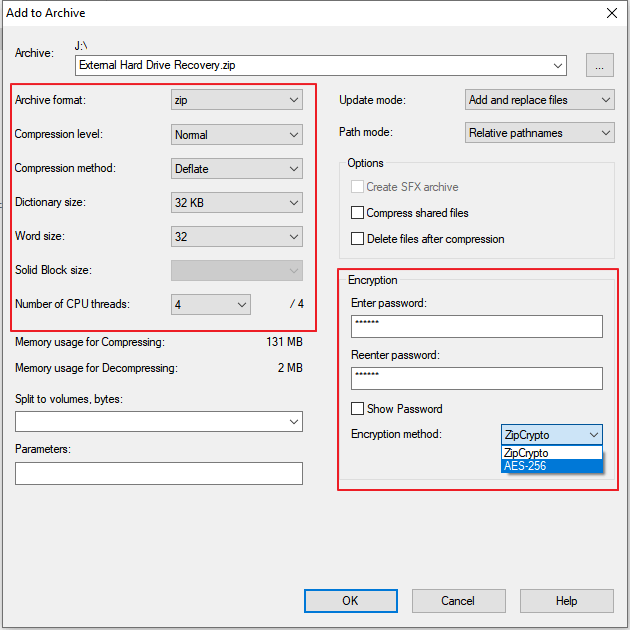
Method 4: Create an Encrypted 7-Zip Archive
An encrypted archive is practical when the folder is mostly static and you want to store or send one password-protected package. It is less convenient for folders edited every day because the archive must be updated whenever the contents change.
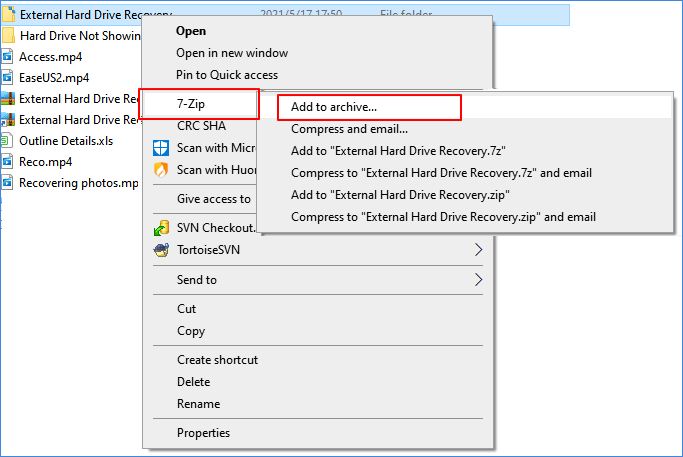
- Right-click the folder and choose the archiver's Add to archive command.
- Choose the archive name and destination, then enter a strong password.
- Select a strong supported encryption option and enable file-name encryption when available.
- Create the archive and test extraction with the password before changing the original folder.
Which Method Should You Use?
| Situation | Recommended method | Reason |
|---|---|---|
| One private folder on a shared Windows PC | File Lock Pro | Direct password-based control on the selected folder |
| Family members or coworkers have separate accounts | NTFS permissions | Uses existing Windows identities |
| Supported Windows edition and one account owns the data | EFS | Encrypts selected NTFS content for that account |
| Folder will be emailed or archived | Encrypted 7-Zip archive | Creates one portable protected package |
| Laptop or disk may be lost or stolen | Keep BitLocker enabled | Protects the complete volume against offline access |
Before You Lock an Important Folder
Frequently Asked Questions
Can BitLocker lock only one folder?
No. BitLocker encrypts a supported drive or volume. Use a selected-folder lock, EFS, Windows permissions, or an encrypted archive when only one folder needs protection.
Can I lock a folder on Windows Home without BitLocker?
Yes. Windows permissions, encrypted archives, and compatible folder-locking applications are available options. Microsoft states that EFS file encryption is not available in Windows Home.
Is hiding a folder the same as locking it?
No. Hiding changes visibility. Locking controls access, while encryption protects the data contents.
Does a password-protected archive lock the original folder?
No. It protects the copy inside the archive. The original folder must be handled separately.
Should I turn BitLocker off before using File Lock Pro?
No. Whole-drive encryption and selected-folder controls can be used together because they solve different problems.
Lock the folder you need without changing the whole drive
Use File Lock Pro for direct, local password-based access control on selected Windows folders.
Download TrialBuy File Lock ProSources: Microsoft BitLocker overview | Microsoft: encrypt a file or folder | Microsoft access control overview | Microsoft BitLocker operations guide