
How to Cut MP4 Without Re-encoding on Windows
A fast MP4 cut can copy compressed video and audio into a shorter file instead of rendering every frame again. That saves time and avoids another generation of quality loss when the source, cut points, and output mode permit it. It is not guaranteed for every MP4 or every frame.
Quick answer
In GiliSoft Video Editor Pro, open Video > Easy Cutter, load the MP4, mark the range to keep, and preview both edges. Press Cut to add the range to Cut Clips, then open Export and select Cut video files without re-encoding. Choose an output folder, press Start, and reopen the saved file to verify the actual first frame, last frame, sound, and duration.
When Does a Fast MP4 Cut Make Sense?
| Goal | Recommended approach | Verification |
|---|---|---|
| Quickly remove a long intro or outro | Try a compatible fast or direct-copy cut in Easy Cutter | The start may shift to a decodable keyframe |
| Start on an exact frame | Prioritize a precise export | Re-encoding may be needed near the boundary |
| Add subtitles, crop, watermark, or effects | Use Advanced Cutter or Video Studio | Changing pixels normally requires a render |
| Change codec, resolution, or frame rate | Choose a new output format | This is a conversion, not a stream copy |
Here, a lossless cut means avoiding another lossy encode of copied frames. It does not turn an already compressed MP4 into a mathematically lossless source.
Cut an MP4 with Easy Cutter
- Keep the original
Work from the source MP4 but save to a new filename. Note its duration and any audio or subtitle tracks you need.
- Open Easy Cutter
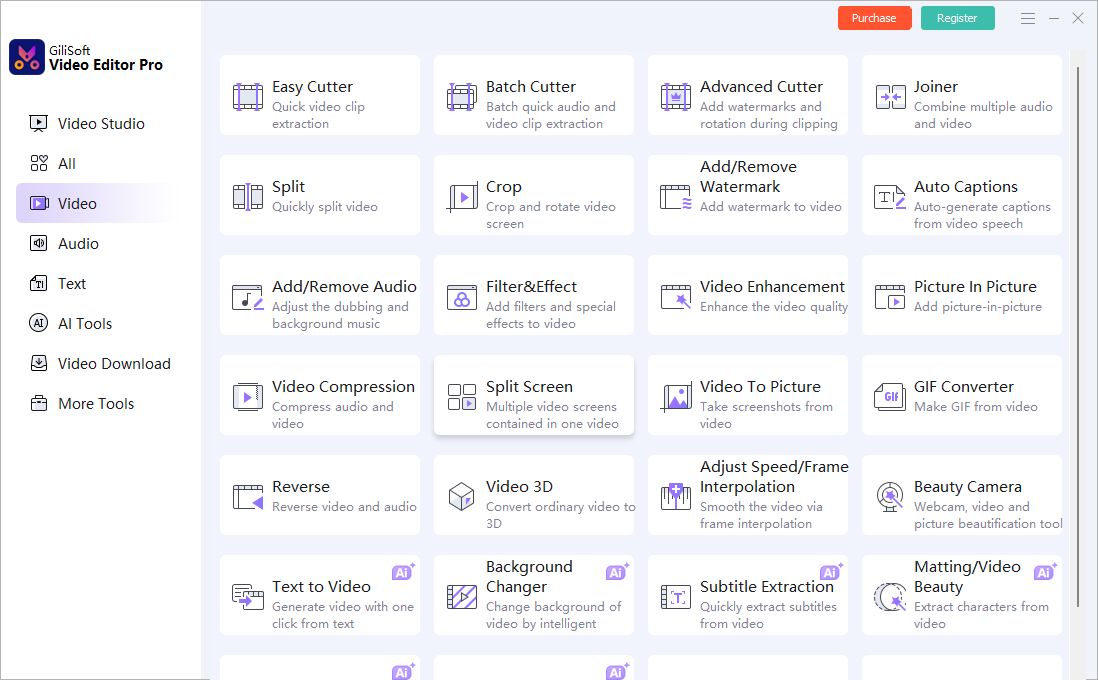
Launch Video Editor Pro, select the Video category, and choose Easy Cutter. A simple clip extraction does not need Video Studio.
- Add the range to Cut Clips
Load the MP4, set the Start and End points, preview both boundaries, then press Cut. Confirm the selected segment appears in the Cut Clips panel.
- Choose the export mode
Press Export, choose an output folder, and check Cut video files without re-encoding. This is the option shown in the current Easy Video/Audio Cutter 18.3.0 export window; do not confuse it with the separate GPU acceleration setting.
- Run a short test
Press Start and inspect the saved clip. If its boundary is not precise enough, use a normal or more precise export instead of forcing the copy mode.
- Verify the result
Play the output in another player. Check both boundaries, audio sync, duration, and subtitle tracks before deleting anything.

Check the Saved MP4, Not Just the Preview
- Boundary: a copy-only cut may move to a nearby keyframe; watch the exported first and last frames.
- Streams: compare source and output codec, profile, resolution, frame rate, and audio properties. A changed codec proves re-encoding; matching properties alone do not prove stream copy.
- Playback: listen for missing audio, sync drift, and lost subtitle tracks.
- Proof: use the checked Cut video files without re-encoding option as the intended mode, then inspect the result. File size and export time alone are not proof.
Keyframes and Other Limits
Many MP4 files use inter-frame compression. A copy-only cut cannot always begin on an arbitrary frame because that frame may rely on earlier frames to decode. The saved start can land near a decodable keyframe instead of the exact marker.
If one exact frame matters, use a more precise export and accept that encoding may be required at or near the boundary. Cropping, rotating, adding effects or subtitles, and changing resolution or codec also require a new render. A fast cut preserves copied compressed frames; it is not the same thing as lossless video encoding.
Frequently Asked Questions
Can I cut MP4 without re-encoding?
A fast stream copy can avoid full re-encoding when the format and cut points permit it. Frame-accurate cuts may require re-encoding near or across boundaries.
Why does a cut start slightly early or late?
Compressed video seeks around keyframes. Use a frame-accurate timeline export when the exact boundary matters.
Should I overwrite the source?
No. Keep the source and export a new edited copy.
How should I check the result?
Review both cut boundaries, audio sync, captions, duration, and playback on the destination.