

How to Add a Watermark to Video on Windows
Add a video watermark when footage needs visible branding, ownership information, a review label, or a recipient reference. This guide covers watermark type, design, timing, batch consistency, export checks, and the limits of visible marks.
Quick Answer
Open GiliSoft Video Converter, add the source video, open the Watermark tool, and choose Text, Image, Video, or Shape. Set its content, position, size, start time, and end time, preview the result, then export the finished video.
Choose the Right Type of Video Watermark
The mark should match the job. A small logo is suitable for routine branding, while review copies often need clear text such as DRAFT, CLIENT PREVIEW, or a recipient reference.
| Watermark type | Best for | Practical trade-off |
|---|---|---|
| Text | Draft labels, ownership, client names, dates | Quick to create and easy to update; check contrast on bright and dark scenes. |
| PNG logo | Branding with a transparent background | Usually the cleanest logo option; export the artwork at sufficient resolution. |
| JPEG image | Badges, rectangular labels, sponsor panels | Useful when transparency is unnecessary; a background rectangle remains visible. |
| Video overlay | Animated logos, short promos, picture-in-picture | More noticeable but also more likely to distract from the main content. |
| Shape | Highlight boxes, masks, simple callouts | Helpful for instruction and emphasis; keep it clear of subtitles and controls. |
Microsoft recommends placing a logo layer above the video and using transparency controls for a watermark effect. A transparent PNG generally avoids the unwanted white rectangle that appears around many JPEG logos.
How to Add a Watermark with GiliSoft Video Converter
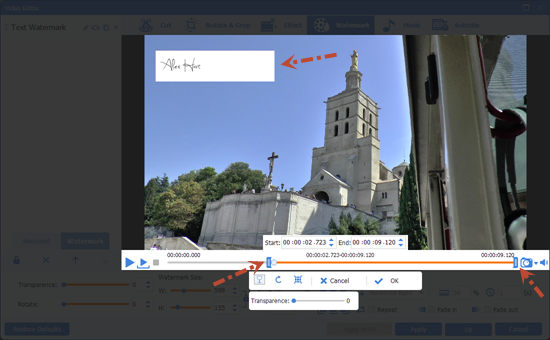
 Enter text, set its active time, and position it in the video preview. Click to enlarge.
- Add the original video
Open GiliSoft Video Converter, add the source file, and play several sections to understand where faces, captions, charts, and interface controls appear.
- Open the Watermark tool
Select the video in the queue and open the editing controls. Choose Watermark, then select Text, Image, Video, or Shape according to the job.
- Enter text or load the logo
For text, type the ownership or review label and choose a readable style. For a logo, load a clean PNG when transparency around the artwork is needed.
- Set size, position, and active time
Resize the layer in the preview, move it into a safe area, and set when it starts and ends. Extend the time range to the full duration when the mark must remain visible throughout.
- Preview bright, dark, and busy scenes
Check more than the opening frame. Confirm that the mark remains readable without covering subtitles, faces, product controls, or important action.
- Choose output settings and export
Select the format, resolution, codec, and output folder. Export a short sample first, then inspect sharpness, watermark timing, audio, and aspect ratio before processing the final file or batch.
 Load an image watermark, resize it, position it, and set the time range. Click to enlarge.
Watermark Placement and Design Settings
| Setting | What it changes | Useful starting point |
|---|---|---|
| Position | Where the mark sits in the frame | Start near a corner, then inspect subtitles, faces, mobile crops, and platform controls before deciding. |
| Size | Visibility and visual weight | Make a logo recognizable without turning it into the main subject. Test at the actual viewing size, not only in a large editor preview. |
| Transparency | How strongly the underlying picture remains visible | Use partial transparency for routine branding; use stronger text for DRAFT or CLIENT PREVIEW labels that must not be missed. |
| Start and end time | Which part of the video carries the mark | Use the full duration for ownership branding, or a defined interval for sponsors, chapters, speakers, and review notes. |
| Margin | Distance from the frame edge | Leave enough room for cropping, overscan, rounded player corners, captions, and on-screen controls. |
Common Video Watermark Workflows
Brand logo for published videos
Use a transparent PNG, consistent size, and a fixed safe-area position across tutorials, demos, and social exports.
DRAFT or CLIENT PREVIEW
Use clear text across the active picture and include a project or recipient reference when review copies need stronger identification.
Timed sponsor or speaker mark
Set a defined start and end time so a sponsor badge, speaker name, or chapter label appears only when relevant.
Training-video ownership
Keep a restrained company mark visible while ensuring it does not cover demonstrations, subtitles, or learning content.
Fix Common Video Watermark Problems
| Problem | What to check |
|---|---|
| The logo has a white rectangle | Use a PNG with real transparency. Removing white pixels from a JPEG does not automatically create a transparent background. |
| The watermark looks blurry | Start with a larger, clean logo and scale it down. Avoid enlarging a tiny raster image in a high-resolution video. |
| The mark disappears on bright scenes | Add an outline, shadow, background plate, or stronger opacity, then inspect both bright and dark sections. |
| The watermark covers subtitles | Move it to another safe area, reduce its size, or change its active time. Check embedded and platform-generated captions. |
| The logo ends too early | Extend the layer duration to match the video or set its end time explicitly before export. |
| The exported video loses quality | Check output resolution, codec, bitrate, and frame rate. Test a short sample with settings closer to the source. |
Choose the Right GiliSoft Video Tool
Video Converter
Best when watermarking is part of conversion, compression, subtitle, audio, crop, or device-output preparation. Download GiliSoft Video Converter.
Video Editor
Choose GiliSoft Video Editor when the project centers on cutting, joining, splitting, cropping, music, subtitles, and other everyday editing tasks.
Video DRM Protection
Use GiliSoft Video DRM Protection for viewer-specific or dynamic watermarks combined with passwords, device rules, expiration, and access revocation.
ClipMark
Use GiliSoft ClipMark when authorized footage already contains an unwanted fixed mark, subtitle, text, or overlay that must be cleaned.
Add Watermark to Video FAQ
Can I add a logo watermark to a video?
Yes. Import a logo image, position and resize it in the preview, set its active time, and export the finished video.
Can a watermark appear for only part of a video?
Yes. Set the layer's start and end time so it appears only during the required section.
Should I use PNG or JPEG for a logo?
PNG is usually preferable when the logo needs a transparent background. JPEG works for rectangular artwork that does not require transparency.
Can I add both text and an image?
Yes. Create separate layers and check their timing and overlap in the preview before export.
Does a visible watermark prevent all copying?
No. It identifies the source and may discourage casual reuse, but it is not encryption, DRM, or playback access control.
Can I apply the same watermark to several videos?
Use a consistent layer design and output profile, then test representative files before processing a large group.