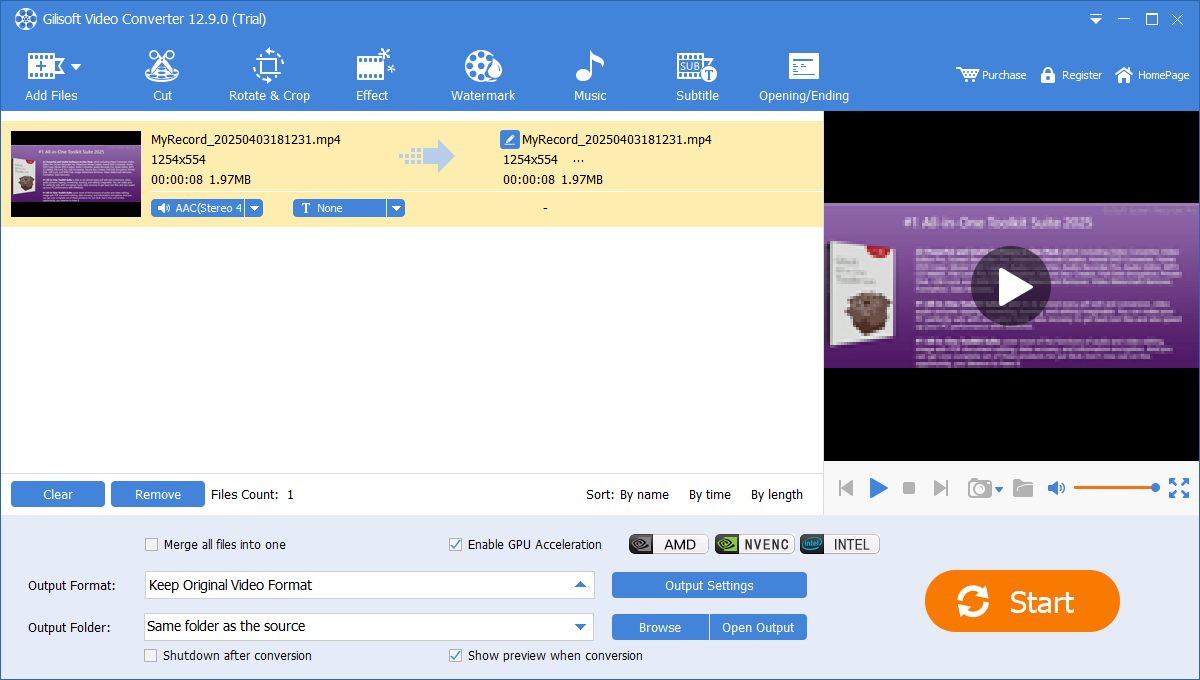
Choose the soundtrack
Use the audio selector in the source row to choose the required language or soundtrack. Selecting None is for a silent result; it is not the choice for retaining the original sound.

Prepare video and audio for playback, sharing, and storage. Convert formats, reduce large files, and finish clips with the soundtrack, subtitles, and edits your project needs.
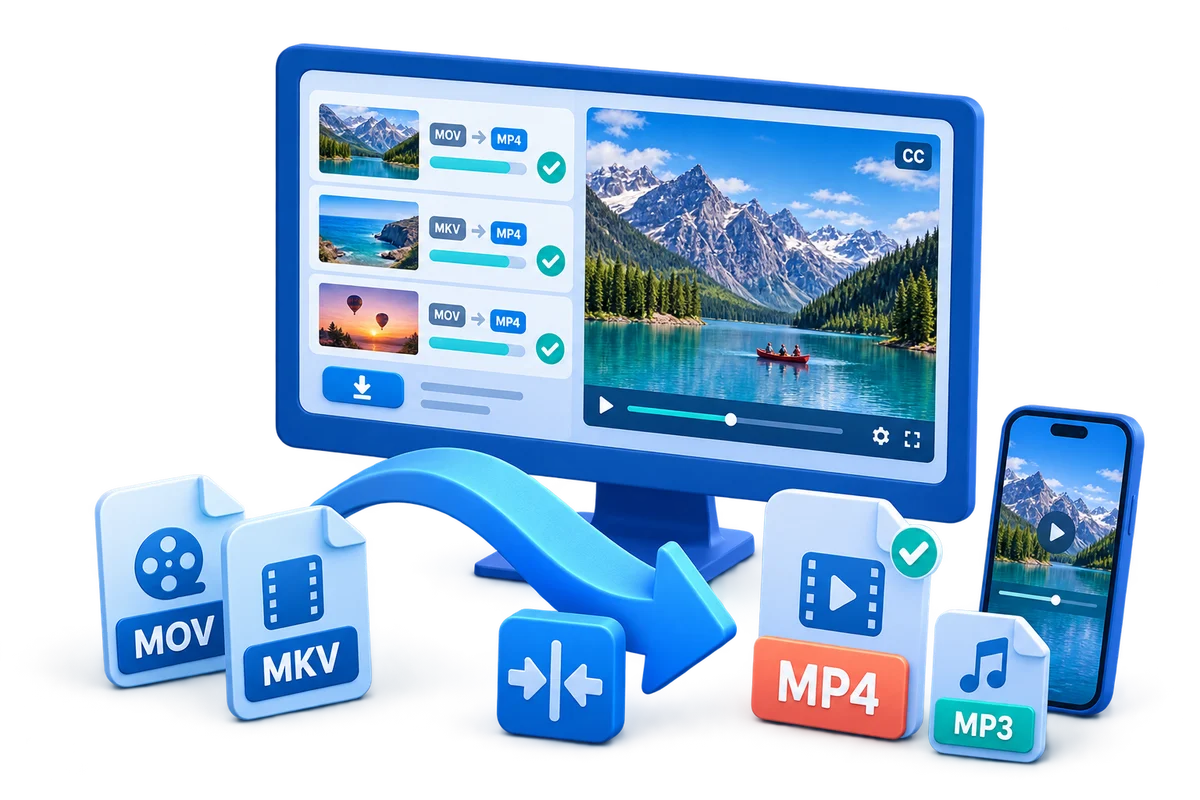
Learn to convert files on Windows, choose an output format, prepare a batch, compress video, and check the finished result. This guide covers GiliSoft Video Converter (Discovery Edition), its conversion queue, and the editing tools used before export.
Load the source with Load File or Load Folder, choose Output Format, check the audio and subtitle selection, set Output Folder, and click Start. Leave Merge all files into one unchecked for separate outputs. Open the saved result and review it before converting the rest of a large batch.
Open GiliSoft Video Converter and use Load File, Load Folder, or drag and drop to add your sources. Review the loaded files and preview the video before choosing the output.
The main workspace accepts individual files, a folder, or files dragged into the loading area. After import, check that the queue contains the right sources and remove anything that does not belong in the job.
Preview the source picture and soundtrack. For a batch, check a representative file from each source type rather than assuming that every file has the same audio, subtitles, resolution, or duration.
Select the required Output Format, review Output Settings, and choose an Output Folder. Leave Merge all files into one unchecked for separate results, or enable it when the clips should become one video.
| What you need | What to set |
|---|---|
| A video for the next player or device | Choose the required video profile, such as MP4. Review the codec, resolution, and quality in Output Settings against the destination's requirements. |
| Only the soundtrack | Choose an audio output profile such as MP3, then check the source audio selection and audio settings. |
| A separate result for every source | Leave Merge all files into one unchecked. Review the queue and output folder before starting. |
| One video made from several clips | Arrange the sources in order and enable Merge all files into one. Review the joins in the finished file. |
| A smaller working copy | Review resolution, bitrate, quality, and format, or use the compression tool. Compare a sample before the full conversion. |
Use Browse to choose a clear destination for the outputs. When the result is ready, Open Output helps you find it without confusing it with the source.
The queue includes Enable GPU Acceleration with AMD, NVIDIA NVENC, and Intel options. Enable an available option for the installed hardware and selected encoder, then test the result. GPU acceleration does not apply equally to every format or editing step. If a sample fails, retry without it before starting a long batch.
Follow the focused batch conversion guide or GPU acceleration guide for those workflows.
Select the intended source audio track, load or create subtitles if needed, and apply any cuts, crop, rotation, or other edits. Preview the sound, subtitle timing, and edited sections before conversion.
Use the audio selector in the source row to choose the required language or soundtrack. Selecting None is for a silent result; it is not the choice for retaining the original sound.
Open Subtitle for the selected video when you need to load or create subtitles. Preview their words, timing, and position, then apply the changes and check a converted sample.
Use the editing sections below only for the changes the job needs. Check the beginning and ending of a cut, the visible area after a crop, and the active time of any sound or overlay before starting the final conversion.
Click Start to process the queue. When conversion finishes, use Open Output and play the saved file in the target player or device. Check the picture, audio, subtitles, duration, and file size before processing more files with the same settings.
For the first use of a new profile, convert a short test clip or one representative file before running a large batch. Test the actual output in its intended player or device, not only in the converter's preview.
Keep the original sources until the result has been verified. Recheck any output setting that changes picture quality, audio, subtitles, or file size before applying it to more files.
Start with the destination: a smaller upload, a review copy, or a file for storage. Review the output bitrate, resolution, quality, and format, then change one setting at a time so you can judge its effect.
The app also provides a Video Compression tool in its media workspace. See compressing video on Windows for a focused file-size workflow.
Prepare the clips before final conversion, then apply the edits and review the output profile. The editing windows let you preview changes before creating the finished file.
Open Cut, set Start and End, and preview both boundaries. The selected range is the portion to keep. Apply the change before conversion.
Open Rotate & Crop. Adjust the visible rectangle or use the rotation and flip controls, then check the preview for cut-off faces, slides, or captions.
Arrange the queue and enable Merge all files into one. If using a transition, choose the effect and its duration; use No Transition for a direct join.
Use Adjust Speed in the clip editor and preview the result. Check both the new duration and the sound before applying the change.
Use the subtitle controls to load a subtitle file or create subtitle entries.
Preview the words at several points. Use the font and top, middle, or bottom position controls to keep subtitles readable without covering important content.
Confirm the changes, convert a sample, and inspect the subtitles in the finished file before processing the full video.
For the complete workflow, see adding subtitles to video or adding subtitles during conversion.
To create an audio file, select the intended source soundtrack and choose an audio output profile, such as MP3. To create a silent video instead, keep a video output profile and select None for the audio track. These produce different results.
See extracting audio from video for the audio-only workflow.
Open Music, add the audio source, and set the portion and timing needed by the video. Check the original soundtrack and music together before export.
Place the playhead where narration should begin, use the voice recording controls, and check the microphone settings. Record a short test and listen against the video.
Select the time range for a volume change, set the level, and play through both boundaries. Check that speech stays clear and the change does not become abrupt.
For a focused music workflow, see adding music to video.
Choose the part of the timeline that should change, position the effect or layer, and preview its entry and exit. Keep important content visible and confirm the result after conversion.
Choose the filter style and its active start and end time. Compare the affected section with the original before applying it.
Select the area to emphasize and the active time range. Preview the result so the important subject stays inside the zoomed area.
Enter the text, position it in the preview, and set its timing and transparency. Check readability against the changing picture.
Load an image, resize and position it, and choose when it should appear. Preview more than one frame to check visibility.
Load the overlay video, position it, and set its active range. Check that it does not obscure the main subject or subtitles.
Choose a shape or arrow, adjust its color and placement, and limit it to the section that needs the annotation.
The editing window includes a Gaussian Blur control for an area you select. Preview the affected frames; blurring covers detail rather than reconstructing the background.
See adding a watermark to video for the focused text and image workflow.
The main app also groups tools under Audio, Text, and Video Download. These are separate task entries; return to the conversion queue when you are ready to choose an output profile and process files.
The Audio workspace shows Batch Cutter, Joiner, Add/Remove Audio, Video Compression, Reverse, Silence Remove, and Text to Audio.
The Text workspace shows Doc To Video, Text to Video, Subtitle Extraction, and Text to Audio. These serve different tasks from loading subtitles into a conversion.
The Video Download workspace provides separate TikTok and YouTube download entries for preparing source media.
A file extension alone does not determine playback compatibility: the container and the video and audio codecs work together. MDN explains this distinction in its media container format guide.
Load the source file, choose MP4 under Output Format, and review the resolution and quality in Output Settings. Select the audio track and destination folder, then click Start. Play the finished MP4 to check its picture, sound, and duration.
Not unless you enable Merge all files into one. Leave that option unchecked to create a separate result for each source. To join clips, enable it, arrange the files in the intended order, and check the connections after conversion.
Check the source audio selection in the file row. None removes the soundtrack; a different selected track can contain another language or commentary. Preview the intended track, review the audio output settings, and test the saved file again.
Open Subtitle for the selected video, load the intended file or entries, check timing and position, and apply the changes. Review subtitles near the beginning, middle, and end of a converted sample, not only in the editor preview.
A higher output bitrate, resolution, or other encoding choice can create a larger file. Review Output Settings or use the compression tool, change one setting at a time, and compare a sample for both file size and picture quality.
Not every conversion is lossless. Re-encoding and effects can change the picture, and increasing resolution does not restore detail missing from the source. Keep the original and compare the result at the resolution and quality needed for the final use.
The AMD, NVIDIA NVENC, or Intel option must match the installed hardware and selected encoder. Not every format or processing step uses GPU encoding. If a sample fails with acceleration enabled, retry it without GPU acceleration before running the full batch.
MP4 is a container, while the video and audio codecs inside it also affect playback. Check the target device's accepted codec, resolution, and audio settings, then choose an appropriate output profile and test the saved file on that device.
Add the video, select the soundtrack you want, and choose an MP3 audio output profile. Review the audio settings and destination, convert, and listen to the saved MP3. The result contains audio rather than the video picture.
For the full feature overview, visit GiliSoft Video Converter. Choose a focused walkthrough for a specific conversion task:
Choose the format, soundtrack, subtitles, and edits for your project, then convert and check the finished result.


Enter your email address to get our latest newsletter