
How can you lock apps on Windows 11 Home?
For one family, study, or shared PC, GiliSoft EXE Lock provides the shortest setup: add the app, choose Password Verification when an owner should approve launches, or choose Direct Block when the app must not run.
Microsoft says current Windows 11 editions can enforce AppLocker policies. AppLocker remains an administration-oriented system built around rule collections, policy configuration, and deployment, while EXE Lock is designed for people who want a local app list and immediate launch controls.
Compare App Lock Options on Windows 11 Home
The right choice depends on whether you need a password prompt for one PC, account-based family controls, or centrally managed application policies.
| Option | What it controls | Best fit | Setup style |
|---|---|---|---|
| GiliSoft EXE Lock | Selected desktop EXE and supported Store apps | Family, study, personal, and shared PCs | Visual local interface |
| Microsoft AppLocker | Executable, packaged app, installer, script, and DLL rule collections | Structured administrative policy control | MMC, PowerShell, Group Policy, or MDM |
| Microsoft Family Safety | App blocking and time limits for family members | Child accounts and family groups | Microsoft account and organizer controls |
| Windows sign-in password or PIN | The entire Windows user session | Keeping other people out of one account | Windows account settings |
Lock selected apps without uninstalling them
EXE Lock keeps the program installed while controlling whether it can start. A parent or owner can approve a launch with a password, block it completely, temporarily unlock protection, and inspect recent intercept records.

Before You Add an App
Use a release password known only to the parent, owner, or administrator of the PC.
Traditional programs belong under Desktop Apps (EXE); supported Microsoft Store targets belong under Store Apps (UWP).
Add a recovery email and inspect the whitelist before protecting system utilities or unfamiliar processes.
How to Lock Apps on Windows 11 Home
Set the startup password and recovery email
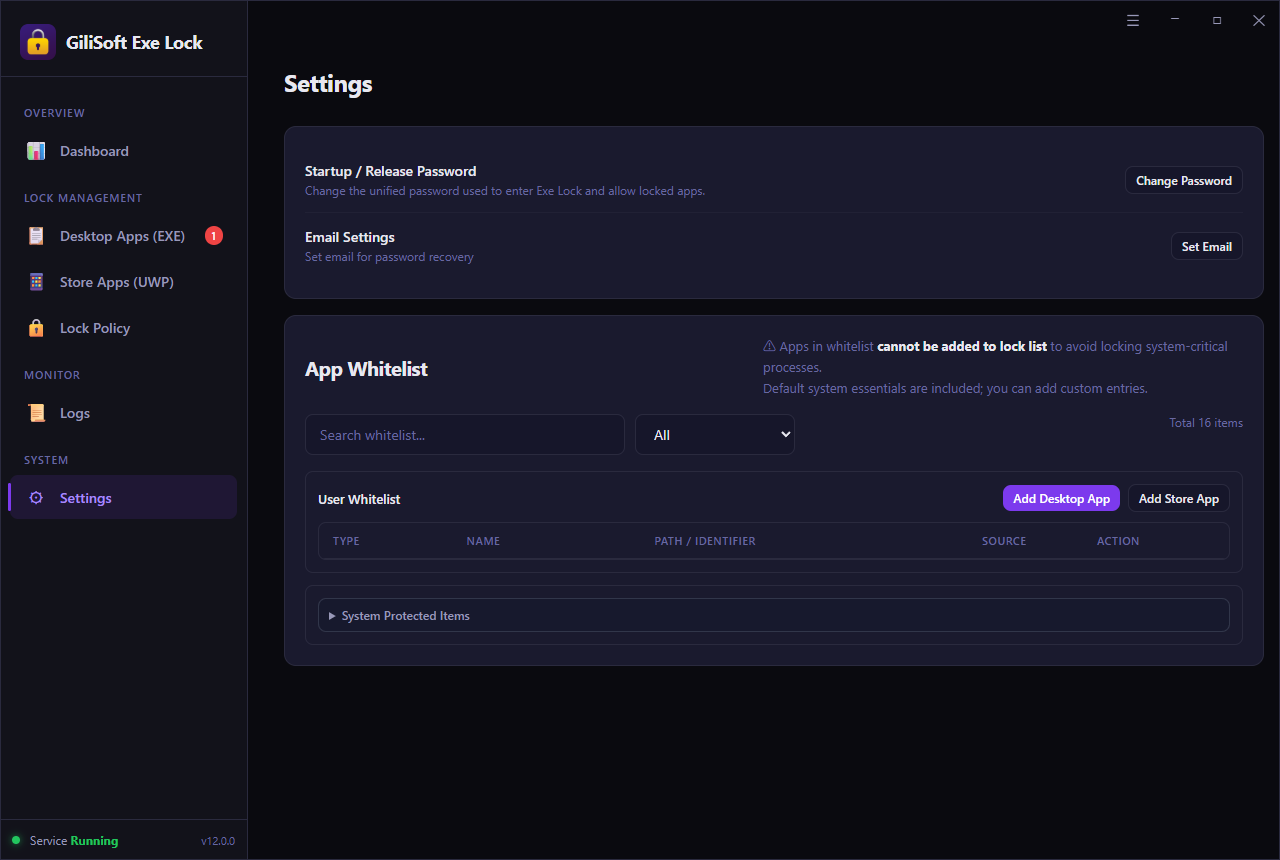
Open Settings, change the startup and release password, then add an email address for password recovery. Review the app whitelist before adding protected targets.
 Open full-size settings screenshot
Add a desktop EXE program
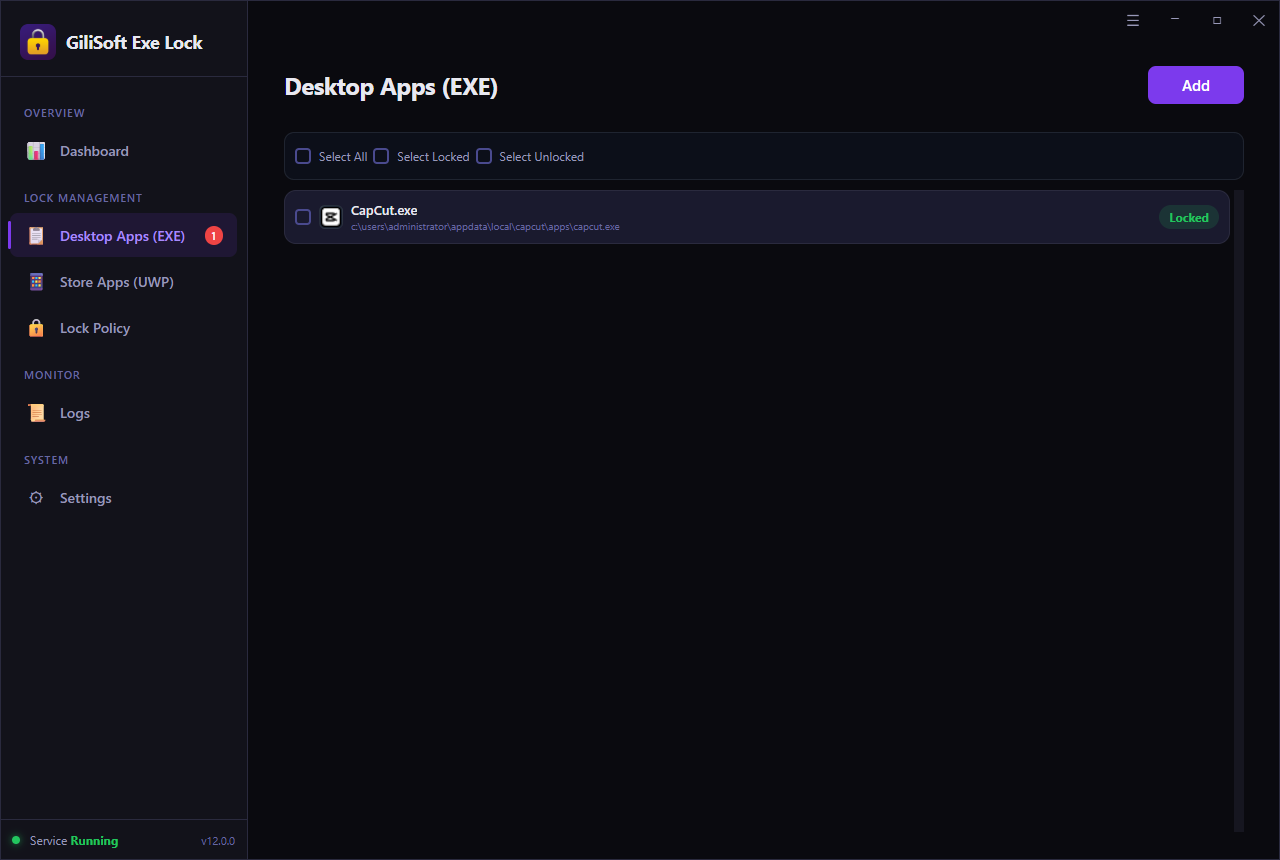
Open Desktop Apps (EXE), click Add, and select the executable or installed program you want to protect. Confirm that the displayed path belongs to the intended app.
 Open full-size desktop app screenshot
Add a supported Microsoft Store app
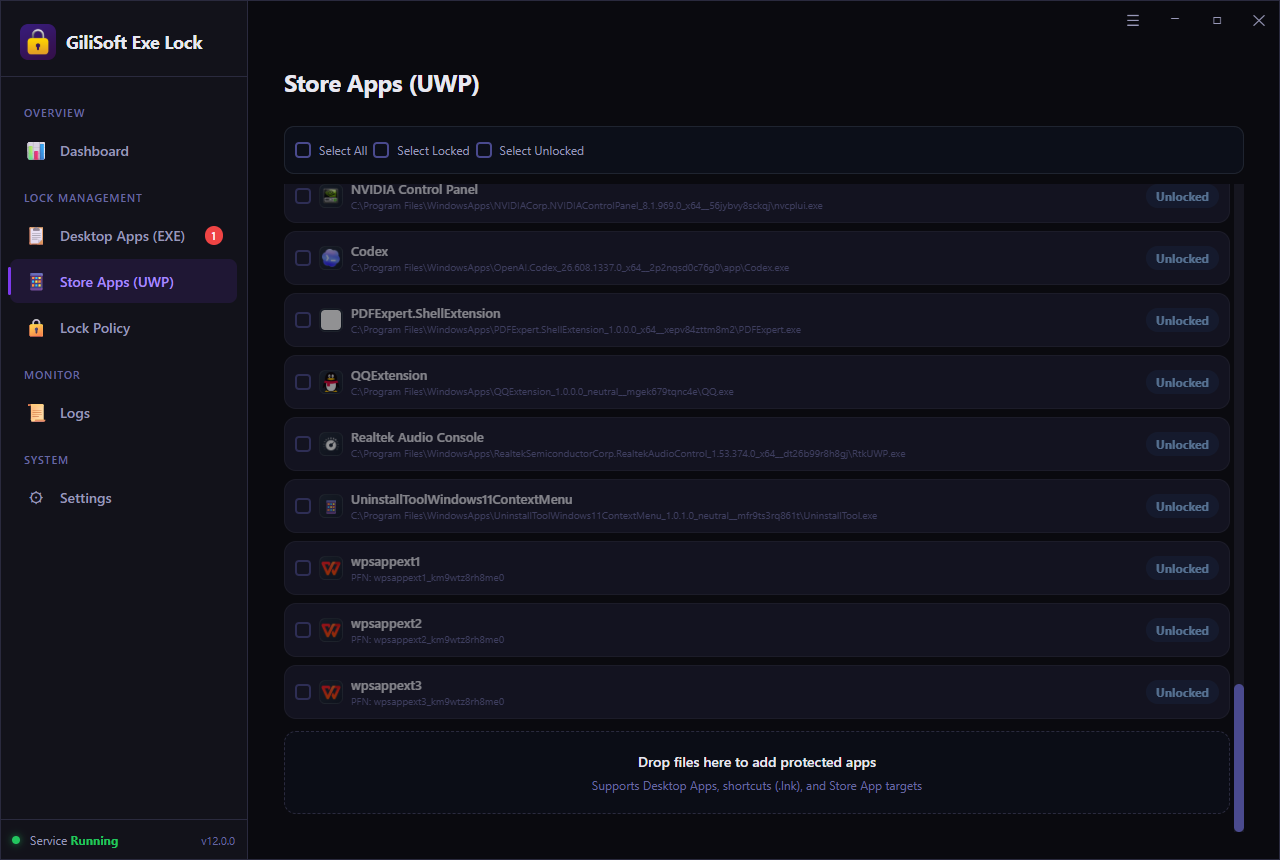
Use Store Apps (UWP) for packaged applications. Select the correct target from the detected list instead of trying to find a conventional EXE in the WindowsApps folder.
 Open full-size Store app screenshot
Choose Password Verification or Direct Block
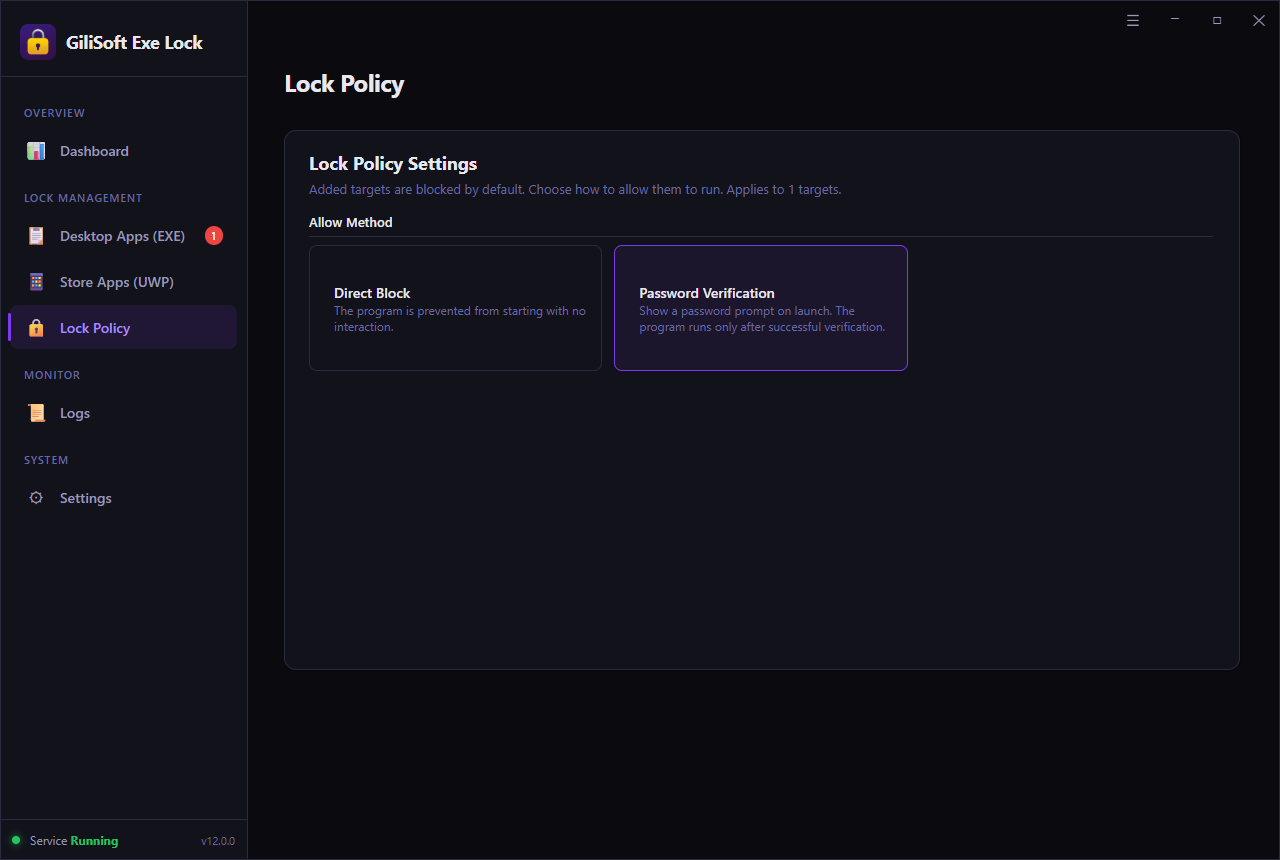
Password Verification lets an authorized person approve the launch. Direct Block prevents the selected program from starting without presenting an approval prompt.
 Open full-size lock policy screenshot
Test the rule and review blocked attempts
Launch the protected app from its normal shortcut. Return to the dashboard to confirm protection status, protected targets, and recent intercept records. Use Temporary Unlock when the owner needs a maintenance window.
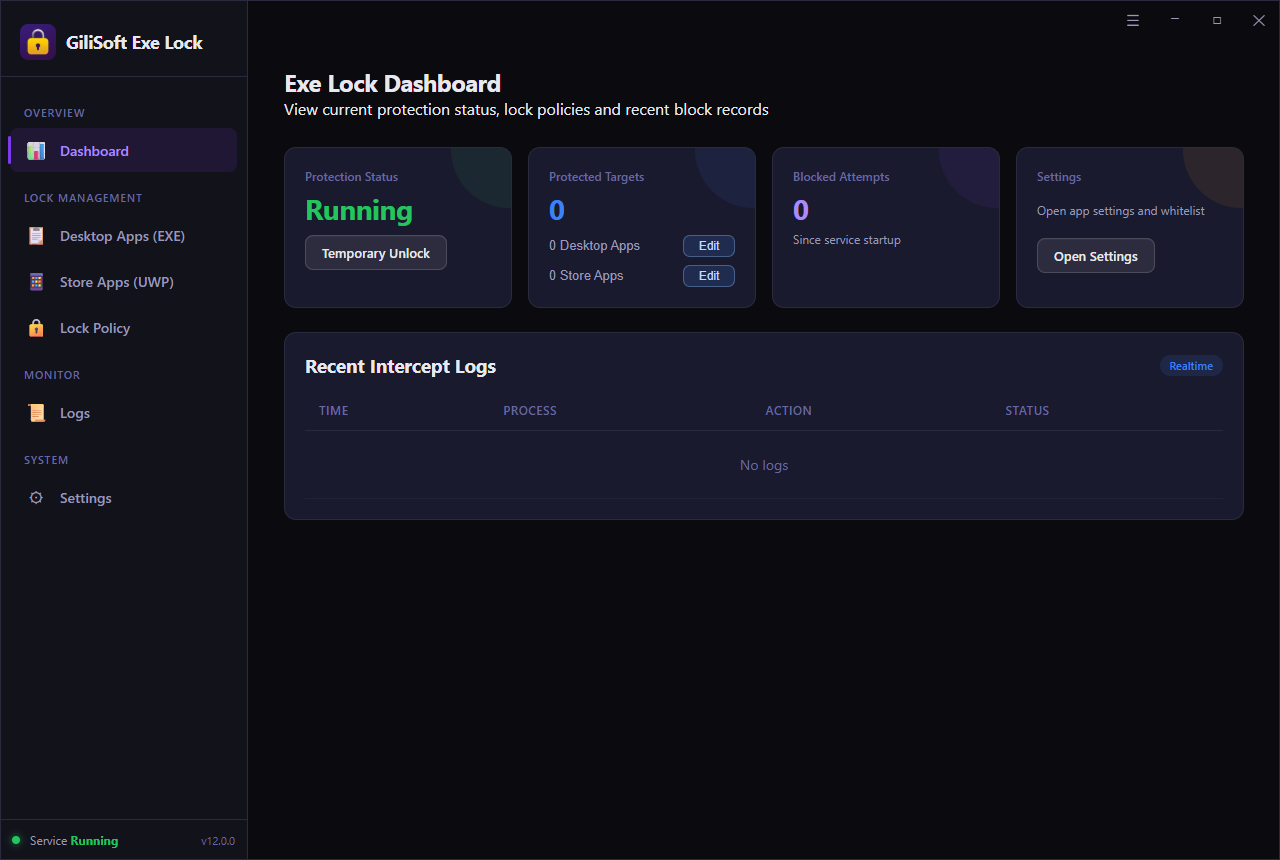 Open full-size dashboard screenshot
Choose the Right Launch Policy
Password Verification
Use this for games, browsers, chat tools, or private software that the owner may still need to open. The app starts only after the correct release password is entered.
Direct Block
Use this when a program should remain installed but must not run, such as an unwanted game, remote-access utility, or software that should be unavailable to the current user.
Apps Commonly Locked on a Home PC
Games and launchers
Stop selected games during homework, study, sleep, or family computer time without uninstalling them.
Browsers and chat apps
Protect saved accounts, private messages, browsing sessions, and communication tools on a shared computer.
Finance and password tools
Add another launch check before personal accounting, tax, password-management, or private business software opens.
Remote access and system utilities
Keep remote-control, maintenance, and sensitive configuration tools away from casual users.
When a Windows Feature May Be the Better Choice
Use AppLocker for formal rule administration
AppLocker is appropriate when an administrator needs publisher, path, hash, packaged-app, installer, script, or DLL rules managed through Windows policy tools.
Use Family Safety for schedules and time limits
Family Safety is a better match when the main requirement is child-account app blocking, screen-time schedules, and limits managed by a Microsoft family organizer.
Common App-Locking Mistakes
Confirm the actual executable or supported Store target, because shortcuts can point to a different launcher.
Use a separate release password so a person who knows the Windows sign-in cannot automatically approve every app.
Add the recovery email before protecting important programs, then keep access details in a safe place.
Review the whitelist and test one target at a time before applying rules to system or security software.
Microsoft References
AppLocker requirements · AppLocker overview · Block or unblock apps with Family Safety
Related Windows App Lock Guides
Windows 11 Home App Locker FAQ
Can Windows 11 Home run AppLocker policies?
Microsoft states that current Windows 11 editions can enforce AppLocker policies. Configuring and maintaining those policies remains an administration-oriented task using Windows policy tools.
Can I password protect only one app?
Yes. Add that desktop or supported Store app to EXE Lock and choose Password Verification as its launch policy.
Can I block a game without uninstalling it?
Yes. Direct Block stops the selected game or launcher from running while leaving its files installed.
Can I temporarily unlock protected apps?
Yes. Temporary Unlock gives the authorized owner a controlled way to suspend protection for maintenance or approved use.