
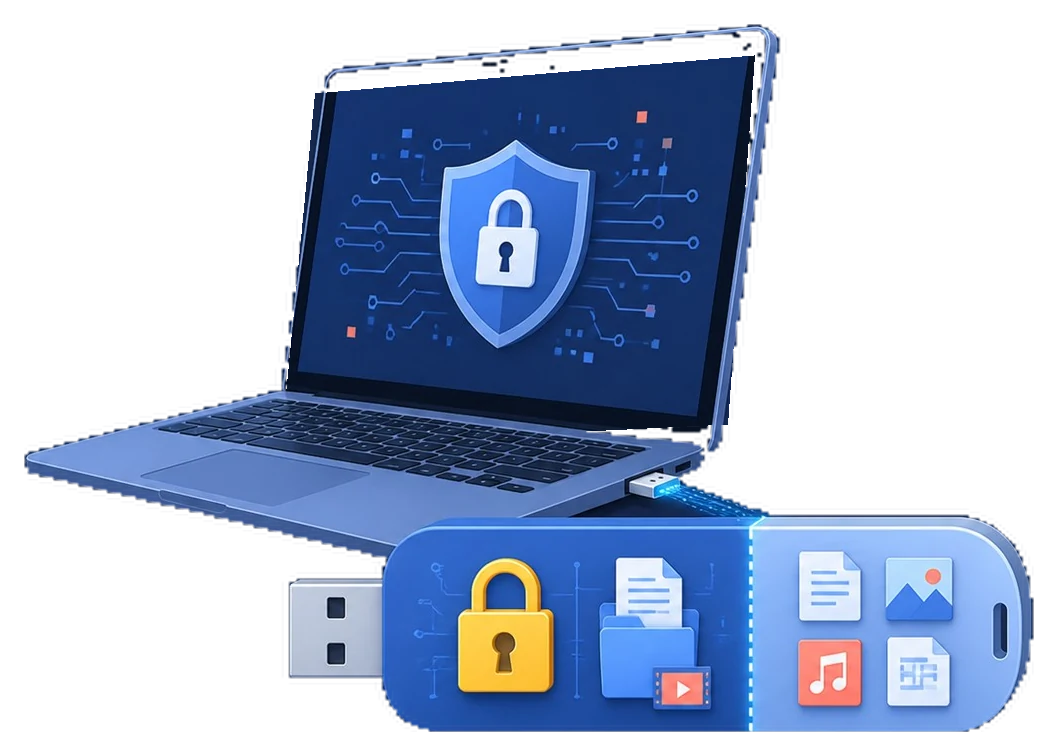
How to compare encrypted USB software
Start with the data, devices, and people involved. A clear boundary makes the security setting easier to test and maintain.
Step-by-step workflow
Define the transfer scenario
Decide whether the drive moves between managed PCs, shared PCs, or recipients with different Windows editions.
Compare whole-drive and file-level protection
Whole-drive encryption protects the device; file-level protection is selective for project handoffs.
Check password and recovery controls
Confirm where recovery information is stored, who owns it, and how a locked drive will be recovered.
Test the software on spare media
Encrypt a non-critical drive, safely eject it, reconnect it, and verify both access and recovery.
Choose the tool that fits the workflow
Use GiliSoft USB Stick Encryption when focused password protection for removable drives is the priority.
Make the policy easier to manage
Keep recovery separate
Store passwords, recovery keys, and backup information away from the protected device or image.
Test before rollout
Use a non-critical device and verify both the permitted path and the blocked path before applying the rule broadly.
Review exceptions
Give temporary approvals an owner and review date so old exceptions do not become permanent access.
Common problems to check
- Confirm the Windows edition and administrator permissions required by the selected control.
- Test the exact USB device, file system, or target PC instead of relying on a similar model.
- Keep an independent backup before encrypting, blocking, formatting, or creating an image.
- Do not store passwords or recovery keys beside the protected media.
Frequently Asked Questions
What makes USB encryption software useful?
The useful features are strong protection, a clear unlock workflow, recovery planning, portability, and predictable administration.
Is BitLocker always the best option?
Not always. It depends on Windows edition, device ownership, recovery requirements, and the PCs that must open the drive.
Can encryption protect a lost drive?
It can help protect data at rest when the password and recovery material are kept separate.
Should I test compatibility before deployment?
Yes. Test the exact drive and target PCs before using the workflow for important data.