Keep business files from leaving through unapproved USB devices. Control USB ports, allow trusted hardware, and manage transfer channels on your Windows PC.
Control USB ports and manage read/write permissions
Whitelist approved storage and USB network adapters
Control phone transfers and review device activity
Choose a task to control USB ports, allow trusted drives or network adapters, restrict other transfer channels, and review activity on Windows. Start with the first-policy walkthrough or jump directly to the setting you need.
Check reads, writes, network access, and required peripherals.
Set Up and Test Your First USB Policy
Use one PC and two test drives to check the complete workflow before applying more device restrictions. The controls below govern access on the configured Windows PC; they do not encrypt existing files or physically switch off USB power.
1Install USB Lock and prepare administrator access
Install GiliSoft USB Lock on the Windows PC with administrator permission. Set the management password, configure its recovery email, and record the starting settings. Close files open on removable storage and prepare an approved drive plus an unknown disposable test drive.
Open Control Center > USB & CD Lock. Select Disable Writing to USB Disk when files should remain readable but new writes must be blocked. Select Disable Reading USB Disk as well when unapproved storage must not be read or written. Leave unrelated device controls unchanged.
Use the independent block read and write or write-only restriction tutorial below. Keep the keyboard, mouse, and required management connection available while testing.
3Add the approved storage device
Under Trusted Devices White-list, select Add. In Select USB Drive, identify the intended drive, review its label and Permission, and confirm with OK. Review the actual device rather than treating a drive letter as permanent identity.
Reconnect the approved and unknown test drives. Open a sample file and attempt to save a new sample file on each, checking the configured default and whitelist permissions. Confirm required peripherals still work and verify that the administrator can restore the specific access rule.
Disable Writing to USB Disk; leave reading permitted.
Block reading and writing on unknown storage
Select both USB disk reading and writing restrictions.
Keep approved company drives usable
Add them to Trusted Devices White-list and review their permissions.
Block unapproved USB Wi-Fi or Ethernet
Use USB Ethernet Lock and its separate adapter whitelist.
Restrict phones, SD cards, or optical media
Use the corresponding options in USB & CD Lock.
Use storage rules for flash drives and external disks, the separate USB Ethernet page for USB network adapters, and the dedicated phone or media controls for those channels. A single storage checkbox does not cover every connected device.
USB Storage Rules and Trusted Devices
Block Reading and Writing on USB Storage
Open the storage control page
Sign in to USB Lock and open Control Center > USB & CD Lock. Review Trusted Devices White-list so approved-device exceptions are understood before testing a default block.
Enable both USB disk restrictions
Select Disable Reading USB Disk and Disable Writing to USB Disk. Leave Block Non-System Drives unchanged unless that broader storage scope is also intended. Follow any confirmation prompts in the installed version.
Reconnect and test an unapproved drive
Use a disposable drive not approved by the whitelist. Attempt to open a sample file and save a new sample file; both operations should follow the configured restriction. Test the approved drive separately rather than assuming every disk should be blocked.
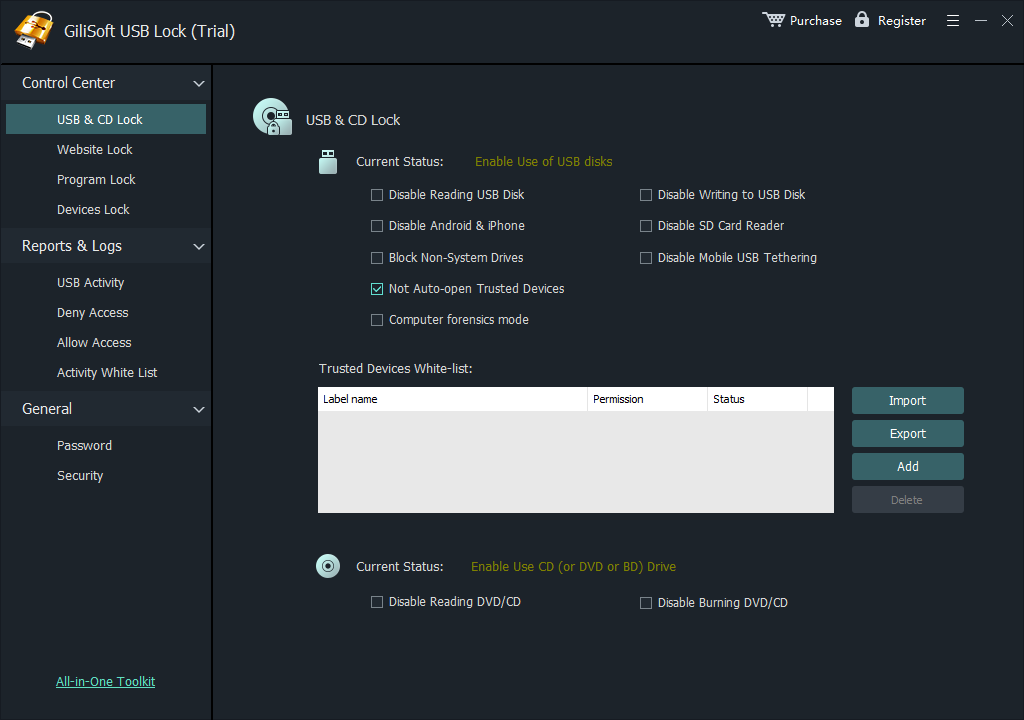
USB & CD Lock separates reading, writing, phone transfer, SD reader, tethering, and optical-media restrictions.
The pictured USB disk reading and writing restrictions are unchecked, so it illustrates where the controls are, not an active read/write block. See block USB storage devices for that focused scenario.
Allow USB Reading but Block Writing
Select the write-only restriction
Open Control Center > USB & CD Lock. Select Disable Writing to USB Disk and leave Disable Reading USB Disk unchecked.
Review storage exceptions and reconnect
Check the permissions of any relevant Trusted Devices White-list entries, then reconnect the test drive. Keep unrelated phone, optical-media, and network controls unchanged.
Test a read and a write separately
Open a sample file from the disposable test drive, then attempt to copy a new sample file from the PC to it. Reading should work while writing follows the restriction. A readable file is not evidence that a writing-only rule failed.
Connect the reviewed company drive. Open USB & CD Lock and select Add under Trusted Devices White-list.
Review the drive and permission
In Select USB Drive, choose the intended USB Drive, review Permission and Label name, then confirm with OK. The illustration shows a Read - Write entry; choose the permission offered by your installed version that matches the policy.
Compare the approved and unknown drives
Reconnect both devices and test actual file reading and writing against the same default rule. Review the stored entry after reconnecting; do not approve an unfamiliar drive merely because it has the same volume label.
Select the company drive and review its permission before adding it to Trusted Devices White-list.
Approved encrypted drives: register each reviewed company drive like other approved storage. Encryption does not automatically make an unknown USB device trusted. USB Lock device approval is separate from protection of the files on that drive.
Prepare the inspection PC without the source media
Keep the source USB disconnected, record the starting policy, and prepare a separate destination for copied files and reports. Use a disposable drive for the first test.
Enable and review the read-only configuration
Open USB & CD Lock and enable Computer forensics mode. Check that the intended USB reading is allowed and writing is blocked, including the effect of any trusted-device permissions.
Verify the restriction before attaching the source
Read and copy a sample file from the disposable test drive to the separate destination, then attempt a new test write to that drive. If writes remain possible, stop and correct the configuration before inspecting source media.
The mode is shown in the storage control screenshot. Follow the read-only inspection guide for recording the device, testing write restrictions, and keeping inspection outputs off the source drive. This local software policy is not a claim of universal hardware write-blocking or built-in forensic hashing.
Export and Import the Storage Whitelist
Review the list on the first PC
Add and test the approved drives under Trusted Devices White-list. Remove obsolete entries before preparing the list for reuse.
Export and import the storage list
Select Export in USB & CD Lock, retain the exported list securely, then use Import on the destination PC. Review the resulting device entries and permissions.
Configure the destination restrictions separately
Set that PC's read/write rules, phone and media restrictions, administrator security, and any USB Ethernet exceptions. A storage-list import is not a full-policy backup and does not establish a centralized management service.
Repeat the approved and unknown device tests
Test the actual devices with the account used on the destination PC. Verify reading, writing, and the administrator restore route before moving on to another computer.
Large deployment or special access rules? GiliSoft can assess licensing and enterprise customization. Send the endpoint count, Windows versions, approved device types, access rules, and rollout needs to GiliSoft Sales.
USB Network Adapters, Phones, and Other Media
Allow Only Approved USB Network Adapters
Open the dedicated USB network page
Open Control Center > USB Ethernet Lock on the installed version that provides it. Keep a working management connection available while preparing the first test.
Add the approved adapter before blocking
Connect the reviewed adapter and select Add under USB Ethernet Whitelist. In Select USB Ethernet, choose the intended adapter and confirm with OK.
Review its recorded identity and enable the rule
Check USB Ethernet Name and USB Ethernet ID in the list, then select Disable USB Ethernet. A storage whitelist entry does not also approve a network adapter.
Compare approved and unlisted adapters
Reconnect and test the approved USB Wi-Fi or Ethernet adapter, then an unlisted adapter. Check the actual network connection. Use Delete for obsolete entries; use Clear only when removing the entire adapter list is intended.
USB Ethernet Lock uses its own Disable USB Ethernet option and list of approved adapter identities.Choose the connected approved USB network adapter, then confirm it with OK.
The policy illustration leaves Disable USB Ethernet unchecked; select it when enabling the restriction. See USB network-adapter whitelisting for the focused workflow.
Block Android and iPhone Data Transfer
Open the phone data control
Sign in and open Control Center > USB & CD Lock. Locate Disable Android & iPhone, shown in the storage and media screenshot.
Enable the phone restriction
Select Disable Android & iPhone and reconnect the phone. Keep the separate Disable Mobile USB Tethering choice aligned with the network policy rather than treating it as the same control.
Test file transfer and charging independently
Attempt the normal phone file-transfer or sync workflow on this PC and separately observe charging. Data access controls are not a physical USB power switch; charging may continue while transfers are restricted.
Block Mobile USB Tethering
Locate the USB hotspot control
Open Control Center > USB & CD Lock and find Disable Mobile USB Tethering. Prepare an alternate management connection for the test.
Enable the restriction and reconnect the phone
Select Disable Mobile USB Tethering, reconnect the phone, and attempt its usual USB tethering workflow. This is separate from phone file transfer.
Check the actual network path
Verify that the phone's USB connection cannot supply the restricted network access. Do not mistake another active Wi-Fi or Ethernet connection for successful USB tethering. Reverse only this setting when that connection is approved again.
Open Control Center > USB & CD Lock and review Disable SD Card Reader. Close files open on the card before changing access.
Enable the restriction for the intended PC
Select Disable SD Card Reader. Keep USB disk and other media options unchanged unless those channels also need restriction.
Reconnect the reader and test the card
Use a disposable test card and the actual reader or slot used at work. Check whether files can be opened or transferred under the rule. To restore reader access, clear this specific restriction and retest.
Open Control Center > USB & CD Lock and locate the optical-drive options near the bottom. Decide whether the PC should stop reading discs, burning discs, or both.
Enable the matching restriction
Select Disable Reading DVD/CD to restrict reading, Disable Burning DVD/CD to restrict writing, or both when both operations must stop. A burning-only rule need not disable reading.
Test the real drive and application
Use noncritical test media and the actual optical drive and burning software. Verify reading and burning separately; do not infer a successful write restriction merely because a disc is absent or the drive is unavailable.
Go to Control Center > Devices Lock. Review the available printer, modem, COM & LPT, infrared, Bluetooth, and 1394 categories for this workstation.
Choose only the needed device category
Enable the relevant Disable option, such as Disable Printer or Disable COM & LPT. A category marked Device not found is not evidence of an active, tested block.
Test the affected work and required peripherals
Attempt the intended operation with the actual device, then confirm required input devices and management access still work. Clear the specific category restriction when reversing it. Phone and optical-media controls remain on USB & CD Lock.
Devices Lock manages additional peripheral categories; phone and optical-media controls are on USB & CD Lock.
Administrator Access, Password Recovery, and Activity
Install USB Lock and Change Its Password
Install and open the program
Use the official USB Lock download and complete installation with administrator permission. Set the management password requested by the program and retain it with the person responsible for policy changes.
Use General > Password for a password change
Open General > Password. Enter New password and Confirm password, then select Change Password. Meet the minimum length shown by the installed version; review Notify to email as appropriate.
Check management and recovery access
Verify sign-in using the new password through the normal program workflow, and complete the recovery email task. Record the starting settings before applying broad device restrictions.
General > Password provides the password and email settings used for administrator access and recovery.
Set or Update the Recovery Email
Open the password and email page
Sign in as the administrator and open General > Password. Locate the separate Change Email section below the password-change controls.
Update the managed address
Review Old Email address, enter the intended New Email address, and select Change Email. Follow any confirmation requirements in the installed program and keep access to that mailbox.
Verify and record the recovery route
Review the saved address and retain the recovery instructions with the management record. Do not assume the address is configured because a password-change notification checkbox is selected.
Check which USB Lock installation is involved and use the recovery email previously configured for it. Ask the responsible administrator first if a device is managed by your organization.
Use the configured recovery route
Follow the program's password-recovery workflow associated with that email. If the mailbox or recovery route is unavailable, contact GiliSoft Support with the version, PC, and recovery problem rather than deleting protection files.
Restore and verify management access
After recovery, update the management password and recovery email through General > Password, then sign in normally. Review the relevant device policy before changing or restoring device access.
The Password screenshot shows the settings page, not a separate recovery-dialog sequence. Recovery depends on the configured route; it is not a guarantee that every forgotten password can be reset.
Configure Password Security Options
Open General > Security
Review the failed-password handling choices and the separate USB disk password-dialog option. The illustrated screen describes alarms after more than five wrong entries and a ten-minute temporary login ban.
Choose the failed-password protections
Enable the email alarm and temporary login-ban options that match the policy. Confirm the configured management email and retain a working recovery route; do not confuse these failed-password alarms with notifications for every device connection.
Choose and check the USB password prompt
Review Auto pop-up the check password dialog box whenever you plug-in USB disk. Reconnect a test drive and check the chosen prompt behavior with the known management password. Avoid deliberately locking out the production administrator just to test the ban.
Security groups failed-password email alarms, a temporary login ban, and the USB password-dialog option.
Open Reports & Logs > USB Activity and enable Monitor USB when usage history is required. Review Advanced Settings for the monitoring choices available in your version.
Reproduce a small, identifiable test
Reconnect a disposable test drive and perform the read or write operation covered by the policy. Record the test time and device so the relevant history can be identified.
Refresh the correct report
Use Refresh for USB Activity. When investigating permitted or blocked access, open the separate Allow Access or Deny Access entry under Reports & Logs.
Retain the available records
Use Export when enabled for the records you need, and keep the version, device, time, and observed access result with them. An empty log alone does not prove a device was blocked.
USB Activity shows usage history. Deny Access and Allow Access are separate entries under Reports & Logs.
Activity White List is not the storage approval list. Approve drives under Trusted Devices White-list in USB & CD Lock, and compare the records with actual device behavior.
Additional Controls and Policy Maintenance
Restrict Websites
Open the website list
Go to Control Center > Website Lock. Use Add under Restricting Access to specific Web sites and enter the intended site through the displayed dialog.
Review and maintain the entries
Check the list and test the intended website with the browser used on the PC. Use Delete for a selected unwanted entry, Clear only to remove the whole list, and Import or Export when reusing the site list.
Keep broader network controls separate
Review Restricting changing IP address and Disable Network Adapter independently. Leave them unchanged when the goal is only to restrict selected sites or unapproved USB adapters, especially when support depends on the connection.
Website Lock contains the website list plus separate IP-change and network-adapter restrictions.
Restrict Programs
Open Program Lock
Go to Control Center > Program Lock and locate Restricting running specific programs.
Add and test the intended application
Select Add, register the program through the displayed dialog, and attempt its ordinary launch route. Use Delete for a selected entry or Import and Export to maintain that list.
The page also provides Disable Registry Editor, Disable Task Manger, and Disable Remote Desktop Connection. Do not enable these merely to restrict one ordinary application if they are needed to maintain the PC.
Program Lock has a specific-program list plus separate Registry Editor, Task Manager, and Remote Desktop restrictions.
Restore Access or Remove an Exception
Identify the source of the restriction
Sign in as the administrator and find the relevant storage, USB Ethernet, phone, optical-media, website, or program setting. Check the matching whitelist rather than clearing unrelated protections.
Reverse only the intended rule or entry
Clear the specific restriction when the category should work again, or add a reviewed device exception when only that device needs access. Remove a no-longer-needed exception from the matching list when returning it to the default rule.
Reconnect and test the required behavior
Repeat reading, writing, or network tests as appropriate and confirm other restrictions remain in place. If access is still denied, check separate Windows or endpoint policies instead of deleting USB Lock protection files.
For an administrator-issued temporary password tied to one device, see enterprise temporary USB access. That workflow requires enterprise customization; changing a standard whitelist entry is not automatically a timed authorization.
Verify Approved and Unknown Devices
Test unknown storage against the default rule
Reconnect an unapproved disposable drive and attempt to open a sample file and save a new sample file. Compare the result with the chosen reading and writing options.
Test approved drives and USB adapters
Check both operations on the reviewed storage device, including after reconnection and restart. For network rules, compare the approved adapter and an unlisted adapter using the actual network connection.
Check each additional channel and required peripheral
Test phone data, tethering, card readers, and optical-media operations independently when restricted. Confirm the keyboard, mouse, required dock, and management connection still support normal work.
Verify the administrator restore route and records
Sign in and confirm that the specific restriction can be reversed. Review the relevant USB Activity or access record and retain the device, time, settings, and results before applying the policy elsewhere.
Test
Expected result
Unknown storage
Reading or writing fails according to the selected default rule.
Write-only restriction
A sample file opens from USB, but copying a new file to USB fails.
Approved company drive
The reviewed whitelist permission works after reconnection and restart.
Approved and unknown USB adapters
The approved adapter works; the unlisted one cannot provide the restricted connection.
Phone, SD card, or optical media
Each configured channel follows its own rule; test it independently.
Keyboard, mouse, and required dock
Ordinary input and required work remain available.
Recovery route
The administrator can sign in and reverse the specific restriction.
USB Lock Troubleshooting
What you see
What to check
An approved drive is still blocked
Review the selected drive, storage permission, and default read/write rule. Reconnect it and check for a separate Windows or endpoint block.
A file still opens from USB
A writing-only restriction intentionally permits reading. Review Disable Reading USB Disk if reading must also stop.
A phone charges but files do not transfer
Check Disable Android & iPhone. Charging and data access are different behaviors; do not assume the policy failed because charging continues.
A storage-approved USB adapter is blocked
Register the adapter in USB Ethernet Whitelist. The storage list is not the adapter list.
An imported list gives an unexpected result
Compare the device identity and permission, then check the destination PC's own restrictions. The imported storage list is not a full-policy backup.
USB Activity is empty
Confirm monitoring is enabled, repeat the test, and refresh. Check Deny Access or Allow Access when investigating an access result.
The administrator password is unavailable
Use the configured email recovery route or contact Support. Do not delete protection files as a recovery shortcut.
Frequently Asked Questions
Can I block copying files to USB without blocking reading?
Yes. In USB & CD Lock, select Disable Writing to USB Disk and leave USB reading permitted. Test with a sample file: it should open from the drive, while saving a new file to that drive should fail.
Can approved company USB drives remain usable?
Yes. Use Add under Trusted Devices White-list, select the approved drive, review Permission, and confirm with OK. Test both the approved drive and an unknown one. Also check for Windows or other endpoint policies that may separately deny access.
Can USB Lock block USB Wi-Fi and Ethernet adapters but allow approved ones?
Yes. Use USB Ethernet Lock and its separate USB Ethernet Whitelist. Add the connected approved adapter first, then select Disable USB Ethernet. A storage whitelist entry does not also approve a network adapter.
Can I export and import the USB storage whitelist?
Yes. Export the reviewed storage list from USB & CD Lock and import it on the next PC. This transfers the trusted-device list, not every USB Lock setting. Configure and verify the destination PC's restrictions separately.
Can USB Lock control phone transfers without turning off the USB port?
USB & CD Lock has separate Disable Android & iPhone and Disable Mobile USB Tethering options. They address phone data and tethering, not a physical power switch. Check file transfer, hotspot use, and charging on the actual phone after changing the rule.
Can I review blocked USB attempts?
Yes. Open Reports & Logs and review Deny Access or Allow Access as appropriate. USB Activity provides a separate usage history. Enable the required monitoring, reproduce the test, and refresh the relevant view; an empty log alone does not prove the device is blocked.
Can CD/DVD reading and burning be controlled separately?
Yes. USB & CD Lock includes Disable Reading DVD/CD and Disable Burning DVD/CD. Choose the restriction needed for the PC and test reading or burning with the actual drive and application.
How do I restore USB access or recover the administrator password?
Sign in to USB Lock and reverse the specific restriction, or add a reviewed device exception when only that device needs access. Reconnect and test again. For a forgotten password, use the recovery route associated with the configured email, or contact GiliSoft Support if recovery is unavailable.
Can users request a temporary password for one USB device?
Device-specific temporary-password authorization is available through GiliSoft USB Lock enterprise customization, not as a standard-edition workflow described here. In that deployment, the user requests a temporary password from the administrator for the identified device. Confirm access duration and how it ends during project scoping.
Does a USB Lock rule encrypt files on the drive?
No. USB Lock controls device access on the configured Windows PC. It does not turn existing files into encrypted files or automatically protect them on another computer. For password-protected files on a USB drive, use an encryption workflow.
USB Lock Help by Topic
This is the full product setup guide. Use the focused articles below for a particular device, Windows scenario, or deployment task.
Control USB ports, register trusted drives and network adapters, and review device activity with GiliSoft USB Lock. Start with one PC and a verified device test.